


What’s the news?
Oracle Guided Learning (OGL) Release 26A introduces expanded Generative AI capabilities by bringing the OGL AI Assistant into the Full Editor. Content developers can now use AI to generate and rephrase step text across more guide types including Process Guides, Smart Tips, Beacons, and Messages making content creation faster, smarter, and more efficient. This enhancement aligns with our ongoing goal to seamlessly integrate AI across the Oracle Guided Learning experience and deliver greater value to customers.
Why does it matter?
This enhancement matters because it brings AI support directly to where content developers work, reducing friction and improving productivity. By enabling AI assisted text generation and rephrasing across more guide types, teams can create high quality content faster and with greater consistency. It also strengthens Oracle Guided Learning overall AI integration strategy helping deliver smarter guidance, improved customer experiences, and a more efficient content development workflow.
How will our customers benefit? Customers will benefit from faster, more consistent, and higher quality guidance experiences. With AI helping content developers craft clearer steps and messages, the resulting guides become easier to follow and more effective for end users. This leads to quicker task completion, fewer errors, and a smoother overall experience. Additionally, as AI becomes more integrated across Oracle Guided Learning, customers will see continuous improvements
Potential Use Cases for how this may be used?
Use case: A content developer is building a Process Guide for a monthly payroll workflow, where accuracy is critical. To avoid user errors, they use the OGL AI Assistant in the Full Editor to instantly produce clear and concise step text instead of writing it manually. When an existing step is too complex or overly technical, they use AI to rephrase it into simpler, easy-to-understand language for global and non-native English users.

User flow:
From the OGL console, create a new Process guide, Message, Smart Tip, or Beacon, or open existing content in the Full Editor.
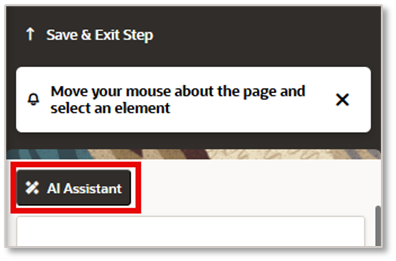
Select the AI Assistant button located at the top of the Full Editor.
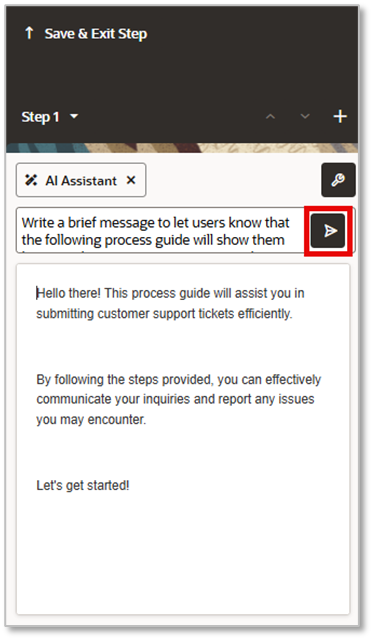
In the AI Assistant text box, enter a prompt to ask it to generate the text you wish to add to the Step/Tip. For example, “Write a brief message informing users that the following guide will show them how to create a customer support ticket.” Then press the Send button (or press Enter)
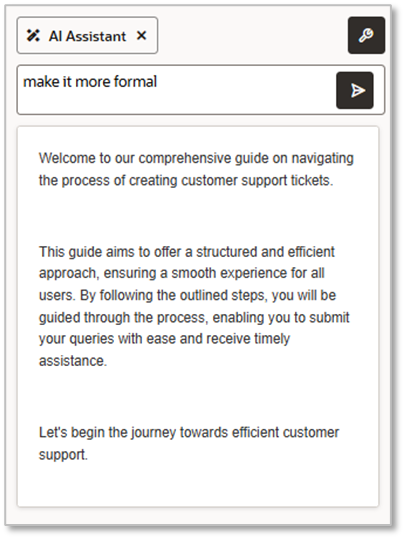
If you wish to change the recommended text, you can add more prompts within the same session, such as “Make it more formal” or “Make it casual”.
Things to consider when using the AI Assistant:
- The Assistant response will automatically be added to the step text area:
- If the text area is empty, the response is inserted.
- If the text area already contains text, the existing text is replaced with the assistant response.
- When content already exists, you can refine it by entering a prompt (e.g., “Rephrase it more professionally”). The system should process the existing step content and return an improved version accordingly.
- Each time a prompt is submitted, the response is generated and displayed in the step text area.
- You can press ‘Ctrl + Z’ to undo changes and restore the previous text.
- You may also make additional edits directly within the editor.
- Once editing is complete, users can click Save & Exit to finish updating the guide.
Commentary on future direction?
In the future, we plan to broaden AI capabilities so content developers can use the assistant for more tasks beyond writing and rephrasing text. This includes helping identify unclear steps, suggesting improvements automatically, and supporting more guide types, enabling teams to create different guide types with help of the Assistant The focus is on making everyday content updates faster and reducing the amount of manual effort required, so teams can keep guidance accurate and up to date with less work.
More Information
Oracle Guided Learning’s Website
View a Demo of OGL’s AI Assist on Customer Connect
Read our blog on the AI Assistant in our OGL Console
Read our blog on AI Assistant for Messages
Read our blog on Automated Machine Translation