
Whether you’re building product tours, onboarding guides, or Tooltips using Oracle Guided Learning or any Digital Adoption Platform, understanding selectors is the key to creating resilient, effective guides. This blog and our resources will articulate how you can understand selectors to create the impactful guides you want.


What is a CSS Selector and what is its relationship to Digital Adoption Platforms?
A CSS selector is a pattern used to select and identify HTML elements within a page. Think of a page you visit on the internet – every button, icon, header, image etc. is represented by an element. Selectors are simply the intelligent process in which one identifies an element.
Selectors range from simple (like `button` or `.login-btn`) to highly specific (like `#main-content > ul > li.active`).
- Simple selectors:** target all elements of a type, class, or ID.
- Attribute selectors:** target elements with certain attribute values (e.g., `[data-test=”submit”]`).
- Hierarchical selectors:** target elements based on parent-child relationships.
Digital Adoption Platforms act as an overlay on-top of a web application and in most cases, rely on being able to read the Document Object Model (DOM), allowing the content developer to anchor a guide to any position on the page. In essence, every step of a digital guide needs to “anchor” itself to a specific UI element.
Simplifying and Automating Selector Identification
Many Digital Adoption Platforms including Oracle Guided Learning build sophisticated automation and logic to identify the best selector for that guide. Oracle Guided Learning combines a “Visual Point-and-Click interface” (allowing the user to choose the position on the page they want to target) as well as an Automatic Selector Generator (an algorithm for suggesting the best selector based on either ID, class, text, title etc. attributes) to validate the output of the selector the user has chosen. For the vast majority of developers, anchoring a guide to a point on the page is simple and works to its desired intention.
To help find selectors efficiently, Oracle Guided Learning produces an “OGL Selector” which optimizes the basic CSS selector available for the desired element the developer wants to find. The output is displayed in the OGL Flow Editor backed by our proprietary algorithm. As reinforced above, these OGL Selectors in most cases should find the best selector, ensuring your guides be as optimized as possible.
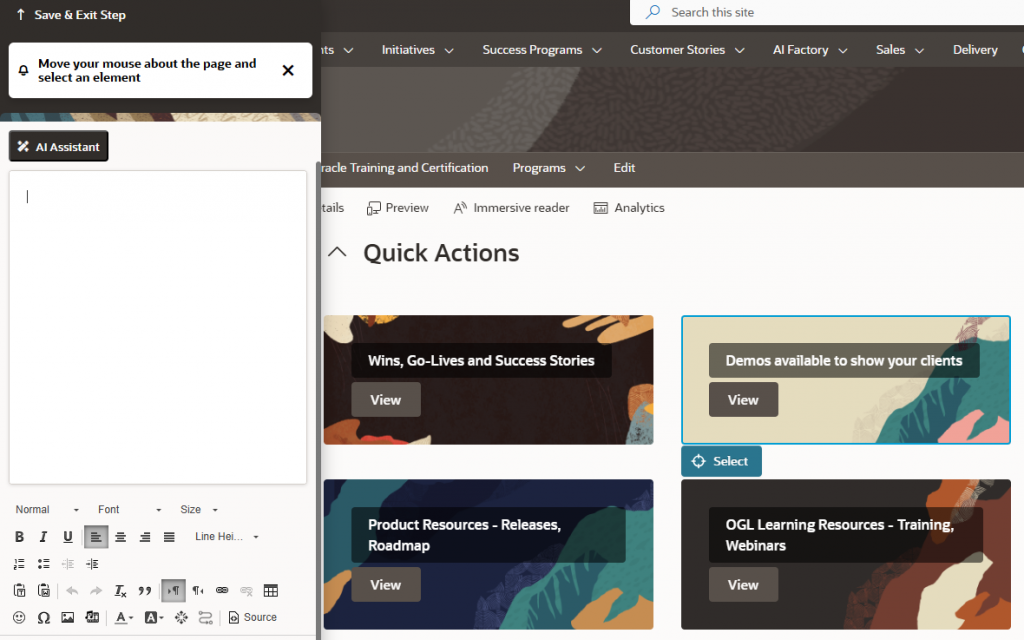
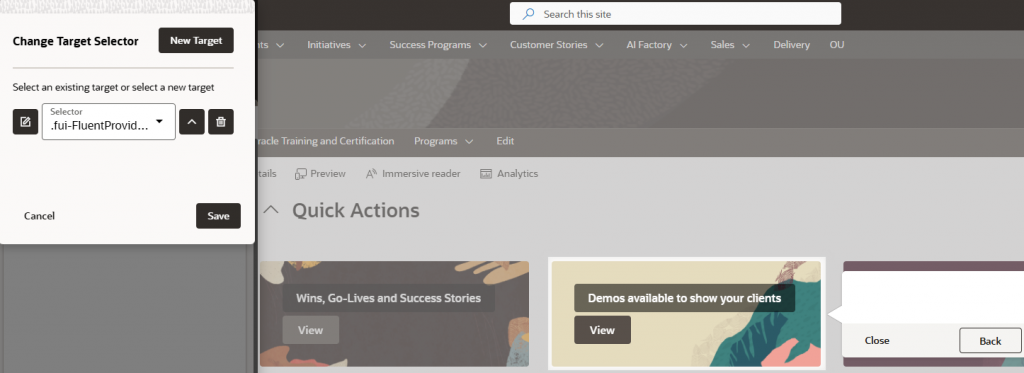
However, there are instances where the interaction between a Digital Adoption Platform and its corresponding web-application causes selector breaks. There are also cases where the chosen selector from the user doesn’t actually reflect the best selector for the experience you’re looking to deploy.
Why do Guides break based on Incorrect selectors?
Common cases when a guide breaks due to an incorrect selector include:
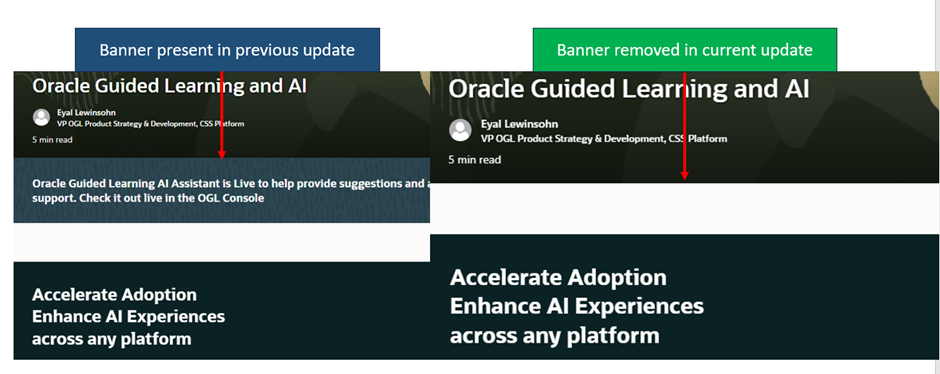
- UI Refactoring – Elements move, classes are renamed and/or entire components are re-written. This may occur when the vendor or developer managing your application, makes whole-scaled changes to the construct of the page.
A common example of this is when your software vendor removes a web section from the configuration of the host application where your original guide was pointing.
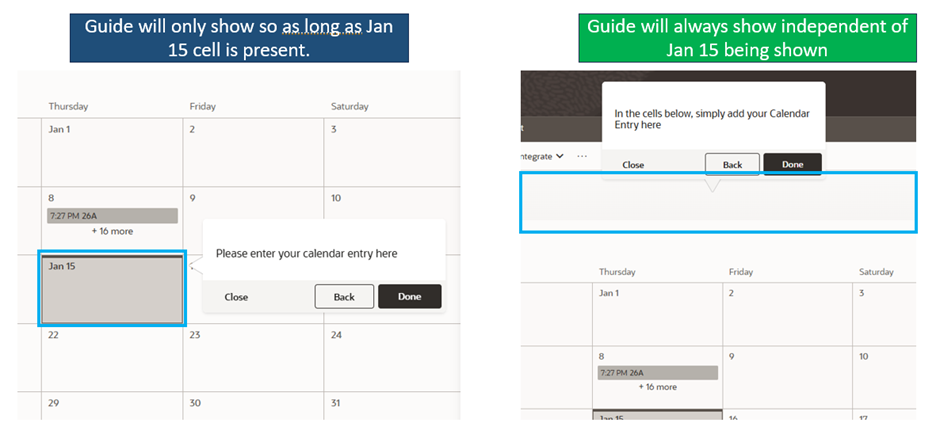
- Dynamic Web Attributes – When a page has ever changing attributes and IDs (such as changing structure/content based on the users input, data logic or application logic) this may impact the presence of the original selector you have identified and chosen. (I.e. it may not appear due to the logic of the page)
A common example of this when guides are anchored to a calendar… where the date of that particular item disappears when the application automatically wants to show the dates of the current day/week/month.
- Selector Specificity – In some cases, the selector chosen may be too generic or too specific for its intended purpose. This may be the user choosing a child/descendent element when they could’ve targeted the parent – for example choosing the text within a button instead of the entire button – AND/OR choosing a selector that matches multiple elements (like a .ButtonCard:contains (“Submit”) which could correspond to every button that has “Submit”
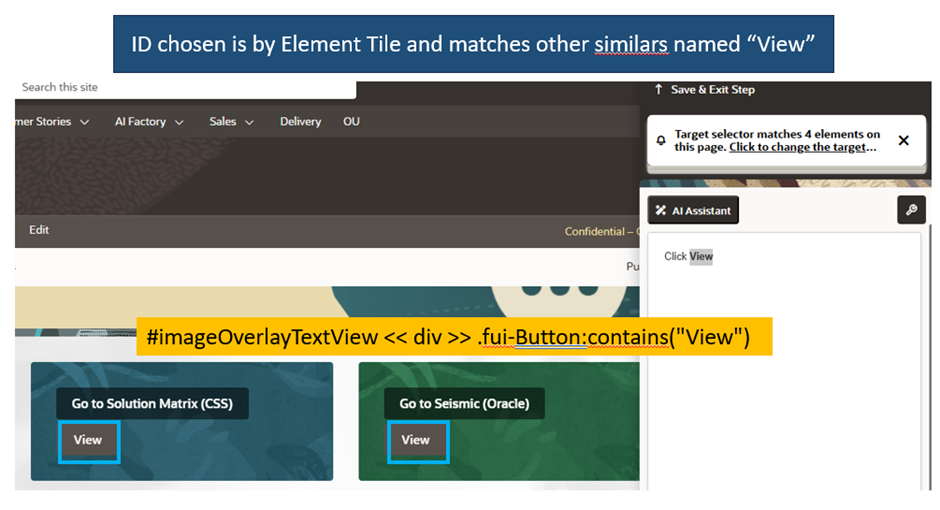
Choosing the best selector based on examples
In most cases, your DAP will select the best selector and you will be able to proceed with your day as best as possible. In the event you need to troubleshoot this, you may follow these simple steps.
- Go through your process end to end, path by path – Get to know your application – are there dynamic elements present? Take note of all the changing elements and those that remain static. Depending on the application structure and your desired user experience you may want to apply your guide selectors to those positions on a page.
- Is the selector too specific – i.e. a “Descendent” Selector? – For guides that ask the user to progress to the next step or need to appear based on element selection, check the position of your selector and select the appropriate child selector (i.e. the level up), that will cover the space a user will usually click to avoid the DAP missing the trigger.
In this case, simply use the Selector Point and Click Interface, make sure you click and cover the entire element and verify this in the Selector Editor by going through the options provided in the output field.
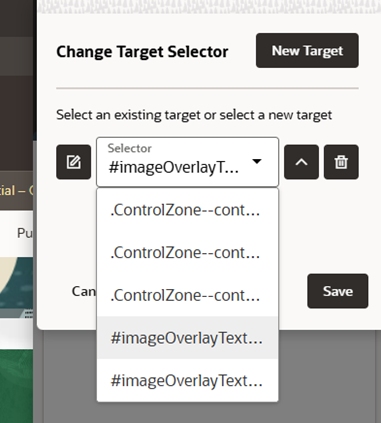
3. Is the selector not unique enough – In most cases guides are built to target the specific page or process or field you’re looking to anchor guidance too. Choosing a selector that matches a variety of common attributes may confuse the DAP into anchoring guides onto multiple places OR not even showing the guide at all (due to incorrect logic from activation conditions in relation to the guide selector).
In this case, If the page of the application is also available only in one common language (lets say English), you can use the selectors provided by Element Text or Element Tile.
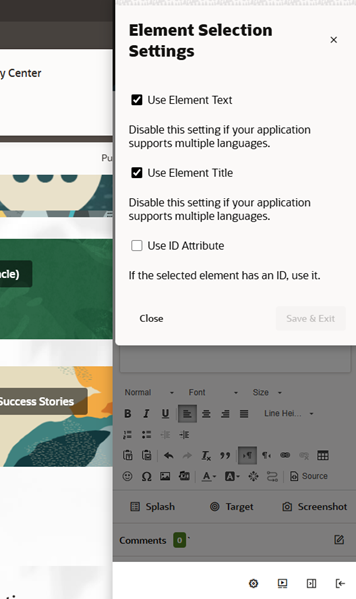
| Selector Type | CSS? | Example Syntax | Use Case |
| By text content | No | //button[text()=’Submit’] | Find by visible text |
| By title attribute | Yes | button[title=’Save’] | Tooltip/title matching |
| By custom attribute | Yes | button[data-step=’next’] | Stable targeting |
In some cases, you’re also able to use DevTools to find the specific selector. Simply Right Click your mouse, click on Inspect, Find the element selector tool (or press CTRL + SHIFT + C), highlight the part of the page you want to find and rightclick in DevTools “COPY” and COPY SELECTOR. You could copy and paste this into your selector tool and also compare that outcome with the pre-conditioned selectors.
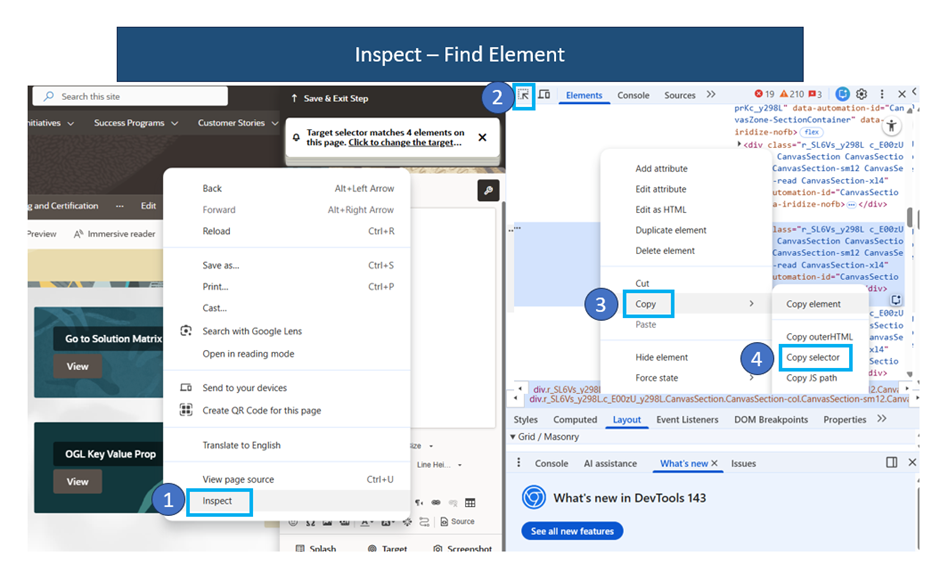
As mentioned at the start, the Digital Adoption Platform’s automated selector generator will always try and find the best suited selector for your guide, so amending selectors are an exception to normal deployment. However, we hope you found these simple tips helpful.
More Resources