

What’s the News?
With the Oracle Guided Learning 26A release, we’ve introduced the Notification Center in Oracle Guided Learning – a new player-side UI component that displays multiple autoload content items within a single, unified interface.
Instead of overlapping guides competing for your users attention, supported content is presented in succession, creating a seamless and focused experience every time users log in.
What Content Is Included?
The Notification Center supports any guides that are related to:
- Messages
- Surveys
- Process Guides
What Is Excluded?
The following content types are intentionally excluded from its logic:
- Smart Tips
- Beacons
- Hotspots
- Launchers
- Task Lists
- Links
This ensures structured, announcement-style content is orchestrated while contextual micro-guidance remains independent.
Why Does It Matter?
The Core Problem
A content developer may create multiple messages related to application, process changes they want to initiate. Usually these are created for defined period. Challenges occurs when multiple messages need to be created and communicated at overlapping intervals. In addition our system users don’t necessarily log in at the same time as each other – potentially causing multiple messages to be shown to that user at the same time, based on the guide activation setting you have assigned for that particular guide.
Putting it simply, when multiple guides are configured with autoload on the same page, they:
- Overlap visually
- Compete for attention
- Create a confusing and frustrating experience
For example: let’s consider a situation where a Content Developer is looking to launch a new survey targetted to new employees and also a scheduled downtime message targetted to all employees.
When a new employee logs in both these guides will appear –
- Both autoload
- Both overlap
- The user experience breaks
Instead of clarity, the user encounters clutter.
The Governance Challenge
The issue extends beyond UX. Today content developers cannot easily detect:
- Whether multiple guides share the same activation condition
- Whether another developer has configured autoload on the same page
In managed customer environments with multiple content developers working in parallel, overlapping configurations can happen unintentionally.
The Notification Center acts as an orchestration layer, reducing the impact of these collisions.
How Will Our Customers Benefit?
The Notification Center introduces structured sequencing when multiple supported autoload items exist.
Benefits include:
- Clean, predictable UI experience
- Elimination of overlapping guides
- Reduced cognitive overload
- Better engagement with surveys and announcements
- Safer parallel content publishing across teams
This is especially valuable during:
- Quarterly release rollouts
- Onboarding campaigns
- Hypercare periods
- Enterprise-wide announcements
User Flow
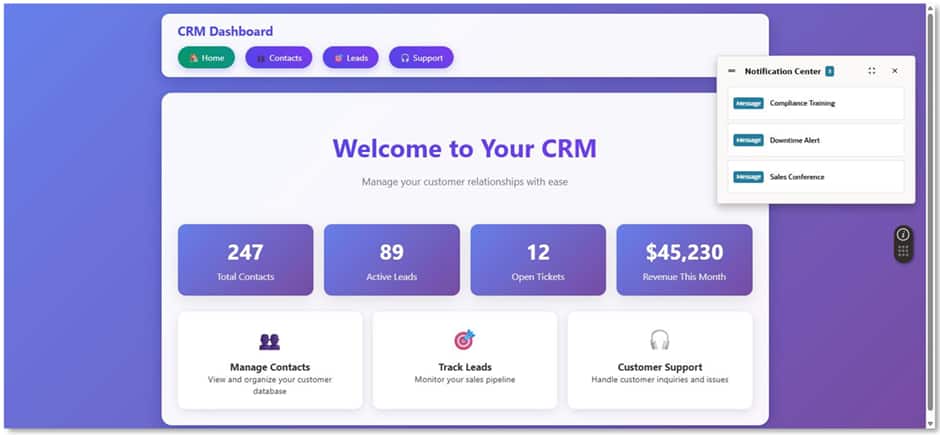
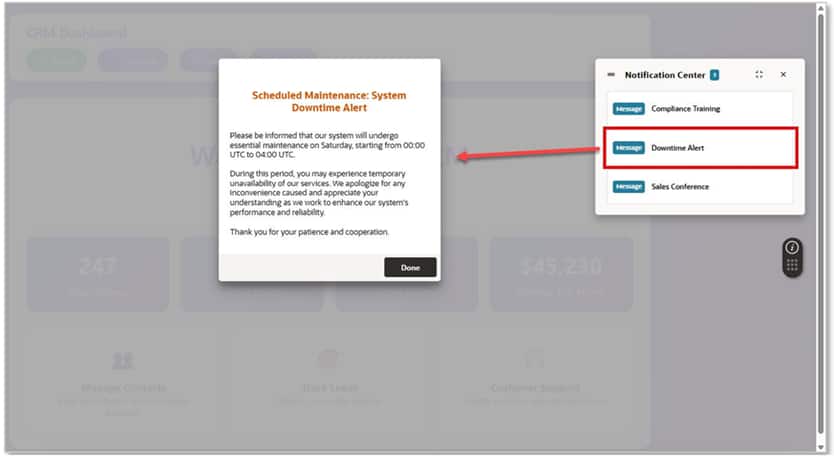
- Multiple supported autoload items are configured on a page
- The Notification Center appears instead of overlapping content
- All eligible items are listed within a single interface
- The end user selects an item
- The selected content displays cleanly
- Once the user completes or dismisses the selected content, it is automatically removed from the Notification Center.
Simple. Controlled. Predictable.
Availability & Enablement
Deployment Support (OGL 26A)
- ✅ Supported for applications deploying OGL using JavaScript embed
- ❌ Not yet supported for customers deploying via browser extension (Fix available in OGL 26B)
Fusion Customers
The Notification Center will be available for Fusion applications starting in Fusion 26B.
Customers should consult their Oracle Cloud Service Administrator regarding their scheduled Fusion 26B update timeline.
Default Behavior
- Existing OGL accounts (APPIDs): Disabled by default
- New OGL accounts provisioned after 26A: Enabled by default
How to Enable the Notification Center
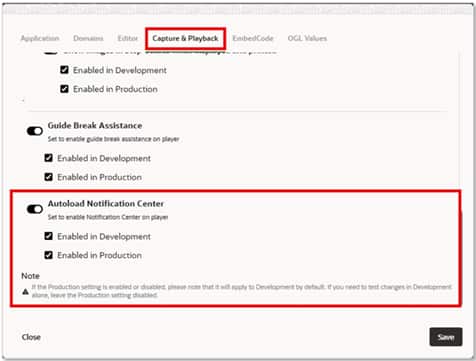
- From the left navigation panel, select Settings > Application
(Requires Owner > Change Application Settings permission — consult your OGL Owner Administrator if needed.) - In the Application Settings modal:
- Select the Capture & Playback tab
- Scroll down
- Toggle Autoload Notification Center to enable
- Once enabled, the Notification Center automatically appears anytime more than one supported content item is autoloaded on a page. End users can then select any item in the Notification Center to display it.
Continuous Learning
The Notification Center strengthens OGL’s ability to support structured, enterprise-scale change management.
By orchestrating high-priority communications while keeping contextual tools independent, it enables:
- Better release governance
- Improved digital adoption outcomes
- Reduced friction during change
- A more intentional, less interruptive user journey
In large Fusion environments, especially those preparing for 26B, this becomes a foundational control mechanism for scalable communication.