
Oracle Interconnect for Azure was the first Multi Cloud product between Oracle Cloud Infrastructure (OCI) and another Hyper-Scale Cloud Service Provider (CSP). It was announced in June 2019!
Since then, Oracle has established major agreements with its primary competitors to benefit mutual customers. The core offering embeds Oracle Cloud Infrastructure (OCI) database services directly inside the data centers of Microsoft Azure, Google Cloud, and AWS. Listed in their chronological launch order, these joint solutions are named Oracle AI Database@Azure, Oracle AI Database@Google Cloud, and Oracle AI Database@AWS. Additionally, an Oracle Interconnect for Google Cloud solution is available to customers.
The only Oracle Interconnect agreement missing was with Amazon Web Services. This changed last May. Now there is a Limited Availability Oracle Interconnect for AWS solution in the Ashbourne (AID) region. US-East-1 is the corresponding region for AWS.
Oracle Interconnect for either Azure, Google Cloud, or AWS is a fully managed, private cross-cloud networking service that links Oracle Cloud Infrastructure (OCI) with the other CSP. It allows data, applications, and any type of workload to privately transfer between the two clouds without traversing the public internet. In the case of Oracle Interconnect for AWS you can connect an OCI virtual cloud network (VCN) with an Amazon virtual private cloud (VPC) and run a cloud-to-cloud workloads by interconnecting an OCI FastConnect virtual circuit with an AWS Direct Connect virtual circuit.
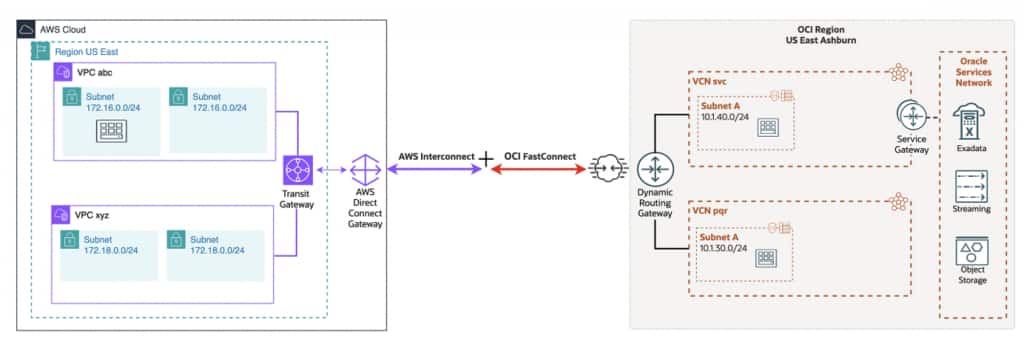
In this post, I will detail the steps for configuring Oracle Interconnect for AWS using the OCI Console and the AWS Management Console. On the AWS side, this feature is known as AWS Interconnect – multicloud, where OCI and Google Cloud are currently available as primary provider options.
A difference with the similar offerings for Azure and GCP is that you can initiate the configuration from either OCI or AWS. In this configuration we will initiate from OCI.
Make sure that you have a Dynamic Routing Gateway (DRG) available for this configuration. And make sure you have your AWS Account ID ready.
CONFIGURE THE OCI SIDE
- Login to your OCI Tenancy
- Select the Ashbourne Region
- From the main menu in the top left corner select Networking
- Under Customer Connectivity select FastConnect
- Above the Create FastConnect button click on the Compartment link and select the compartment of your preference
- Click Create FastConnect
The first noticeable difference between this offering and the versions available on Azure and Google Cloud is that the Oracle Interconnect for AWS features shortcuts. When creating a FastConnect virtual circuit, except for the Ashburn region, all other regions display only two options: FastConnect partner and FastConnect direct.
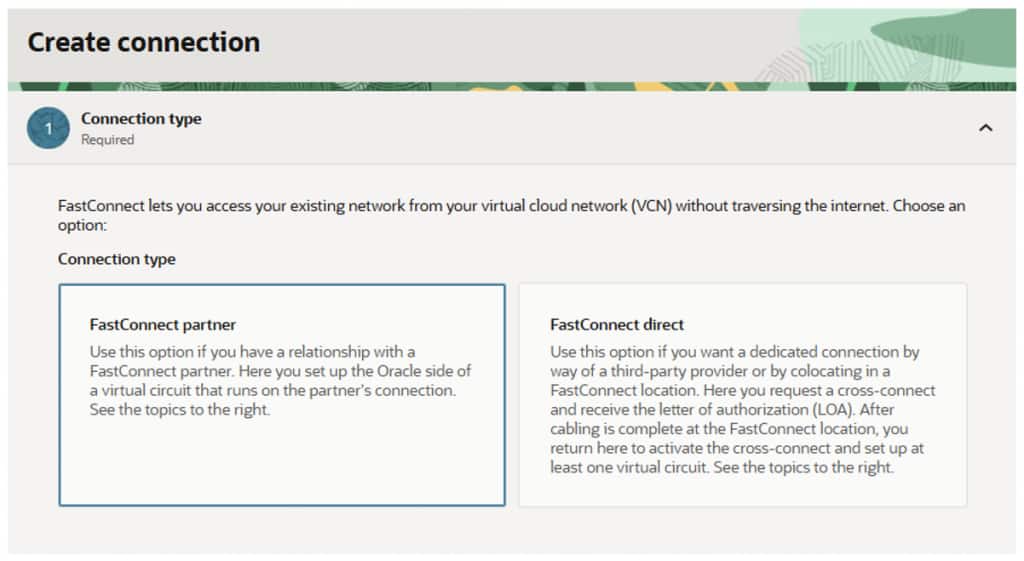
When configuring Oracle Interconnect for Azure or Google Cloud, you must select FastConnect partner, and then choose Azure or Google Cloud from the dropdown list of partners. This list also includes partners such as Megaport, Equinix, AT&T NetBond, among others, which are used for connecting OCI to on-premises’ data centers. In the IAD region, where the service is in Limited Availability, a third option is available specifically for Oracle Interconnect for AWS, which bypasses the partner dropdown menu.
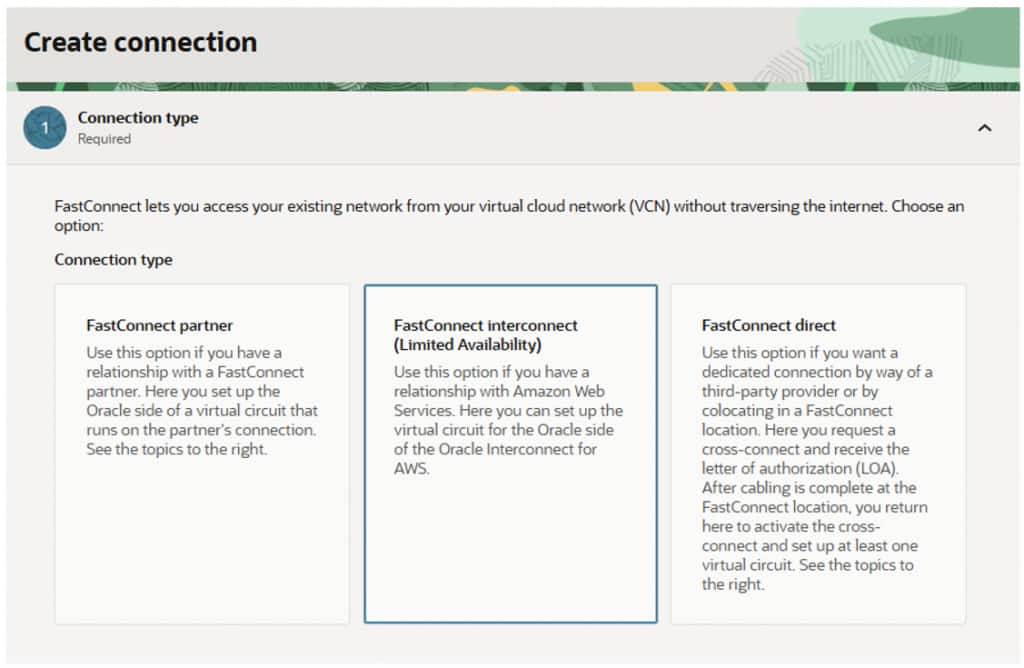
- Select FastConnect interconnect (Limited Availability)
Notice that the options for Redundancy level options goes away. This is because all Oracle Interconnect for AWS virtual circuits meet OCI redundancy requirements, by design.
- Click Next
- Give it a name. 2AWS in this configuration
- Select the compartment where this FastConnect will reside
- Select Configure in OCI First
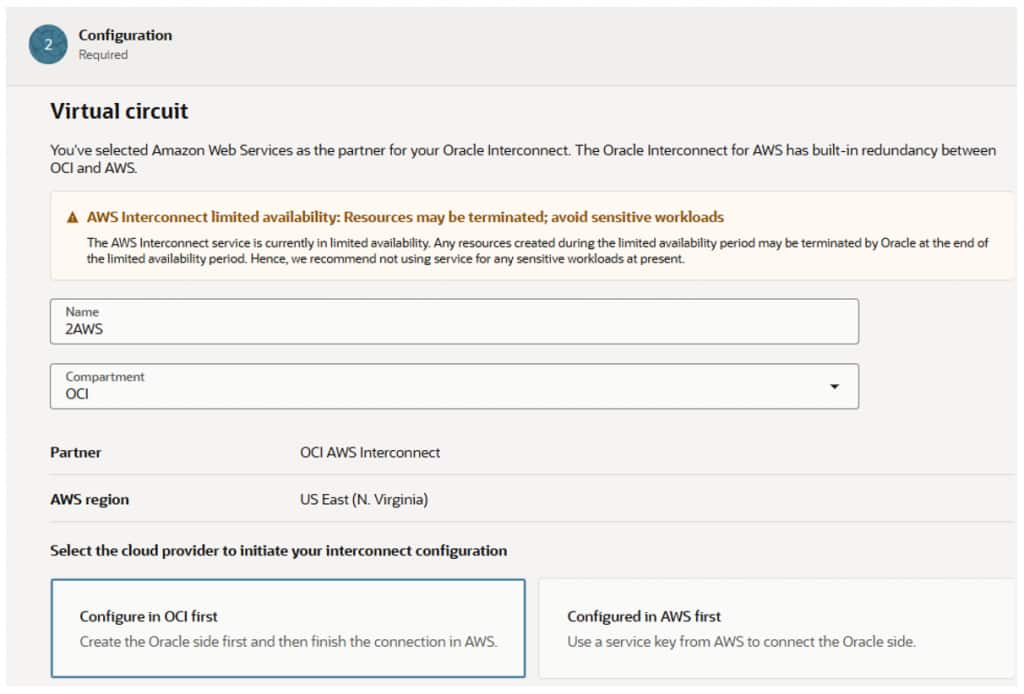
- Enter your AWS Account ID Number
This step links your two CSP accounts for this service. You can find your 12-digit AWS account ID by clicking your username in the top-right corner of the AWS Management Console.

- Select the Dynamic Routing Gateway and Its Compartment
FastConnect is a virtual circuit attachment to the Dynamic Routing Gateway
- The Provisioned bandwidth field currently has only one value: 1 Gbps
- Click Next
- Review all your configuration settings
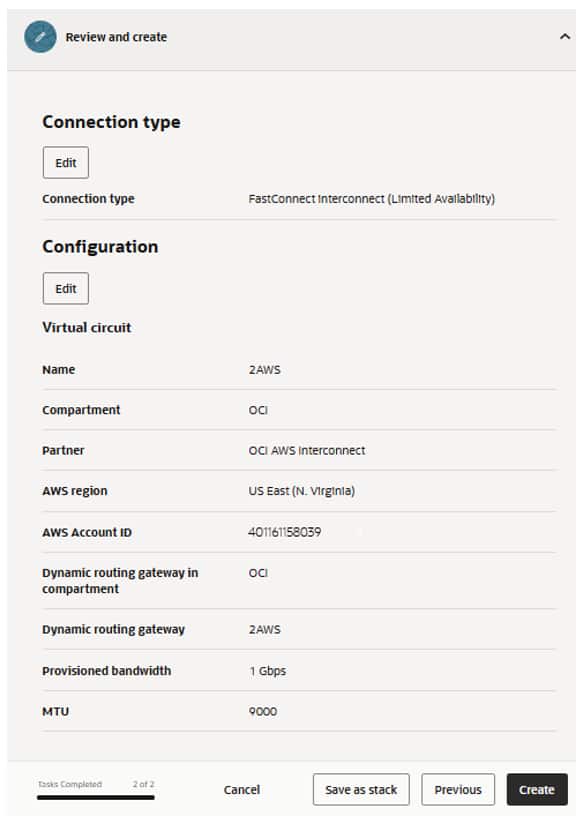
- Click Create
And that is all that is needed on the OCI side. Once you see this message:

It means that the virtual circuit has been created and attached to the DRG.
- Click Close
Notice that the status for the Lifecycle state field is Pending Partner, and both statuses for IPv4 and IPv6 BGP State show that they are down. This means that the AWS side needs to be configured.

But before that we need to retrieve the FastConnect service key
- Click on the name of your FastConnect connection, in this configuration is 2AWS
- Scroll down to the Service key field and click Copy
CONFIGURE THE AWS SIDE
- Login to your AWS account
- Make sure that you are in the United States (N. Virginia) region, also known as US-East-1
- In the top left corner click on the main menu and select All Services
- Scroll down to Networking & Content Delivery
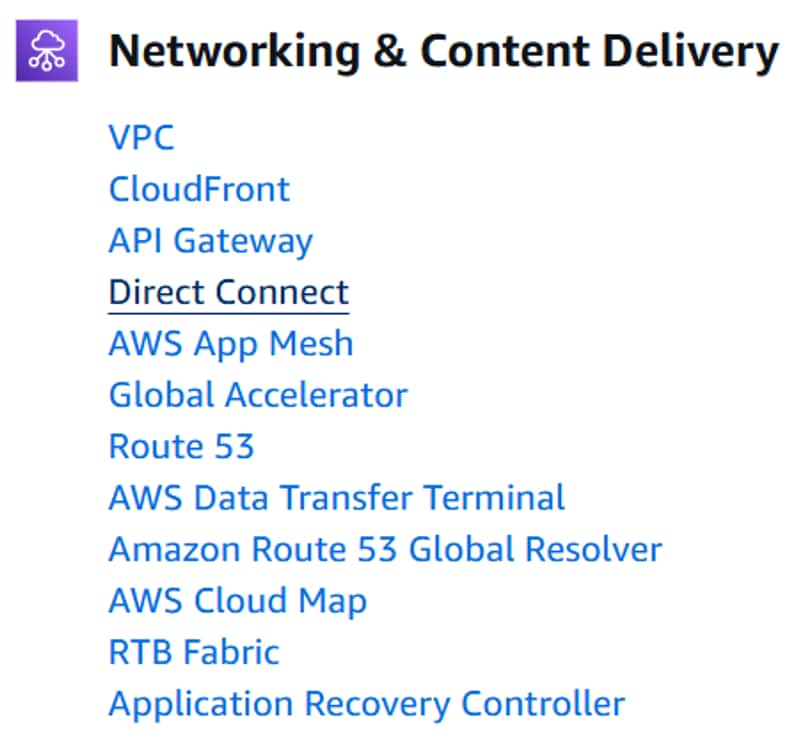
- Click on Direct Connect
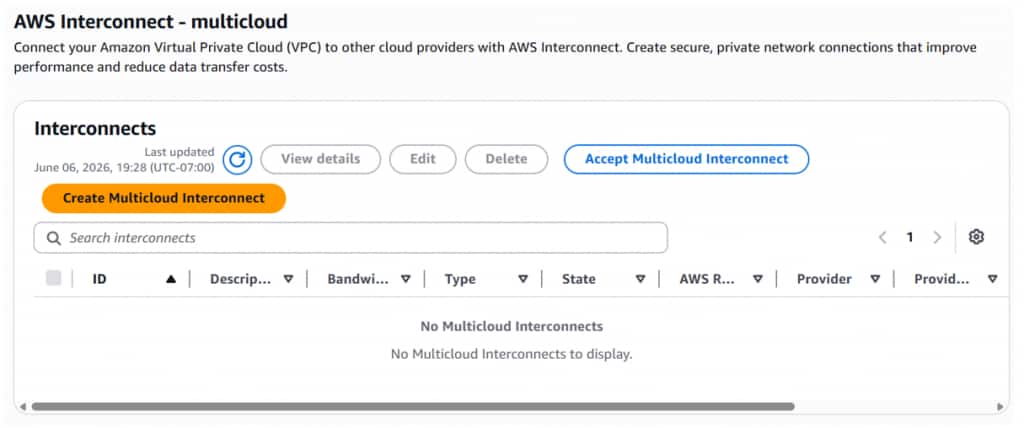
- On the left side menu click AWS Interconnect – multicloud
- Click Accept Multicloud Interconnect
- Enter the Service key
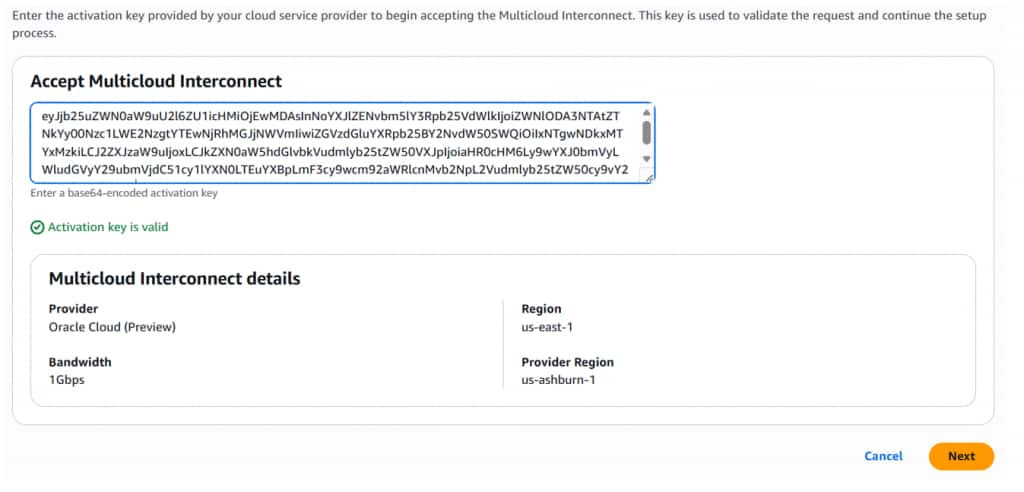
- Click Next
- In Interconnect description enter the description that best describes your use case. In this configuration we will use 2OCI
- Click Create DXGW
This step needs a Direct Connect gateway, you can select one if you have it, or create it on the spot.
- Enter a name for your Direct Connect gateway, in this configuration is: 2OCI
- Enter 64512 in the Amazon-side ASN field
- Click Create Direct Connect gateway
- Click Next
- Click Accept Interconnect
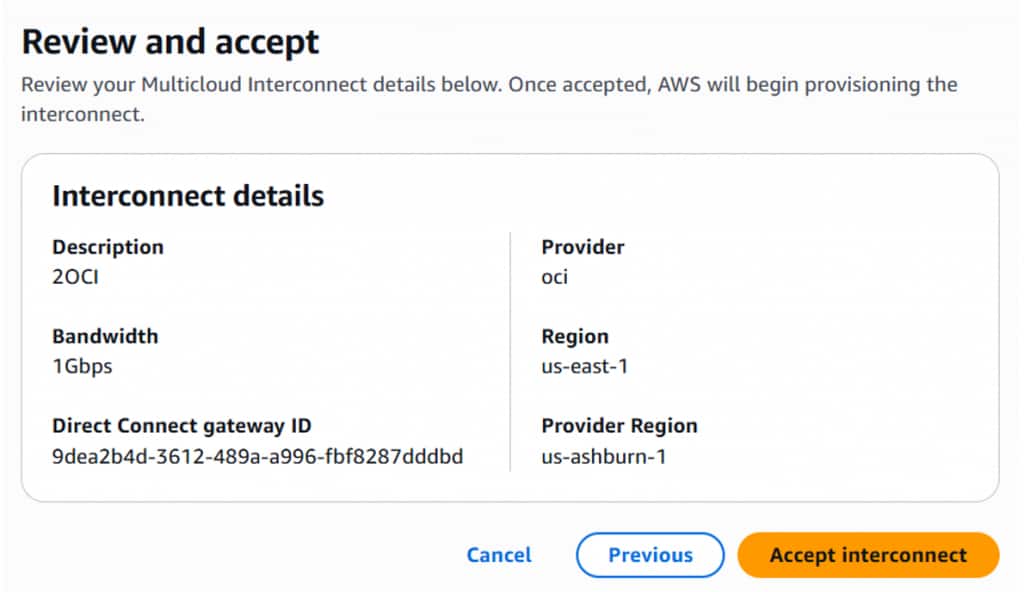
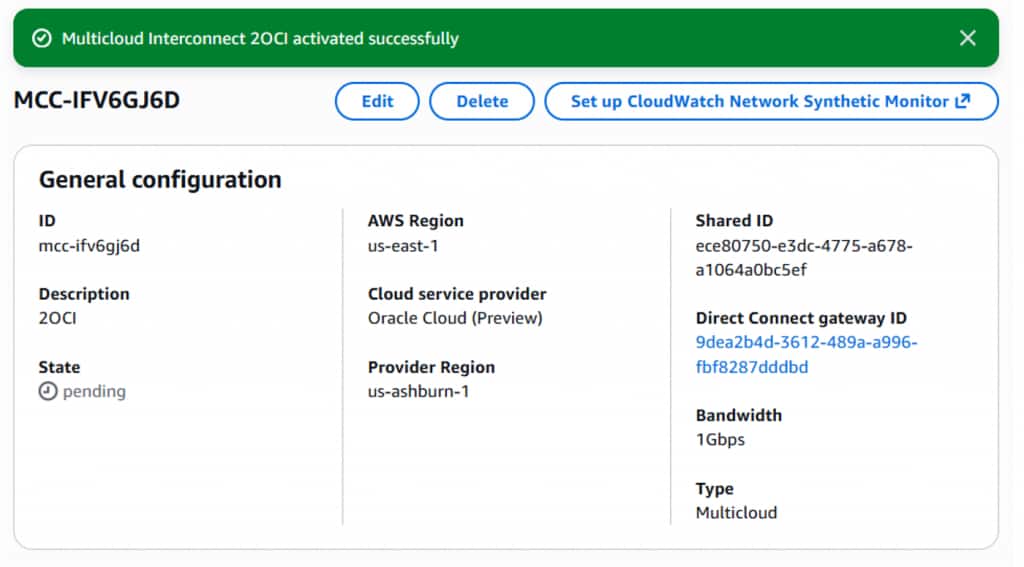
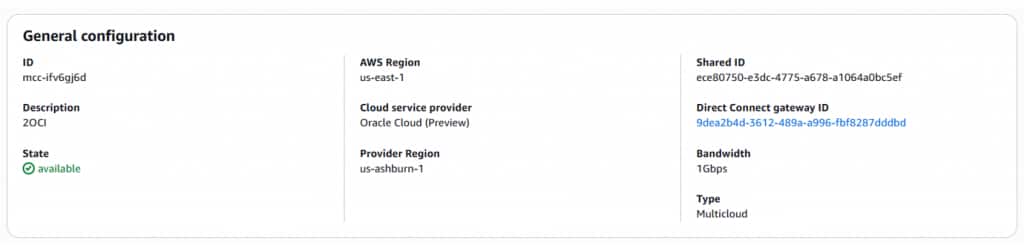
This completes all the steps for the connectivity to take place, we need to wait for the API and all necessary handshakes to complete on both sides and until the respective status fields change to an up state. In this case the State field value will change from pending to available.
The first status that changes is on the OCI side, the Life Cycle state changes to Provisioned. This happens when the OCI Service key is accepted on the AWS side.

The next fields to change their status are IPv4 and IPv6 state, they will change to up.

At this point the AWS side status should display the connection as available, which mean that it the Interconnect link is fully initialized, up, and ready for operational use.
And finally, the IPv4 and IPv6 redundancy fields will display configuration match. This means that the Oracle Interconnect for AWS virtual circuit we just configured matches the redundancy requirements that meets the OCI availability Service Level Agreement. It means that this circuit has redundancy.

By design, the physical connectivity for Oracle Interconnect for AWS is redundant. The underlying infrastructure spans four routers across two separate Point of Presence (PoP) data centers to ensure high availability.
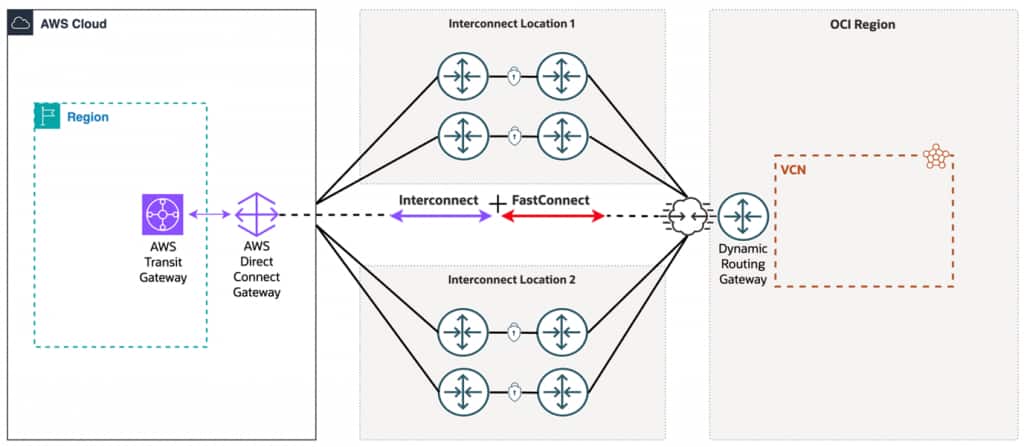
This configuration covered the connectivity portion of the inter-cloud virtual circuit. For an EC2 Instance in a VPC on the AWS side to communicate with a Compute Instance in a VCN on the OCI side, further configuration is needed, such as deploying the compute resources and setting up an AWS Transit Gateway if multiple VPCs need to reach OCI.
Oracle Interconnect for AWS is in a Limited Availability period. This status is intended for testing only; It is advised to not run production or business-critical workloads on these connections. Once the Limited Availability period ends, all virtual circuits will be deleted.