
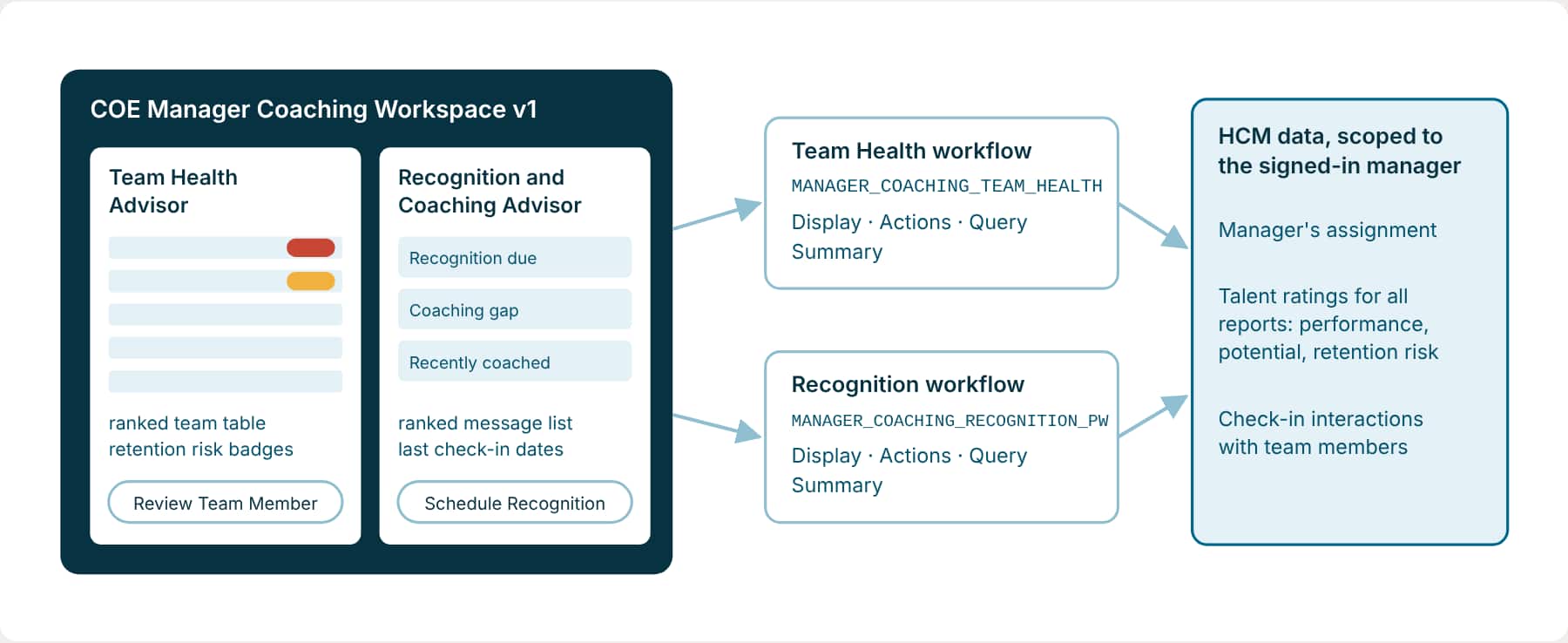
The COE Manager Coaching Workspace is an Agentic App for a director-level manager. It shows the health of the manager’s team, who needs attention first, who has earned recognition, and how recently each person has been coached, then suggests what to do next. In this blog you build version 1 with two panels. In Extend the Agentic App you extend the same app to four panels with email drafts.
Before you start
- You’ve set up the CLI and your project (Part 3a and Part 3b), and your coding assistant is open at the project root with the guardrail request from Part 4.
- You have a test user who manages people in this environment, ideally someone whose team has talent ratings and check-ins on record. The app reads data for the signed-in manager, so a user with no reports sees only the no-team message.
- Your user can read the HCM data the app uses: assignments, talent ratings, and check-in interactions.
- Not in HCM? Read “Adapt this to your pillar” below first.
Read the workspace at a glance
Panel means one area of the app. Each panel has an app-backed workflow that responds to four app stages: first display, suggested actions, questions, and summary. An action is a panel button such as Prepare Check-in Agenda. Before building, the assistant presents a pre-build checkpoint for you to review.
Step 1: Describe the app in business terms
An app build touches several artifacts at once, so this is a good place to let the skill write the detailed build request. Describe the app the way you’d explain it to a colleague: who it’s for, what they need to see, and what they should be able to do. Don’t worry about workflow codes or node types.
Try it: Ask the skill to write the build request
Use the aistudio skill to write a build request I can review for a new Agentic App. Don't build anything yet.

What I want
- An app called COE Manager Coaching Workspace v1 for a director-level manager.
- It should show the health of the manager's team, who needs attention first, who has earned recognition that hasn't been given, and how recently each person has been coached.
- It should point the manager to the most urgent things and suggest what to do next.

Start with two panels side by side
- Team Health: overall team health, the people who need attention first, and team risks.
- Recognition and Coaching: recognition opportunities and coaching history.

What the manager can do
- Review a team member, prepare a check-in agenda, schedule recognition, see recognition notes already on record, and propose a calendar hold for coaching.
- Ask questions about the team in plain language and get a short summary of each panel.

Data
- Use only the signed-in manager's own team.
- Find the seeded HCM Business Objects for the manager's assignment, talent ratings for their reports, and check-in interactions, and show me what you found before using them.

Keep in mind
- Nothing is sent, scheduled, or changed in Fusion without the manager reviewing it first.
- Show clear messages when the manager has no team or no manager assignment.
- Leave email communications out for now. I'll add them later.

Include the pre-build checkpoint and how we'll know the app works.
Step 2: Review the build request it writes
Run the build request the skill wrote for you. It reflects what it found in your environment. Use the example below as a checklist: your version should cover the same sections. If you skipped Step 1, copy the example and adjust it. Check that it names the right people, data, and limits before you run it.
Try it: The build request
Build an Agentic App named COE Manager Coaching Workspace v1.

App goal and user
- A director-level manager who needs a clear view of team health, development needs, coaching history, and recognition.
- Guide the manager to the most urgent items first and suggest actions they can take.

Data sources
- Scope every read to the signed-in manager's direct and indirect reports.
- Search for seeded HCM Business Objects that provide: the logged-in manager's assignment, talent ratings for all reports (performance, potential, risk and impact of loss), and the manager's check-in interactions with team members. Show me what you found and confirm before using them.
- If a source is missing, flag it in the checkpoint instead of guessing.

Panels (two, side by side; stack vertically only on narrow screens)
1. Team Health Advisor, backed by a new workflow MANAGER_COACHING_TEAM_HEALTH
   - First load: a ranked table of team members (Team Member, Role, Performance, Potential, Retention Risk, Attention), ranked by retention exposure, then missing ratings, then weak ratings. Retention Risk as a badge. One sentence above the table naming team size and the most important thing to act on today.
2. Recognition and Coaching Advisor, backed by a new workflow MANAGER_COACHING_RECOGNITION_PW
   - First load: a ranked list of team members marked Recognition due, Coaching gap, or Recently coached, with the date of the last check-in when one exists. One sentence above naming how many recognition opportunities are open.

Query and summary
- Both workflows answer the manager's questions using only their own data, and provide a short summary for the app summary.

Actions (each panel suggests its own)
- Review Team Member, Prepare Check-in Agenda, Schedule Recognition, Surface Recognition Notes, Propose Calendar Hold.
- Actions prepare recommendations and drafts only. Nothing is written to the calendar or sent automatically.

Communications
- Omit for now.

Rules
- Use only retrieved records. Show "Not rated" or "Not recorded" instead of guessing, and never invent a contribution, check-in, or date.
- When the signed-in user has no manager assignment or no team members, return a clear message instead of an empty panel.

Pre-build checkpoint
- Present the data sources, panels, ranking rules, actions, and validation scenario, and wait for my confirmation before creating any artifact.

Validation scenario
- On load, both panels show the manager's own team, ranked as described.
- A manager with no reports sees the no-team message.
- Prepare Check-in Agenda returns an agenda for the selected person built from their records.

Finish
- Validate the workflows and the app, and let the workflow and app tests run. Keep everything local except the DRAFT saves the tests need.
About the workflow names. MANAGER_COACHING_TEAM_HEALTH and MANAGER_COACHING_RECOGNITION_PW are the codes used in the environment where this example was built. You can use your own names, or leave them out and let the assistant suggest them. Choose carefully: a workflow’s code can’t be changed after it’s created.
Why the detailed request matters. It adds what the assistant cannot infer: verified HCM data, manager-only scope, first-load ranking, draft-only actions, and clear missing-data messages. Communications are deliberately left for Extend the Agentic App.
Step 3: Approve the pre-build checkpoint
Your request tells the assistant to stop before creating artifacts and show a checkpoint for approval. Read it carefully: anything you approve unchanged becomes part of the build.
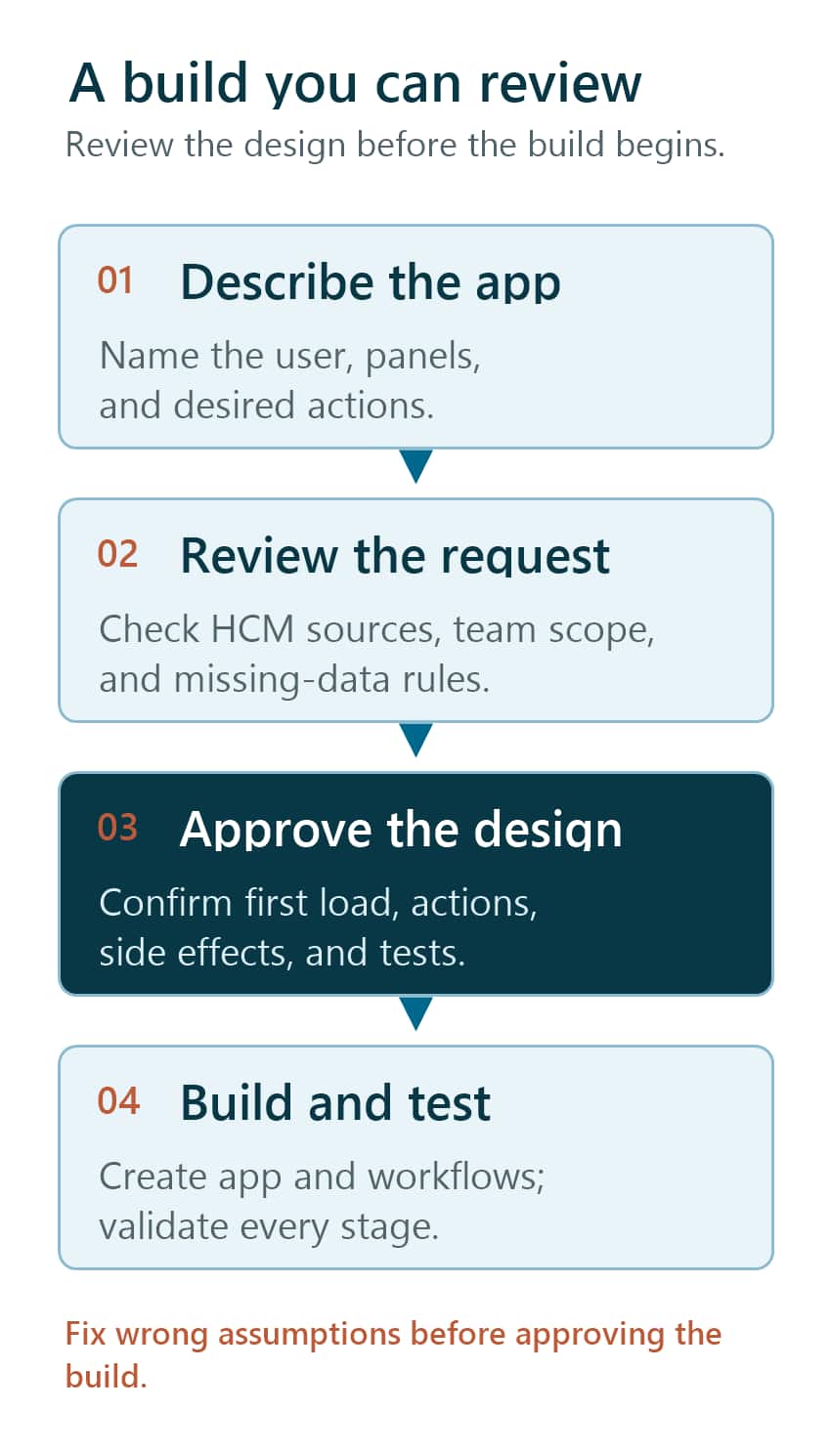
Check these four things before you approve:
| Review area | What to confirm |
|---|---|
| Data and scope | The HCM Business Objects for assignment, talent ratings, and check-ins are verified. The signed-in manager’s identity limits every read to their team. |
| First load and questions | Both panels show the agreed columns, ranking rules, and one-line narrative. Each answers questions from its own data. |
| Actions and limits | All five actions belong to the intended panel and prepare drafts only. Version 1 has no email, calendar, or Fusion update side effects. |
| Proof | The validation scenario checks first load, no-team and no-manager messages, and a check-in agenda from a selected person’s records. |
Try it: Approve, or adjust first
The checkpoint looks right. One change: rank Coaching gap above Recognition due when someone hasn't had a check-in in more than 60 days. Then go ahead and build.Step 4: Follow the build
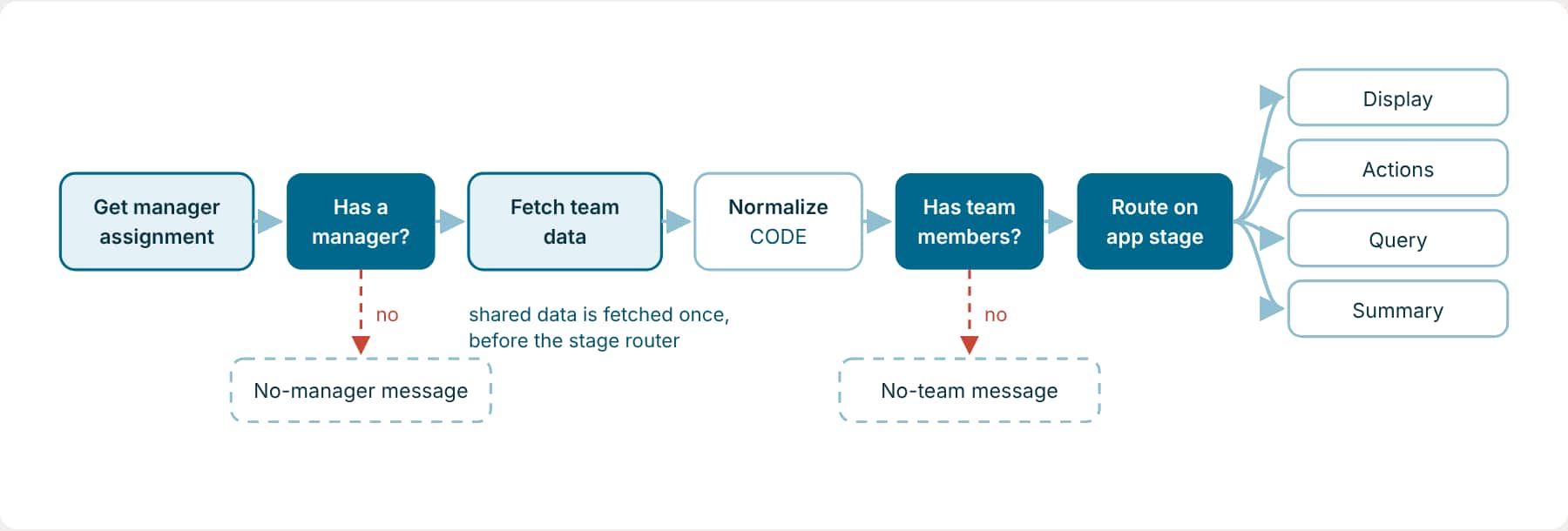
- It builds both workflows. Each one gets the manager’s assignment, checks there is one, fetches the team’s data, checks the team isn’t empty, then sends each app stage (display, actions, question, summary) to its own path.
- It builds the app. Two panels side by side, each with its workflow agent and its actions.
- It validates everything and fixes errors before reporting back.
- The tests run automatically. The workflow tests cover each app stage and the no-team and no-manager messages. The app tests check each panel’s first load.
- It reports back with what it built, the validation results, and Validation and Insights for the app and both workflows.
See it running
Once the tests pass, the app has been saved as a DRAFT so the tests could run against it. To try it yourself:
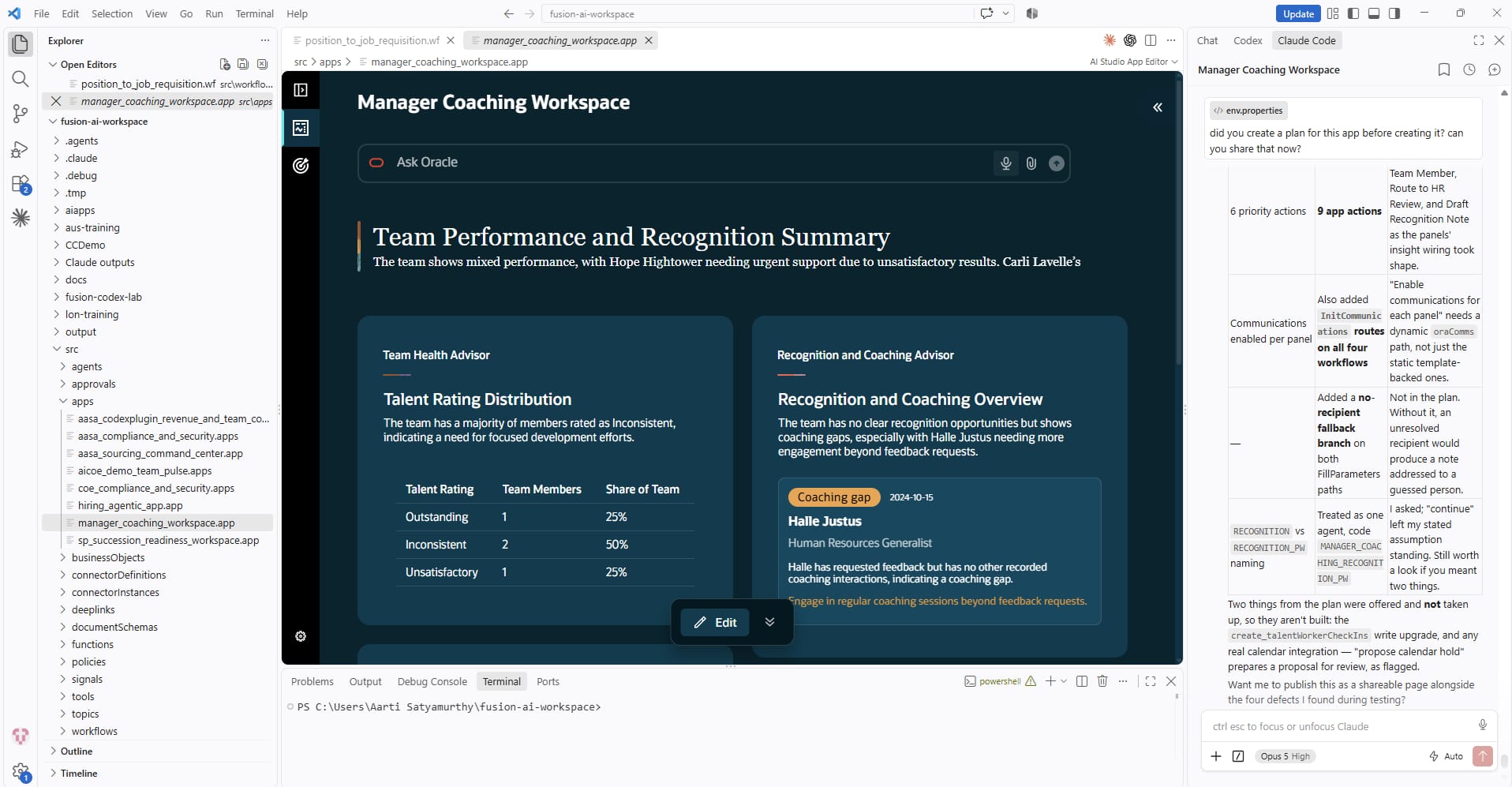
- Open the app: in VS Code, open the app file for COE Manager Coaching Workspace v1 in your project. It opens in the Fusion AI Studio App Editor (set up in Part 3d).
- Check that both panels show that manager’s team, ranked as described, and that Prepare Check-in Agenda returns an agenda for one person.
If both panels show the no-team message, the user you’re signed in as has no direct reports.
Adapt this to your pillar
Every manager workspace follows the same pattern. Decide who the user is, limit the data to what they’re responsible for, give each panel one job, and make every action a recommendation or a draft.
| Pillar | User and scope | Example panels | Example actions (drafts only) |
|---|---|---|---|
| HCM (this example) | A manager and their reports | Team health, recognition and coaching | Prepare a check-in agenda, propose coaching time |
| ERP | An AP manager and their business units | Invoices on hold, payments at risk | Draft a supplier follow-up, recommend a hold release |
| SCM | A buyer and their suppliers | Late purchase orders, supplier risk | Draft a supplier reminder, propose an expedite request |
| CX | A sales manager and their reps’ pipeline | Pipeline health, stalled opportunities | Prepare a deal review agenda, draft a coaching note |
Start from this template and ask the skill to write the build request:
Use the aistudio skill to write a build request I can review for a new Agentic App. Don't build anything yet.

What I want
- An app called [name] for [user].
- It should show [what they need to see] and point them to the most urgent things.

Panels
- [Panel 1]: [what it shows on first load]
- [Panel 2]: [what it shows on first load]

What the user can do
- [actions]. Every action prepares a recommendation or draft only.
- Ask questions in plain language and get a short summary of each panel.

Data
- Use only [the signed-in user's scope].
- Find seeded Business Objects for [data] and show me what you found before using them.

Keep in mind
- Nothing is sent or changed in Fusion without the user reviewing it first.
- Show clear messages when there's no data.

Include the pre-build checkpoint and how we'll know the app works.
You’re done when
- Validation reports no errors for both workflows and the app.
- The workflow and app tests pass.
- Both panels load the manager’s team, ranked as described.
- One action, such as Prepare Check-in Agenda, returns a result built from that person’s records.
Key takeaways
- Describe the app in business terms and let the skill write the detailed build request, then check it names the data, the scope, and the limits.
- Approve the pre-build checkpoint deliberately. It’s where data sources, ranking, and actions get locked in.
- Start small. Version 1 has two panels and no emails, which makes the next change easier to build and test.
Previous: Extend a Workflow to Support a New Scenario | Next: Extend the Agentic App
Back to the Learning Path for Fusion AI Agent Studio CLI