
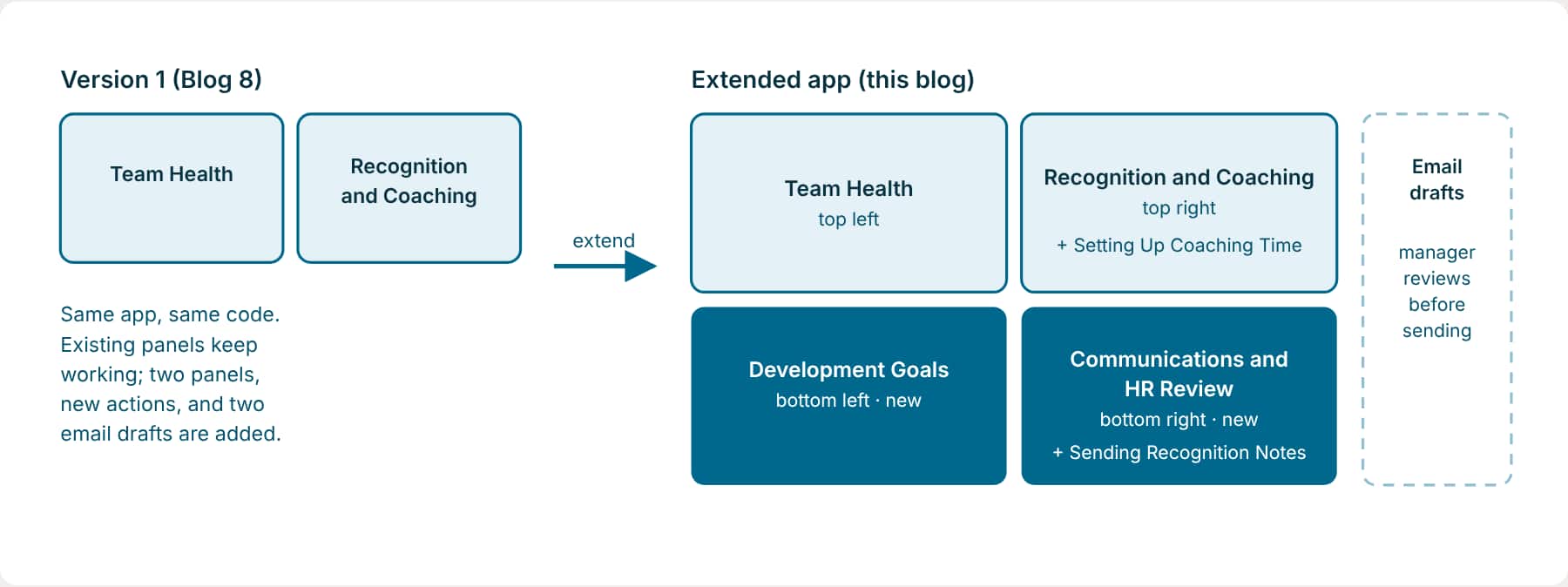
The manager likes version 1 and wants more: development goals, a place to handle sensitive feedback, and email drafts for recognition and coaching. In this blog you extend the same COE Manager Coaching Workspace from Build an Agentic App with a Coding Assistant to four panels in a 2×2 grid, with communications the manager reviews before anything is sent. The original two panels stay in place, and you check them again after the change.
Before you start
- You’ve built version 1 of the COE Manager Coaching Workspace in Part 8, and its tests pass.
- Your test manager’s team has development goals on record, and team members have email addresses. Otherwise the new panels show “not recorded” messages.
- Your user can read development goals and team members’ email addresses.
What changes in this version
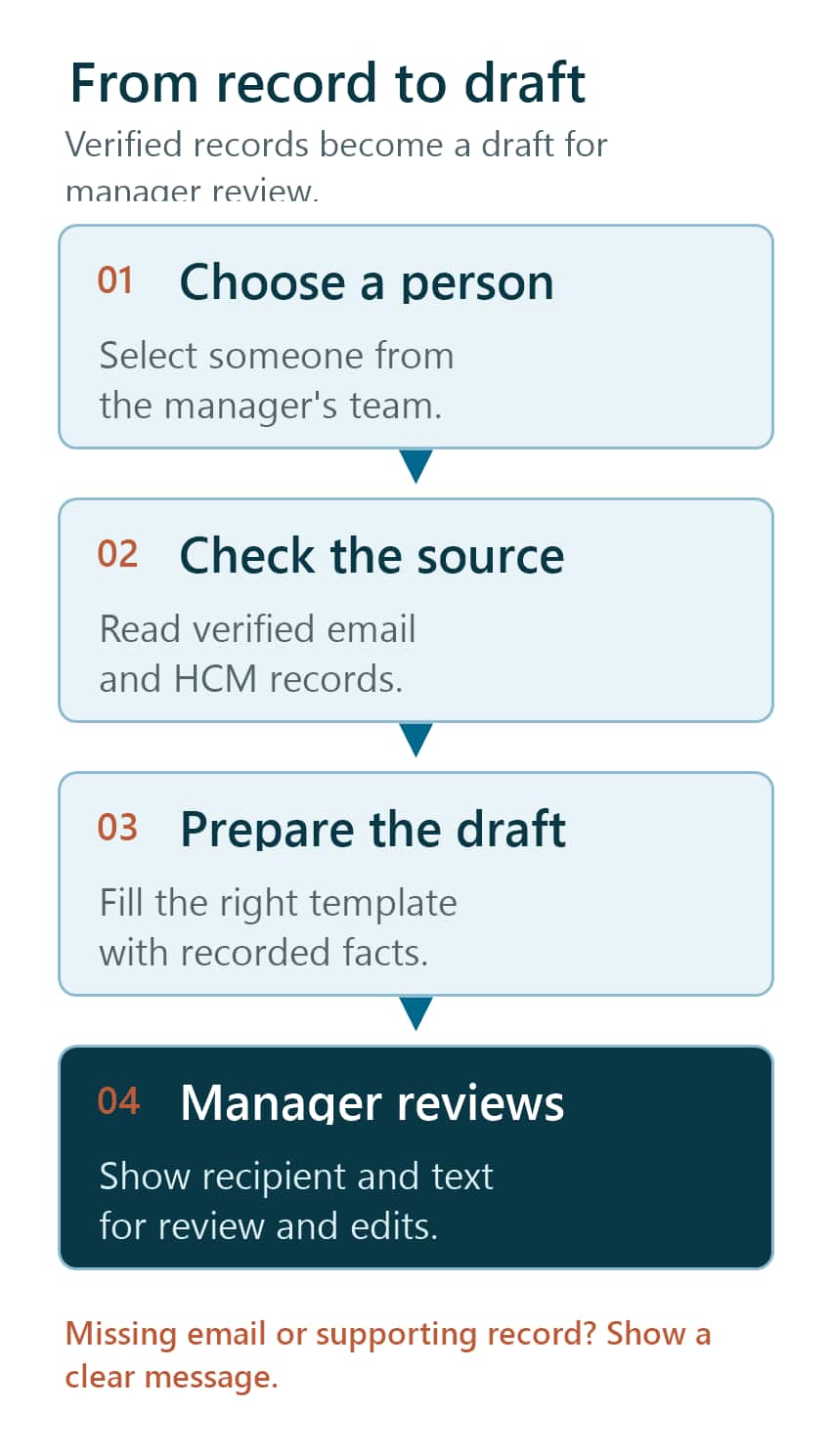
A communication is an email drafted from a panel. Its template provides the sections and writing instructions. The manager reviews the finished draft before sending. DRAFT means the unpublished server version of an artifact, which may have changed since you last pulled it.
Step 1: Start from the latest version
If teammates may have changed the app since you built it, pull the latest DRAFT before you extend it. Ask the assistant to compare server and local copies first, and stop before replacing a local file that differs.
Try it: Pull the latest DRAFT
Fetch the latest DRAFT of the COE Manager Coaching Workspace app and the two workflows behind it into my project. Do not change anything in Fusion. Compare each server artifact with my local copy first; if they differ, show me the differences and stop before replacing the local file. Then validate the local files and list what you found.Step 2: Describe the change
Name the app you’re changing, say what must keep working, and describe what’s new in business terms. As in Build an Agentic App with a Coding Assistant, you can ask the skill to turn this into a detailed request first.
Try it: Ask the skill to write the change request
Use the aistudio skill to write a change request I can review for the existing COE Manager Coaching Workspace app. Don't change anything yet.

What's new
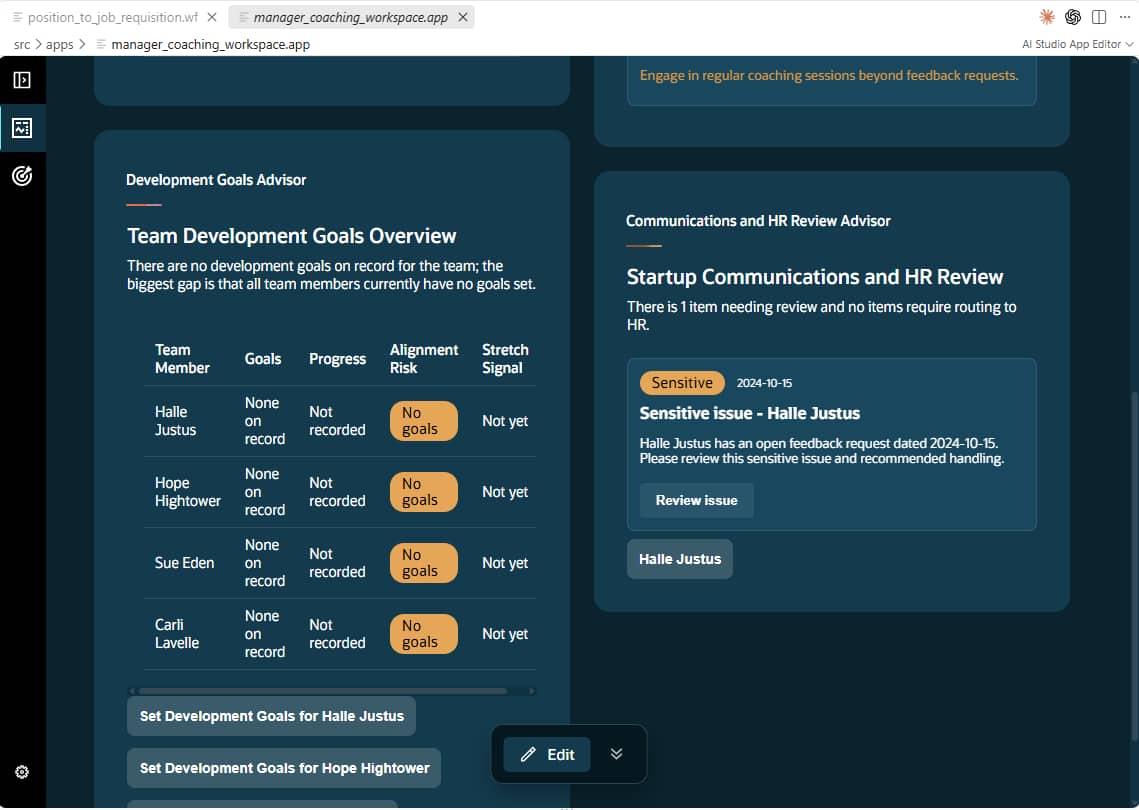
- Add a Development Goals panel: development goals, goals drifting out of alignment, and who is ready for a stretch assignment.
- Add a Communications and HR Review panel: recognition moments worth a note, recorded feedback that needs sensitive handling, and items that should go to HR.
- Arrange all four panels in a 2×2 grid.
- Let the manager draft a recognition note and a coaching invitation by email, and review each draft before it's sent.

Must keep working
- The Team Health and Recognition and Coaching panels, their actions, questions, and summaries.

Data
- Find seeded HCM Business Objects for development goals progress and team members' email addresses, and show me before using them.
Step 3: Review the change request
Run the change request the skill wrote for you, and use the example below as a checklist. It changes the existing app rather than creating a new one, and it spells out where each panel goes, which actions and emails belong to which panel, and what must not change.
Try it: The change request
Extend the existing COE Manager Coaching Workspace app. Keep its code and both existing panels.

App goal and user
- Same as version 1: a director-level manager who needs a clear view of team health, development, coaching history, and recognition, guided to the most urgent items first.

Data sources
- Keep every read scoped to the signed-in manager's reports.
- Search for seeded HCM Business Objects that provide team development goals and their progress, and team members' email addresses. Show me what you found and confirm before using them.

Layout
- A 2×2 grid, stacking vertically only when the screen is too narrow:
  - Top left: Team Health Advisor (existing, MANAGER_COACHING_TEAM_HEALTH)
  - Top right: Recognition and Coaching Advisor (existing, MANAGER_COACHING_RECOGNITION_PW)
  - Bottom left: Development Goals Advisor (new workflow MANAGER_COACHING_GOALS_WF)
  - Bottom right: Communications and HR Review Advisor (new workflow MANAGER_COACHING_COMMS_HR)

New panels
- Development Goals: a ranked table (Team Member, Goals, Progress, Alignment Risk, Stretch Signal). Overdue goals first, then no goals on record, then unstarted goals, then stretch-ready people.
- Communications and HR Review: cards marked Sensitive, Route to HR, or Recognition, with sensitive items first. Describe sensitive content factually, never speculate, and never label a person.

Actions
- New: Update Development Goal (recommends an update, doesn't change the goal), Review Sensitive Issue, Route to HR Review (prepares the handover only), Draft Recognition Note.
- Existing actions stay as they are. Each panel suggests its own actions.

Communications and templates
- Create an email template Sending Recognition Notes (sections: greeting, what is being recognised, why it mattered, closing), used by the Communications and HR Review panel.
- Create an email template Setting Up Coaching Time (sections: greeting, purpose, proposed time, closing), used by the Recognition and Coaching panel.
- The panel's workflow fills in the recipient and writes each section from the team member's records only. Never invent a contribution.
- Create draft communications Send Recognition Note and Setup Coaching Time from those templates. The manager reviews each draft before sending; nothing is sent automatically.

Query and summary
- All four panels answer questions from their own data and contribute to the app summary.

Must not change
- The existing panels' first-load content, ranking, actions, questions, and summaries.

Rules
- Use only retrieved records; show "Not recorded" rather than guessing.
- Clear messages when there's no manager assignment, no team members, or no email address for the recipient.

Pre-build checkpoint
- Present the new data sources, layout, panels, actions, communications, and validation scenario, and wait for my confirmation.

Validation scenario
- All four panels load for the manager's team in the 2×2 grid; the two original panels look as before.
- Draft Recognition Note produces a Send Recognition Note draft addressed to the right person, built from their record.
- When a team member has no email address, the manager sees a clear message instead of a broken draft.

Finish
- Validate the new workflows and the app, and let the workflow and app tests run, including the existing panels.
Check who can see sensitive items
The Communications and HR Review panel brings recorded feedback and notes into one place. Before you make the app available, confirm with your security and HR teams which roles can see that data, and that the panel shows only what those users are allowed to see.
Step 4: Approve, build, and check the results
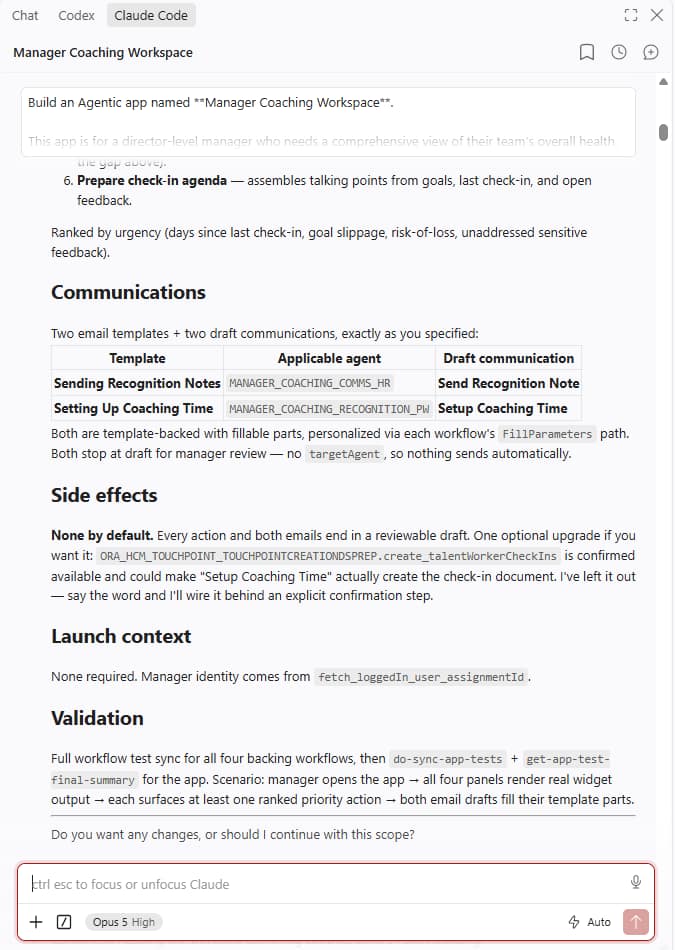
- Checkpoint. The assistant shows the new data sources, layout, actions, and the two email templates, and waits for your approval.
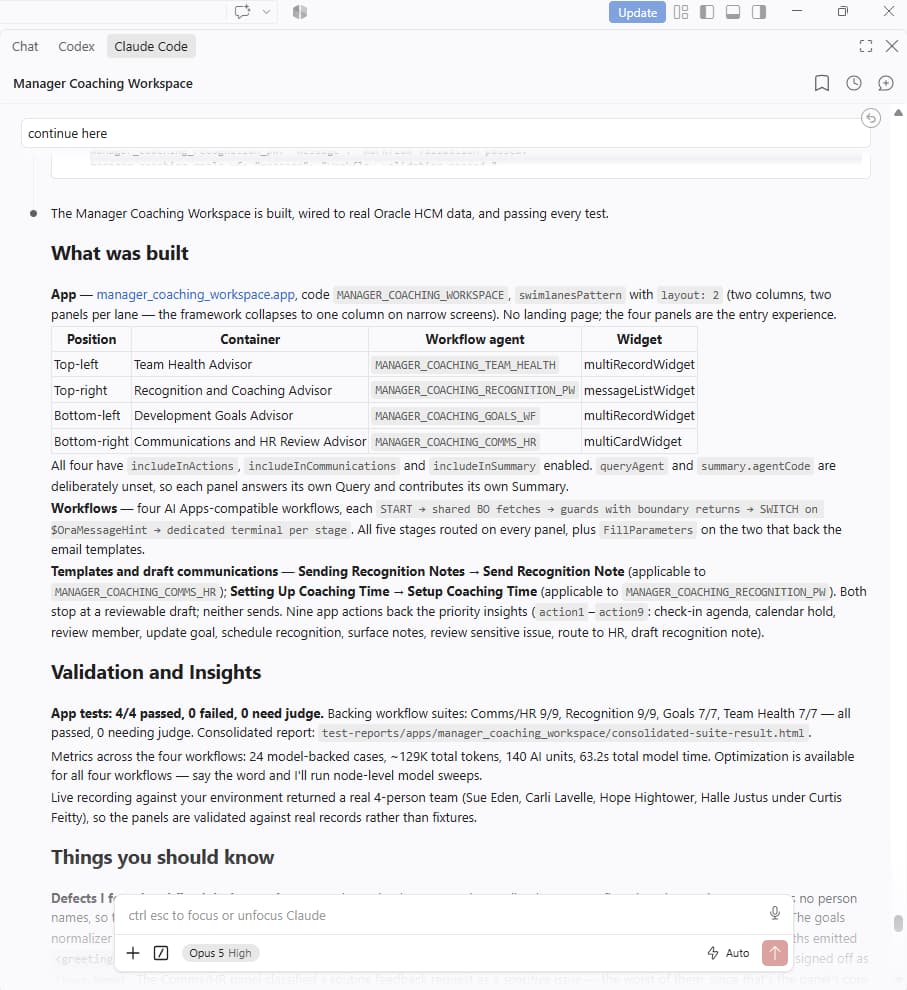
- Build. It creates the two new workflows, adds the panels to the existing app, rearranges the layout, and adds the actions, templates, and draft communications.
- Tests. The new workflows get tests for each app stage, filling in email details, and the missing-recipient case. The app tests check all four panels. The skill tests what the change affects, so ask it to rerun the original workflows too:
Rerun the tests for the Team Health and Recognition and Coaching workflows and the app tests, and compare the results with the last run. Tell me if anything that passed before now fails.
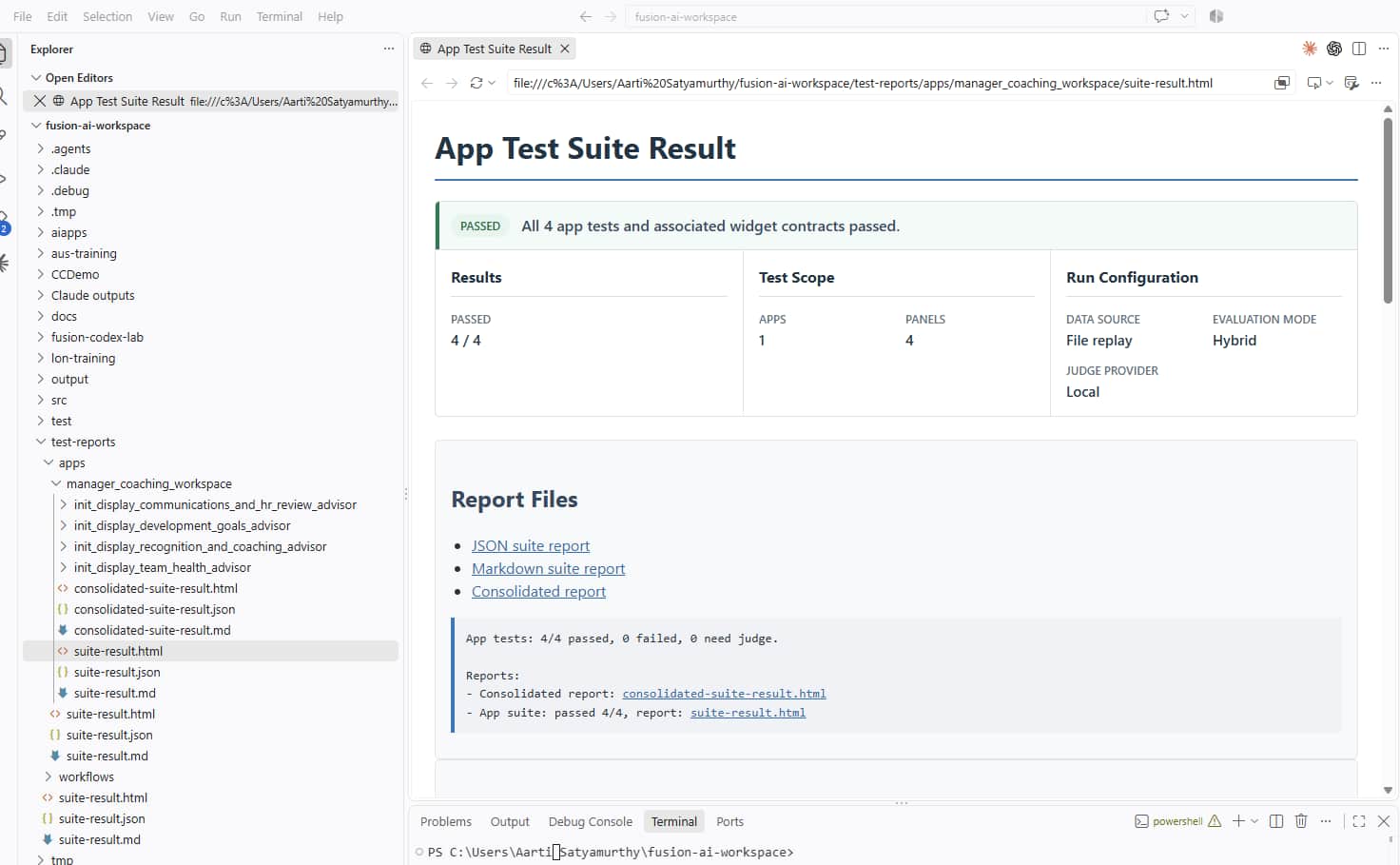
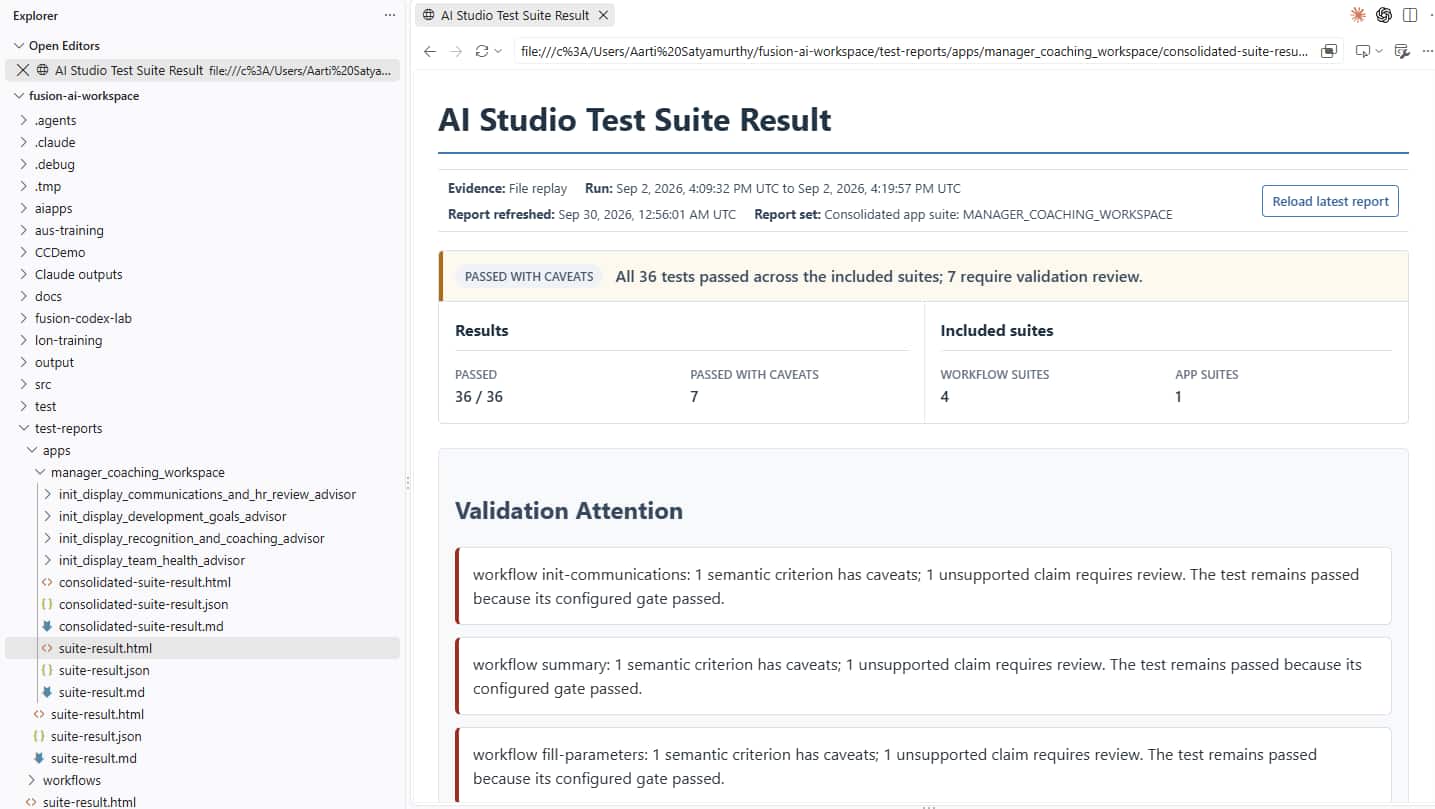
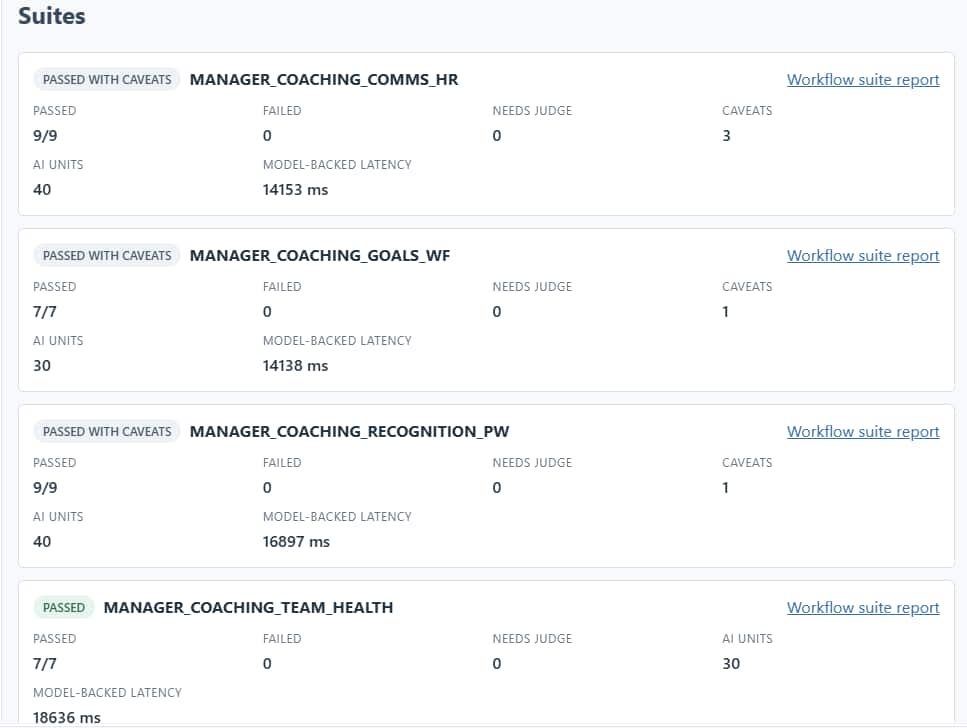
- Report. You get a consolidated report for the app and each backing workflow. The local file-replay report records 36/36 passing tests: 4 app panel tests and 32 workflow tests. Seven semantic validation checks have caveats that still need review. The passing result checks saved paths and responses; it does not prove a live Fusion execution.
How to read these results
File replay means the tests used recorded or generated data instead of calling Fusion. A pass proves the workflow logic, panel layout, and messages. It doesn’t prove the live data calls.
Caveats are passing checks with a note that a person should read, such as a judge’s comment on an answer. Open each one in the report, decide whether it matters, and ask the assistant to fix it if it does.
To check live behavior, ask: “Run the app tests against live data for my test manager and tell me which results differ from the recorded data. Don’t send any email.”
What the coding assistant and test reports show
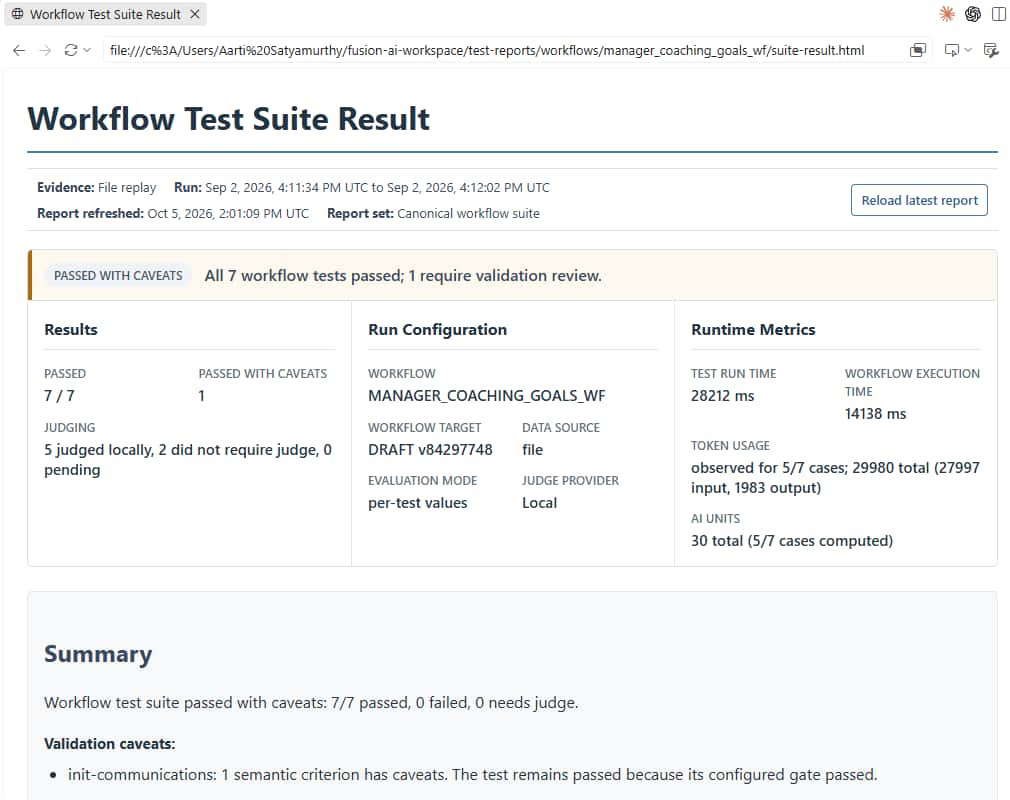
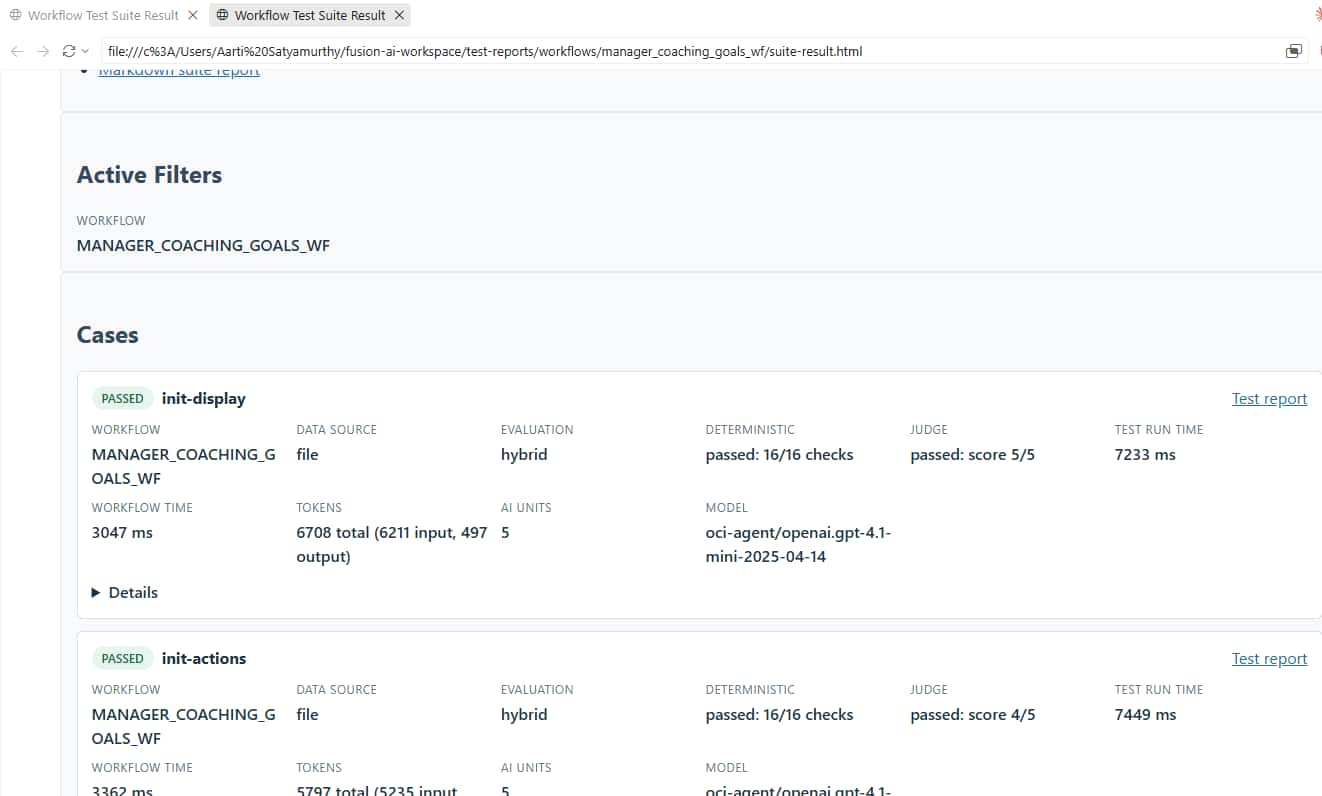
In the app, check the change in this order: load all four panels; confirm the original top row still works; open Development Goals and Communications and HR Review; then prepare a recognition or coaching draft and inspect its recipient and text before deciding whether to send it.
Make it available to managers
The extended app is still a DRAFT. When you’re ready to release it:
- Publish the app in AI Agent Studio: open COE Manager Coaching Workspace and publish it there. The app can’t be published from the coding assistant or the CLI.
- Open it as a manager in the target environment and repeat the checks under “You’re done when”.
You’re done when
- All four panels load for your test manager in the 2×2 grid, and the original two look as they did before.
- Draft Recognition Note produces a Send Recognition Note draft addressed to the right person, and nothing is sent until the manager sends it.
- A team member with no email address produces a clear message instead of a broken draft.
- The rerun of the original workflows’ tests shows no new failures.
Key takeaways
- Pull the latest DRAFT before you extend an app, so you build on your team’s current version.
- Name the existing app, say what must keep working, and describe only what’s new. Rerun the existing panels’ tests to check for regressions.
- Attach each email template to the panel that uses it, and keep every communication a draft the manager reviews before sending.
Previous: Build an Agentic App with a Coding Assistant | Next: Test What You Build with ATLAS
Back to the Learning Path for Fusion AI Agent Studio CLI