



With inputs from Abhiram Gujjewar, Product Management, Oracle Fusion Data Intelligence
Introduction
Organizations rely on Oracle Fusion Data Intelligence (FDI) to turn Oracle Fusion Cloud Applications data into trusted, decision-ready insights through managed pipelines, governed semantics, prebuilt analytics and embedded AI.
While FDI provides a reliable data foundation, many business processes require fresher data throughout the day especially finance, procurement and supply chain operations. Frequent Data Refresh V2 (FDR V2) reduces data latency by refreshing selected FDI data multiple times per day while preserving the governed pipeline. FDR V2 complements other managed pipeline capabilities to make high-value data available faster. This article covers its capabilities, architecture, configuration, and a Procurement use case for intra-day invoice analytics
As part of our FDI Managed Pipeline series, this article explores how FDR V2 enables fresher data for critical datasets between daily incremental refreshes. For a comprehensive overview of FDI pipeline optimization, refer to the article Unlock the Full Potential of the Oracle Fusion AI Data Platform Managed Pipeline.
What Frequent Data Refresh V2 Enables
Administrators can schedule incremental refreshes for priority data throughout the day while preserving managed-pipeline controls.
WHY THIS MATTERS | FDR V2 prioritizes refresh capacity for business-critical, time-sensitive data.
Where intra-day refresh adds value
- Supporting period close as General Ledger activity changes.
- Monitoring order fulfillment and inventory changes throughout the day.
- Supporting global teams with staggered refresh cycles, such as every eight hours.
- Enabling faster decisions without waiting for a daily refresh.
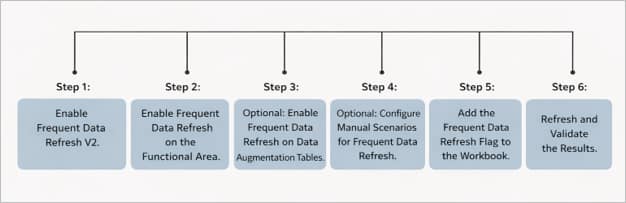
How to Enable FDR V2
- Supporting period close as General Ledger activity changes.
- Monitoring order fulfillment and inventory changes throughout the day.
- Supporting global teams with staggered refresh cycles, such as every eight hours.
- Enabling faster decisions without waiting for a daily refresh.
Step 1: Enable the FDR V2 Feature
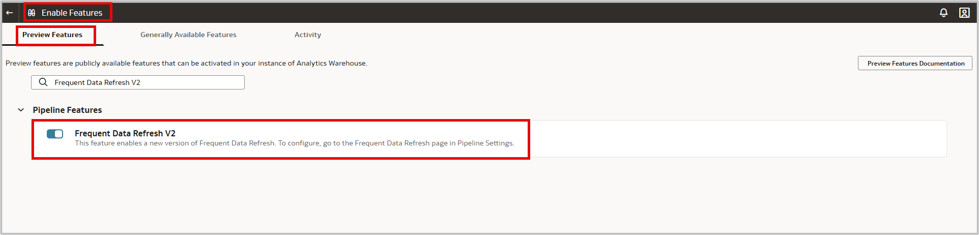
- Enable FDR V2 on the Enable Features page
Step 2: Enable FDR V2 for a Functional Area
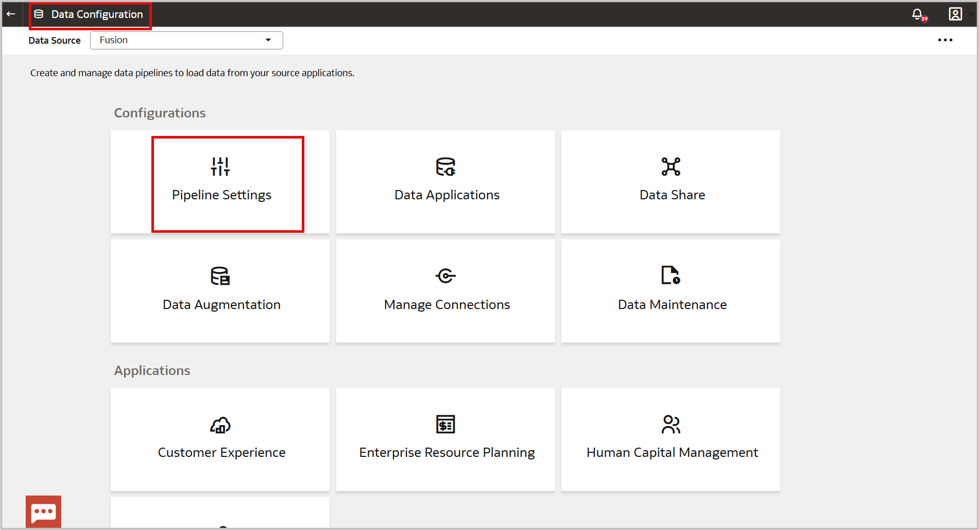
- Navigate to Data Configuration then Pipeline Settings and then Frequent Data Refresh.
- On the Modules and Data Tables page, select the Modules or Data Tables tab as needed.
- Modules: Select up to 10 supported functional areas for FDR V2.
- Set Oldest Data To Report to define the months of intra-day data to report. Oracle recommends fewer than four months; the maximum is 13 months.
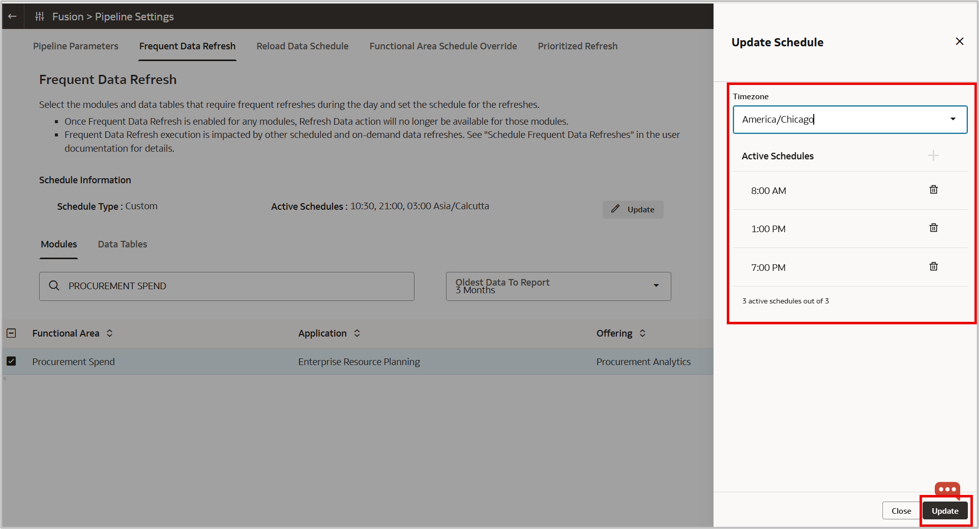
- Select Update to set the start time and time zone. You can schedule up to three refreshes daily.
Step 3 (Optional): Enable FDR V2 for Data Tables
Data Tables lists Data Augmentation, Custom Data Configuration and module tables.
- Enable the associated Functional Area before enabling a table for FDR.
- Select Add Table to include additional tables in FDR V2.
Step 4 (Optional): Configure Custom Tables
- For custom tables, manually extend the semantic model to make FDR data available for analysis.
Step 5: Add the FDR Flag to a Workbook
- After publishing, the FDR Flag column appears in the relevant subject area.
- Add the FDR Flag column to the workbook.
Step 6: Refresh and Validate
- Filter FDR Flag=Y to view data refreshed through FDR V2.
How FDR V2 Works
FDR V2 uses an incremental architecture with Lambda Views, delta, and delete tables to efficiently publish the latest data without updating base tables directly.
Lambda View = Base Table − Delete Table + Delta Table
- Base table: Contains data as of the most recent daily incremental refresh.
- Delta table: Captures source inserts and updates for each FDR run. It’s truncated after the next daily incremental refresh.
- Delete table: Captures source updates and deletes for each FDR run. It’s truncated after the next daily incremental refresh.
At query time, Lambda View combines base-table (recent incremental refresh) data with FDR inserts and updates, then removes deleted records to provide the latest analytical view without rebuilding the base table. Delta tables serve as sources for downstream integrations requiring FDR data.
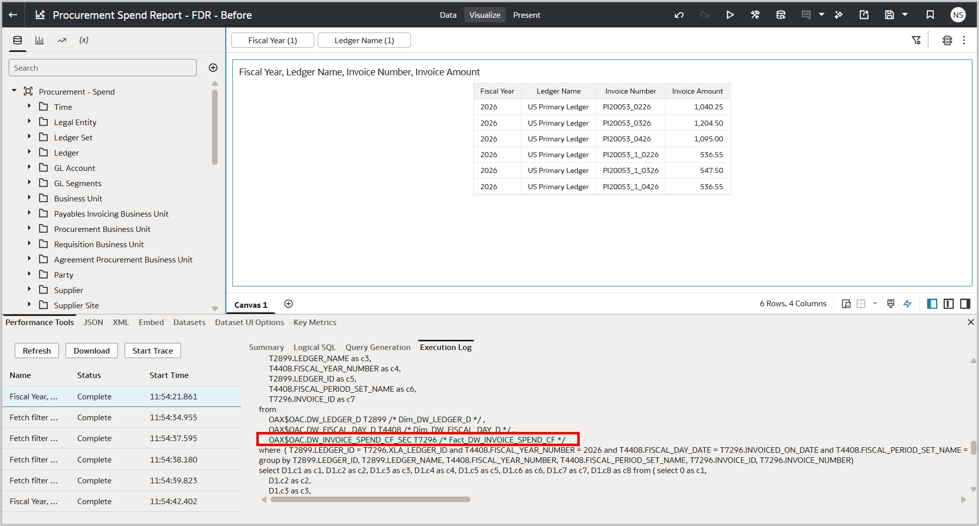
The report query shows whether the workbook uses the daily-refreshed base table or the Lambda View with FDR data.
Key Considerations for FDR V2
Before enabling FDR V2, review the latest Oracle documentation for supported modules, database objects, filter columns, and release-specific limits:
- CX: CX Frequent Data Refresh V2 Data Lineage
- ERP: ERP Frequent Data Refresh V2 Data Lineage
- SCM: SCM Frequent Data Refresh V2 Data Lineage
- Only Recommended and Certified tables appear on the Data Tables tab; Not Certified tables must be added manually.
- Recommended table: Automatically included with the associated module; no separate enablement is needed. Example: Accounts Payable.
- Certified table: Supported for FDR V2. Example: DFF tables.
- Not Certified table: Supported but not officially certified; must be added manually. Example: Conformed dimensions
- Denied table: Not supported by FDR V2. Example: Aggregate and Snapshot tables
- Dimensional and setup data, such as ledgers and business units, refresh daily unless explicitly included in FDR V2.
- FDR schedules must not overlap with daily refresh or maintenance windows; overlapping runs are skipped.
- Data security pipelines aren’t refreshed as part of FDR V2.
- Enabling FDR disables manual Refresh Data for that functional area to prevent conflicts.
- Performance depends on data volume, configuration complexity, and concurrent pipeline activity.
- Contact Oracle Support if your requirements exceed standard module, table, or refresh-frequency limits
Enabling FDR V2 for the Procurement – Spend Subject Area
Consider a procurement team monitoring invoice spending throughout the day. With daily incremental refreshes, new or adjusted invoices aren’t visible in the Procurement – Spend Report workbook until the next scheduled run.
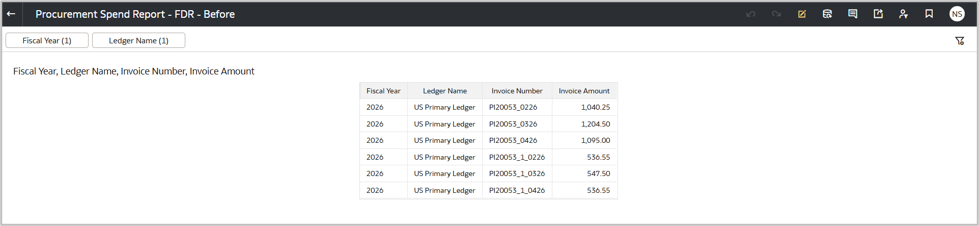
To display intra-day data, the workbook requires the FDR Flag. Initially, it’s unavailable because Procurement Spend isn’t enabled for FDR, so the report queries the base fact table instead of the FDR view.
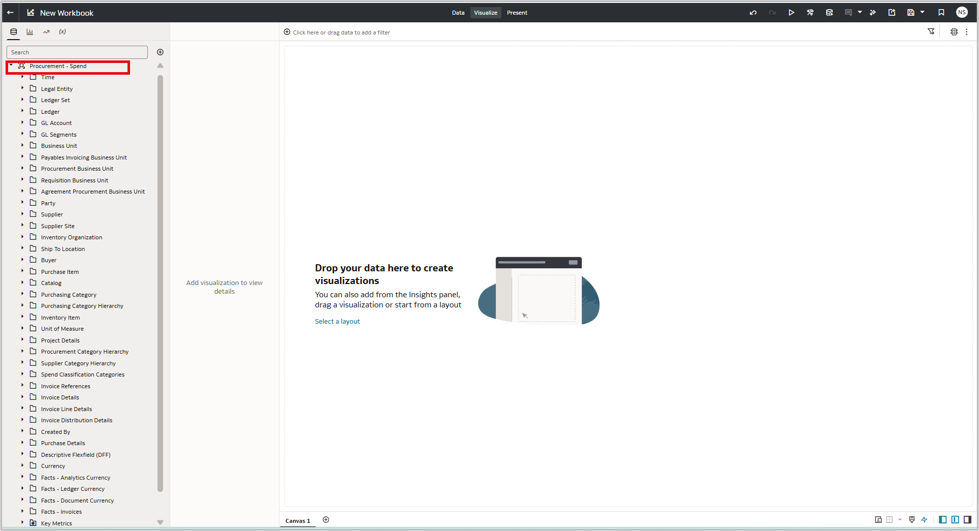
Enable FDR V2 for the Procurement Spend module to make intra-day data available in the Procurement – Spend subject area.
First, Enable Frequent Data Refresh V2 on the Enable Features page.
Navigate to Data Configuration then Pipeline Settings and then Frequent Data Refresh.
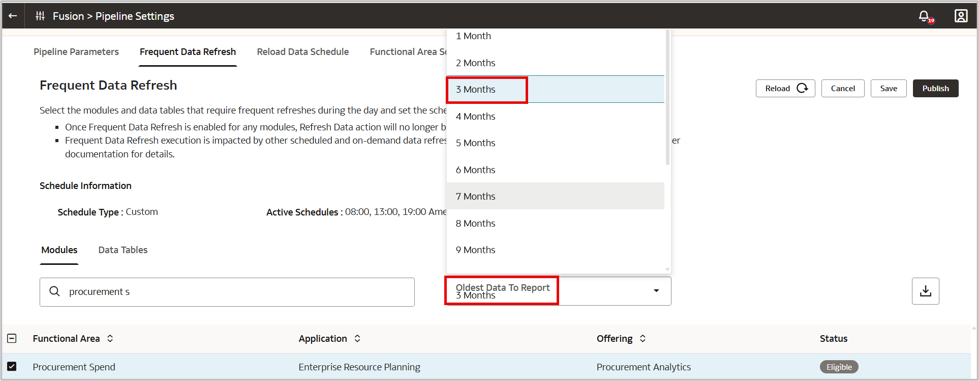
Under Frequent Data Refresh tab navigate to Modules, select Procurement Spend, then Update to schedule FDR. This example uses 8:00 AM, 1:00 PM and 7:00 PM CT to capture invoice activity across US time zones.
FDR V2 supports up to four daily schedules. For more, contact Oracle Support. Ensure schedules don’t overlap with the daily incremental refresh.
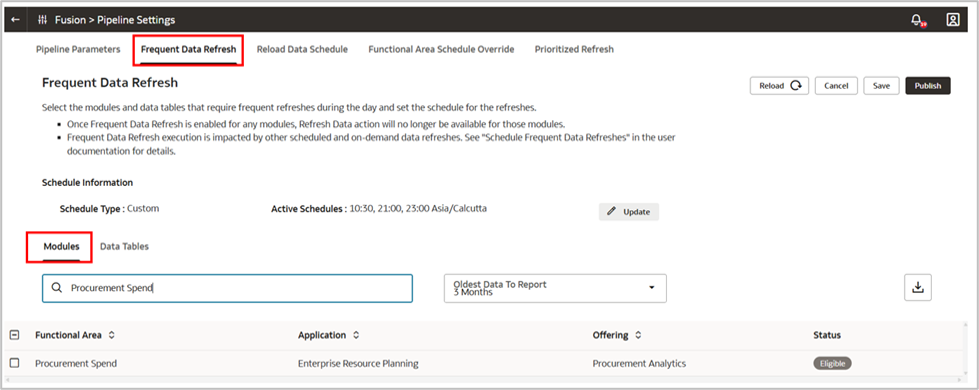
Set the Oldest Data To Report field to 3 months to include invoices changed during that period. For DW_INVOICE_SPEND_CF, parameter filters on INVOICE_CREATION_DATE. See the data-lineage documentation for applicable filter columns.
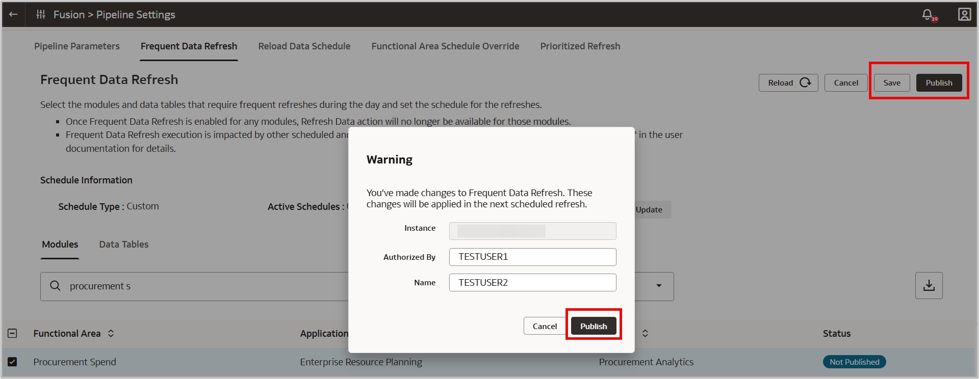
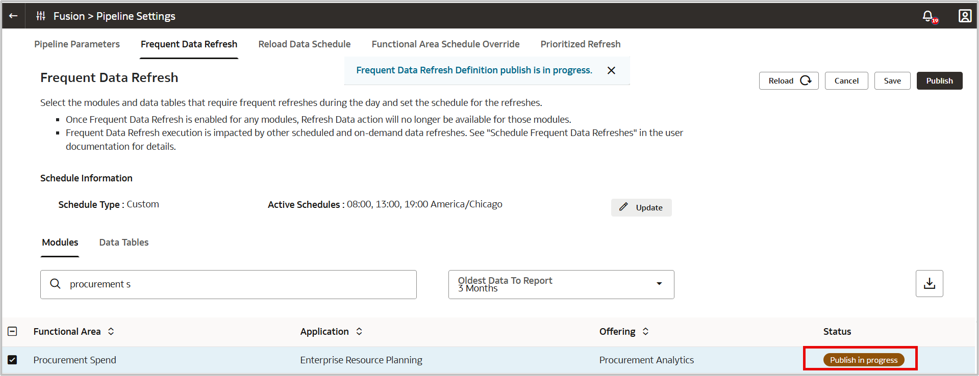
Save and Publish the Procurement Spend functional area.
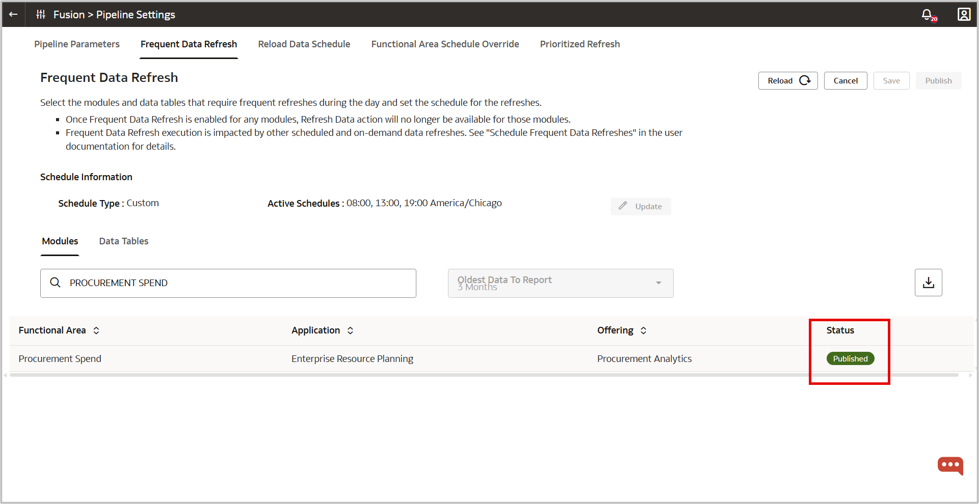
Published status for the Procurement Spend functional area confirms that FDR is enabled.
After publication, the SCM PO FDR Flag folder appears in the Procurement – Spend subject area.
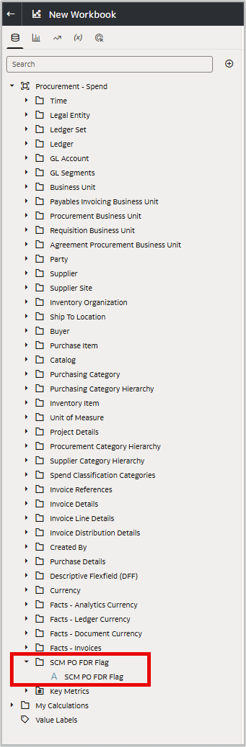
Add SCM PO FDR Flag to the report to display intra-day data. After each FDR run, the workbook reflects new or updated invoices from Oracle Fusion Cloud Applications automatically.
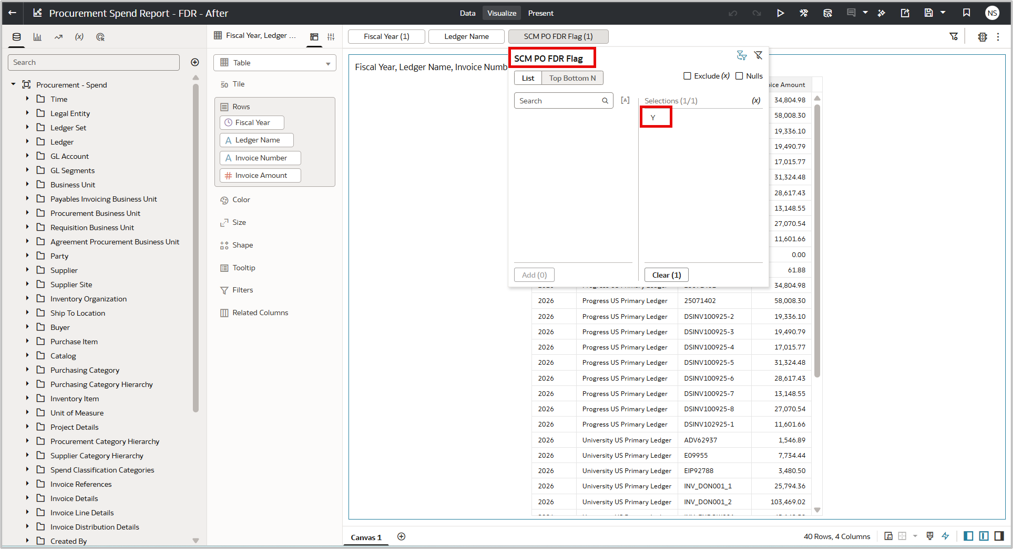
With SCM PO FDR Flag = Y, the query accesses the Lambda View refreshed by the scheduled FDR pipeline. Remove the filter to view daily incremental refresh data in the same report.
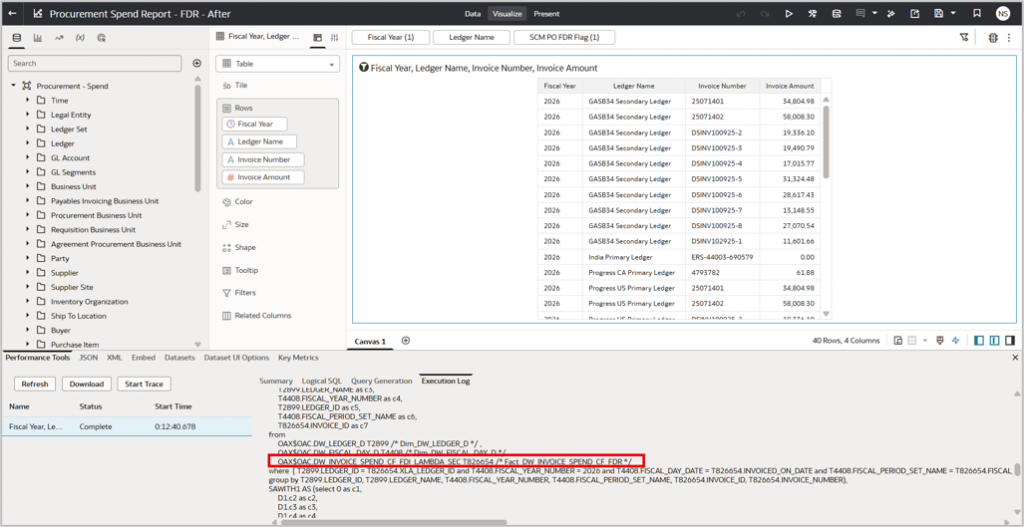
Monitor scheduled FDR pipeline status using Request History or the DW_FDR_WH_REFRESH_SUMMARY table.
To monitor publish status, navigate to Data Configuration then Request History and then Recurring.

You can also enable data-load event notifications. An email notification is sent when the Frequent Data Refresh is complete.
Summary
Analytics deliver the most value when the refresh cadence matches the business needs. FDR V2 provides governed intra-day refreshes for selected FDI data, enabling faster decisions for time-sensitive processes while preserving the reliable daily incremental pipeline.
Call to Action
Start with one high-impact use case. Identify the functional area and tables, confirm data-lineage coverage, schedule FDR outside daily refresh and maintenance windows, and validate the FDR Flag. Once proven, expand to other processes where fresher data improves decisions.