


With inputs from Jay Pearson, Product Management Fusion Data Intelligence
Oracle Fusion Data Intelligence is a family of prebuilt, cloud-native analytics applications for Oracle Fusion Cloud Applications that provide ready-to-use insights to help improve decision-making. It’s extensible and customizable, allowing you to ingest data and expand the base semantic model with additional content.
Introduction
The Frequent Data Refresh (FDR V2) process in Oracle Fusion Data Intelligence enables near real-time reporting with refresh intervals as frequently as once per hour. For more information on scheduling FDR V2, see Schedule Frequent Data Refreshes.
After FDR V2 completes, the system automatically exposes certain scenarios in the semantic model, making them immediately available for reporting. For more information, see Automatic Availability of Frequently Refreshed Data in the Semantic Model.
The system doesn’t automatically expose all scenarios. In such cases, you can manually add the objects to the semantic model to make it available for reporting. For more information, see Manual Addition of Frequently Refreshed Data in the Semantic Model.
This article examines three common dimension use cases that demonstrate what FDR V2 automatically supports, what you must manually configure in the semantic model, and what FDR V2 doesn’t support, along with the implementation approach for each scenario.
Benefits
FDR V2 provides several benefits, including:
- Improved performance while maintaining data consistency across refreshes.
- Faster intra-day reporting through separate “Silver” tables, while “Gold” tables support daily analytics.
- Flexible reporting, allowing you to seamlessly switch between daily and intra-day data using the FDR Flag.
- Simplified report authoring, when the system automatically adds an FDR folder to the subject area. Even if the subject area contains multiple fact tables, the system displays only a single FDR folder and FDR flag.
Use Case 1: Manual Scenario of FDR V2 in SME
In this example, you’ll learn how to add the DW_BUSINESS_UNIT_D_FDI_LAMBDA view to the semantic model as a new dimension to expose the frequently refreshed Business Unit data in the Financials – AP Invoices subject area.
Enable FDR V2 for the AP Payables module and the prebuilt Business Unit conformed dimension DW_BUSINESS_UNIT_D in the semantic model.
After the initial frequent refresh completes, the system automatically generates the DW_BUSINESS_UNIT_D_FDI_LAMBDA view to combine the base data with the incremental data for DW_BUSINESS_UNIT_D. However, because DW_BUSINESS_UNIT_D is a prebuilt conformed dimension; the system doesn’t automatically expose it in the semantic model.
Steps
Add the Business Unit Lambda View as a custom dimension to the logical star
- Create or edit an existing sandbox on the Semantic Model Extensions page.
- In Perform Action, click Manage Logical Star, then Edit Logical Star, then Out of the box, then select Financials – AP Invoices as the subject area, select Fact – Fins AP Invoice Schedules as the corresponding fact, and then click Next.
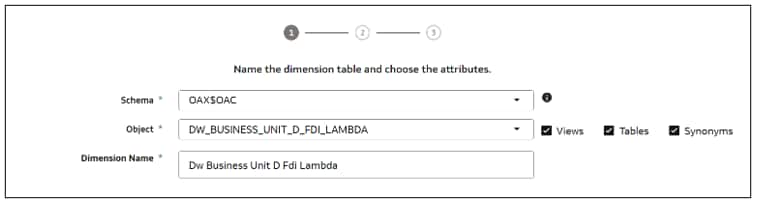
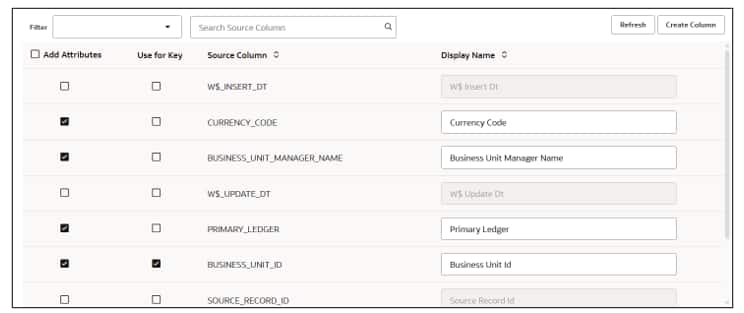
- In step 1 of the Add a Dimension wizard, select OAX$OAC in Schema, select DW_BUSINESS_UNIT_D_FDI_LAMBDA in Object, and enter a name in Dimension Name. Select the Add Attributes check box to add desired attributes. Select the Use for Key check box for BUSINESS_UNIT_ID. Click Next.
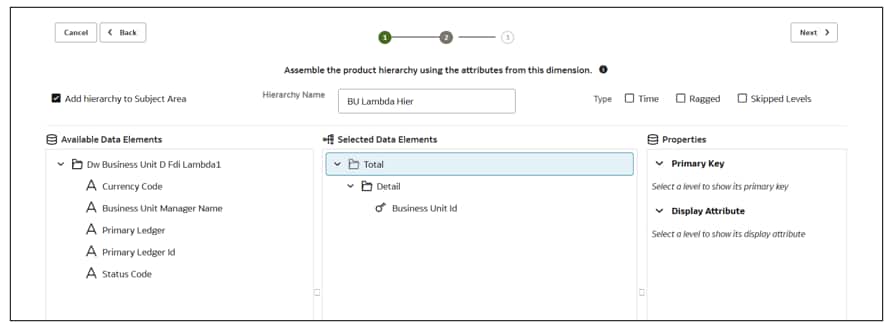
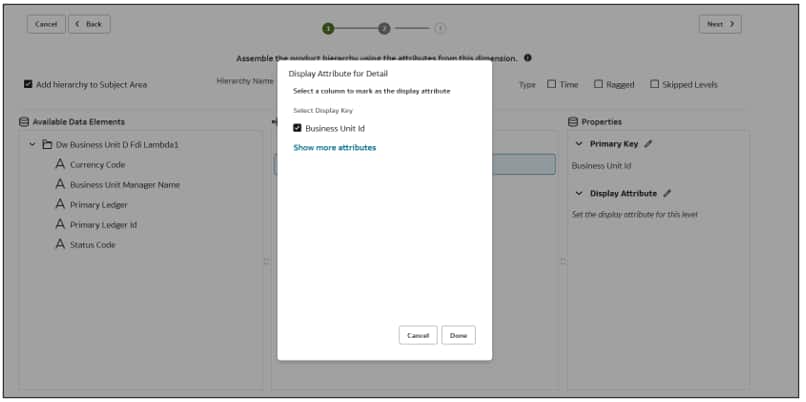
- In step 2 of the wizard, select Add hierarchy to Subject Area check box to add a hierarchy. Set Business Unit Id as the primary key and display attribute in the logical star. Click Done. Click Next and Finish.
Add the BUID physical column to the Fact – Fins AP Invoice Schedules prebuilt fact
- On the Logical Star: Fact page, right-click Fact – Fins AP Invoice Schedules, click Manage Extension, and then click Add Columns. On the Add Columns page, click Add Physical Column. In Select Physical Columns, select the check box for BUID, and then click OK.
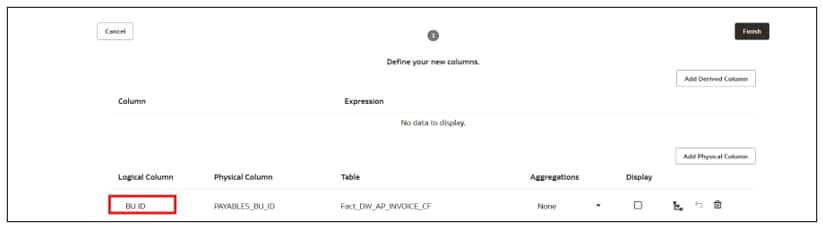
Join the Business Unit Lambda View custom dimension to the Fins AP Invoice Schedules prebuilt fact
- On the Logical Star: Fact page, click and drag the custom dimension Dim – DW Business Unit D Fdi Lambda circle to the prebuilt fact Fact – Fins AP Invoice Scedules circle in the graphical format to open the Join dialog.
- In the Join dialog, set Join Type as Inner, set Content level to Detail, set Join Condition as follows and then click Done:
- For Fact – Fins – AP Invoice Schedules, select BU ID (DOUBLE).
- For Dim – Dw Business Unit D Fdi Lambda, select Business Unit Id (DOUBLE).
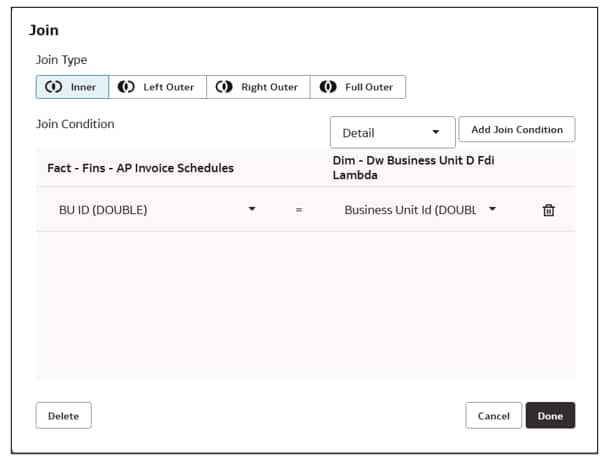
- Review the custom joins in the graphical format.
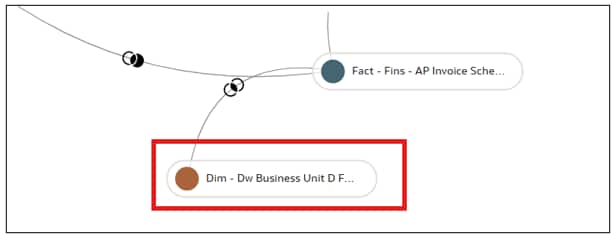
Present the Business Unit Lambda View custom dimension in the semantic model
- Navigate back to your sandbox, click Perform Action, then Manage Subject Areas, and then click Modify a Subject Area. Select Financials – AP Invoices and click Next.
- On the Modify a Subject Area – Financials – AP Invoices page, review the subject area details in step 1 of the wizard and click Next.
- In step 2 of the wizard, click Manage Elements, and then click Manage New Customizations.
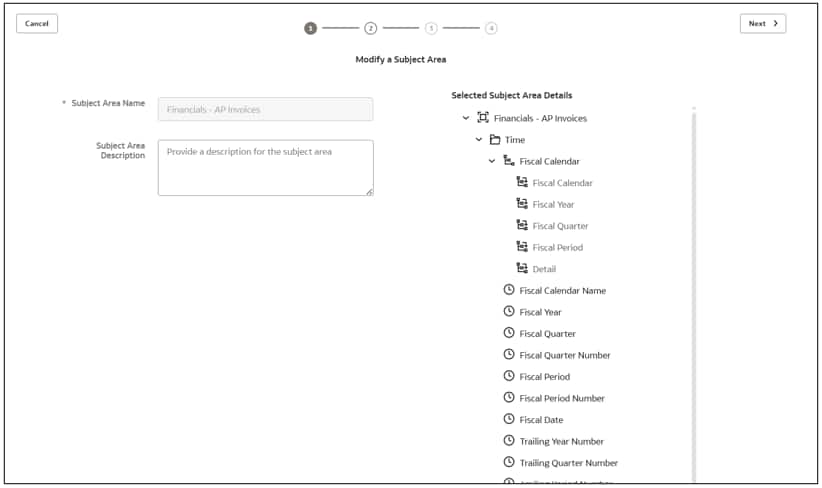
- In Add Subject Area, under Custom, select the desired attribute columns, and then click Add. This adds the Dim – Dw Business Unit D Fdi Lamda folder to the semantic model and places the columns within the folder. Click Apply.
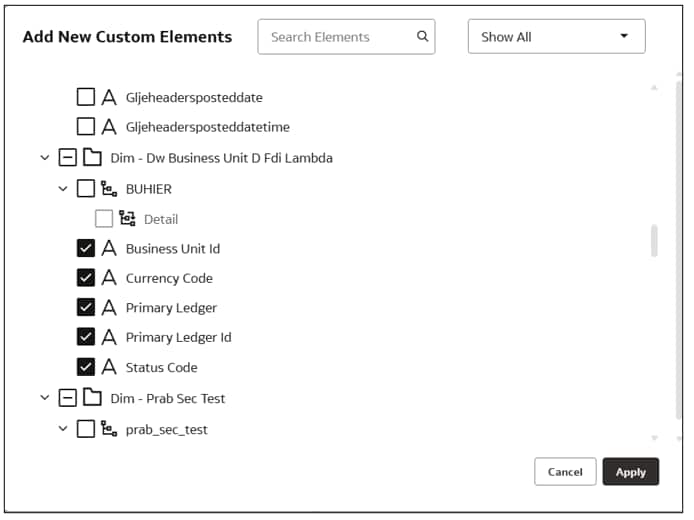
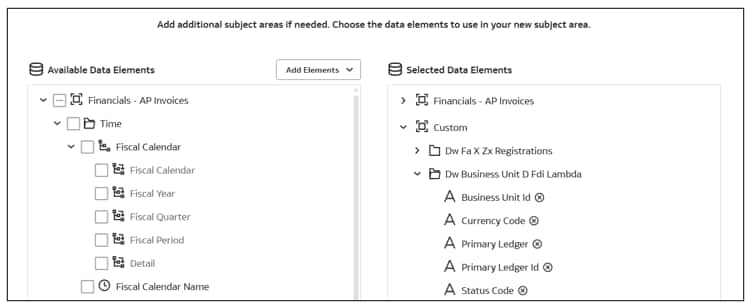
- Rename the Dim – Dw Business Unit D Fdi Lamda folder to Business Unit FDR. Click Next and Finish.

Apply and publish the customizations
- Apply the changes to compile the sandbox and ensure that the sandbox is error free.
- Use the Activity tab to debug, resolve errors, and confirm that the Apply Changes action completes and is successful.
- Merge the changes to the main sandbox and publish the main user extensions to share the new extensions with consumers.
Validate the results
- On the Fusion Data Intelligence Console, click Go to Home Page.
- On the Oracle Analytics Home page, click Create, click Workbook, in Add Data, select the Financials – AP Invoices subject area, and then click Add to Workbook.
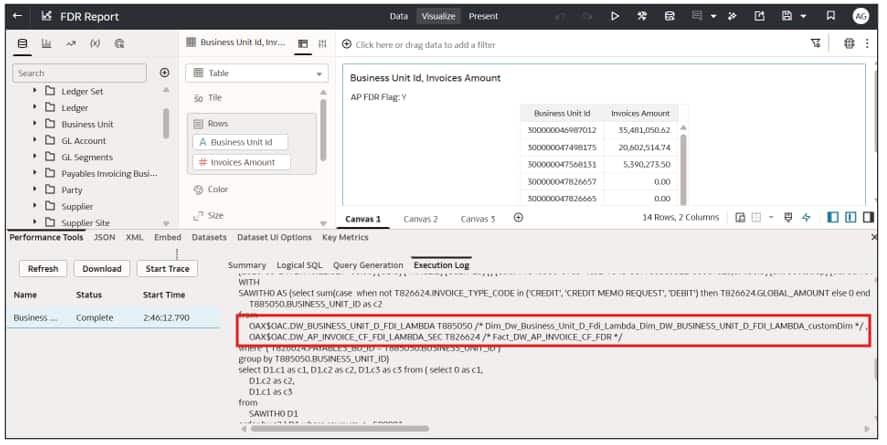
- Expand the Business Unit FDR folder and add the Business Unit column onto the workbook.
- Expand the Fact folder and add the Invoices Amount measure onto the workbook.
- Expand the FDR Flag Folder and add the FDR flag as a filter and set it to Y.
- Review the execution log to validate that the query uses the lambda views to retrieve the data.
Use Case 2: Automated Scenario of FDR V2 in SME
In this example, you’ll learn how to extend the Dim – AP Invoice Details degenerate dimension with columns from the DW_FA_X_INV_EXTN data augmentation dataset table to expose frequently refreshed extended data in the Financials – AP Invoices subject area.
Enable FDR V2 for both the AP Payables functional area and the DW_FA_X_INV_EXTN data augmentation dataset table. After the initial frequent refresh completes, the system automatically updates the semantic model to expose the frequently refreshed data from the extended degenerate dimension, making the data immediately available for reporting in the Financials – AP Invoices subject area.
Steps
Create a Dataset type of data augmentation
- Create a dataset type data augmentation to use the target table columns to extend Dim – AP Invoices Details prebuilt degenerate dimension table.
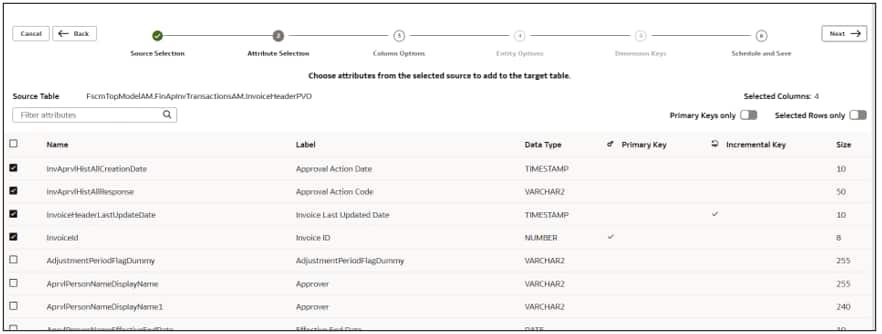
- Select a primary key and incremental key, click Next, and click Finish.
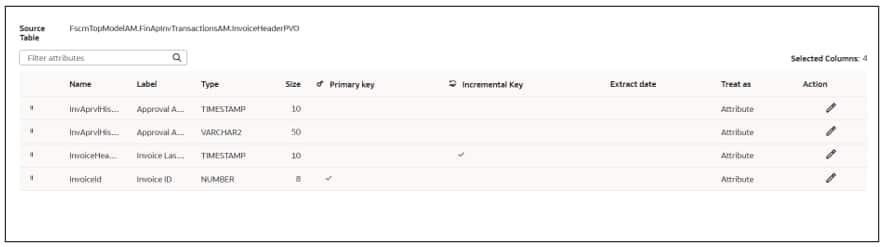
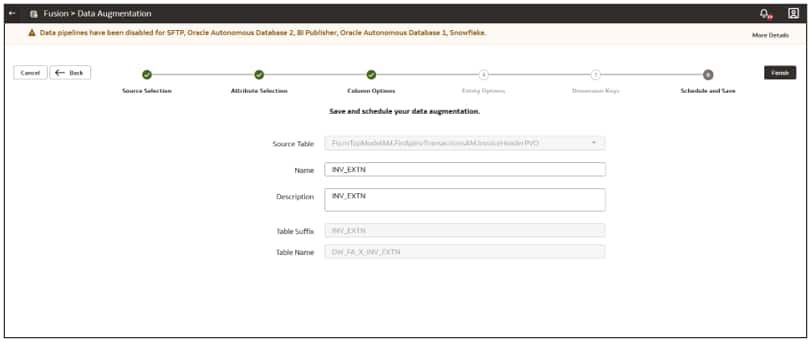
Extend the Dim – AP Invoice Details degenerate dimension
- Navigate to Semantic Model Extensions.
- Edit the logical Star fact: Fact – Fins AP Invoice Schedules.
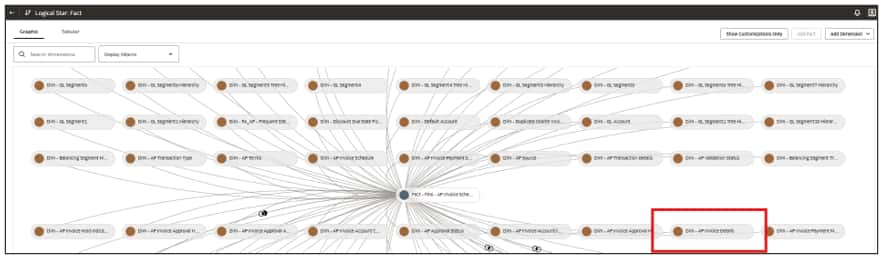
- Right click Dim – AP Invoice Details, then select Manage Extensions.
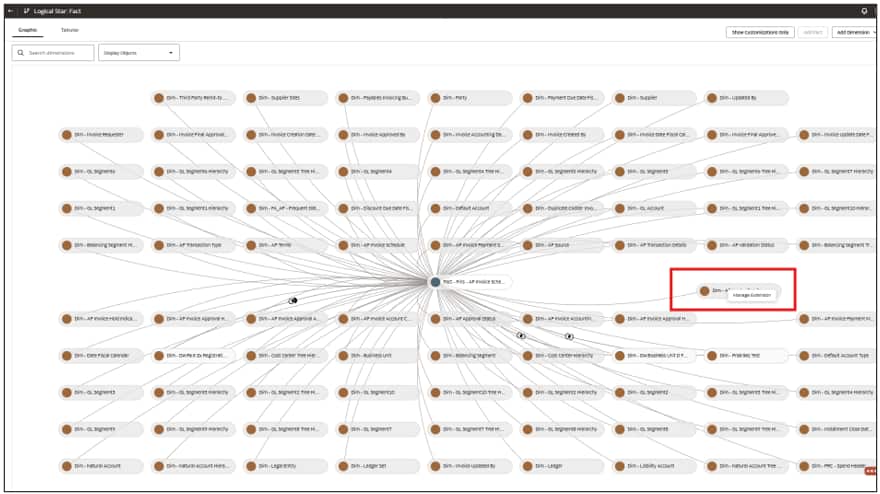
- Select the columns to extend, then click Next.
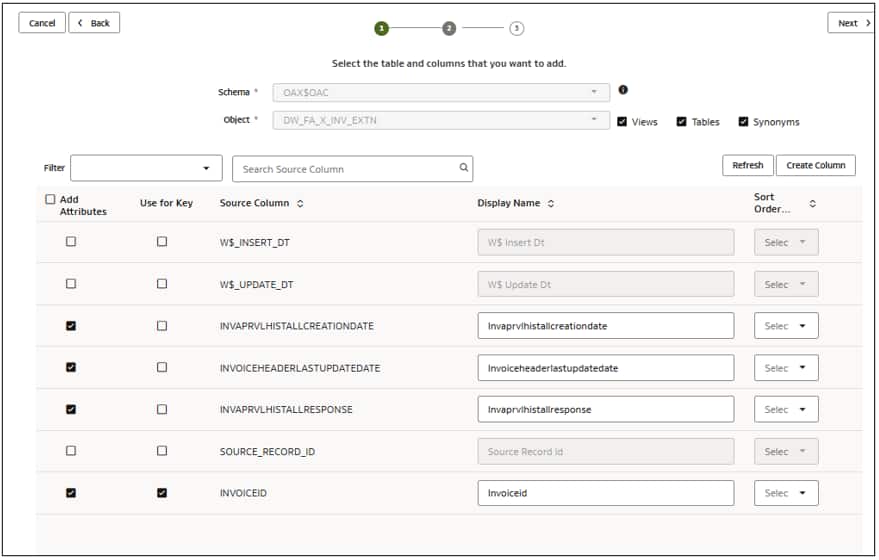
- Define the join and click Finish.
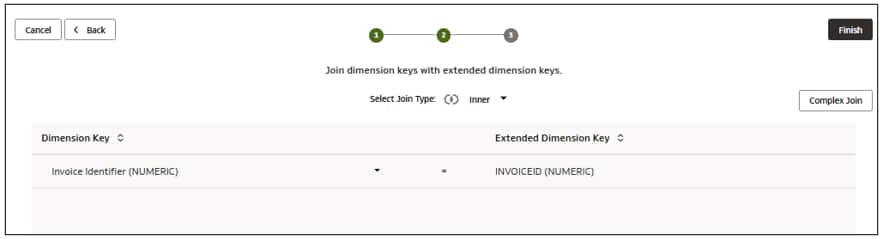
Present the extended degenerate dimension columns in the semantic model
- Navigate back to your sandbox, click Perform Action, then Manage Subject Areas, and then click Modify a Subject Area. Select Financials – AP Invoices and click Next.
- On the Modify a Subject Area – Financials – AP Invoices page, review the subject area details in step 1 of the wizard and click Next.
- In step 2 of the wizard, click Manage Elements, and then click Extend Pre-Build Extensions.
- Select the desired attribute columns, and then click OK.
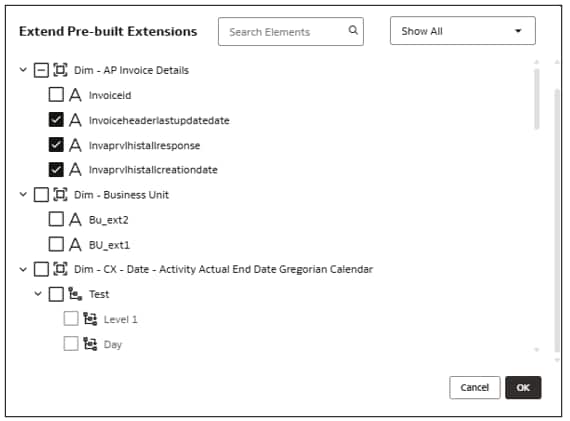
- Select the Document Details folder to add the extended columns. Click Next.
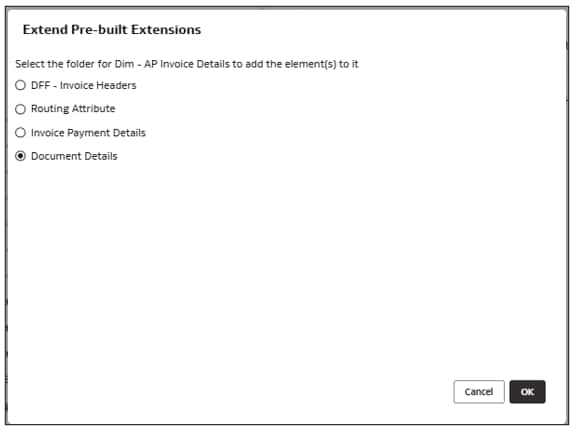
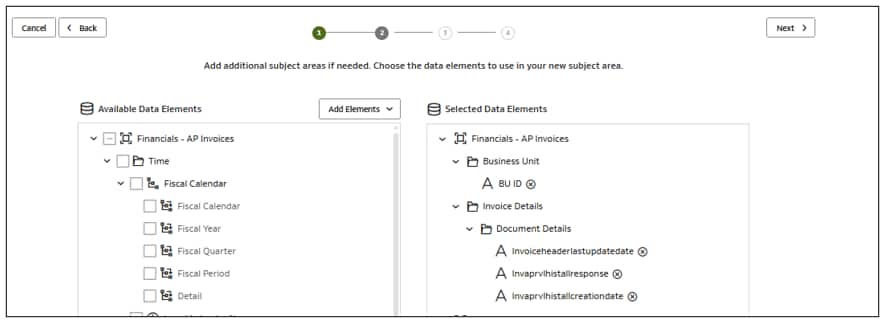
- Review and confirm the added columns, click Next, then click Finish.
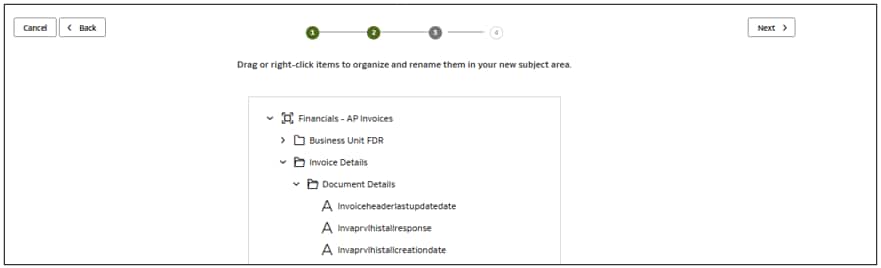
Apply and publish the customizations
- Apply the changes to compile the sandbox and ensure that the sandbox is error free.
- Use the Activity tab to debug, resolve errors, and confirm that the Apply Changes action completes and is successful.
- Merge the changes to the main sandbox and publish the main user extensions to share the new extensions with consumers.
Validate the results
- On the Fusion Data Intelligence Console, click Go to Home Page.
- On the Oracle Analytics Home page, click Create, click Workbook, in Add Data, select the Financials – AP Invoices subject area, and then click Add to Workbook.
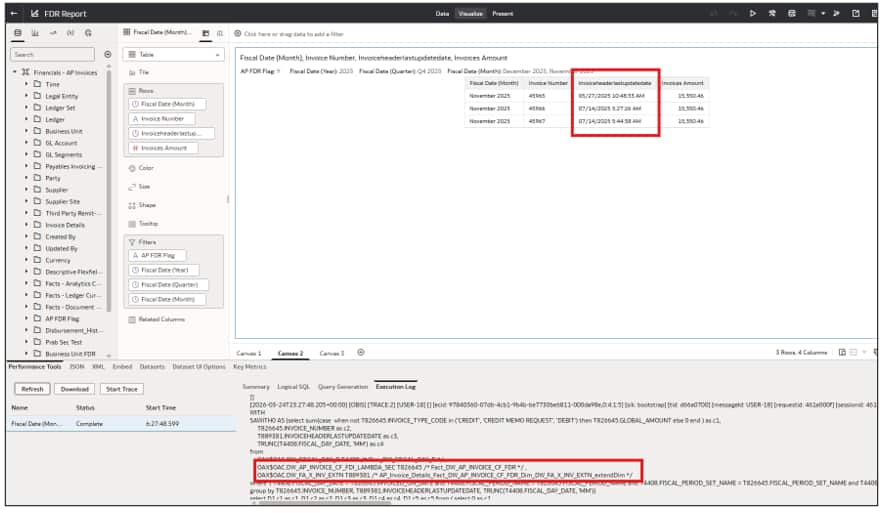
- Expand the Invoice Details folder and add the extended columns to the workbook.
- Expand the Fact folder and add the Invoices Amount measure onto the workbook.
- Expand the FDR Flag Folder and add the FDR flag as a filter and set it to Y.
- Review the execution log to validate that the query uses the Lambda views to retrieve the data.
Use Case 3: Unsupported Scenario of FDR V2 in SME
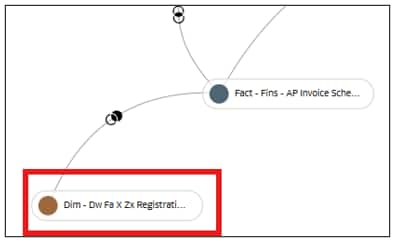
In this example, you’ll learn the expected behavior when a custom dimension, Dim ZX Registrations, is created in Autonomous Data Warehouse (ADW) using a custom ETL process and joined to the AP Invoice Schedule prebuilt fact table.
You enable FDR V2 for the AP Payables functional area. After the initial refresh completes, the system automatically updates the semantic model to expose the frequently refreshed data from the AP Invoice Schedule fact table. However, because Dim ZX Registrations isn’t FDR V2-enabled, a custom ETL process populates it and its data isn’t refreshed. As a result, the custom dimension continues to display the data from its last ETL run.
Steps
Add Dim ZX Registrations as a custom dimension to the logical star
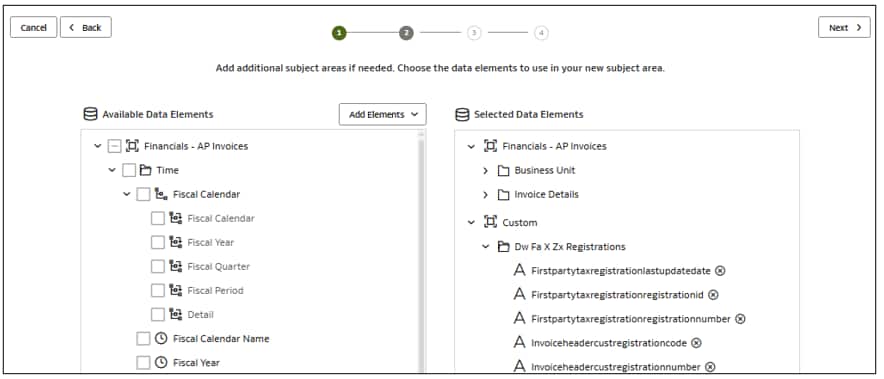
- Use Semantic Model Extensions to add Dim ZX Registrations to logical Star fact: Fact – Fins AP Invoice Schedules and join it to AP Invoice Schedule prebuilt fact table.
Validate the results
- On the Fusion Data Intelligence Console, click Go to Home Page.
- On the Oracle Analytics Home page, click Create, click Workbook, in Add Data, select the Financials – AP Invoices subject area, and then click Add to Workbook.
- Expand the Dim ZX Registrations folder and add desired columns to the workbook.
- Expand the Fact folder and add the Invoices Amount measure onto the workbook.
- Expand the FDR Flag Folder and add the FDR flag as a filter and set it to Y.
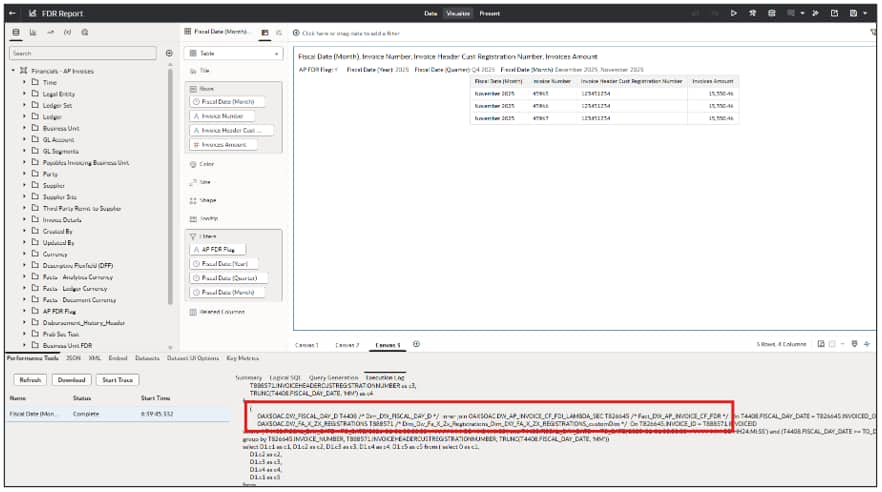
- Review the execution log to confirm that the query uses the Lambda views to retrieve the frequently refreshed data for the AP Invoice Schedule prebuilt fact table. In contrast, the data from Dim ZX Registrations remains unchanged when you enable the FDR Flag, as FDR V2 doesn’t refresh the custom dimension. If your custom table must contain the latest data, schedule your custom ETL process to run after FDR V2 so it can incorporate the most recent changes.
References
Upgrade to Frequent Data Refresh V2
Schedule Frequent Data Refreshes
Manage Frequently Refreshed Data in the Workbooks
Top FAQs for Frequent Data Refresh
FDR V2 Data Lineage
Conclusion
Frequent Data Refresh provides a powerful mechanism for delivering near real-time reporting in Oracle Fusion Data Intelligence. As demonstrated in this blog, the behavior of frequently refreshed data in the semantic model depends on the type of object that you use. You learned that the system automatically configures prebuilt degenerate dimensions for FDR V2, while prebuilt conformed dimensions require manual semantic model configuration to expose their frequently refreshed data. In contrast, FDR V2 doesn’t refresh custom objects that the external ETL process populate and you must update independently.
By understanding these behaviors and choosing the appropriate implementation approach for each scenario, you can extend the semantic model with confidence while ensuring that reports deliver the latest available data, maintain optimal performance, and preserve data consistency.
Call to Action
For more information, see the About Semantic Model Customization documentation to learn how to extend the semantic model using Semantic Model Extensions.
Now that you’ve read this article, try these techniques in your own environment. Share your experience in the Oracle Analytics Community, where you can ask questions, exchange best practices, and submit ideas for future enhancements.