Knowledge Base is generally available in Oracle Integration release 26.04.
Create your own knowledge base from corporate documents and perform knowledge base searches directly from within your integrations. Publish your knowledge base as an MCP tool for discovery by external AI clients. Or use it with agentic AI agents inside OIC. Customers bring their own OCI OpenSearch cluster — no additional managed-infrastructure is required.
Why Agents Need Grounded Knowledge
The hallucination problem—and how OIC solves it with managed RAG
Large language models are strong general reasoners. They will not know your supplier contracts, internal policies, or compliance rules unless you tell them — every single call, in every single prompt. That is not scalable, and it is not safe.
OIC Knowledge Base solves this with managed Retrieval-Augmented Generation (RAG). Instead of stuffing entire documents into the LLM context, you ingest them once into a vector-indexed store backed by OCI Search with OpenSearch. At runtime, your agent retrieves only the relevant chunks — precise, cited, and grounded in your actual enterprise content.
“A supplier invoice claims Net 15. Your signed contract says Net 30. Without grounding, an agent cannot catch that mismatch. With a Knowledge Base, it retrieves the exact clause and flags the discrepancy — automatically.”
Architecture: Ingest → Index → Retrieve
Three stages, zero infrastructure overhead
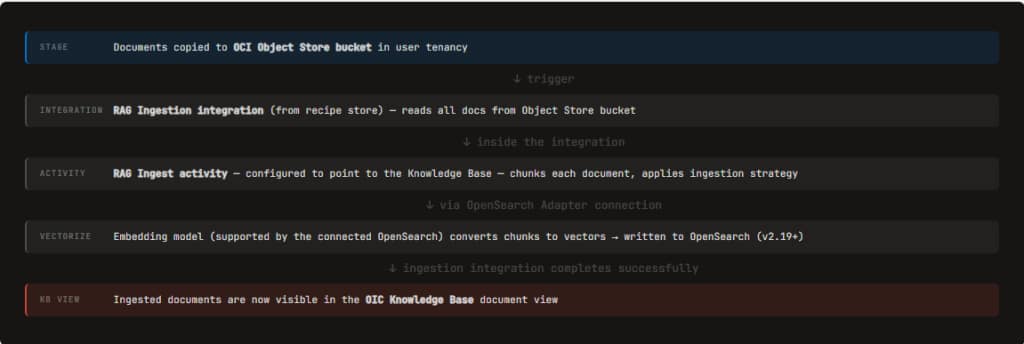
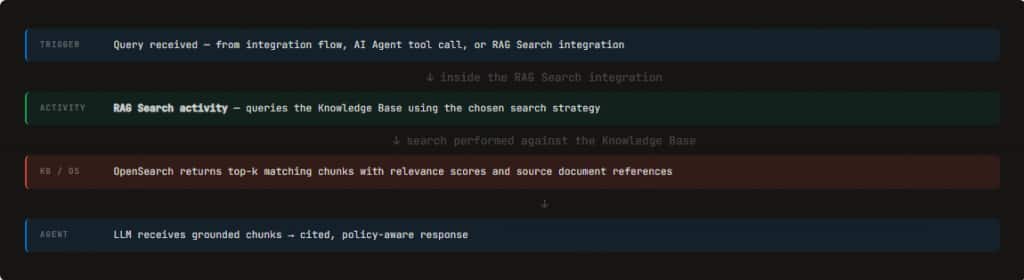
The pipeline runs in two distinct phases. The ingestion phase populates the Knowledge Base; the search phase queries it at runtime.
Ingestion Phase
Search Phase
Search Modes
| Mode | Query Type | How It Works | Best For |
|---|---|---|---|
| Semantic | SemanticSearchQuery | Vector similarity — finds meaning even when words differ. | Intent-based queries: “What are the payment terms?” |
| Text — BM25 | TextSearchQuery | Keyword relevance scoring across document corpus. | Broad full-text search across large document libraries. |
| Text — Phrase | TextSearchQuery | Exact string match — literal text must appear. | Contract numbers, order IDs, supplier names. |
| Hybrid | Combined | Semantic + text scores merged — best recall and precision. | Production use — covers both intent and exact-match needs. |
Key Search Parameters
maxResults — Controls how many ranked chunks are returned. Set conservatively (3–5) to avoid flooding the LLM context with low-relevance content.
augmentResponseWithSurroundingTextChunksCount — Includes neighboring chunks on either side of a match. Set to 1 when contract clauses span multiple sentences or paragraphs.
Three Ingestion Strategies
Choose based on your source type and update pattern:
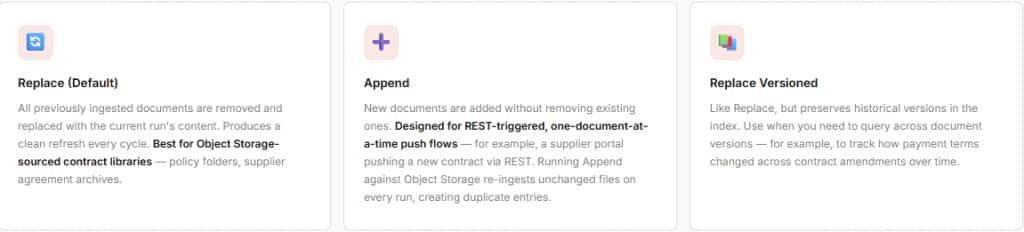
Append with Object Storage re-ingests the same unchanged files on every scheduled run, creating duplicate vector entries. For Object Storage sources, use Replace.
Building a Knowledge Base: Step by Step
From prerequisites to a validated, production-ready KB.
ℹ️
Before you begin: You need an OCI Search with OpenSearch cluster (minimum version 2.19) deployed in a VCN in the same region as your OIC instance. The VCN and subnet can be in any compartment in your tenancy. The subnet can be public or private — private is recommended for stronger isolation. Create the OpenSearch Adapter connection in OIC pointing to your cluster endpoint before creating the Knowledge Base.
1. Knowledge Base
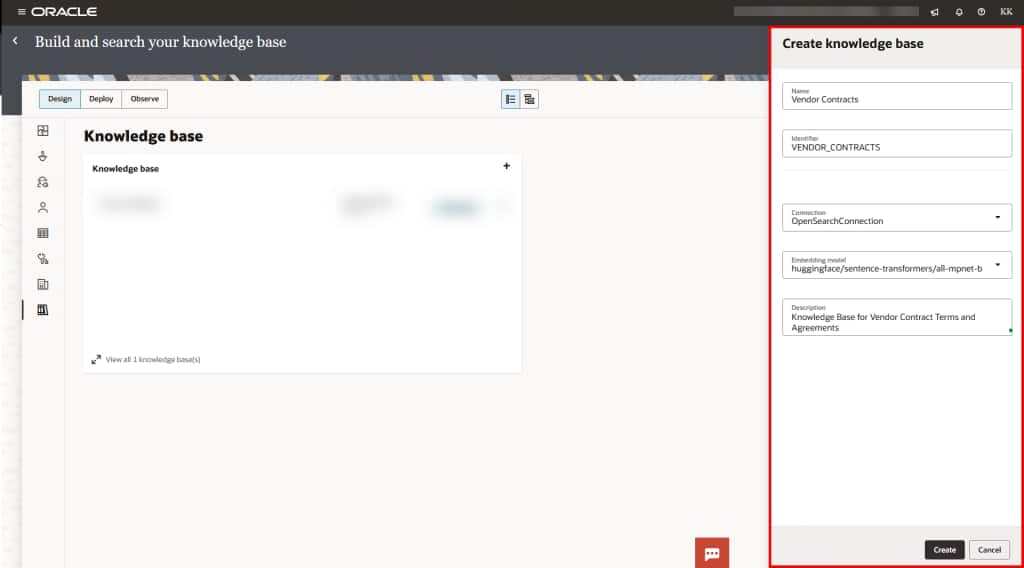
Create the Knowledge Base
In OIC, navigate to AI Services → Knowledge Bases → Add Knowledge Base. Associate it with an OpenSearch Adapter connection pointing to your OpenSearch cluster. Then select an embedding model supported by that OpenSearch instance (for example, huggingface/sentence-transformers/all-mpnet-base-v2). The embedding model selection is locked once documents are ingested — choose carefully. Use one Knowledge Base per project to avoid mapping mistakes.
2. Object Store
Create the Object Store Bucket.
Create an OCI Object Store bucket in your tenancy. This is the staging area where documents to be ingested are copied before the ingestion integration runs. Copy your supplier contracts, policy PDFs, or any content you want indexed into this bucket.
3. Recipe
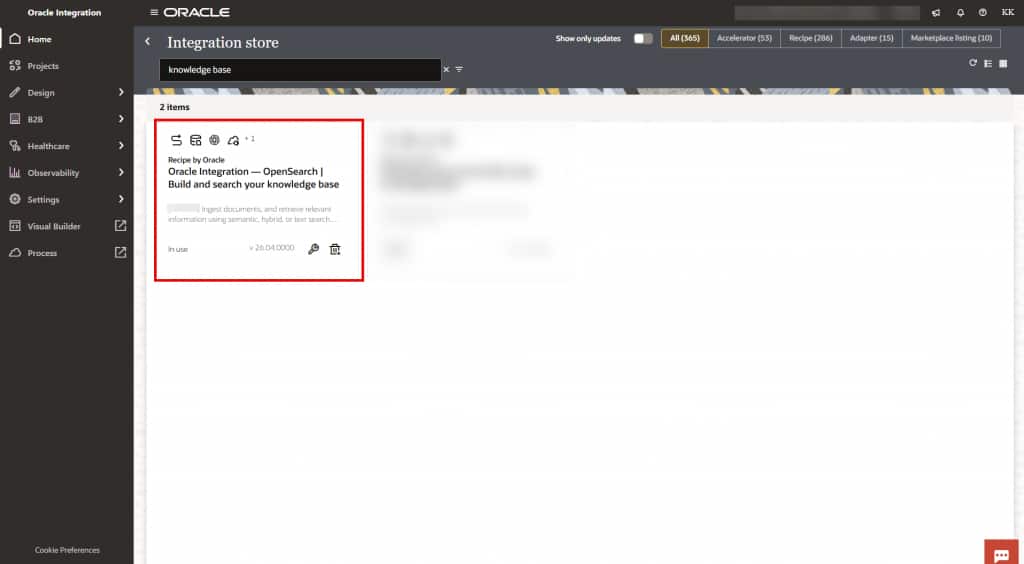
Install the Recipe from the Recipe Store.
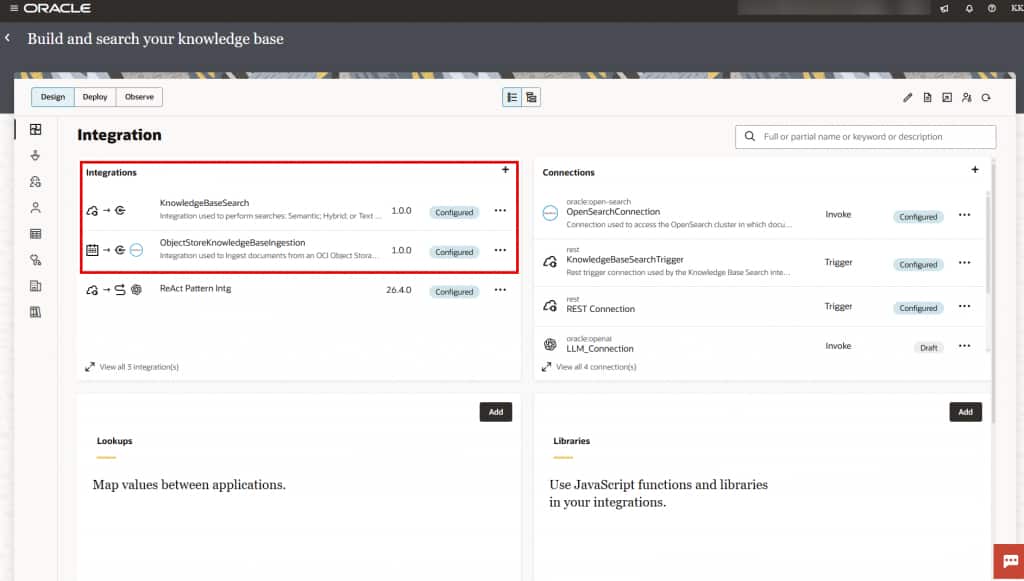
Search the recipe catalog for “Oracle Integration — OpenSearch | Build and search your knowledge base”. The recipe creates two prewired integrations: the RAG Ingestion integration (ObjectStoreKnowledgeBaseIngestion) and the RAG Search integration (KnowledgeBaseSearch). The recipe is highly recommended, but not mandatory.
Open Search Knowledge Base Recipe
KB Ingestions/Search Integrations
4. Configure
Modify the RAG Ingestion Integration.
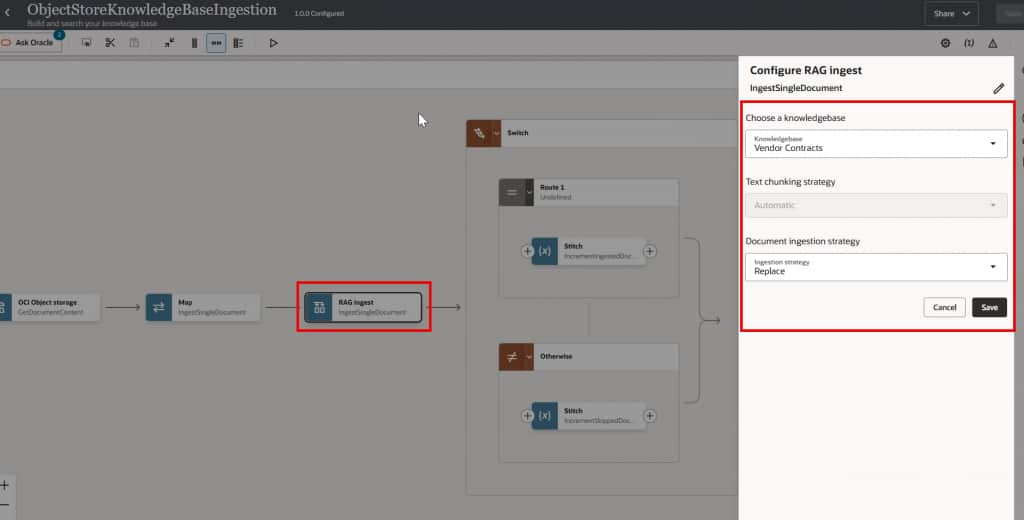
Open the RAG Ingestion integration from the recipe. Update it to use the Knowledge Base created in Step 1 and the Object Store bucket created in Step 2. Set the ingestion strategy (Replace for contract libraries). Activate the integration.
New RAG Ingest Activity
5. Ingest
Trigger the RAG Ingestion Integration.
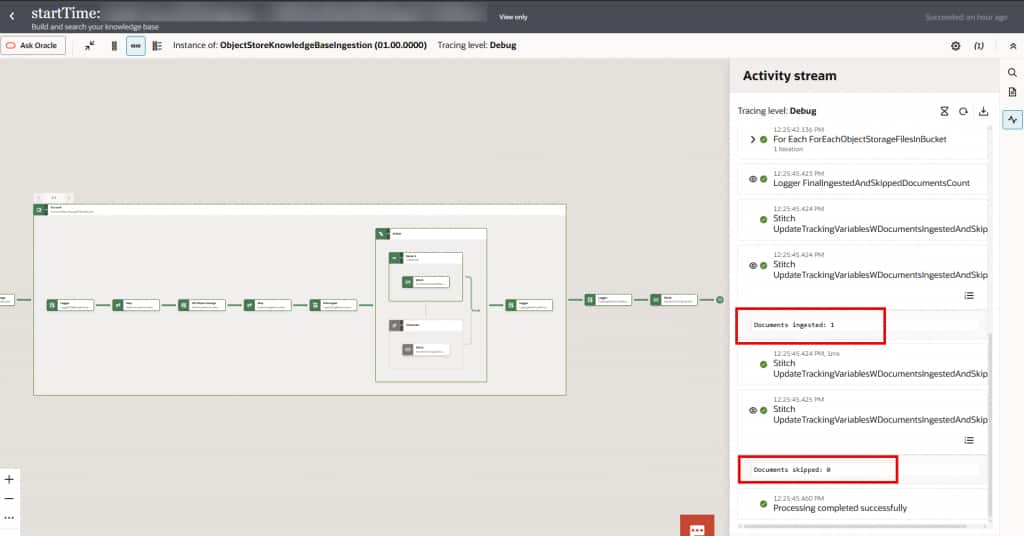
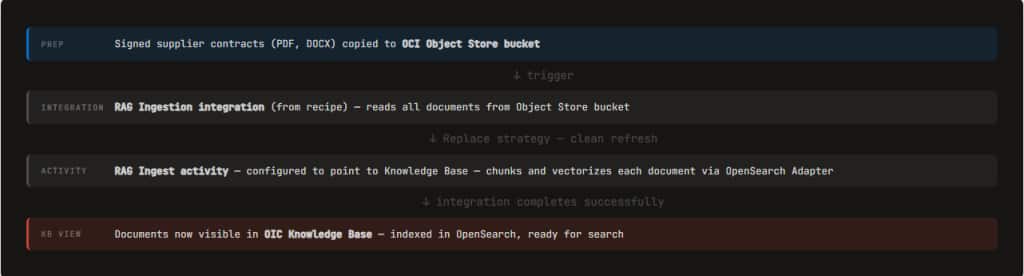
Trigger the ingestion integration. It reads all documents from the Object Store bucket and passes them to the RAG Ingest activity inside the integration — which is configured to point to the Knowledge Base. The activity chunks each document, vectorizes it via the OpenSearch Adapter, and writes the vectors to OpenSearch. In Observability, monitor Ingested vs. Skipped counts. High skip counts on a first run indicate a mapping issue.
6. Verify
View Documents in the Knowledge Base.
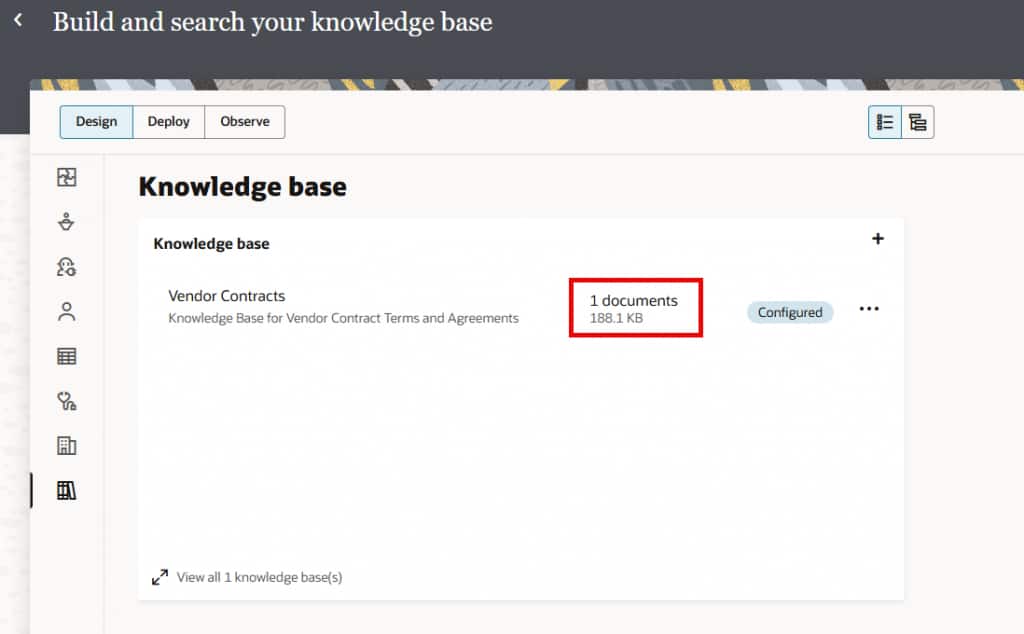
Once the ingestion integration completes successfully, navigate to the Knowledge Base detail view. The ingested documents are now listed with their chunk counts, confirming that content is indexed and ready for search.
Seamless Document Ingestion Process
7. Search
Test the RAG Search Integration.
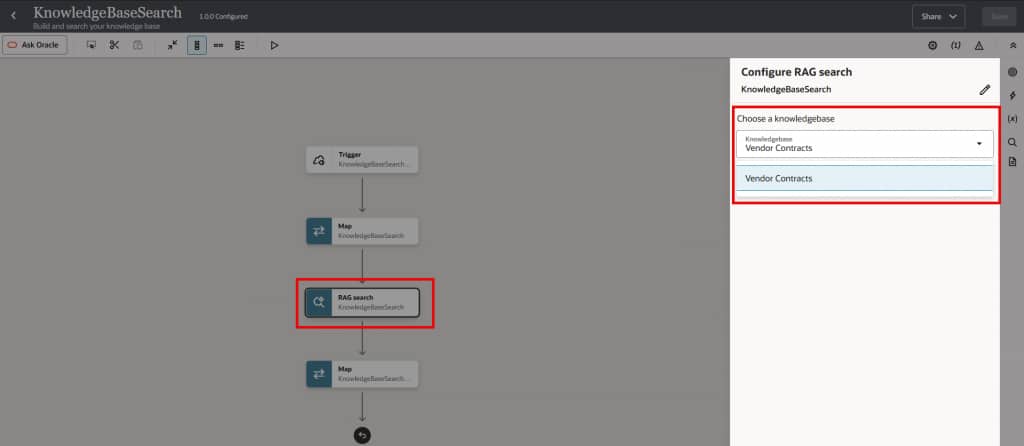
The RAG Search integration (from the recipe) contains a RAG Search activity. Configure it to query the Knowledge Base. Trigger it with a test query and verify that the correct chunks are returned with source citations before connecting the KB to your agent flow.
New RAG Search Activity
Changing the Embedding Model
The embedding model selector is grayed out when documents exist in the Knowledge Base. To change it, delete all documents from the KB (the selector becomes editable when the KB is empty), choose the new model, then re-run the ingestion. Alternatively, create a separate KB with the new model for side-by-side comparison before committing.
Use Case: Supplier Contract Clause Validation
The Business Problem
Suppliers occasionally submit invoices with payment terms that differ from the signed contract. Catching this manually requires someone to pull the contract and compare — often skipped under time pressure. This situation leads to early payments, late penalties, or disputes. With OIC Knowledge Base, this check runs automatically on every invoice, with full citation back to the original contract clause.
Ingestion Flow
Validation Flow (Per Invoice)
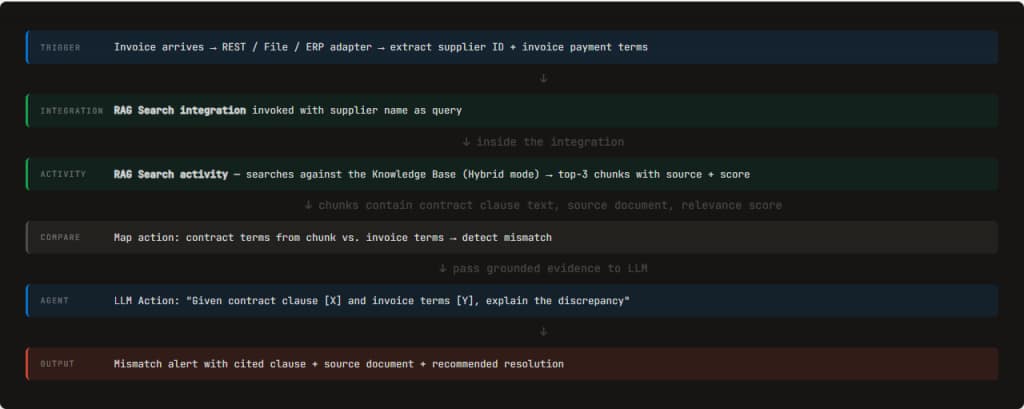
RAG Search Response
Example:
{ "query": "payment terms Acme Supplies", "results": [ { "text": "Section 4.2 — Payment: All invoices shall be paid within 30 days of receipt of a valid invoice.", "source": "acme-supplies-master-agreement-2024.pdf", "score": 0.94 }, { "text": "Section 4.5 — Late Payment: Invoices not settled within the 30-day window accrue interest at 1.5% per month.", "source": "acme-supplies-master-agreement-2024.pdf", "score": 0.87 } ] } // Invoice claims Net 15 · Contract says 30 days · Agent flags: MISMATCH
✅ Hybrid search covers both retrieval needs: semantic finds the payment clause even when the invoice uses different phrasing. The phrase ensures the exact supplier name matches the right contract. Together they return the correct clause from the correct contract, at scale, across hundreds of suppliers.
Knowledge Base as an Agent Tool
Expose your KB as a tool any AI Agent can invoke at reasoning time.
Direct integration flows using RAG Search actions are one pattern. OIC also lets you expose a Knowledge Base as a tool that any AI Agent invokes at reasoning time — no code required.
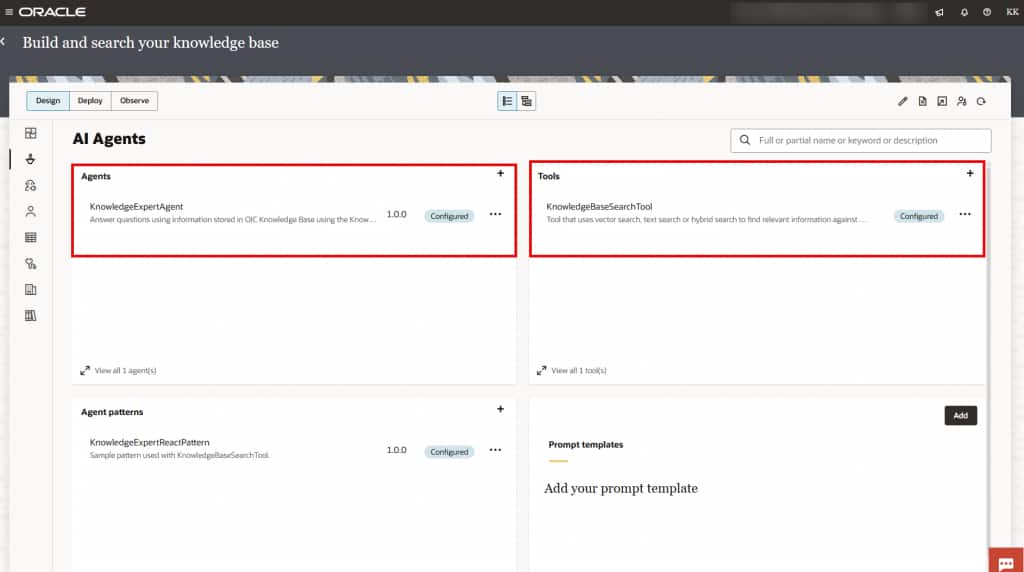
KnowledgeBaseSearchTool
Add a KnowledgeBaseSearchTool to your AI Agent. The tool description is the most critical configuration — it tells the agent when and why to invoke this tool versus others.
Tool Configuration
Tool Name: SupplierContractSearch Knowledge Base: supplier-contracts-kb Search Type: Hybrid Max Results: 3 Surrounding Chunks: 1 Tool Description: “Search the supplier contract knowledge base for payment terms, delivery conditions, penalty clauses, SLA requirements, or warranty provisions for a named supplier. Use when comparing invoice terms against contract terms or when the user asks what a contract says.”
Configuration Guidelines
| Parameter | Guidance |
|---|---|
| Tool description | Name the KB content and the scenarios that trigger this tool specifically. Vague descriptions cause the agent to miss the tool or invoke it incorrectly when multiple tools are available. |
| maxResults | 3–5 for most KB tool calls. Higher values flood the agent context with low-relevance chunks, degrading reasoning quality. |
| augmentResponseWithSurroundingTextChunksCount | Set to 1 when contract clauses span multiple sentences or sections. Retrieves the neighboring chunk on each side of the match. |
| Search type | Hybrid is the safest default for production agents querying contract content. Use Semantic for intent-heavy queries; use Phrase when exact match of a contract ID or supplier name is required. |
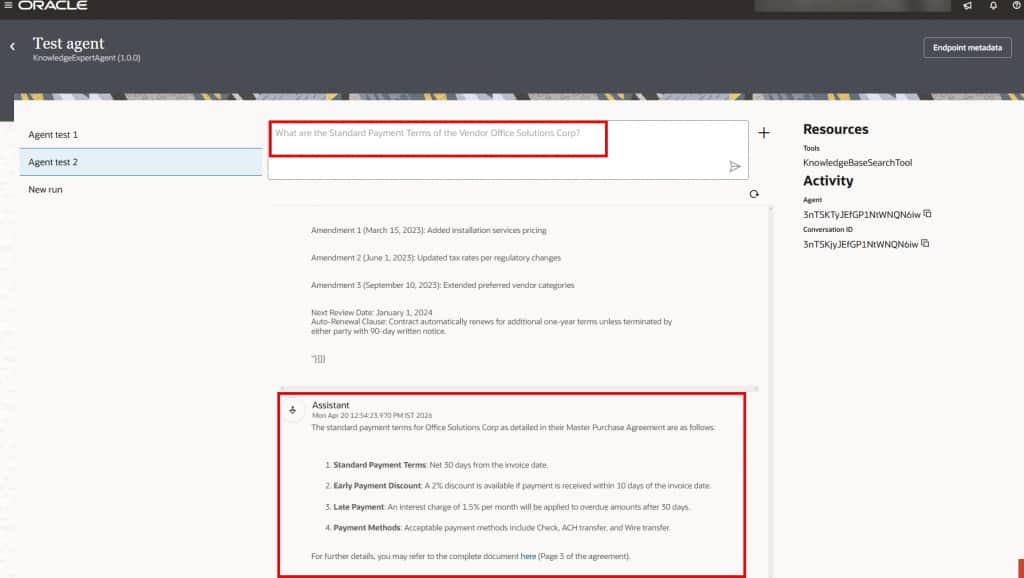
KnowledgeExpertAgent
OIC supports a KnowledgeExpertAgent pattern — a purpose-built agent that answers questions from a specific Knowledge Base with built-in citation support. Use this when the agent’s entire purpose is to serve as a document Q&A interface over your contracts or policies.
MCP Server Integration
Knowledge Base tools can be exposed through OIC’s MCP (Model Context Protocol) Server, enabling external AI clients — Claude, Microsoft Copilot, or any MCP-compatible client — to query your OIC Knowledge Bases via standard MCP tool calls without bespoke API integration.
Configuration Reference
Supported behaviors, constraints, and guidance for each configuration area
| Topic | Behavior | Guidance |
|---|---|---|
| Embedding model | Selector is grayed out when documents exist in the KB. | Delete all documents first; the selector becomes editable when the KB is empty. |
| Append + Object Storage | Unchanged files are re-ingested on every run. | Use Replace for Object Storage sources to avoid duplicate vector entries. |
| Multiple KBs per project | Each additional KB increases integration mapping complexity. | Use one Knowledge Base per project to reduce mapping mistakes. |
| VCN region | VCN must be in the same region as the OIC instance. | Deploy the OpenSearch cluster in the same region as your Oracle Integration instance. |
| Subnet type | Both public and private subnets are supported. | Private subnet is recommended for stronger network isolation. |
| VCN compartment | No compartment restriction .applies | VCN and subnet can be in any compartment in the customer tenancy. |
| Recipe name | Exact name required for catalog search. | Oracle Integration — OpenSearch | Build and search your knowledge base |
| Text search modes | Two distinct modes under TextSearchQuery. | BM25 keyword relevance and phrase exact match — both use the same query type parameter. |
| Skipped count | Documents already indexed and unchanged are skipped. | Skipped is expected behavior with Replace on stable document sets; it is not an error. |
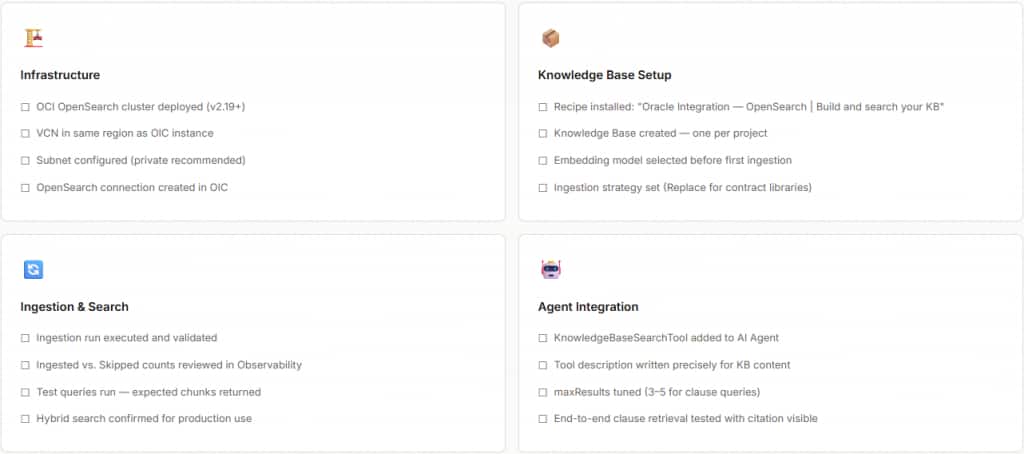
Getting Started Checklist
Build a production Knowledge Base for clause validation this week