
This article continues the series on API Authentication in Fusion AI Agent Studio using OCI Identity (OAuth2 JWT Bearer flow). Recall the main actors: the End User, the Client Application, the Authorization Server (OCI Identity), and the Resource Server (your Oracle Fusion application environment). Here, we’ll configure the OAuth client application in OCI Identity Domain to enable token issuance for your integration.
Required Setup in OCI Identity Domain to register your Client Application
Each Fusion environment is tied to its own OCI Identity Domain (IDP). Make sure you configure your application in the same domain as your target Fusion instance (for example, if you’re using a Dev5 instance, use its corresponding identity domain – not root, test, or production).
For this blog, the setup is based on a CoE demo environment (FA-COE-DEV5 / FA-COETS-Dev5).
Create an Integrated Application (typically a confidential client) to represent your backend service. At a high level:
- Enable JWT Bearer grant (user assertion flow)
- Ensure the app has a valid Client ID and authentication setup
- Configure scopes/permissions for the Fusion APIs you plan to call
- Establish trust using a public key or JWKS for token validation
Note: For this blog, a self-signed certificate is used. Steps to generate one can be included for POC purposes.
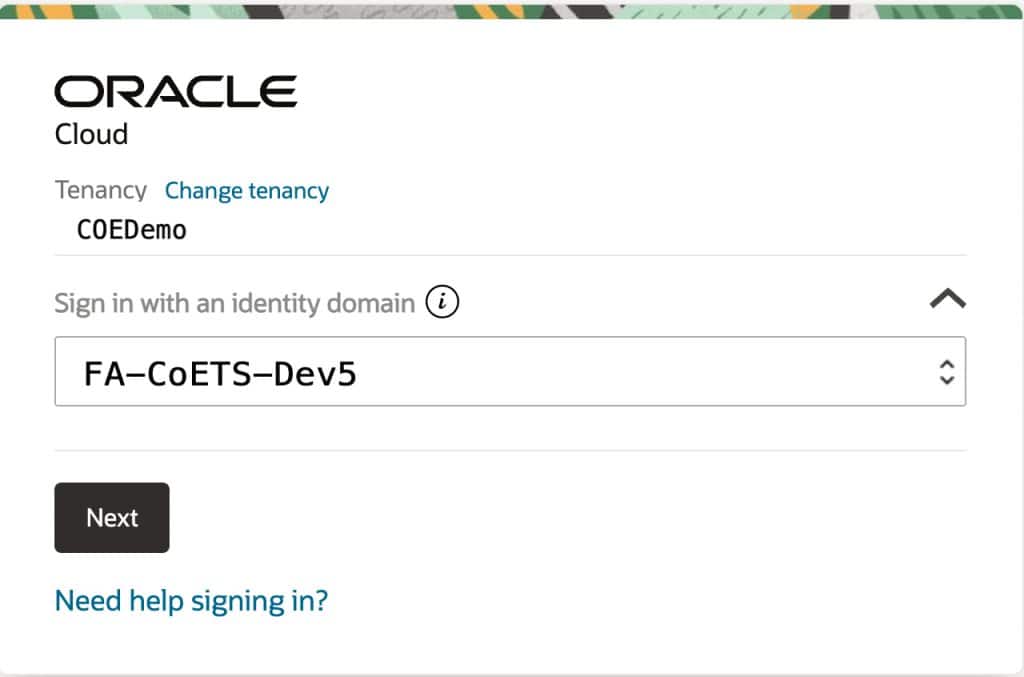
1: Login to the OCI Identity domain for the target fusion environment
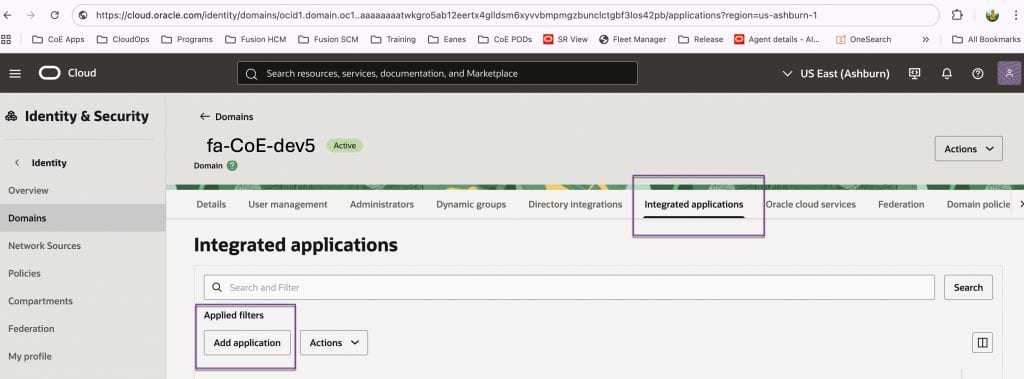
2- Locate Integrated applications
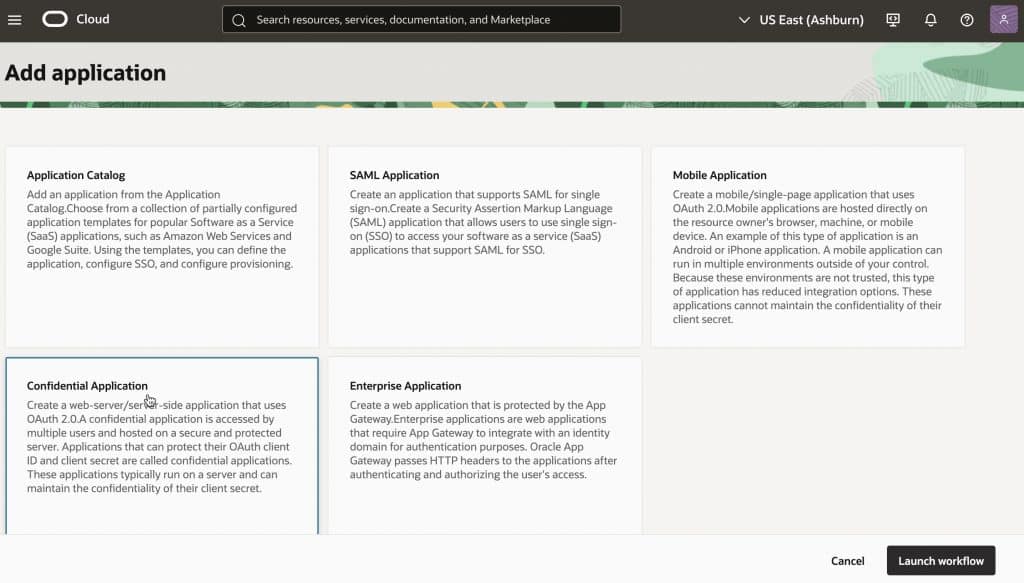
3- Create a new application, choose Confidential Application, and go with the default settings for now – you can update them later.
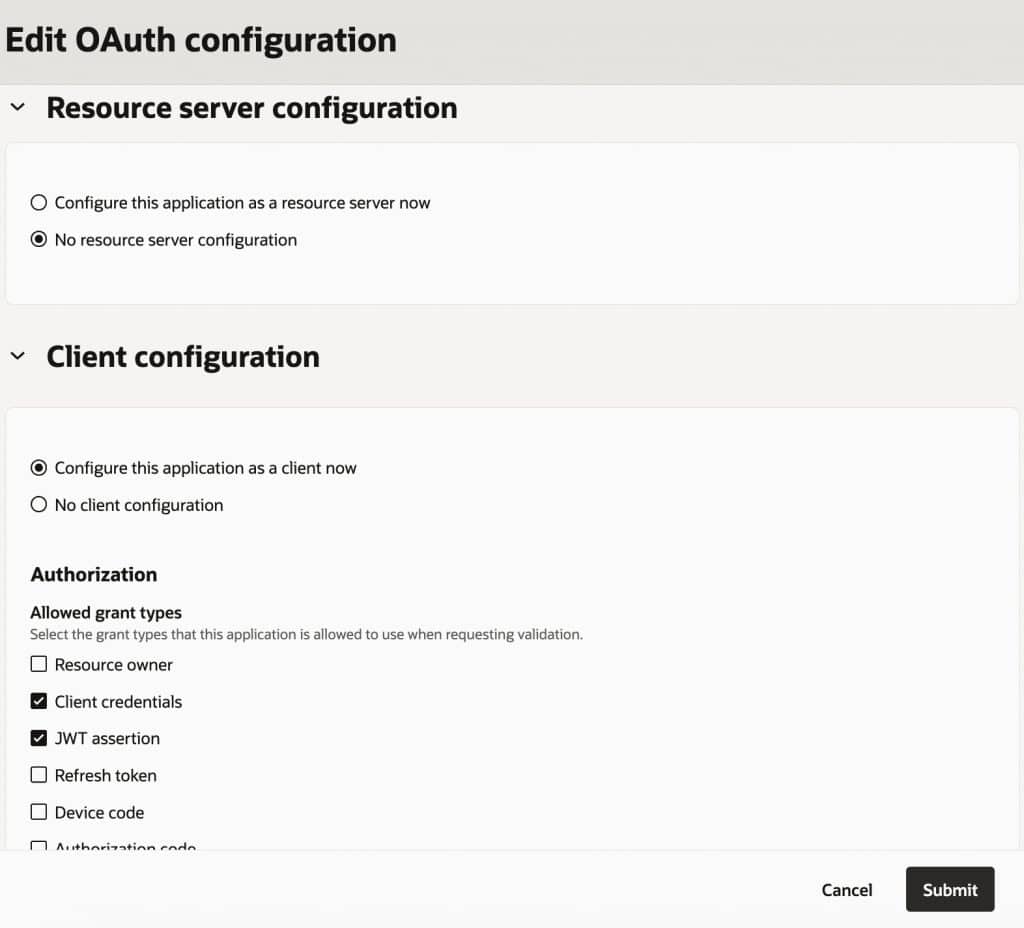
4- Edit the OAuth configuration to set up your secure client application. Please do not setup the app for resource server configuration. (Remember meet the players as explained above.. we are doing this setup for the 2nd train stop!). Authorization options: Enable Client Credentials and JWT Assertion. We’ll use both later to obtain access tokens from IDCS.
5. Edit OAuth Config – additional parameters
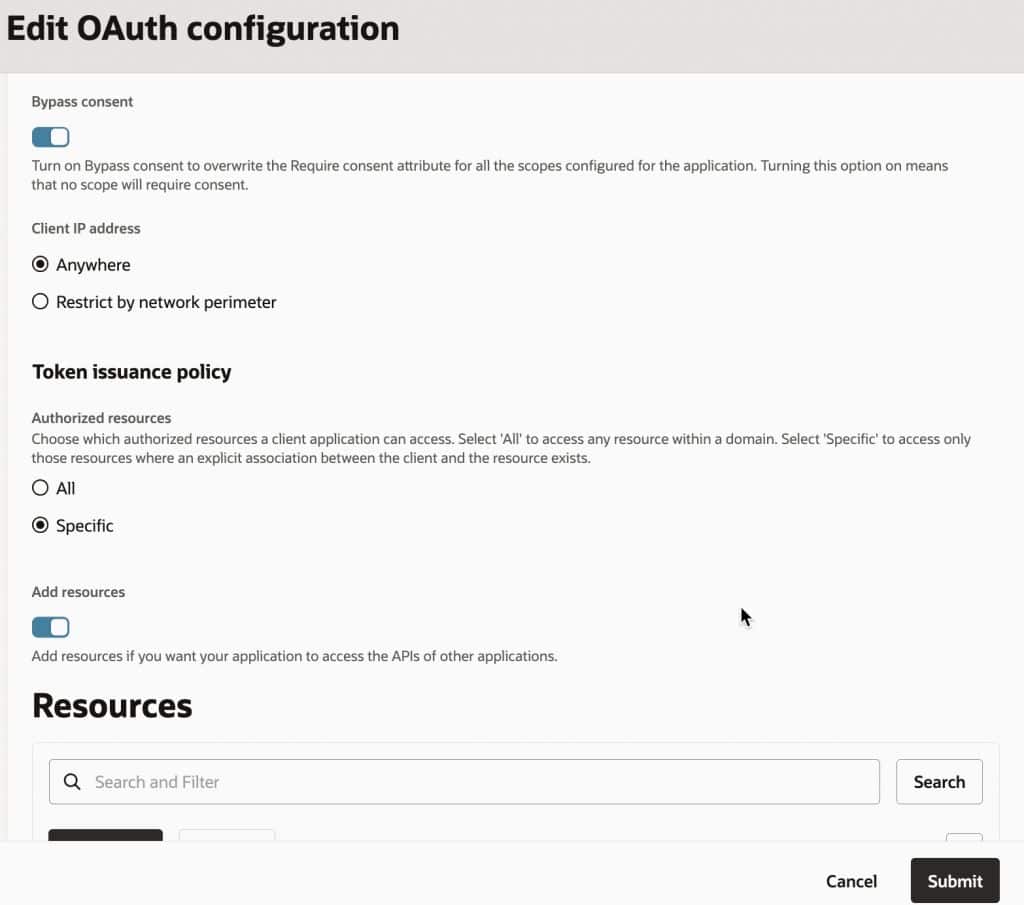
6- Add scopes/specific resources—limit access to Fusion AI Services only.
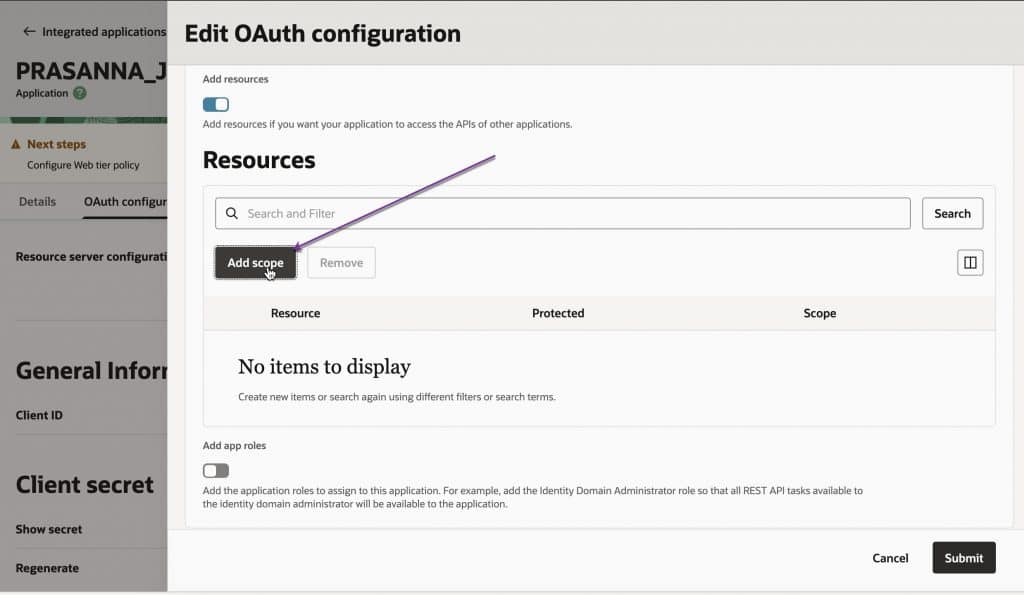
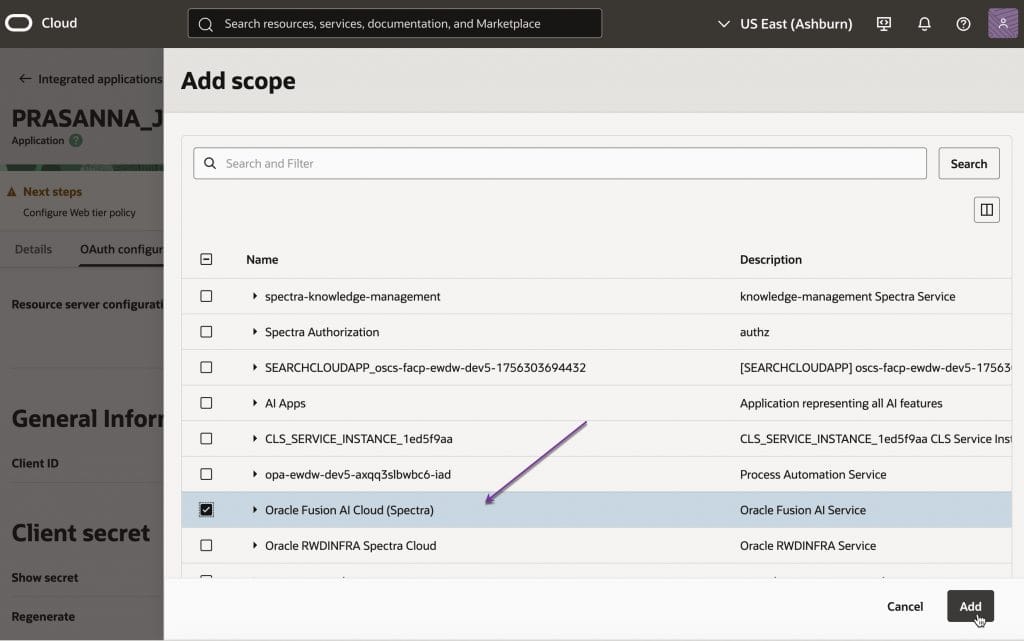
7 Import the public key from your certificate into the client app. Keep the private key secure (in a key vault). Note the certificate alias – we will need it when generating the JWT assertion.
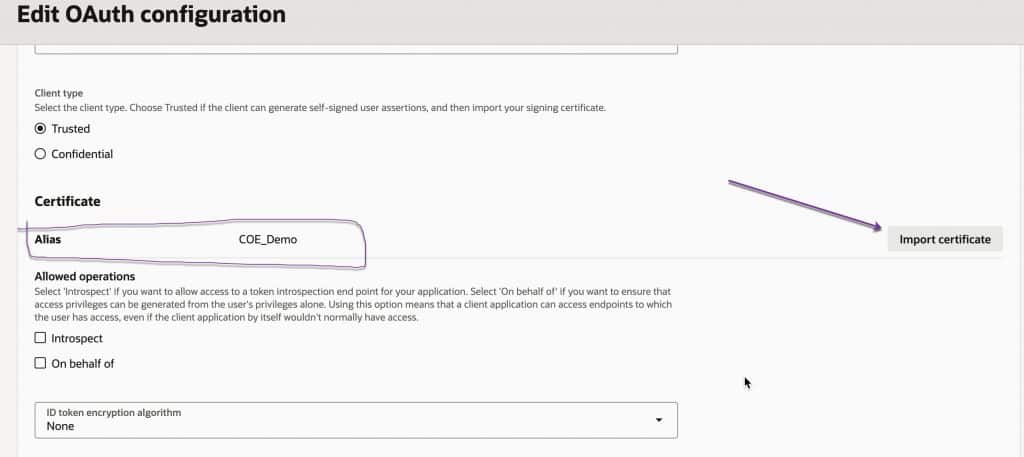
8 Review the config and activate the app
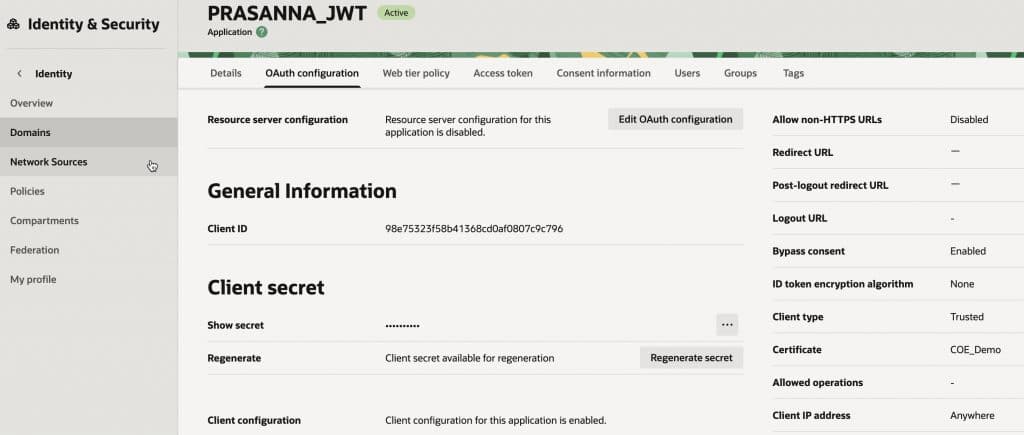
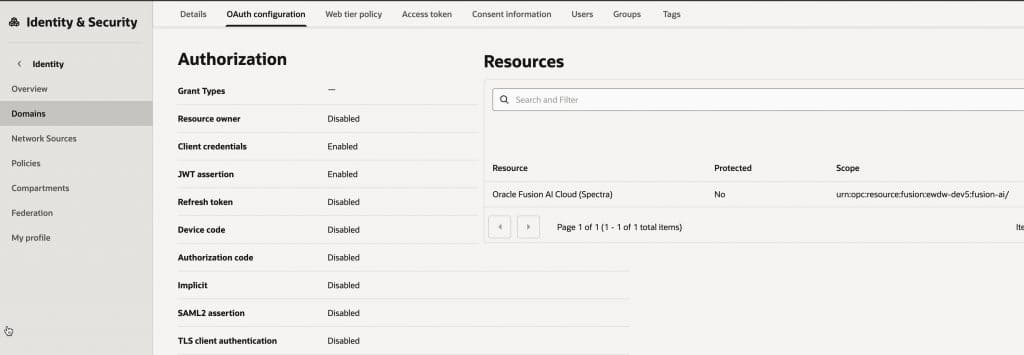
This concludes the set up for confidential/ trusted client application in OCI Identity for your target Fusion environment. Once created, keep these essentials ready:
- Client ID
- Client Secret
- Private key (used to sign JWT assertions)
Next Steps in This Series
➡️ Getting the IDCS Access Token: User Assertions and Client Authentication Explained
Full Series Navigation
- Part 1: API Authentication in Fusion AI Agent Studio with OCI Identity (OAuth2 JWT Bearer Explained)
- Part 2: Generating Self-Signed Certificates using OpenSSL
- Part 3: Configuring an OAuth Client App in Oracle Cloud Identity for Your Fusion Environment
- Part 4: Getting the IDCS Access Token: User Assertions and Client Authentication Explained