

A service limit can turn a planned deployment into an urgent escalation. Whether you are launching an application, expanding an existing environment, or migrating workloads, being unable to provision the resources you need can put your timeline at risk.
Oracle Cloud Infrastructure (OCI) service limits define how much of a resource you can provision within a particular scope. Comparing those limits with your projected resource needs helps you identify where to request an increase, adjust your architecture, or involve your Cloud Engineering team in planning.

Assess your resource needs and limits
Start with your target architecture. Identify the OCI services you use, the resources you will create, and which resources grow as workloads or environments are added. Focus on those resources rather than reviewing every limit in the tenancy.
Oracle’s Limits by Service reference lists default limits and service-specific details. Use the OCI Console to confirm the values that currently apply to your environment.
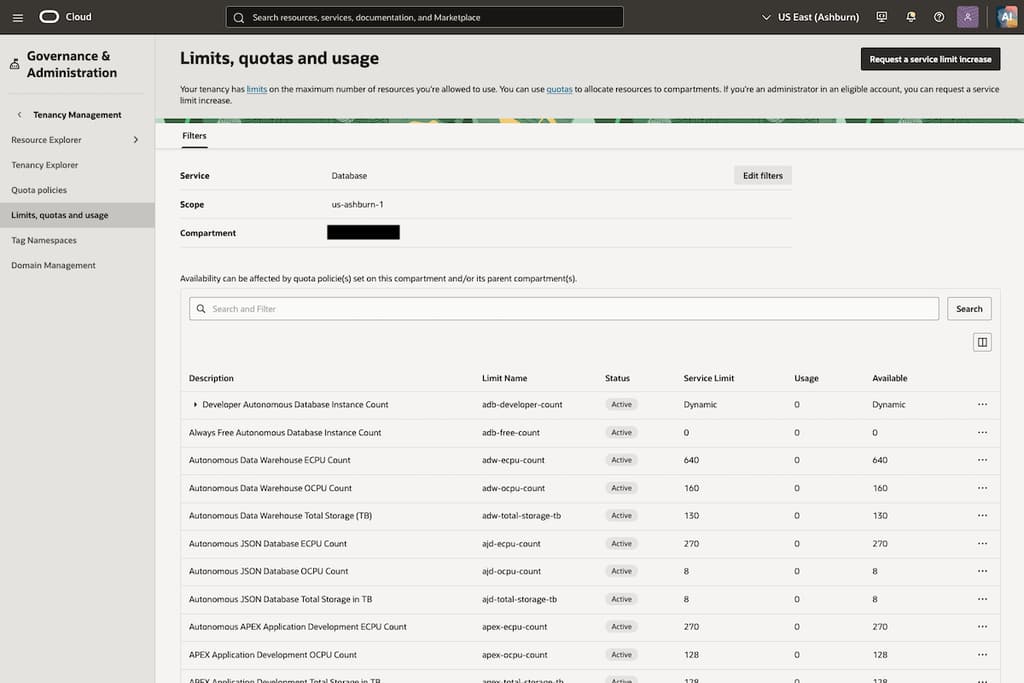
In the OCI Console, open Governance & Administration > Limits, Quotas and Usage. Filter by service and scope to review the applicable limit, current usage, and available amount for supported resources. Select the relevant subscription where applicable.
Check the scope of each service limit
A limit can apply per tenancy, region, availability domain, or another resource-specific scope. Compare requirements within that same scope. For regional limits, review each target region separately. For limits per availability domain, account for where resources will be placed.
Check compartment quotas alongside service limits
Administrators use compartment quotas to control resource consumption within compartments. Quotas do not increase Oracle-set service limits. Check both controls for your planned deployment, including any quotas inherited from parent compartments.
Check whether a limit can be increased
Some service limits are eligible for an increase, while others have fixed maximums. Check the documentation for each resource before assuming that an increase request can accommodate your planned growth. An adjustable limit still applies until an increase is approved and takes effect.
If your target architecture exceeds a fixed limit, review the design early to identify an approach that fits within the supported limits.
Calculate resource requirements for your target environment
Estimate the resources needed across all planned deployments and migration waves. For repeatable environments, multiply the resources required per environment by the number of new environments. Include temporary resources needed during migrations, blue/green releases, or rolling replacements.
Projected Usage = Current Usage + Additional Resources + Temporary Overlap
For example, 20 new environments requiring four instances each add 80 instances. With 50 existing instances and 10 temporary instances, projected usage reaches 140—20 above a limit of 120.
Compare projected usage with the applicable service limit and compartment quota. Use the same unit and scope throughout the calculation: a limit might measure cores, memory, addresses, or storage rather than instance counts.
Validate compute capacity separately
A sufficient service limit does not reserve compute capacity for a shape or location. Validate capacity separately for critical migrations and disaster recovery plans.
Request increases before you need them
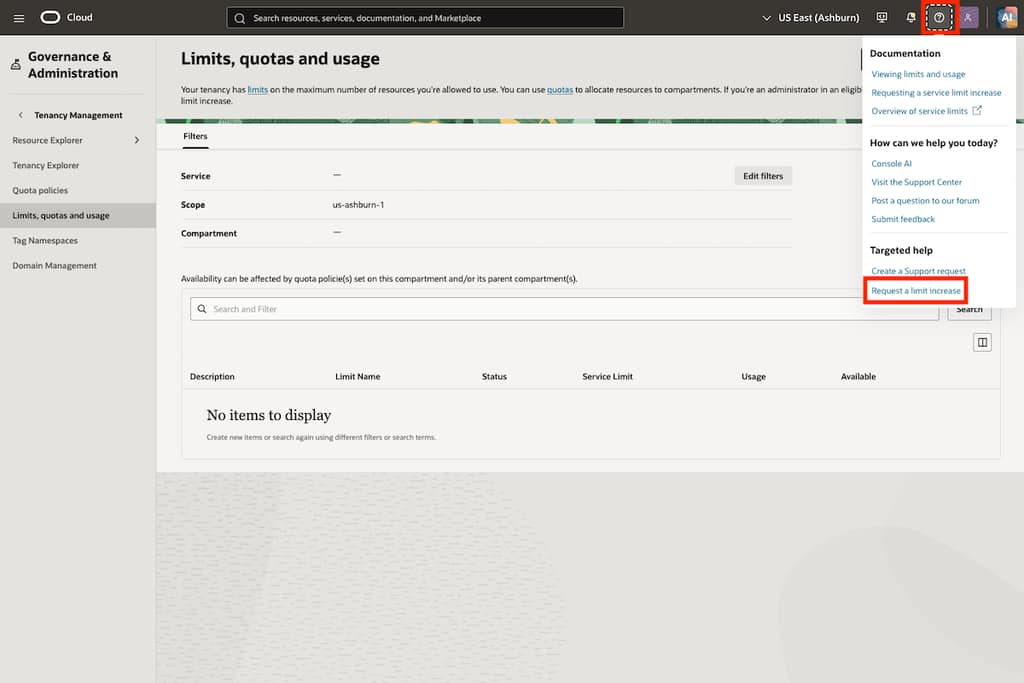
For eligible limits, open the OCI Console Help menu. Under Targeted help, select Request a limit increase. The limit increase request workflow collects general information, requested items, and a final review before submission.
Provide the requested new limit, relevant region or availability domain, deployment timeline, and reason for the increase. Questions vary by service and limit. Explain urgent or unusual requirements and avoid entering confidential information.
Some limits have fixed maximums or additional requirements. Approval is not guaranteed. Oracle’s request documentation notes that responses can take a few minutes to a few days and may require follow-up information, so allow time before deployment.
Bring service limits into your operational workflow
Include service limit reviews in migration readiness checks, predeployment validation, and regular architecture reviews. For automated environments, use the oci limits resource-availability get command to retrieve usage and available resources for supported limits, then compare them with projected demand.
Assign an owner to each identified constraint and track increase requests against deployment dates. Repeat the review when the architecture, deployment schedule, or target region changes.
Engage your Oracle account team and Cloud Engineering team early when planning a migration or significant expansion. Share your target architecture, projected resource requirements, deployment regions, and timeline to help identify potential constraints and discuss options before deployment. Include later migration waves and temporary resource overlap so the planning discussion reflects the full rollout.
You can also include an OCI Health Check in this workflow. This complimentary engagement for eligible customers brings Oracle Cloud Engineering together with your team to review the tenancy and provide prioritized recommendations across infrastructure, security, governance, access, and cloud cost management.
A new feature of the OCI Health Check adds service limit checks, giving your team limits to review alongside the broader assessment findings. Use those findings with your deployment forecast to identify where increases may be needed. Contact the OCI Health Check team to arrange a Health Check or discuss service-specific requirements.
BEFORE YOU DEPLOY
Plan ahead for service limits
Compare projected usage with your service limits and compartment quotas, and request needed increases before your next deployment.