
As you prepare for 2026 1099 processing in PeopleSoft, an important supplier data update should be completed in advance of year-end reporting.
What is changing
For suppliers that are:
- Marked for Withholding
- Have a TIN Type of SSN
You must populate:
- Withholding Name 1 = First Name
- Withholding Name 2 = Last Name
These fields are part of the Payment/Withholding Alternate Names section on the supplier address and are used for withholding reporting.
Because supplier address data is effective-dated, updates should be made by adding a new effective-dated row, rather than updating an existing row.
Why this matters
This update is required by the IRS IRIS (Information Returns Intake System), which requires first and last names to be submitted in separate fields for 1099 reporting when using an SSN.
The withholding name fields at the supplier address level are used during 1099 processing. If these values are missing, incorrectly formatted, or not properly separated into first and last name, it may result in rejected IRIS submissions or processing issues.
Identifying suppliers that need review
For your initial review, it is recommended to extract all suppliers with a TIN Type of SSN and validate that withholding names are correctly populated and formatted.
Initial review SQL:
SELECT A.SETID, A.VENDOR_ID, A.VNDR_LOC, A.WTHD_ENTITY, A.ADDRESS_SEQ_NUM,
A.TIN_TYPE, A.TIN, A.NAME1, A.NAME2,
A.NAME1_WTHD, A.NAME2_WTHD, A.AP_TIN_STATUS_CD
FROM PS_AP_TININQ_VW A
WHERE A.TIN_TYPE = ‘S’;
This allows you to:
- Identify suppliers to be updated
- Validate proper first/last name separation
- Catch incorrectly formatted data before updating
After updates are completed and TIN Matching is rerun, you can refine your query to focus only on exceptions:
SELECT *
FROM PS_AP_TININQ_VW A
WHERE A.TIN_TYPE = ‘S’
AND A.AP_TIN_STATUS_CD <> ‘M’;
This helps isolate suppliers that are not successfully matched and may still require attention.
Recommended update method: ExcelToCI
For updating multiple suppliers, the VNDR_ID_EXCEL component interface can be used with the ExcelToCI utility. This approach allows you to insert new effective-dated address rows while applying the same business logic as online entry.
ExcelToCI setup and processing steps
Step 1: Open and configure ExcelToCI
- Open ExcelToCI2007.xlsm
- Enable macros
- Navigate to the Connect Information tab
- Enter your connection details:
- Web Server
- Protocol (HTTP/HTTPS)
- Port
- Portal
- Node
- Set:
- Action = Update
- Adjust Chunking Factor and Error Threshold as needed
- Note: If you experience timeout issues, decrease the Chunking Factor to 20 or 25 and add an Error Threshold of 5.
Step 2: Create the template
- Go to the Template tab
- Click New Template
- Log in when prompted
- Enter VNDR_ID_EXCEL
- Generate the template
Step 3: Select required fields
Include the following:
Key/Input Fields
- SETID
- VENDOR_ID
- ADDRESS_SEQ_NUM
- EFFDT (Can be set as a Default Field if utilizing the same date)
- NAME1_WTHD
- NAME2_WTHD
Default Field
- EFF_STATUS = A
Step 4: Populate the data input sheet
- Create the Data Input sheet
- Populate rows using your SQL results
- Enter:
- New Effective Date
- First Name (Withholding Name 1)
- Last Name (Withholding Name 2)
- Note: If the supplier has a DBA, you will NOT include that as part of the Withholding Name.
Step 5: Stage the data
- Click Stage Data for Submission
- Review the staging results for accuracy
Below is an example of the Staging & Submission tab showing a new effective-dated row with withholding names populated:
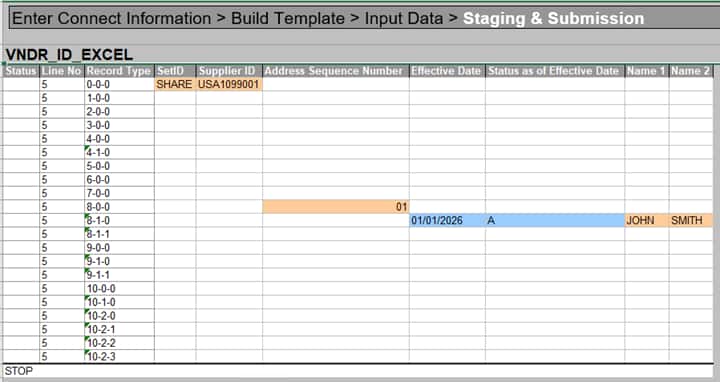
In this example:
- A new effective date is added
- Status is set to Active (A)
- Withholding Name 1 and 2 are populated (e.g., JOHN / SMITH)
Step 6: Submit the data
- Click Submit Data
- Click Post Results
- Review statuses:
- OK = success
- Warning = success with message
- Error = not processed
- Correct any errors and resubmit as needed.
Important: You will receive a warning message similar to:
“The With. Supp Name has been changed, the TIN Match Status will be reset to New for Loc.001-Wth:IRS.”
This is expected behavior. Because the withholding name has changed, the system resets the TIN Match Status.
It is recommended that you rerun TIN Matching validation using the updated names to confirm they match IRS records. This helps prevent issues during 1099 processing and submission.
Review the blog Simplify Supplier Validation with IRS TIN Matching in PeopleSoft to learn more about the TIN Matching process.
Validation
After processing, validate a sample of suppliers:
Navigation:
Suppliers > Supplier Information > Add/Update > Supplier > Address
Confirm:
- A new effective-dated row was created
- Withholding Name 1 and 2 are correctly populated
- Addresses copied in correctly
Final recommendations
- Test in a non-production environment first
- Start with a small batch before scaling
- Use validated source data (such as W-9s)
- Rerun TIN Matching after updates
- Use exception-based queries (AP_TIN_STATUS_CD <> ‘M’) for final validation
- Bookmark knowledge article KB878101 – EAP: 1099 Requirements for 2026 Reporting, IRS IRIS – What PeopleSoft Customers Need to Know for A2A XML and .CSV Formats for ongoing updates and a sample ExceltoCI file.
Completing this update ahead of 2026 1099 processing will help ensure accurate and compliant reporting under IRIS requirements.