
As you prepare for Open Enrollment and Life Event testing this summer, explore the latest enhancements in Image 52. Many of these improvements stem directly from customer feedback via the Ideas Lab, focusing on enhancing employee usability and streamlining HR processes.
Enhanced Benefits Plan Comparison with Print View
The Benefits Plan Comparison configuration released a few years ago has received high praise from customers that have implemented it. Image 52 introduces a Print View button, allowing employees to print or save their comparison information as a PDF, including footnotes. This feature is easily configured on the Benefits Program Table > Plan Type and Options tab. Simply select the Print Plan Comparison checkbox for the corresponding Template ID to enable this functionality for specific plan types. 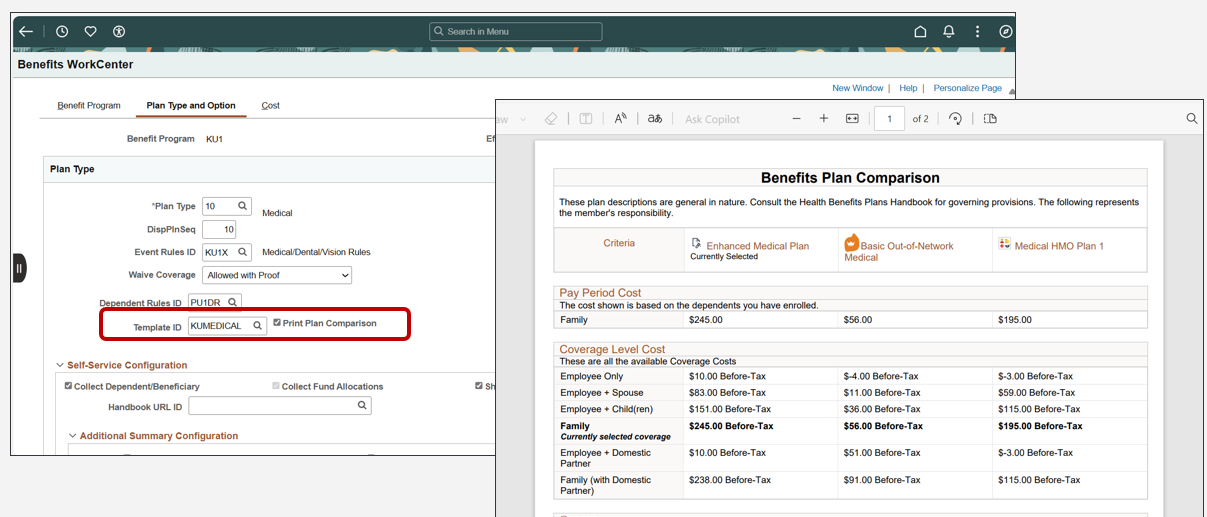
If you haven’t done so, I would recommend that you take the time to add the plan comparison to your enrollment process. Use the Shopping for Benefit Plans has just gotten easier for the Employee with the Benefits Plan Comparison feature blog to get you started.
Restrict Dependent Relationships for Life Events
To address organizational policies limiting which dependents or beneficiaries can be added or modified during Life Events, Image 52 introduces additional Life Event Rules configuration.
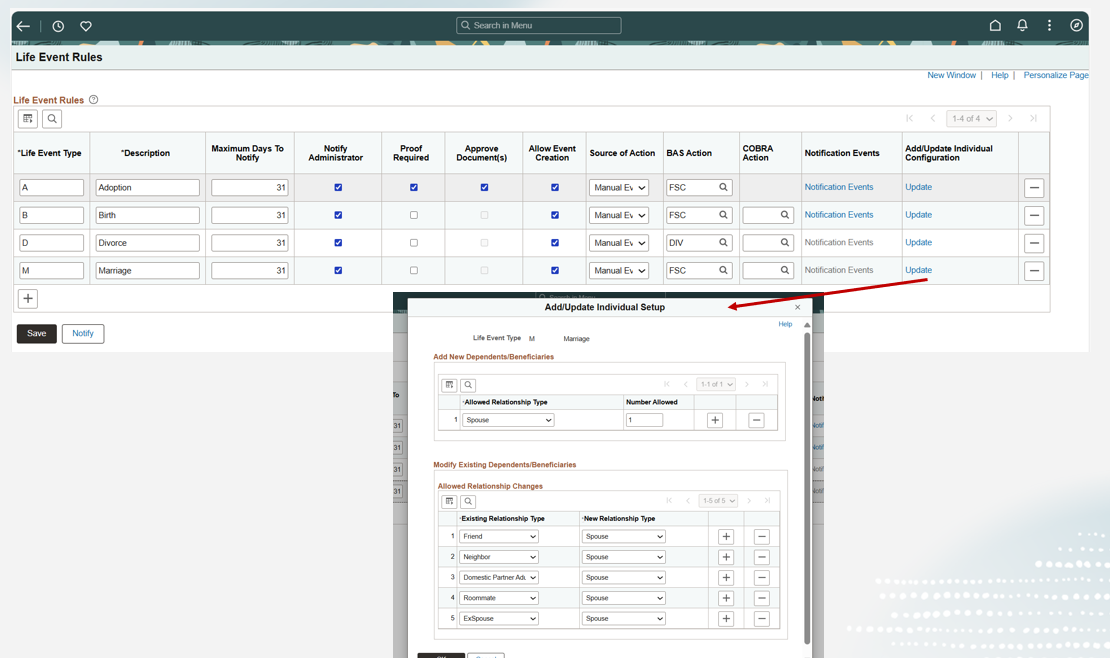
For example, during a Marriage event, you can restrict employees to adding only a Spouse to Health plans. This feature ensures accuracy by allowing you to define which new or existing dependents/beneficiaries can be added or modified. During self-service, only configured relationships appear in the employee dropdown, reducing errors and improving process completion. This was an Ideas Lab request.
Hide the Add Individual Button for Dependents/Beneficiaries
Based on Focus Group feedback, the Add Individual Button can now be hidden using the Page and Field Configurator (PFC). It is visible in three distinctive locations:
- Dependent/Beneficiary Tile
- Dependent/Beneficiary Info Step in Activity Guide
- Benefits Enrollment Card
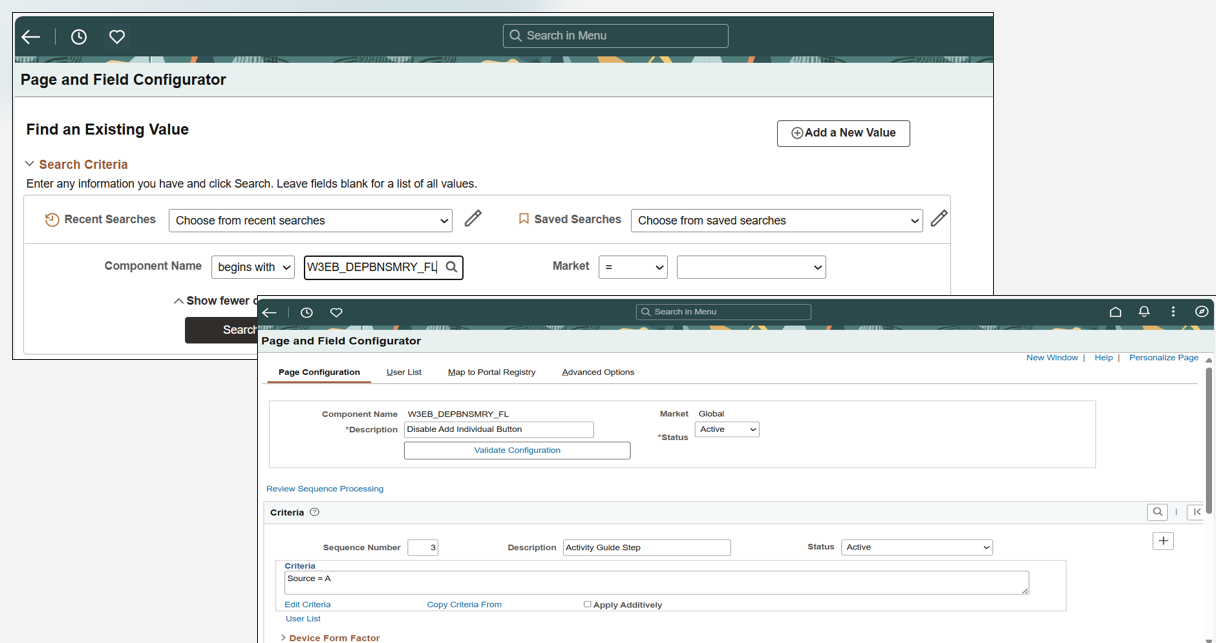
Determining where to hide the Add Individual Button is unique for every organization. Some customers have commented that to prevent employee confusion, they prefer to hide the add feature on the Dependent/Beneficiary Info Step, directing employees to use the add button only on the actual Benefits Enrollment Cards. With PFC you are in control, and it is not considered a customization. Find a step-by-step guide on Oracle Support for Document 2775921.2. Select Human Resources, Update Image 9.2.052, Benefits Administration Product, Bug 37701185 to download the document.
PreBoarding Enhancements with Start Enrollment Button
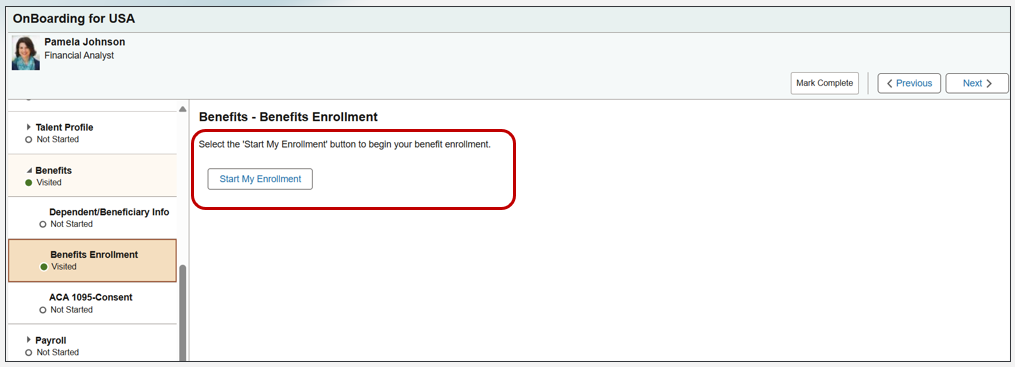
Introduced in Image 50, PreBoarding now includes a Start Enrollment button, enabling new hires to initiate benefits elections independently before their first day. Similar to the Life Events start button, this feature triggers the Benefits Admin process without requiring administrator intervention, enhancing efficiency and new hire experience.
Expanded Notifications for All Events
Building on Image 51’s Notification Composer capabilities, Image 52 extends notifications functionality to all events, not just Open Enrollment and Life Events. This includes alerts for Unsubmitted Elections, Elections in Error, and Changed-Resubmit Required statuses. Image 51 is Full of Features for Benefits Customers blog explains how to Generate Benefits Notifications. Please keep in mind that you must be using Notifications Composer. If you haven’t adopted Notifications Composer yet, prioritize it—Oracle is continuously adding capabilities across all products with this Enterprise Component.
Learn More
To learn more, review the Discover the Power of PeopleSoft HCM Image 52 blog and watch the Image Highlights, PeopleSoft HCM Update Image 52 video. Stay updated on HCM enhancements by following the Oracle Blogs | Oracle PeopleSoft Apps Strategy Blog.