

Introduction
Monitoring Oracle AI Database@Google Cloud involves more than collecting logs. Teams also need to investigate what happened, assess why an event may matter, and identify appropriate follow-up checks. In a multicloud operating model, both the Oracle and Google Cloud perspectives can contribute useful operational context.
This walkthrough uses two AI-assisted tools for different stages of the investigation. Gemini Cloud Assist helps investigate a selected Google Cloud log entry, while LoganAI in Oracle Log Analytics helps analyze related Oracle-side logs across multiple records and identify recurring patterns or outliers. Used together, the tools can help move an investigation from a specific Google Cloud event to broader Oracle-side operational context.
AI-generated explanations are intended to assist, not replace, expert review. Teams should validate generated content against the original logs, the current database state, and their established operational and security procedures before deciding what action to take.
LoganAI in Oracle Log Analytics
LoganAI is an AI capability in Oracle Log Analytics that can analyze supported logs and log-derived data. In this walkthrough, it is used to add Oracle-side context after a relevant event has been identified in Google Cloud.
How LoganAI is used in this walkthrough
- Single Log Explain: Interpret an individual Oracle-side log record.
- Multi-log Explain: Summarize related records in the selected time window.
- Cluster Explain: Identify repeated patterns or outliers that may warrant further investigation.
These modes keep the investigation focused on the records and patterns that are most relevant to the scenario.
Google Cloud Logs Explorer with Gemini Cloud Assist
Google Cloud Logs Explorer provides a Google Cloud-native interface for locating Oracle AI Database@Google Cloud audit and resource logs. According to Google Cloud documentation, supported Oracle AI Database@Google Cloud resource logs can be viewed in Cloud Logging and may include Google Cloud console, Exadata Database Service, and Oracle Autonomous AI Database service events.
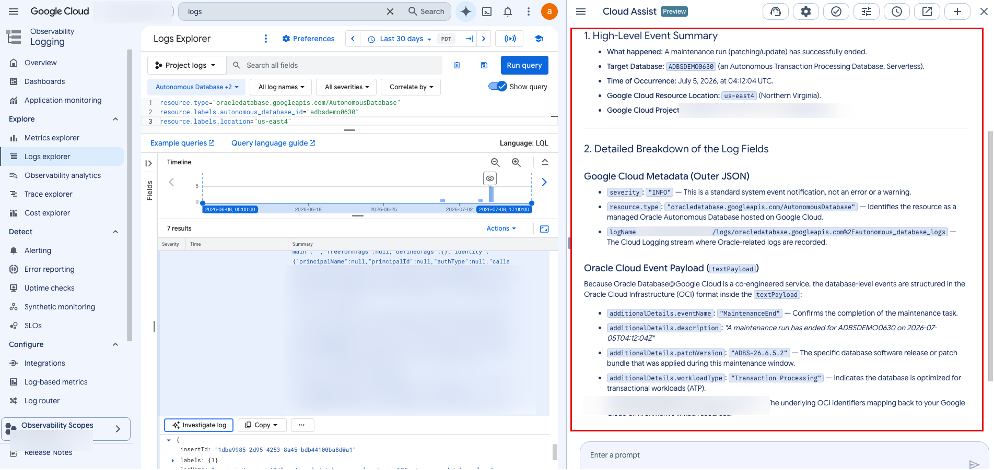
After locating a relevant entry, you can select the log entry and choose Investigate log in the log-entry toolbar. Gemini Cloud Assist then generates a summary in the Cloud Assist pane. According to the product documentation, Cloud Logging sends the text of the selected log entry to Gemini Cloud Assist, and the resulting explanation is based on that selected text rather than additional project or cross-log context.
How the Two AI-assisted Tools Work Together
For example, a DBA might first use Gemini Cloud Assist to investigate why a database restart audit event was denied in Google Cloud. The DBA can then use LoganAI in Oracle Log Analytics to review related Oracle-side logs and identify recurring warnings or patterns around the same time period. Finally, the DBA validates the underlying logs and current database state and determines the appropriate next step.
In this flow, Gemini Cloud Assist provides context for the selected Google Cloud event, while LoganAI extends the investigation across related Oracle-side records. The two capabilities complement each other without replacing the DBA or SRE’s validation and decision-making.
Enable and Use LoganAI
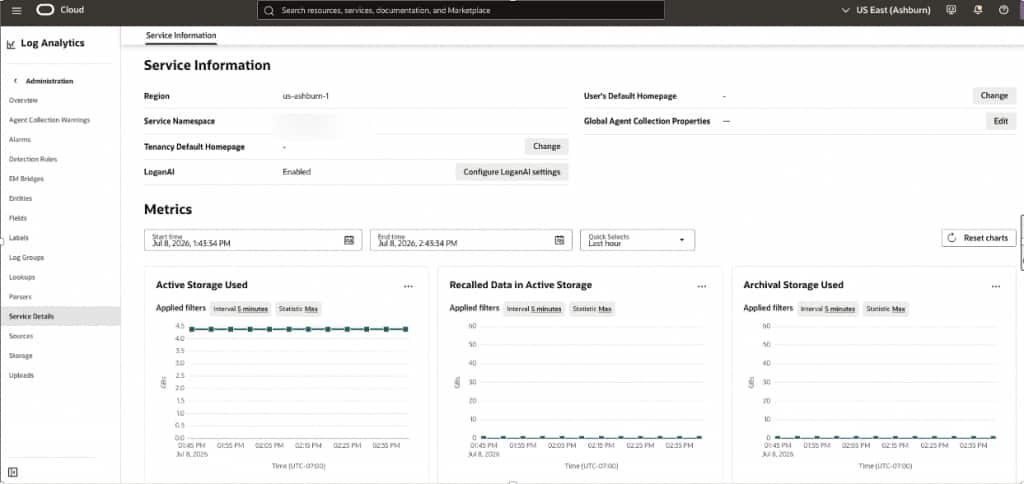
Enable LoganAI
1. Open the Oracle Cloud Infrastructure Console and go to Observability & Management, select Log Analytics.
2. Open Log Analytics Administration and navigate to the Service Details page.
3. Review the LoganAI status for the selected region.
4. Select Configure LoganAI settings. Choose the Generative AI service region and the default compartment for the Generative AI service, and complete the required validation.
5. Select Update LoganAI settings, and confirm that LoganAI is enabled.
Use LoganAI Explain
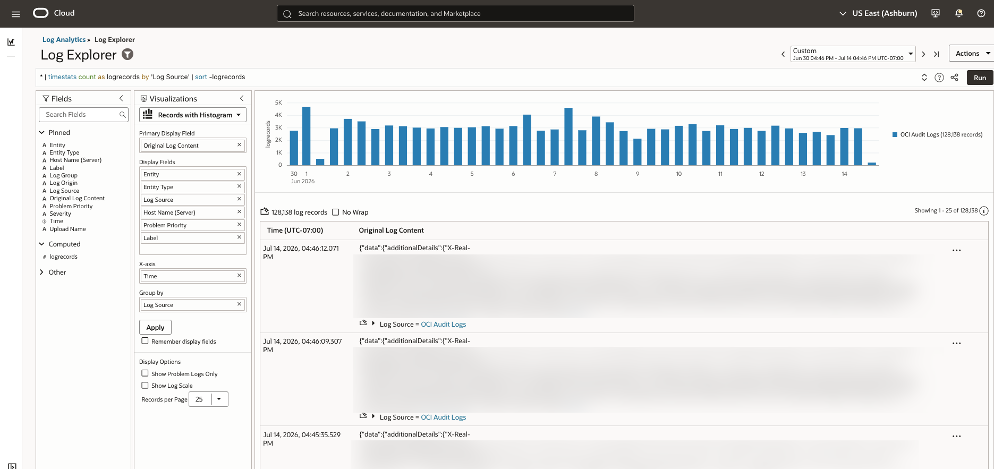
1. Open Log Explorer in Oracle Log Analytics.
2. Select the log group compartment, region, entity, and time range for the Oracle AI Database@Google Cloud investigation.
3. Use Single Log Explain to review one selected record.
4. Use Multi-log Explain to summarize the displayed records for the selected time range.
5. Use Cluster Explain to review repeated patterns, anomalies, and event groupings.
6. Validate the generated explanation against the original logs and the current database state.
Use Google Cloud Logs Explorer with Gemini Cloud Assist
1. Open the Google Cloud console and go to Logging, and select Logs Explorer.
2. Select the project, folder, organization, or log view that contains the relevant Oracle AI Database@Google Cloud logs.
3. Search Oracle Autonomous AI Database resource logs using the applicable resource type, log name, and severity filters.
4. Select a relevant log entry, expand it, and then select Investigate log in the log-entry toolbar to open the Gemini Cloud Assist summary in the Cloud Assist pane.
Example filters:
resource.type="oracledatabase.googleapis.com/AutonomousDatabase"
resource.labels.autonomous_database_id="adbsdemo0630"
resource.labels.location="us-east4"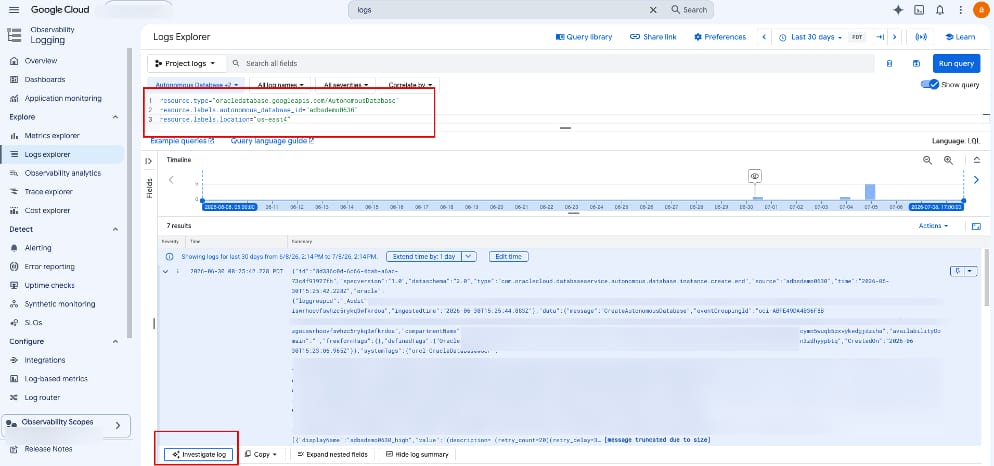
Conclusion
Oracle AI Database@Google Cloud provides a Google Cloud operating experience for supported Oracle database services while allowing teams to use Oracle observability capabilities to analyze supported Oracle-side logs.
A cross-cloud monitoring workflow can use each tool at a different stage of the investigation:
- Use Google Cloud Logs Explorer to locate an Oracle AI Database@Google Cloud audit or resource event.
- Use Gemini Cloud Assist to investigate the selected Google Cloud log entry.
- Use Oracle Log Analytics and LoganAI to examine related Oracle-side records and identify recurring patterns or outliers.
- Use Database Actions, Oracle SQLcl, Oracle SQL Developer, application clients, and DBA expertise to validate the database state and run appropriate SQL.
Together, this workflow helps connect a specific Google Cloud event with broader Oracle-side context while keeping the DBA or SRE responsible for validating the evidence and determining the appropriate response.
Resources
- Oracle Cloud Infrastructure Documentation: Use LoganAI
- Oracle Cloud Infrastructure Documentation: Log Analytics
- Google Cloud Documentation: View resource logs for Oracle Database@Google Cloud
- Google Cloud Documentation: Oracle Database@Google Cloud audit logging
- Google Cloud Documentation: Summarize log entries with Gemini assistance