


In part 1, we framed Oracle Database@AWS observability as a tiered problem: teams need foundational monitoring to keep the lights on, including health, resource utilization, and alerting, as well as deep database observability to explain performance behavior, such as wait events, session activity, and SQL-level diagnostics, without forcing them to abandon the tools and processes they already rely on. The earlier blog post focused on the what of observability for Oracle Database@AWS: starting with foundational monitoring signals and extending into database-native telemetry when you need to explain why performance changes.
In this blog post, the focus shifts to the how. We outline a practical, tiered implementation path that allows teams to start quickly with baseline visibility in AWS, then incrementally add deeper diagnostics and proactive insights in OCI, only where it adds operational value.The following four layers illustrate how teams can adopt this model incrementally, adding capability only as needed:
- Establish the baseline (Amazon CloudWatch-centric monitoring): Stream Oracle Database@AWS metrics/events from OCI into Amazon EventBridge, and have CloudWatch consume them so teams can continue using CloudWatch dashboards and alarms alongside the rest of their AWS-monitored systems.
- Add deep, real-time diagnostics (OCI Database Management): Enable Database Management to gain fleet-level visibility plus database-aware troubleshooting. Use Performance Hub for real-time analysis, such as session activity, and AWR Explorer for historical context when you need to pinpoint root cause beyond infrastructure-level symptoms.
- Move to proactive performance and capacity (OCI Ops Insights): Enable Ops Insights to analyze telemetry across the fleet for capacity planning and SQL Insights, helping teams detect degradation trends early and forecast resource growth instead of reacting to incidents.
- Leverage existing operational and lifecycle tooling (Oracle Enterprise Manager): If your organization already runs Enterprise Manager (EM), onboard Oracle Database@AWS to EM to reuse established DBA operational processes and lifecycle tooling, while keeping CloudWatch as the baseline monitoring layer for AWS operations.
Getting started with Oracle Database@AWS monitoring
To successfully onboard for Database Management and Ops Insights, consider the following:
Service limit requirements: Before onboarding Oracle Database@AWS instances to Database Management and Ops Insights, verify that your OCI tenancy has sufficient service limits configured for the required cloud services. Specifically, ensure adequate limits are available for the following:
- Key Management (used by OCI Vault for encryption key management)
- Database Management service
- Ops Insights service (for performance analytics and capacity planning)
- Private endpoints (for network communication between Database Management/Ops Insights and the databases)
If your current service limits are insufficient for your database estate, submit service limit increase requests through the OCI Console under Governance & Administration → Limits, Quotas and Usage. These limits are critical for successful service enablement.
Network configuration: Private endpoints are required, and you must update your security groups or security lists to allow communication between Database Management, Ops Insights, and Exadata Database Service on Dedicated Infrastructure.
Service entitlements: Advanced monitoring capabilities in Database Management and Ops Insights are not included in the base Oracle Database@AWS contract. Additional service subscriptions, such as OCI Monitoring and OCI Vault, may be required. For detailed pricing and entitlement information, refer to Oracle documentation.
Enable Database Management for cloud databases (high-level steps)
Prerequisites
- Set up IAM policies: Create the required IAM policies to grant Database Management permission to access databases, networking, and Vault service.
- Configure the database monitoring user: Grant the required privileges to the database user, for example,
DBSNMP. - Create an OCI Vault secret: Store the database monitoring user password as a secret.
- Create a Database Management private endpoint: Set up a private endpoint for secure communication.
- Configure network security rules: Add ingress and egress rules in security lists or NSGs to allow communication between Database Management and the database on the appropriate port.
Enable Database Management
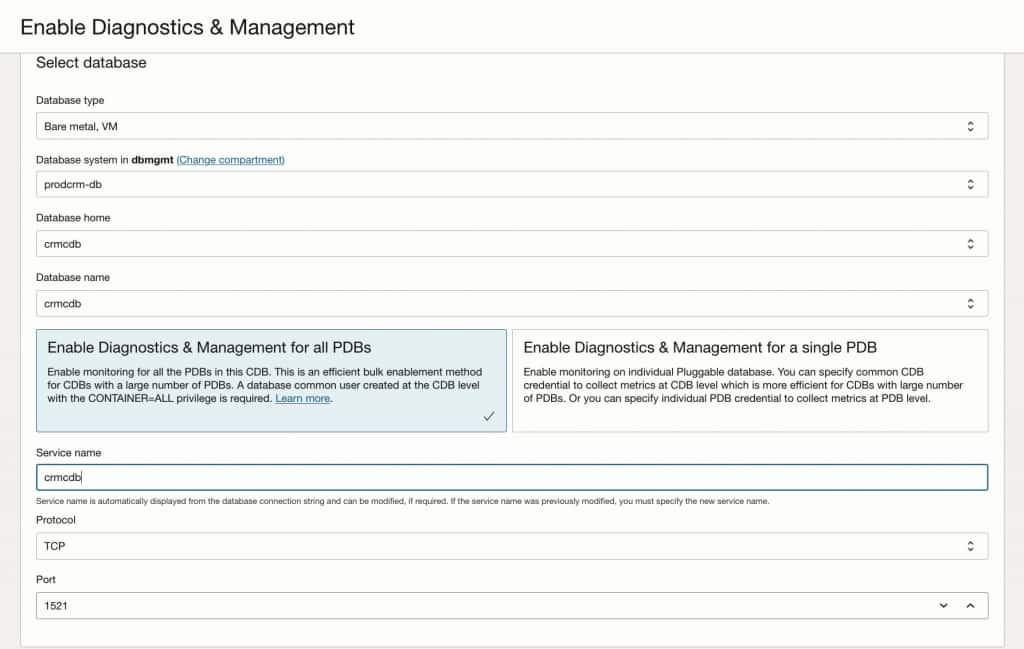
- Navigate to Observability & Management → Database Management → Administration.
- Click Enable Diagnostics & Management.
- Select the database type: Bare Metal, VM, or Exadata.
- Select the database system, database home, and database.
- Configure the connection by selecting the protocol (TCP or TCPS), private endpoint, and service name.
- Specify the database user password secret stored in OCI Vault.
- Select the management option: Basic or Full Management.
- Click Enable Diagnostics & Management.
Enable Database Management for Autonomous AI Databases (high-level steps)
Prerequisites
- Set up IAM policies: Create the required IAM policies to grant Database Management permission to access Autonomous AI databases, networking, and Vault service.
- Create Database Monitoring User: Create a database user with the required privileges for monitoring.
- Create an OCI Vault secret: Store the database monitoring user password and database wallet (cwallet.sso) as a secret.
- Create a Database Management private endpoint: Set up a private endpoint for secure communication.
- Configure network security rules: Add ingress and egress rules in security lists or NSGs to allow communication between Database Management and the Autonomous AI Database on the appropriate port.
Enable Database Management
- Navigate to Observability & Management → Database Management → Administration.
- Click Enable Diagnostics & Management.
- Select Autonomous AI Databases as the database type.
- Select your Autonomous AI Database from the list.
- Select Service Name (mTLS or TLS, as appropriate).
- Specify the Database Wallet Secret (required if using mTLS).
- Enter the Database User Name and select the User Password Secret.
- Select Private Endpoint (if required).
- Click Enable Diagnostics & Management.
Enable Ops Insights for cloud databases (high-level steps)
Prerequisites
- Set up IAM policies: Create the required IAM policies to grant Ops Insights permission to access databases, networking, and Vault service.
- Create a database monitoring user: Grant the required privileges for Ops Insights data collection.
- Create an OCI Vault secret: Store the database monitoring user password as a secret.
- Create an Ops Insights private endpoint: Set up a private endpoint for secure communication.
- Configure network security rules: Add ingress and egress rules to allow Ops Insights communication.
Enable Ops Insights
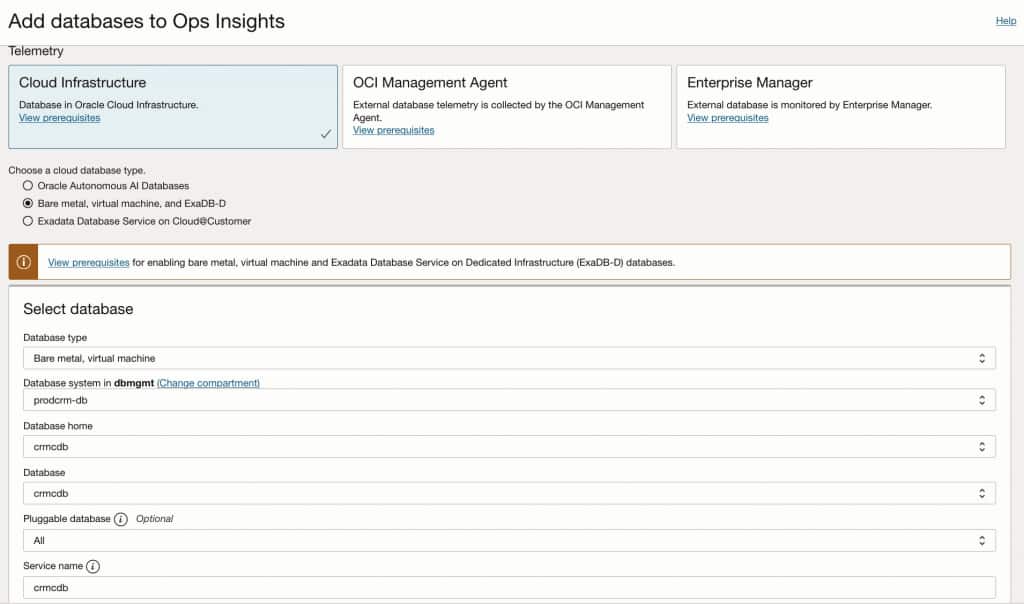
- Navigate to Observability & Management → Ops Insights → Administration.
- Click Database Fleet → Add Databases.
- Under Telemetry, select Cloud Infrastructure.
- Select Bare Metal, VM, or Exadata as the cloud database type.
- Select the compartment containing your databases.
- Select one or more databases to enable.
- Select the feature set: Basic or Full Features.
- If Full Features is selected, configure the connection properties:
- Select the private endpoint.
- Specify the database user password secret.
- Click Add Databases.
Enable Ops Insights for Autonomous AI Databases (high-level steps)
Prerequisites
- Set up IAM policies: Create the required IAM policies to grant Ops Insights permission to access Autonomous AI Databases.
- Create Dynamic Group: For resource principal authentication (IAM-based connection).
- Configure IAM authentication (recommended for Full Features):
- Enable external authentication: ENABLE_EXTERNAL_AUTHENTICATION.
- Create a database role and user with IAM group mapping.
- Run the Ops Insights credential creation script.
- Create an Ops Insights private endpoint: Set up a private endpoint for secure communication.
- Configure network security rules: Add ingress and egress rules to allow Ops Insights communication.
Enable Ops Insights
- Navigate to Observability & Management → Ops Insights → Administration.
- Click Database Fleet → Add Databases.
- Under Telemetry, select Cloud Infrastructure.
- Select Oracle Autonomous AI Databases as the cloud database type.
- Select the compartment containing your Autonomous AI Databases.
- Select one or more Autonomous AI Databases to enable.
- Select the Feature Set:
- Basic Features – No prerequisites required (Capacity Planning only)
- Full Features – Requires IAM or Local credentials (includes SQL Insights, ADDM Spotlight)
- For Full Features, click Set connection properties:
- IAM: Select an IAM credential (recommended), ensure prerequisites are completed, and select a private endpoint.
- Local: Specify password secret and private endpoint.
- Click Add Databases.
Hybrid and Multicloud Management with Enterprise Manager 24ai
Enterprise Manager (EM) provides a unified platform to manage databases across Oracle Cloud Infrastructure (OCI), AWS, Azure, Google Cloud Platform, and on-premises environments. EM provides a unified approach to monitor, manage, and administer Exadata Cloud environments alongside on-premises systems delivering a single operational framework across hybrid and multicloud estates.
To understand how to onboard and manage Exadata Cloud targets using Enterprise Manager, read this blog. For step-by-step discovery prerequisites and configuration guidance, refer to the official documentation.
Summary
Oracle Database@AWS enables organizations to run demanding Oracle workloads in AWS, but sustained success depends on having the right level of visibility across both infrastructure and database internals. In practice, this means keeping AWS-native monitoring (CloudWatch) as the operational baseline while selectively enabling Database Management for real-time database diagnostics and Ops Insights for proactive performance and capacity analytics. With this tiered approach, teams can move beyond “alert-and-react” operations to faster root-cause isolation, trend-driven tuning, and more predictable scaling improving DBA efficiency and day-to-day reliability without forcing a wholesale change to existing AWS monitoring workflows.