
Which updates does this Oracle home need? It’s a simple question, but answering it can take time. Oracle Update Advisor (OUA) helps you check the software you have installed and understand what to update next. For a single-instance database, you can start with Database Configuration Assistant (DBCA).
How DBCA works with Oracle Update Advisor
You may already use DBCA to create databases. It can also act as a client for Oracle Update Advisor, letting you check software health from the command line.
DBCA sends information about your Oracle home and its maintenance policy to the service over HTTPS. Oracle Update Advisor evaluates that information and returns a health status with an explanation.
The policy defines what the assessment looks for, including update currency and security severity. Health tells you whether the home meets that policy. A recommendation helps you work out what to change.
Checking health does not patch your database. You review the result, decide on the next step, and schedule any update through your normal maintenance process.
Get started in five steps
The examples below follow the Oracle AI Database 26ai getting-started documentation. Begin with one Oracle home so you can see the result before making this part of your regular checks.
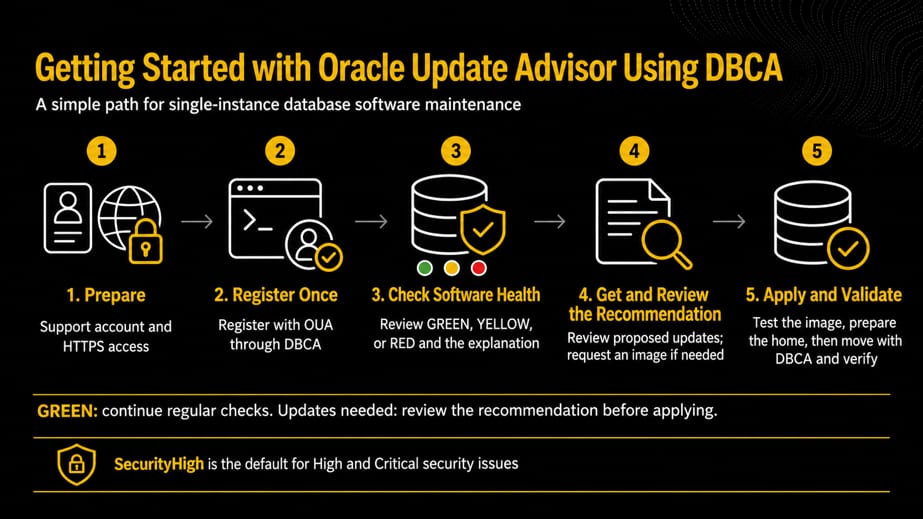
1. Prepare. Have your My Oracle Support account and a valid Oracle Support entitlement available. The host needs outbound HTTPS access to updateadvisor.oracle.com. For image downloads, also allow HTTPS access to the download location supplied by the service. This is download connectivity, not a requirement to provision your own OCI storage. Configure a proxy if your network requires one.
2. Register once. Register your My Oracle Support user with Oracle Update Advisor through DBCA. Replace sso_username with your own account name. Registration is a setup step; you do not need to include your SSO credentials in each health check.
dbca -managePatches -silent -registerUser \
     -ssoUserName sso_username
3. Check software health. Run the health check and read the explanation that comes back. With no security level specified, OUA uses SecurityHigh, which includes applicable High- and Critical-severity security fixes.
dbca -managePatches -checkPatchStatus -silent- GREEN means the home meets the effective policy. Continue regular checks. It is not a guarantee that every possible security issue has been eliminated.
- YELLOW means an update is recommended.
- RED means action is required. Read the explanation to understand which updates or issues need attention.
4. Get and review the recommendation. If the result is YELLOW or RED, review the reason and the recommended updates. Where appropriate, request a gold image, a ZIP package of database software with the recommended updates, for a new Oracle home. Review the proposed updates before deciding to apply them.
5. Apply and validate. Test the image in a representative nonproduction environment. Prepare the new Oracle home, then use DBCA to check prerequisites and move the database during your planned maintenance window. Verify database and application behavior afterward. The next section explains how the tools fit together.
Release note: For Oracle Database 19c, use the Linux dbcactl utility described in the 19c guide. Registration options vary by client release; older examples include -csiNumber. Check the guide and command help for your installed client.
Apply the update with DBCA
DBCA does more than check health. It also performs the database move for out-of-place patching. You prepare updated software in a new Oracle home, then use DBCA to switch the database to that home. For 26ai, the main steps are:
Get the image. Use DBCA with OUA to request and download the recommended gold image.
Prepare the new home. Use Oracle Universal Installer to install and configure the image in a separate Oracle home. This prepares the software before the database move.
Check and move with DBCA. Run DBCA from the new home, first using its prerequisite checks to identify issues such as missing patches. Once those checks pass, use its moveDatabase operation, through the graphical interface or command line, to move the database to the new home.
You initiate the steps; DBCA performs the move rather than leaving you to switch the database manually. Plan a maintenance window for a single-instance database and validate the application afterward. Keep the previous home until validation is complete. Follow the DBCA patch-maintenance guide in Further reading for the full procedure and prerequisites.
Keep the checks useful
Make the health check part of your maintenance routine. A result describes the home against the policy at the time of the check, so run it again as new updates become available and after maintenance.
Release Updates (RUs) provide quarterly cumulative fixes. Monthly Recommended Patches (MRPs) add recommended fixes for a specific RU on Linux x86-64. OUA helps you review the recommended content without turning this first walkthrough into a patch-selection exercise. The patch-maintenance guide in Further reading covers the details.
This walkthrough focuses on DBCA for a single-instance database. For Oracle RAC, Oracle recommends using Fleet Patching and Provisioning (FPP) with Oracle Update Advisor. To get started, see the instructions for FPP Local Mode or FPP Server Mode.
Conclusion
Start with a health check on one Oracle home. DBCA gives you a straightforward way to use Oracle Update Advisor, understand the result, and decide what to update next. Once you’re comfortable with that process, make it a regular part of your maintenance planning so you’re better prepared when a security update needs prompt attention.
Further reading
- Oracle AI Database Patch Maintenance Guidelines
- Oracle AI Database Patch Maintenance Using DBCA
- Using Oracle Update Advisor in FPP Local Mode
- Using Oracle Update Advisor in FPP Server Mode
- Oracle Database Patch Maintenance, Release 19c and Later Releases
- Software Security Recommendations
- Announcing Oracle Update Advisor: Accurate Guidance with Streamlined Access for Software Health
- From Green Lights to Gold Tiers: Operationalizing Software Health for MAA Resilience
- Accept the AI Challenge: Build Your Own Oracle Update Advisor Client or Agent
- Oracle Update Advisor: Prepare Your Database Estate for Rapid Security Updates