
Introduction to custom endpoints
Out of the box, Oracle Integration provides public endpoints managed by Oracle. Oracle Integration also supports both Oracle-Managed and Customer-Managed custom endpoints. A custom endpoint is a user-chosen hostname. Possible uses for a custom hostname include a vanity hostname, such as integration.mycompany.com. A common use of a Customer-Managed custom hostname is to support a Customer-Managed disaster recovery solution.
Oracle-Managed custom endpoints make use of the Oracle Certificate service to generate a certificate that is loaded directly into the Oracle Integration service instance. Oracle will also update the customer provided Oracle DNS service to point the hostname to the Oracle integration service instance.
Customer-Managed custom endpoints require the provisioning of a front-end device such as a load balancer or API gateway. This device will host the customer-generated certificate and the customer will set up DNS to point to this front-end device.
The table below shows some sample use cases together with which type of custom endpoint supports them:
| Use Case | Description | Customer Managed | Oracle Managed |
|---|---|---|---|
| Vanity URL | A customer-chosen hostname that can be shared with partners and preserves the company brand. This type also provides control over the certificate. Example: integration.mycompany.com | ✅ | ✅ |
| Additional Security | The hostname loaded into a front end device such as a load balancer or API gateway to apply additional security policies to Oracle Integration. Example: Add a rate limit policy on specific endpoints. | ✅ | ❎ |
| Disaster Recovery URL | The same hostname assigned to two different integration service instances in different regions. Loaded into a front end device such as a load balancer or API gateway with DNS resolving to a single region. Allows DNS to be updated to point to a specific region in the event of failover. | ✅ | ❎ |
| Global Traffic Management | Multiple geographic regions have service instances with the same hostname. Some form of global server load balancing such as the geolocation steering policy in Oracle OCI DNS Traffic Management is used to send traffic to the nearest service instance. Note: This use case restricts the types of integration that can run in the service instance. To avoid duplicate processing, it is recommended not to have multiple service instances running the same batch jobs and polling triggers unless they are only using local resources. | ✅ | ❎ |
| Private Network Access | By restricting Oracle Integration access to just the custom endpoint device using Oracle Integration allowlists, it is possible to have an Oracle Integration service instance only accessible from a private network. | ✅ | ❎ |
In this blog, we will focus on how to configure a Customer-Managed custom endpoint using an OCI load balancer.
Overview of solution
At a high level, the client processing looks as follows:
- The client sends a request to a custom hostname.
- The OCI Load Balancer receives and terminates the TLS request.
- The Load Balancer forwards traffic to the Oracle Integration endpoint.
- Oracle Integration processes the request and returns a response.
Note that only the Oracle Integration runtime is fronted by the custom endpoint. The Oracle Integration design time and file server are not affected by the custom endpoint.
This requires us to:
- Have an Oracle Integration service instance
- Decide on a custom hostname
- Register the custom hostname with Oracle Integration
- Generate a certificate for the custom hostname
- Have an OCI Load Balancer
- Have the Oracle Integration service instance configured as a target of a Load Balancer backend set
- Set up a health check for the backend set
- Register the certificate with the OCI Load Balancer
- Set up logging for the Load Balancer
- Create a listener with the custom hostname and backend set
- Create a DNS entry for the custom hostname pointing to the OCI Load Balancer
This seems like a lot, but it is actually very straightforward.
Configuring Oracle Integration for a Customer-Managed Custom Endpoint
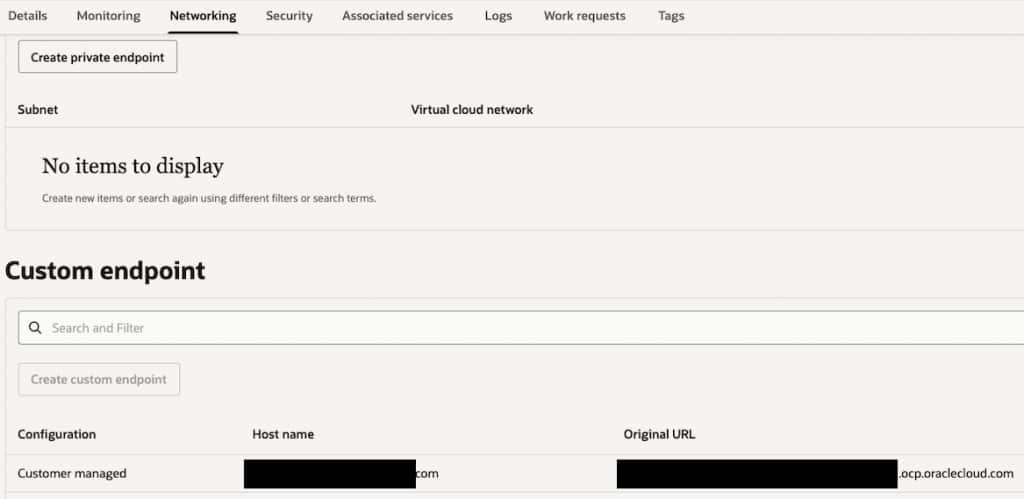
Having decided on your custom hostname, you just need to go to the OCI Integration Instance Networking tab in the Oracle Cloud Console and create a Customer-Managed custom endpoint, providing the chosen hostname.
Create Certificate for a Custom Hostname
Certificates must be generated using either the OCI certificate service or another certificate service. Note that generally you either get this certificate from your network team or you need to prove that you have access to the DNS domain for the certificate being created.
Create and Configure Load Balancer
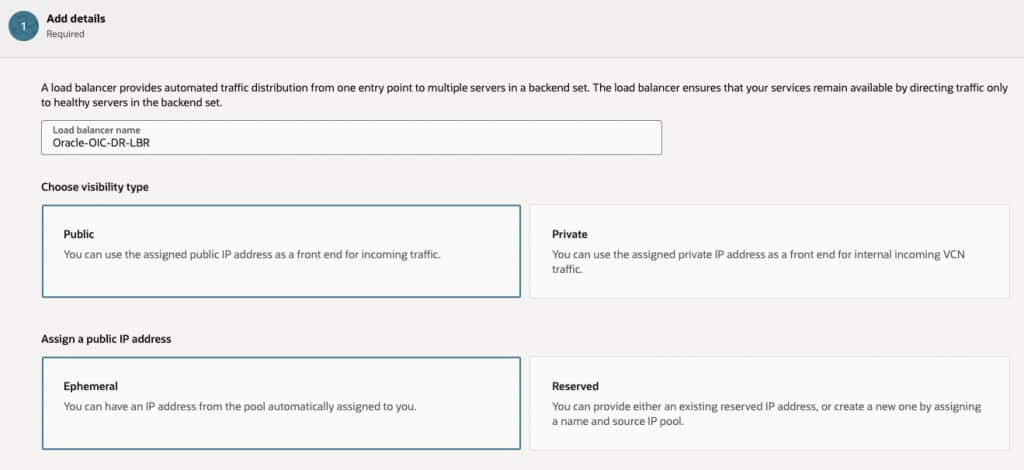
When creating a load balancer from the Oracle Cloud Console, the following key decisions must be made:
Visibility Type
Public means that the load balancer will be available on the internet with a publicly-routable IP address. Choose this if you need systems outside your internal network to be able to access the load balancer. You also need to choose either an ephemeral address or select a reserved IP address from your previously-created pool. This is the most common use case for configuring a load balancer in front of an Oracle Integration instance.
Private means that the load balancer can only be accessed from a private VCN. Use this visibility type if you plan on restricting access to internal clients.
Networking
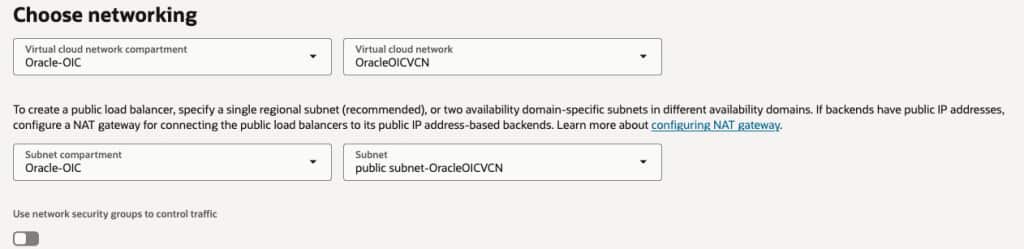
It is necessary to choose the target VCN and subnet, note that if visibility is public, then only public subnets are shown as a public IP address will be allocated to the load balancer. If visibility is private, then the subnet can be private or public. Note that if a public subnet is chosen, the load balancer is still only accessible via a private IP address.
Note that you can assign a Network Security Group to the load balancer. If you do so, then you need to allow port 443 access for the OIC runtime and, if using the same load balancer for File Server, you need port 22 access to provide a standard SFTP port number.
Backend Set
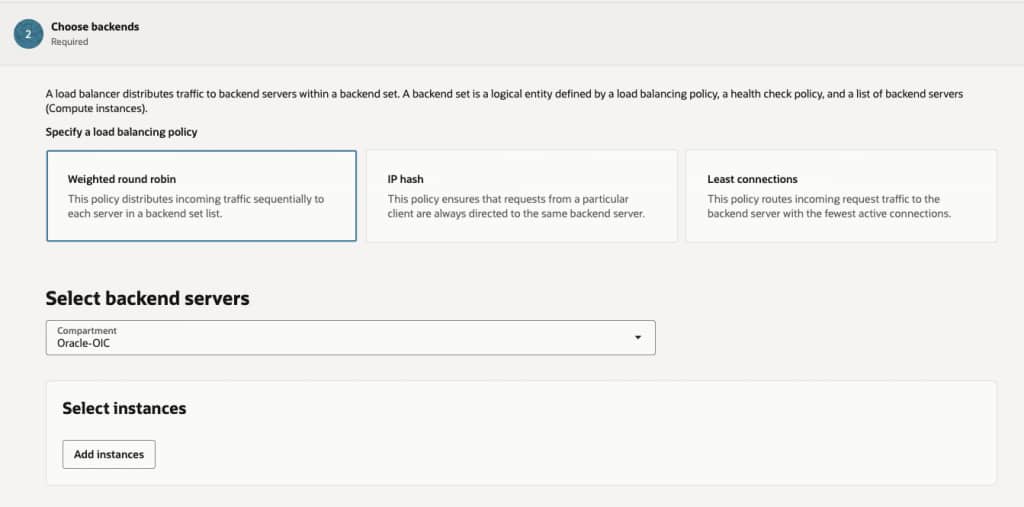
The backend set identifies the target Oracle Integration service instance. The load balancing policy is not relevant because there will only be one target in the backend set. Therefore, all load balancing policies will have the same result.
If creating a new Load Balancer, it is necessary to return to the backend set after the Load Balancer is created because only compute nodes can be added to the backend set at this stage.
Set Up health Check
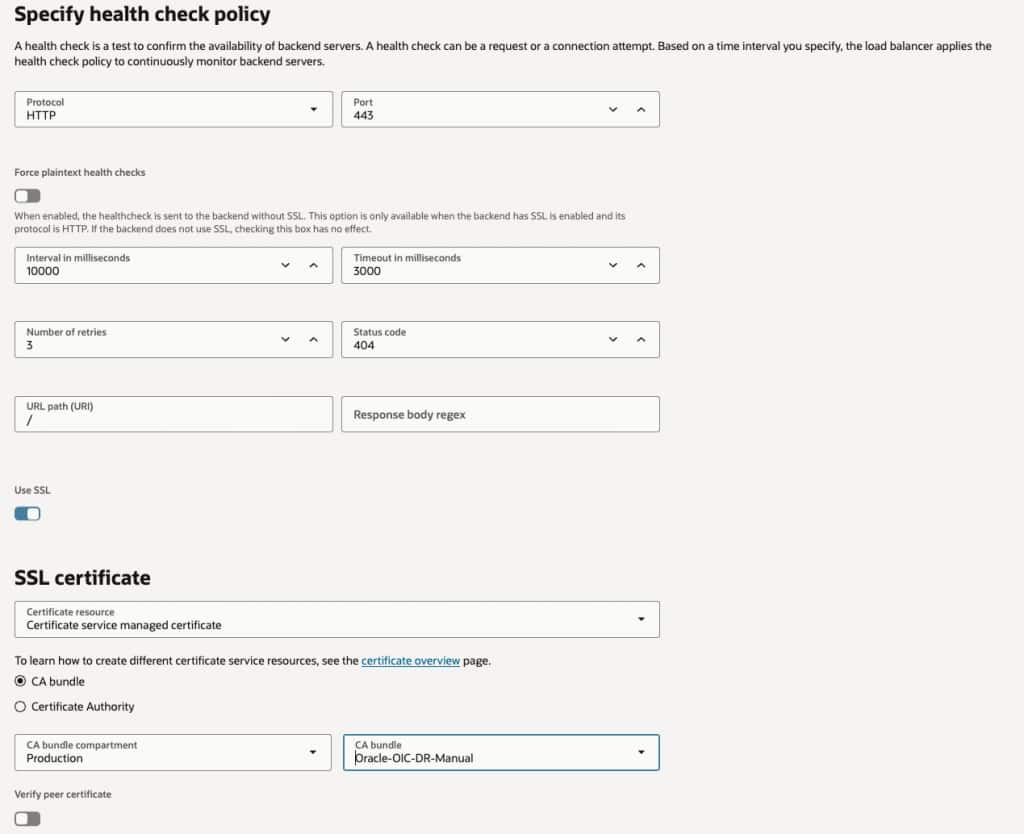
The health check policy should test port 443. The protocol needs to be HTTP and the status code should be 404. Although the load balancer uses SSL (TLS) if the listener associated with the health check is SSL-enabled, it does not pass the hostname in the request. This results in the load balancer in front of the Oracle Integration instance being unable to verify that the request is for a specific Oracle Integration instance. Therefore, it returns a 404.
Add a Certificate to a Load Balancer Listener
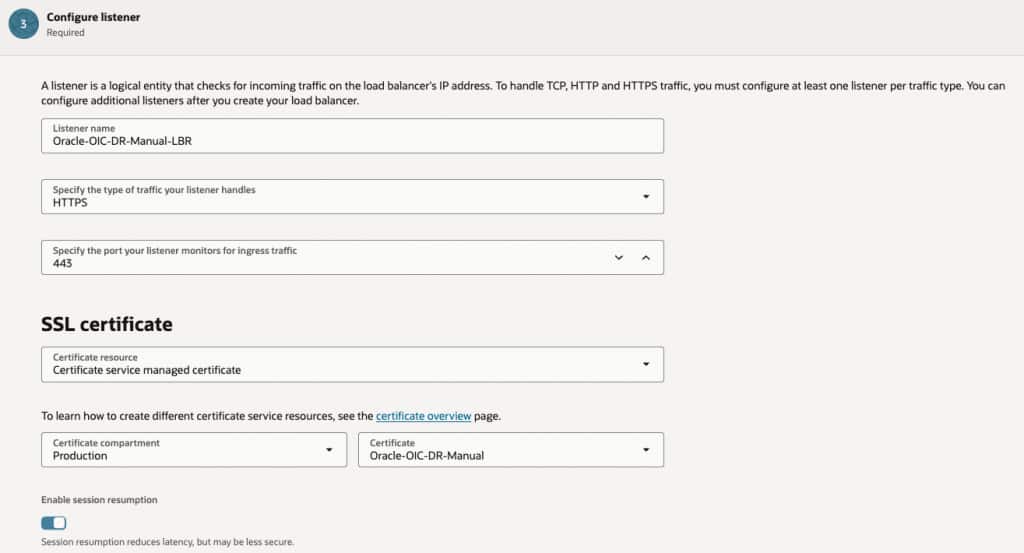
When creating the Load Balancer, you create a listener, or you can add a listener to the existing instance. I recommend that naming the listener with your custom hostname as a Load Balancer can have multiple listeners and it is useful to know which listener is serving which host.
When adding a certificate to the Load Balancer, you can choose to have the Load Balancer manage the certificate or use a certificate managed in the certificate service. I prefer the latter, but either option works.
Set Up Logging
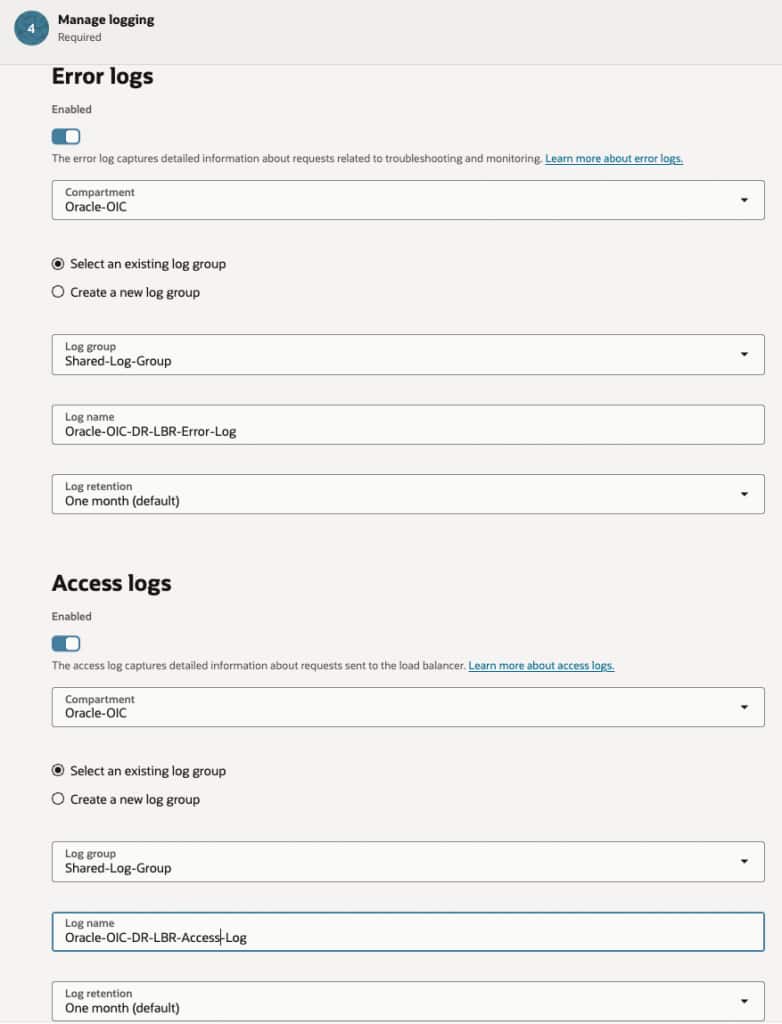
I recommend creating a Log Group and creating Error and Access logs for the Load balancer because this provides useful information to assist in securing the instance and in troubleshooting issues.
Revisiting the Backend Set
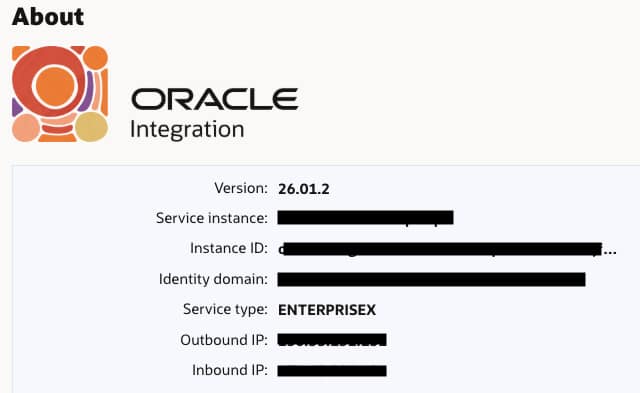
It is necessary to add the Oracle Integration instance to the backend set. This requires us to know the inbound IP address of the Oracle Integration runtime. This can be obtained from the Oracle Integration design-time console About menu.
We can navigate to the Load Balancer Backend sets tab and edit the backend set we created when creating the Load Balancer.
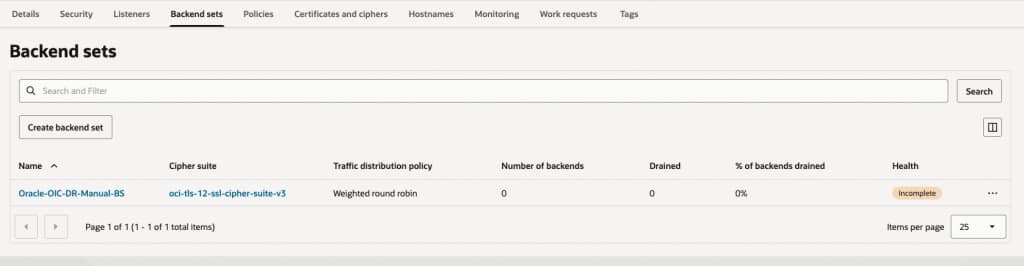
We can then choose the Backends tab and Add backends.
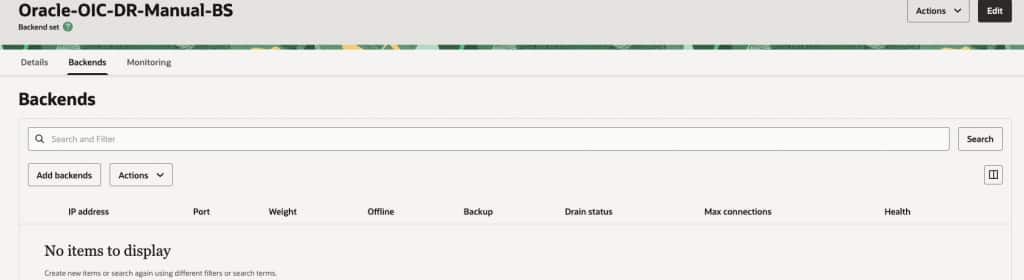
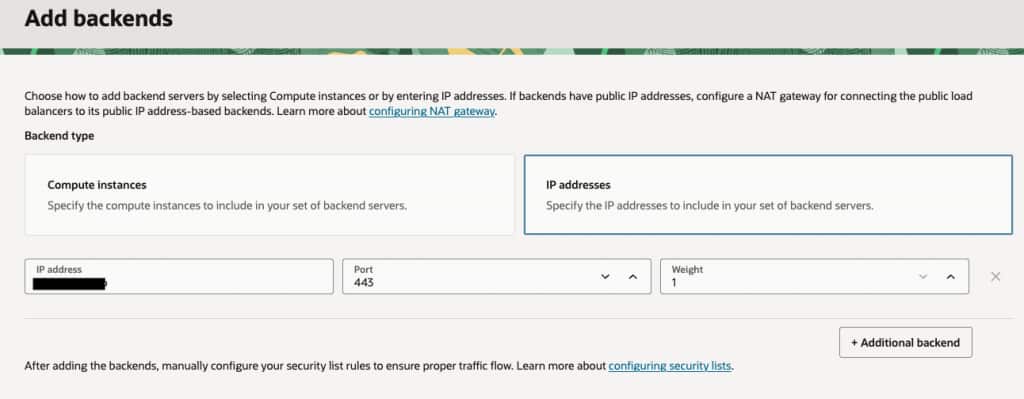
We need to choose an IP address backend and set the port to 443 and the IP address to the IP address of our Oracle Integration instance that we got from the About menu of our Oracle Integration instance.
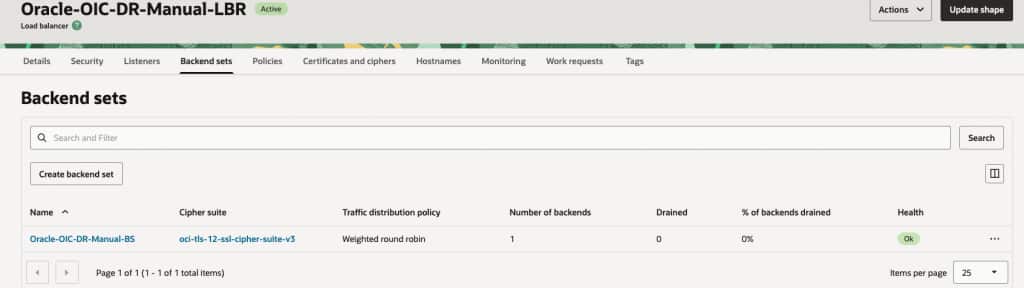
We can verify our backend is set up correctly from the Backend sets tab of the load balancer.
Adding a Hostname to the Listener
Because we may have many listeners, we need to add a hostname to the Load Balancer from the Hostnames tab.
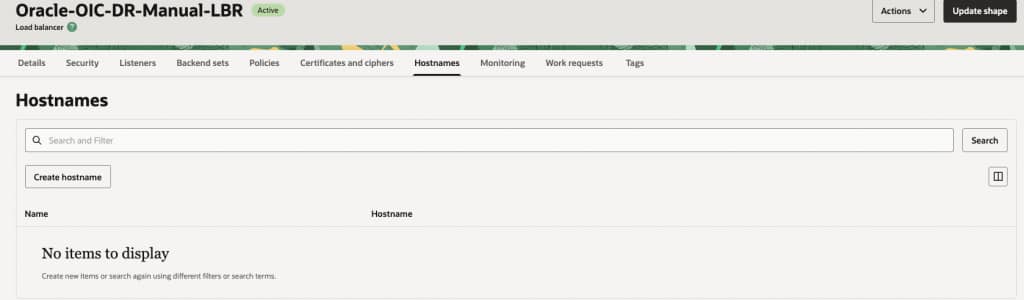
The hostname should be the custom hostname previously chosen and for which we loaded a certificate.
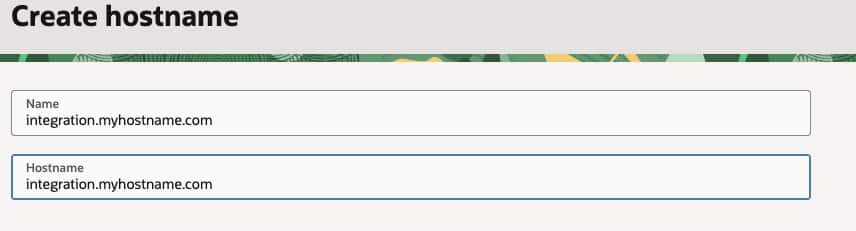
I usually name the hostname with the actual hostname, it makes life easier!
Having created the hostname, we can then assign it to the listener by editing the listener.
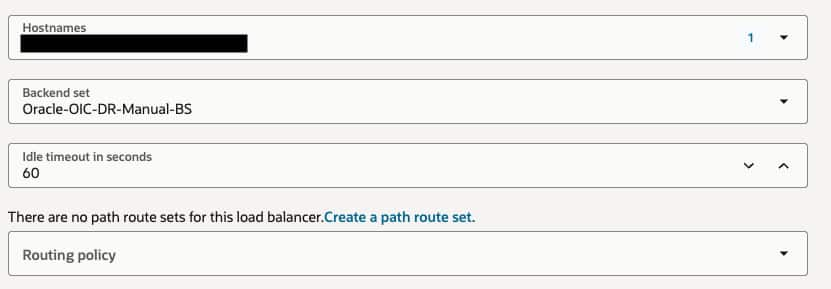
Register the Custom Hostname in DNS
After configuring the Load Balancer, we can now create a DNS entry for our custom hostname in DNS.
This will be an A record pointing to the public IP address of the Load Balancer. We can obtain this from the Details tab of the Load Balancer in the Oracle Cloud Console.
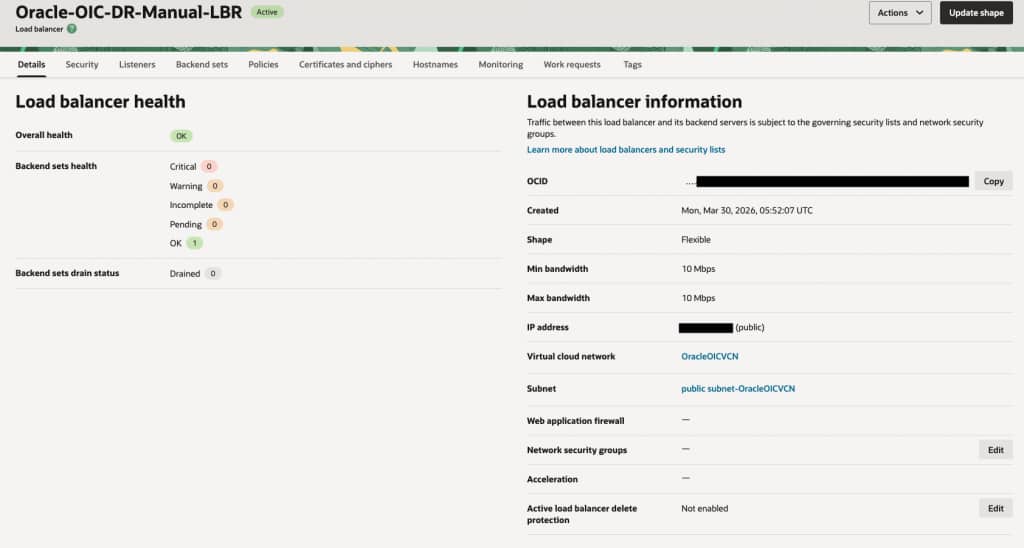
Troubleshooting
Some things that may cause problems with a health check:
- Not configuring VCN to route traffic to the Oracle Integration instance, usually through either a NAT Gateway or a Service Gateway.
- Not opening VCN security rules for port 443.
- Not testing for a 404 response code.
Additional Options
Once the Load Balancer is configured and working, there are additional things that you can do. These include restricting access to the Oracle Integration instance to just the Load Balancer, adding URL rewrite rules to redirect traffic from a global integration to a project version of the integration, or adding additional security rules in the Load Balancer.
Note that because the Load Balancer is on your VCN you can take advantage of services like WAF and Zero Trust Packet Routing.
Conclusion
In this blog, we have covered the key areas of setting up a Load Balancer to act as a front-end to an Oracle Integration instance.