
As part of ongoing improvements in Oracle Integration, support for WSDL-based connections in Salesforce Adapter integrations is being deprecated, with enforcement beginning in 26.04 for Development instances and 26.07 for Production instances. Customers must migrate affected integrations to the new Salesforce connection type within the announced timelines to avoid integration disruptions.
Attention Oracle Integration Customers Using Salesforce Adapter
This applies to integrations that use WSDL-based Salesforce connections created by uploading Enterprise WSDL files.
Problem Statement
WSDL-based Salesforce connections increase ongoing maintenance overhead. To simplify integration maintenance and improve overall usability, Oracle Integration is deprecating support for these connections.
Impact on Existing Integrations
Integrations using WSDL-based Salesforce connections must be migrated to Salesforce Adapter connections that do not rely on uploaded WSDL files. Failure to complete this migration before the deadline may result in integration disruption.
Required Action
Customers must migrate all WSDL-based Salesforce connections to ensure uninterrupted integration flows.
Migration must be completed within the following timelines:
- Development instances: before Oracle Integration Release 26.04
- Production instances: before Oracle Integration Release 26.07
Failure to complete the migrations within these timelines may result in integration disruption.
Migration Steps
Create a New Salesforce Connection
In Oracle Integration, create a new connection using the Salesforce Adapter.
See: Create a Connection.
Replace an Existing WSDL Connection in Your Integration
- Go to Home > Integrations.
- Select the integration currently using the WSDL connection.
- Click the actions icon (…) and choose Replace.
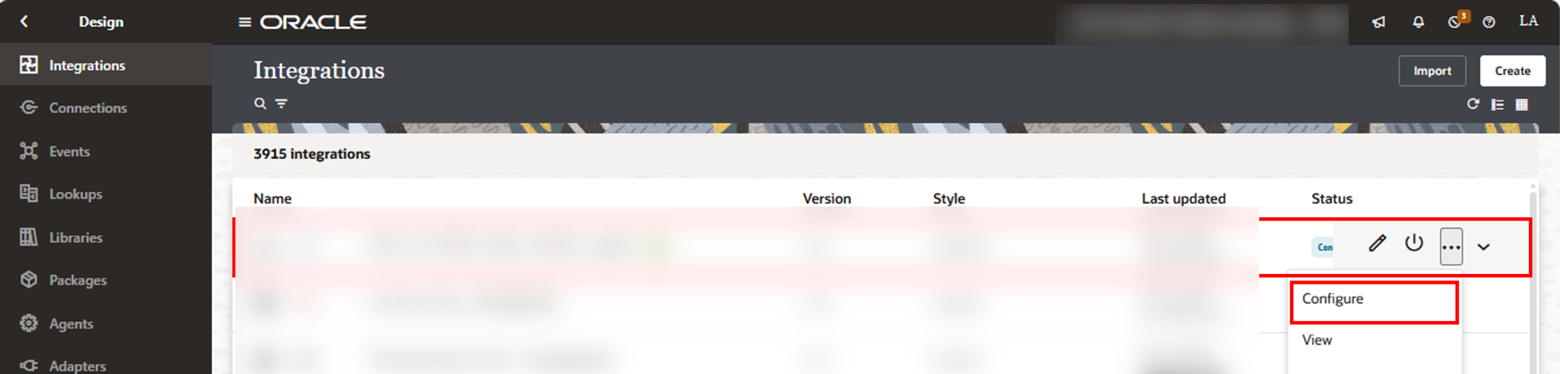
- In the Connection Wizard, click Replace.

- Select the new Salesforce connection you created.
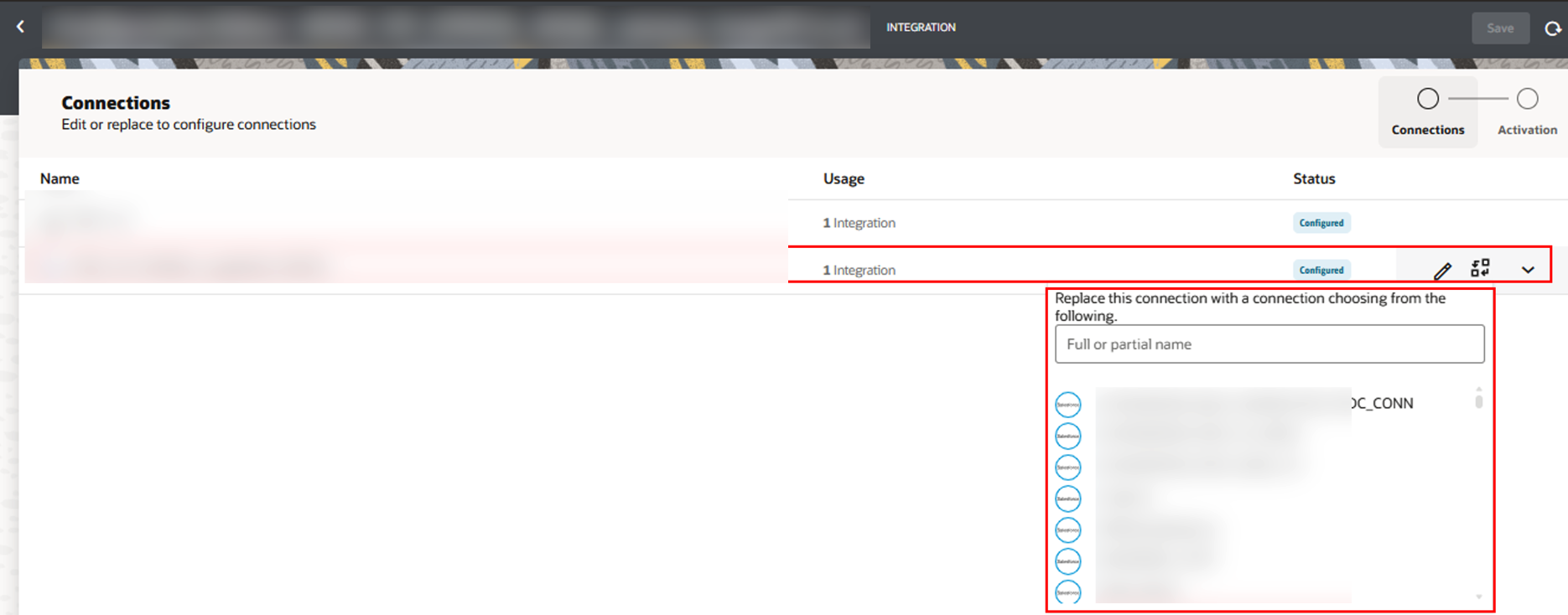
- Click Save.
Refresh Integration Endpoints
- Navigate to Home > Integrations.
- Select the updated integration.
- Click the actions icon (…) and choose Refresh Endpoints.

A confirmation message indicates a successful refresh.
Activate the Integration once the refresh is successful.