
Oracle Integration lets you expose a project as a Model Context Protocol (MCP) server. MCP is the open standard AI clients use to discover and call tools, so once a project is MCP-enabled, any MCP-capable client can discover the integrations you have registered as tools and call them under the identity of the person using that client. Claude is one of the most widely used of those clients, and many of you have asked how to connect it with Oracle Integration. This post is that guide: defining three pieces to configure (OCI IAM, Oracle Integration, and Claude), explaining how the OAuth authorization code flow ties them together, and which of Claude’s authentication options to pick and why.
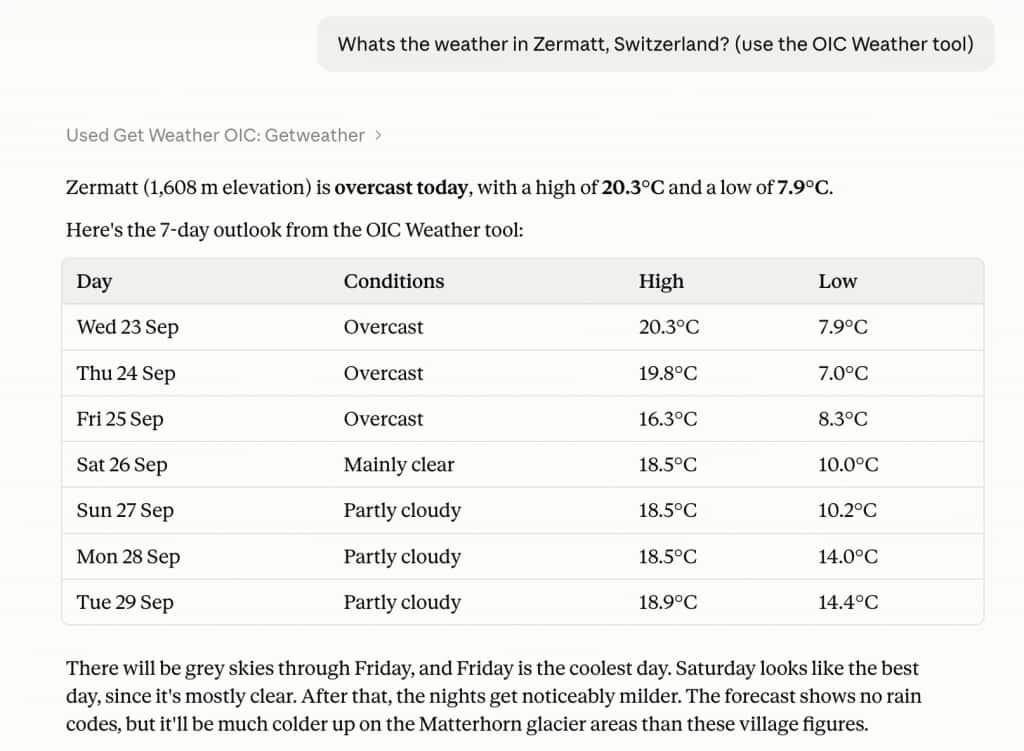
To keep the walkthrough concrete, the example throughout is a small GetWeather integration that looks up a forecast for a city. It stands in for the integrations you already run and would like your people to reach from a chat window. The setup is identical for all of them, and the only thing that changes is the description you give the tool. By the end, a user in your organization can open Claude, ask a question in plain language, and have Claude call the integration you exposed and answer from the result.
What you need before you start
- An Oracle Integration 3 instance with a project containing at least one active integration you want to expose; this integration must use a REST trigger with OAuth authentication and a JSON payload. The example project in this post is
MCP_APP_GET_WEATHERwith aGetWeatherintegration. Substitute your own project and integration names as you follow along. - Identity domain administrator access to the OCI identity domain that secures the Oracle Integration instance.
- Claude Desktop, or claude.ai in a browser. The screenshots below are from the desktop app; the web flow is identical. Connectors added in either place are also available in Claude mobile and Claude Code.
Two pages in our documentation cover the groundwork: Use Integrations as Tools in an MCP Server for the MCP side and Use OAuth 2.0 Grants in Identity Domain Environments for the IAM side, which describes every grant type Oracle Integration accepts, including the authorization code grant used here. Nothing in this post is Claude-specific on the Oracle side. It is standard OCI IAM OAuth with Claude as the client, and the same steps apply to any MCP client that supports a pre-registered OAuth client.
This post covers Claude. The IAM and Oracle Integration setup in Parts 1 and 2 is the same for every MCP client; only the client-side steps differ. Separate posts will follow for other major clients, starting with ChatGPT.
Part 1: OCI IAM setup
It helps to name the OAuth roles first. The user is the resource owner. OCI IAM (the identity domain) is the authorization server: it authenticates the user, records consent, and issues tokens. Oracle Integration is the resource server: it never sees the user’s credentials and only validates the bearer token it receives. Claude is the client. Therefore, the only thing IAM needs from you is a client registration for Claude: a confidential application in the identity domain that fronts your Oracle Integration instance.
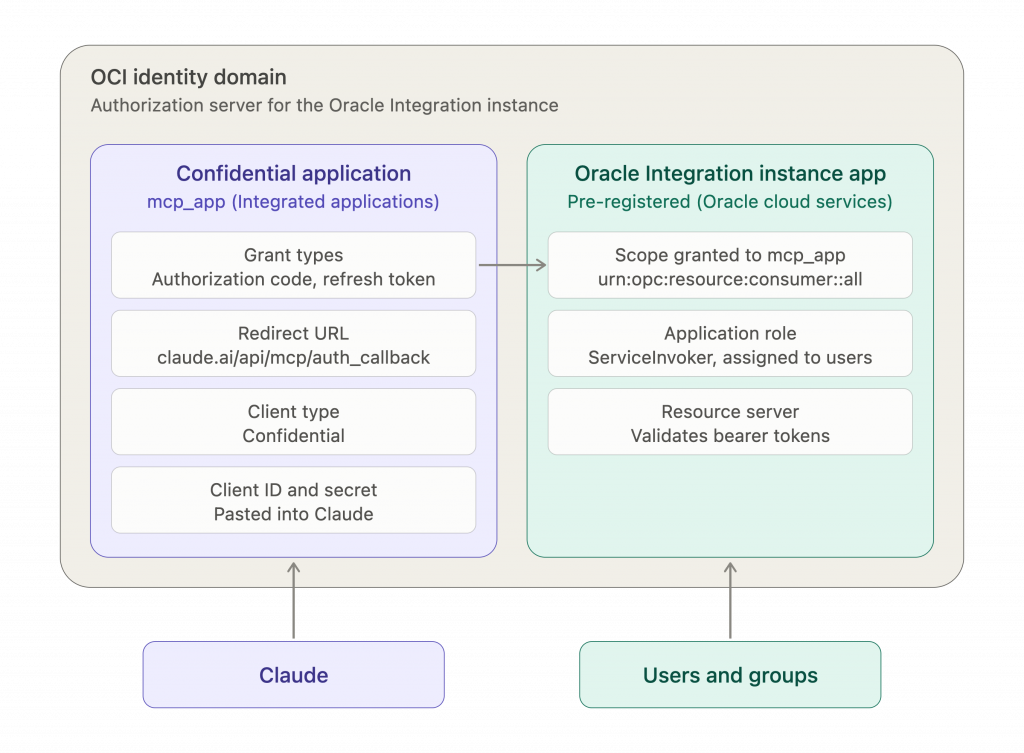
Two applications are involved, and it helps to keep them apart. The confidential app you create, represents Claude and holds the grant types, the redirect URL and the credentials. The other already exists: the Oracle Integration instance application under Oracle cloud services, which owns the resource scope and the various application roles. The steps below define the IAM setup needed:
- In the Oracle Clouid Console, go to Identity & Security → Domains, select your domain, then Integrated applications → Add application → Confidential Application. Give it a name (in this example,
mcp_app) and submit. - Open the OAuth configuration tab, click Edit OAuth configuration, and select Configure this application as a client now.
- Under Allowed grant types, enable:
- Authorization code. This is the grant Claude uses; the flow is explained below.
- Refresh token, so Claude can renew access tokens silently instead of prompting the user again.
- Leave Client credentials off for this application. Oracle Integration accepts client-credentials tokens, but Claude never uses that grant; it always acts on behalf of a signed-in user.
- Set Redirect URL to
https://claude.ai/api/mcp/auth_callback. This is the fixed callback Anthropic uses for every custom connector on web, desktop and mobile. You can list other MCP clients’ callbacks alongside it. Anthropic has noted the callback may move tohttps://claude.com/api/mcp/auth_callbackin the future, so it is worth adding both. - Set Client type to Confidential.
- Scroll to Token issuance policy, choose Confidential under Authorized resources, enable Add resources, click Add scope, expand the Oracle Integration application for your instance and select the scope ending in
urn:opc:resource:consumer::all. This is the scope Claude will request and the one that users will see on the consent screen. - Submit, then Activate the application from the Actions menu.
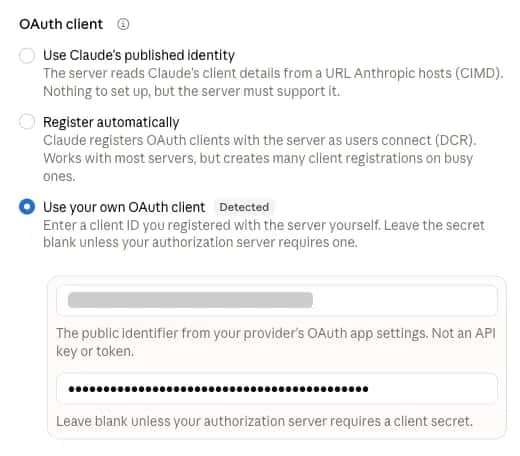
- Copy the Client ID and, from the client secret’s Actions menu, the Client secret. You will paste both into Claude in Part 3.
- Grant the users who will connect from Claude an Oracle Integration role. Go to Oracle cloud services, open the application for your Oracle Integration instance, click Application roles, expand ServiceInvoker and assign the users or groups. With the authorization code grant, the role check is on the user who signs in, not on the client application. Therefore, the application itself needs no role. Without it, IAM will issue a token, but Oracle Integration will reject the call with a 403 error.
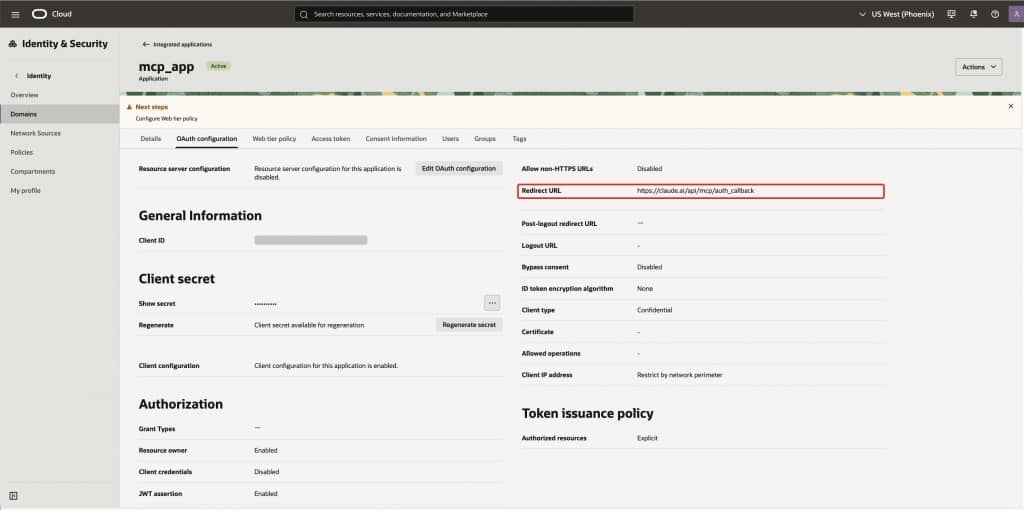
A few settings on that screen deserve a comment:
- Bypass consent is disabled. That is deliberate: each user sees a consent page listing the Oracle Integration resource before Claude receives a token. Turn it on only if your security team is comfortable with silent authorization.
- Client IP address is set to Restrict by network perimeter. Claude’s token exchange comes from Anthropic’s infrastructure, not the user’s laptop, so the perimeter must include Anthropic’s outbound range or be set to allow all.
- Resource server configuration stays disabled. This application is a client of the Oracle Integration resource, not a resource server itself.
Part 2: Oracle Integration setup
The mental model is simple: the project is the MCP server, and every agentic AI tool in the project is exposed through it. An integration is not a tool until you register it as one. The Oracle Integration side has three steps: make sure the integration qualifies, register it as a tool, and enable MCP on the project. Each project gets its own server URL.
2.1 Check the integration
An integration can be registered as a tool if it is part of a project, is Active, and its first connection is a REST trigger with OAuth authentication and a JSON payload. Any verb the REST Adapter supports works, so most request-response integrations already qualify.
2.2 Register the integration as an agentic AI tool
The MCP server exposes tools, not integrations. Registering an integration as an agentic AI tool is what puts it in the project’s tool list; anything not registered stays invisible to MCP clients even if it is active. That is deliberate: you decide exactly which integrations an AI client can see, and with what description and parameters.
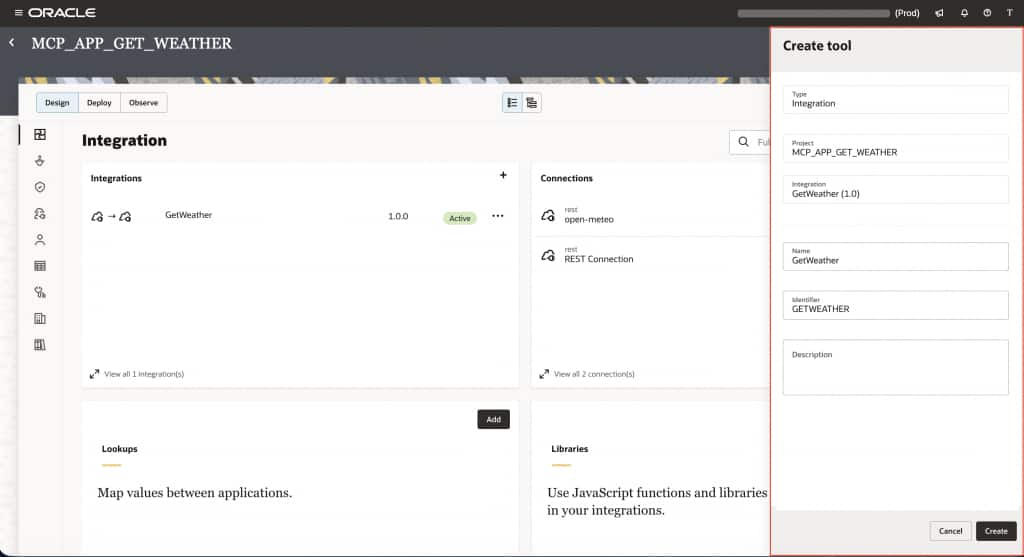
- Open the project, find the integration in the Integrations list, click Actions (⋯) and choose Create agentic AI tool.
- Fill in the tool:
- Name is for humans and is not sent to the model.
- Identifier is what the model sees as the tool name.
- Description is sent to the model and is how Claude decides when to use the tool. Write it the way you would brief a new colleague: what it does and when to use it.
- On the tool details page, optionally add Guidelines (constraints such as “only use for orders placed in the last 90 days” or, for the example, “only use for cities in Switzerland”) and configure Parameters.
- Save.
2.3 Enable MCP on the project and copy the URL
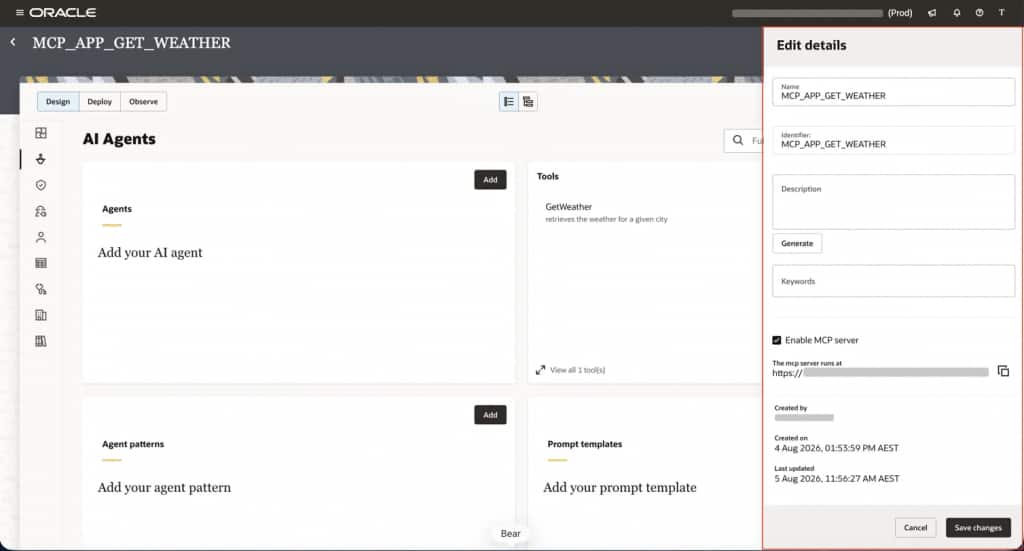
- On the project page, click Edit details.
- Tick Enable MCP server and save.
- Copy the URL shown under “The MCP server runs at”. It has this form:
https://<instance>.integration.<region>.ocp.oraclecloud.com/mcp-server/v1/projects/<project-identifier>/mcpNote that the path uses the project identifier, not the display name. Oracle Integration generates the identifier from the name you first gave the project. The transport is streamable HTTP, which is what Claude expects.
The project’s MCP endpoint is protected by the same identity domain as the Oracle Integration instance. It has no separate authentication configuration: any caller with a valid token for the Oracle Integration resource scope and the ServiceInvoker role can call it.
2.4 How Claude finds IAM on its own: protected resource metadata
You never tell Claude which identity domain protects the server. It determines that from a discovery document we publish for every MCP-enabled project, following RFC 9728, OAuth 2.0 Protected Resource Metadata (PRM), which the MCP authorization specification requires.
Append the MCP path to /.well-known/oauth-protected-resource on the instance host and you get it back:
GET https://<instance>.integration.<region>.ocp.oraclecloud.com/.well-known/oauth-protected-resource/mcp-server/v1/projects/<project-identifier>/mcp{
"resource": "https://<instance>.integration.<region>.ocp.oraclecloud.com/mcp-server/v1/projects/<project-identifier>/mcp",
"authorization_servers": [
"https://idcs-<domain-id>.identity.oraclecloud.com:443"
],
"scopes_supported": [
"https://<oic-audience>.integration.<region>.ocp.oraclecloud.com:443urn:opc:resource:consumer::all"
],
"bearer_methods_supported": ["header"]
}Three things in that document drive everything that follows. authorization_servers names the OCI identity domain, so Claude knows where to send the user. scopes_supported carries the exact Oracle Integration scope, so Claude knows what to ask for and you do not have to type it anywhere. bearer_methods_supported tells Claude to send the token in the Authorization header.
Claude then fetches the identity domain’s own metadata from /.well-known/oauth-authorization-server (IAM also serves the OpenID Connect equivalent at /.well-known/openid-configuration), which lists the /oauth2/v1/authorize and /oauth2/v1/token endpoints and the supported grant types and PKCE methods. Between the two documents Claude has the full picture without any configuration beyond the server URL and your client ID.
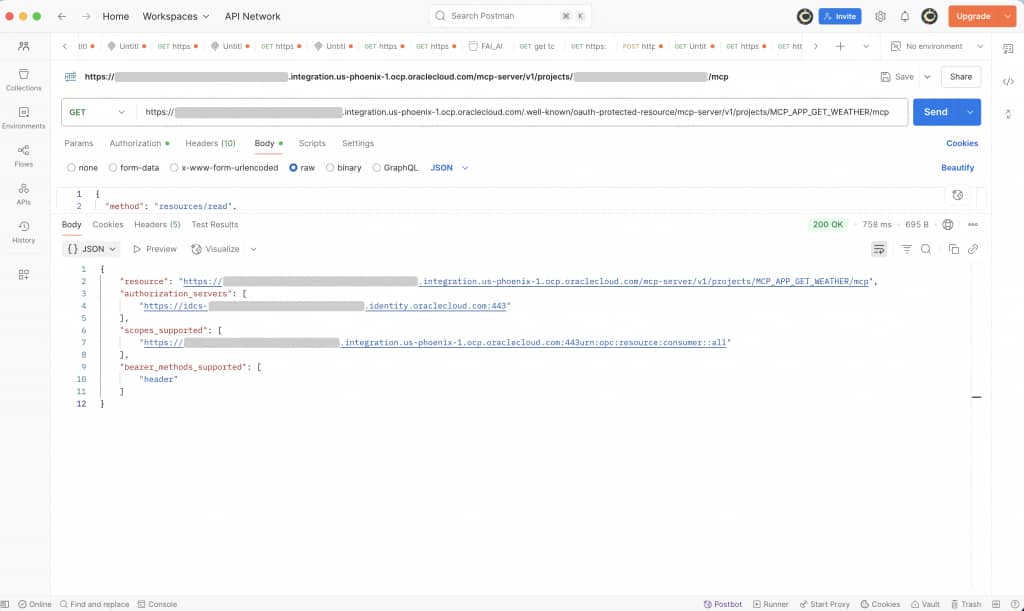
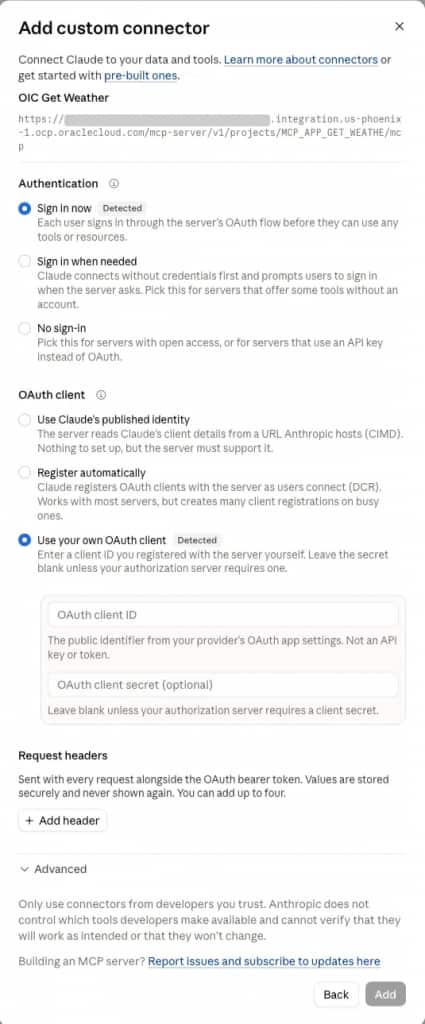
This is also why the Detected labels appear in Claude’s connector dialog: the PRM response is what Claude reads before it pre-fills the authentication settings.
Part 3: Claude setup
Now, tell Claude where the server is and how to sign in. On Team and Enterprise plans an organization owner, adds the connector under Organization settings → Connectors, and members then connect to it. On individual plans, you do both yourself under Settings → Connectors. The dialog is the same.
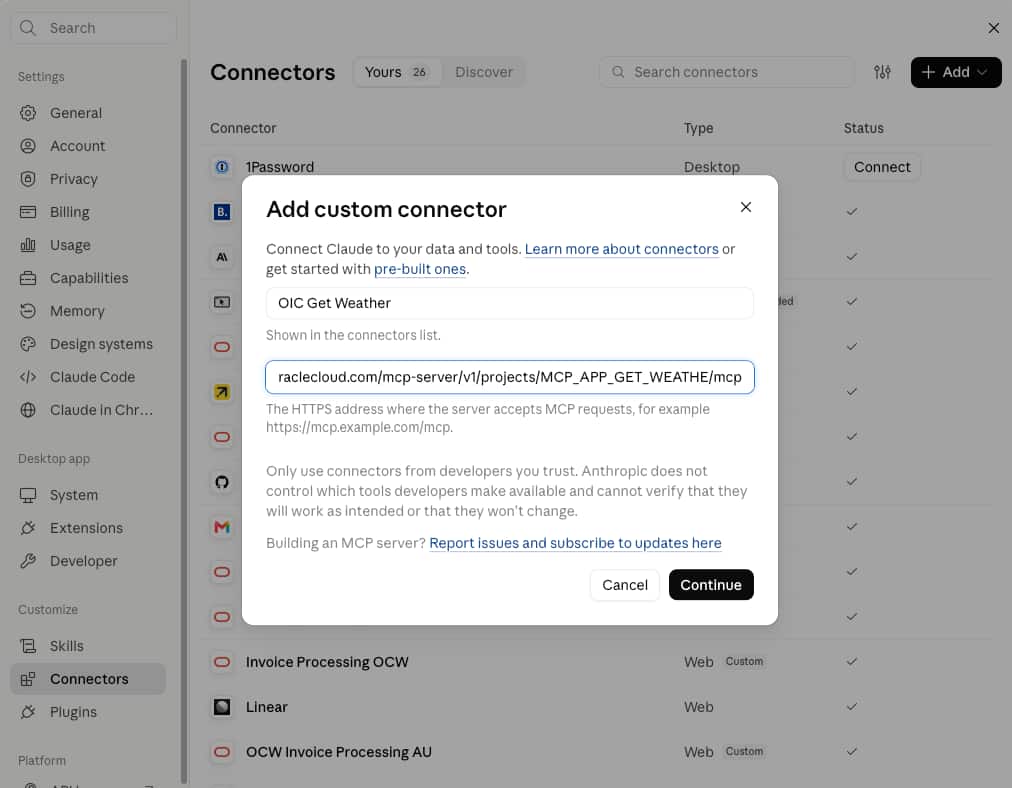
- In Claude Desktop, open Settings → Connectors, click Add, then Add custom connector.
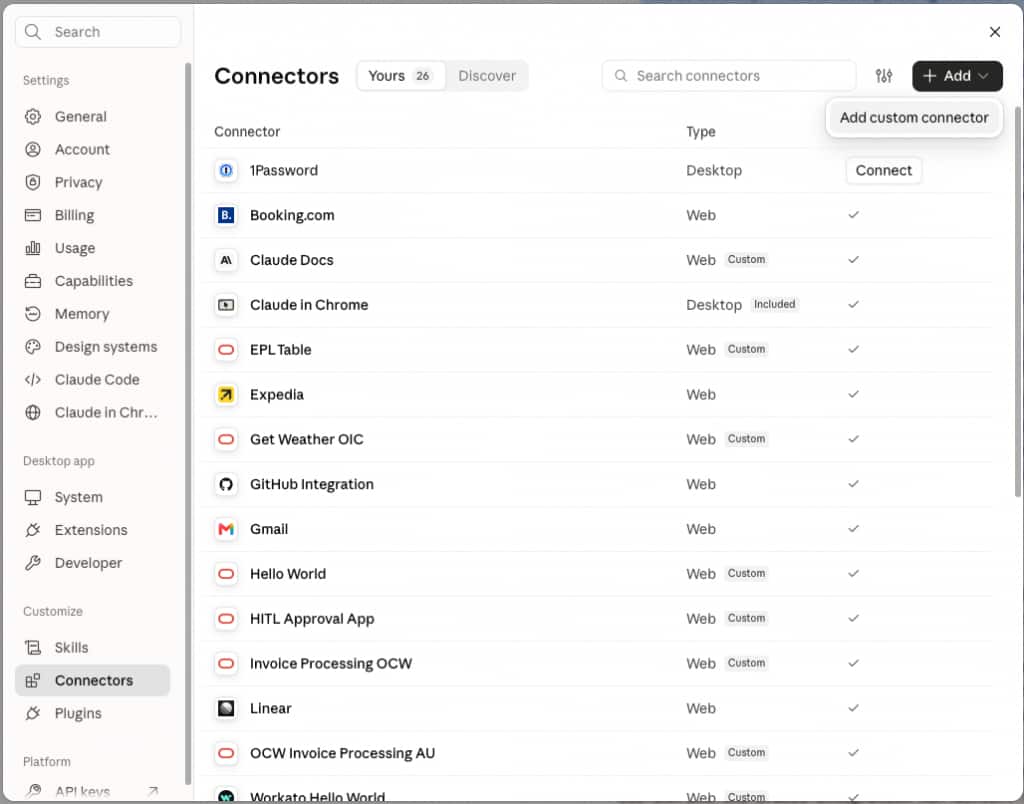
- Enter a name and paste the MCP server URL from Part 2. Click Continue.
- Claude probes the server and pre-fills the settings it detects, marked Detected. For an Oracle Integration MCP server, you should see Sign in now under Authentication and Use your own OAuth client under OAuth client. Keep both.
- Paste the Client ID and Client secret from Part 1, then click Add. Authentication settings cannot be edited afterwards; if you need to change them, remove the connector and add it again.
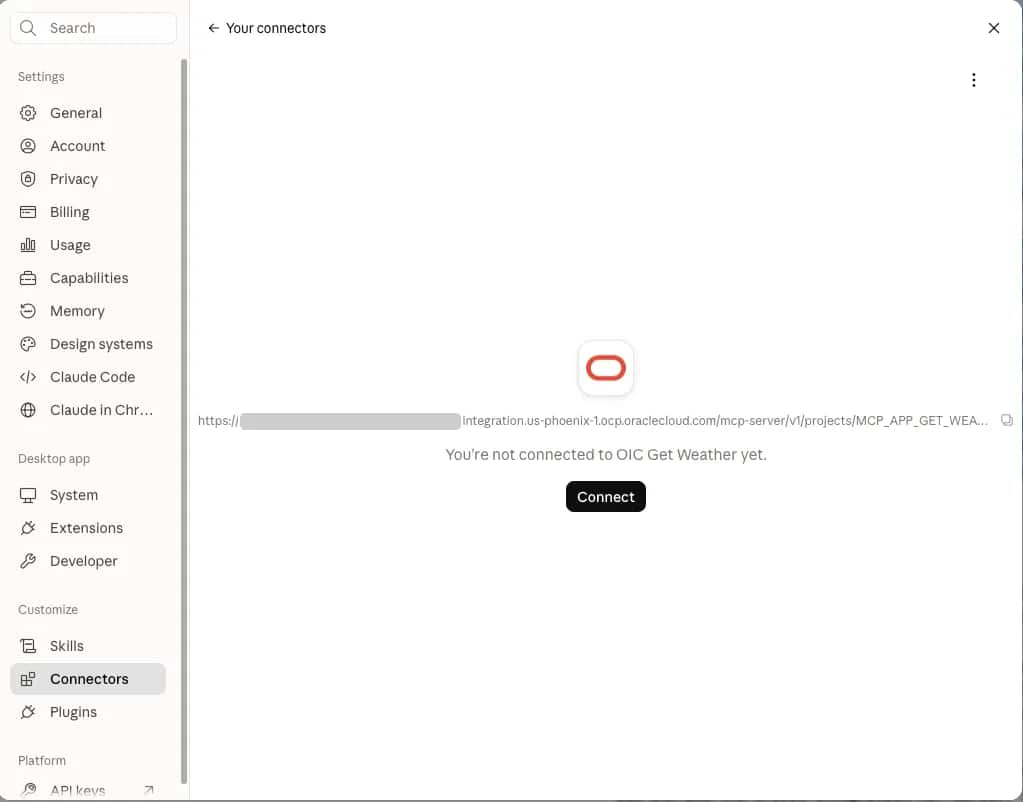
- The connector now appears in your list, but it is not yet connected. Click Connect to start the sign-in.
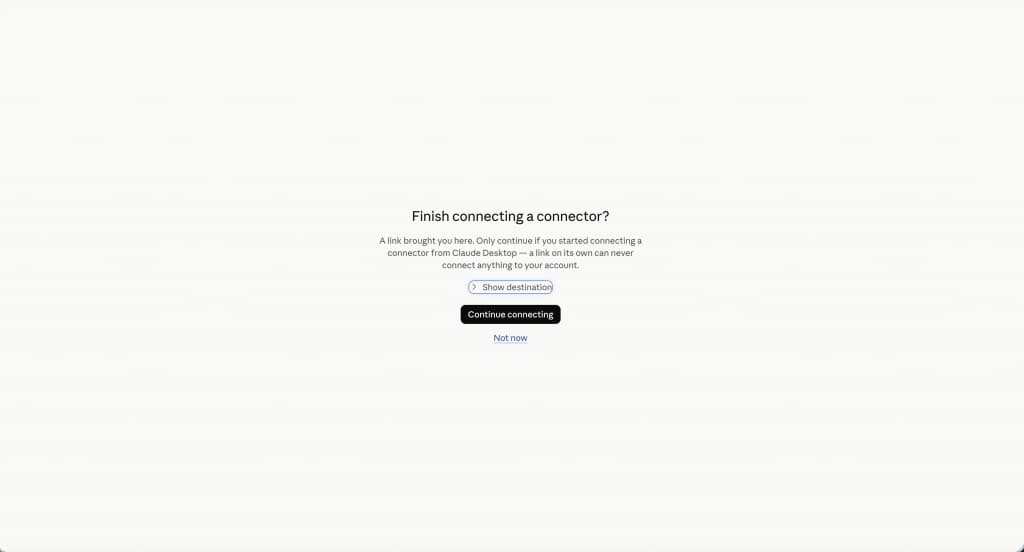
- Your browser opens on claude.ai and asks you to confirm that you started this from Claude Desktop. This is an anti-phishing check: a link on its own can never connect anything to your account. Click Continue connecting.
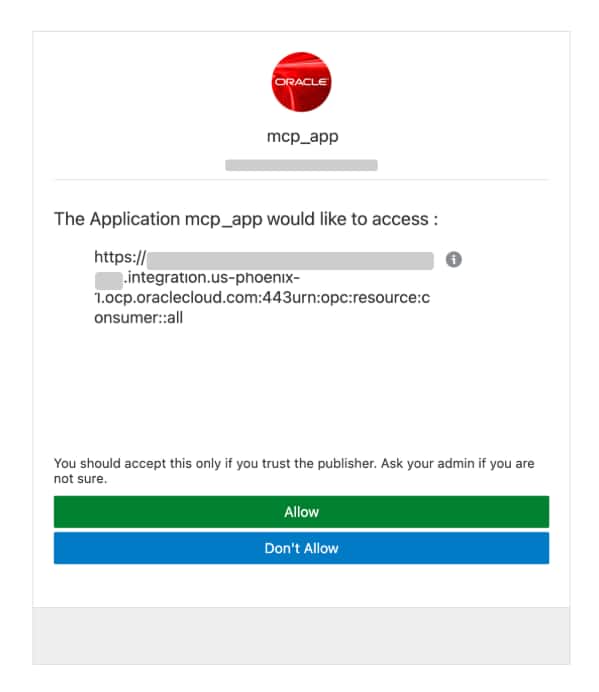
- You are redirected to your OCI identity domain to sign in, then shown the consent page listing the application name and the Oracle Integration resource scope. Click Allow.
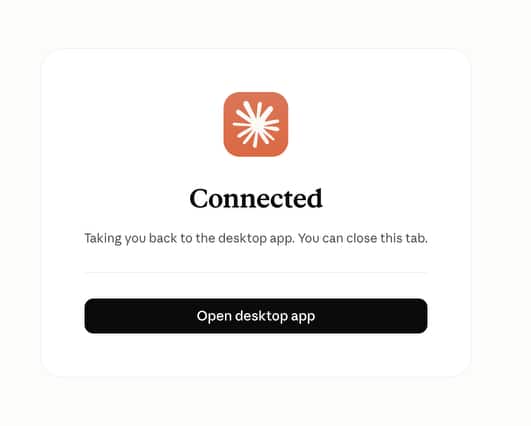
- claude.ai confirms the connection and hands you back to the desktop app.
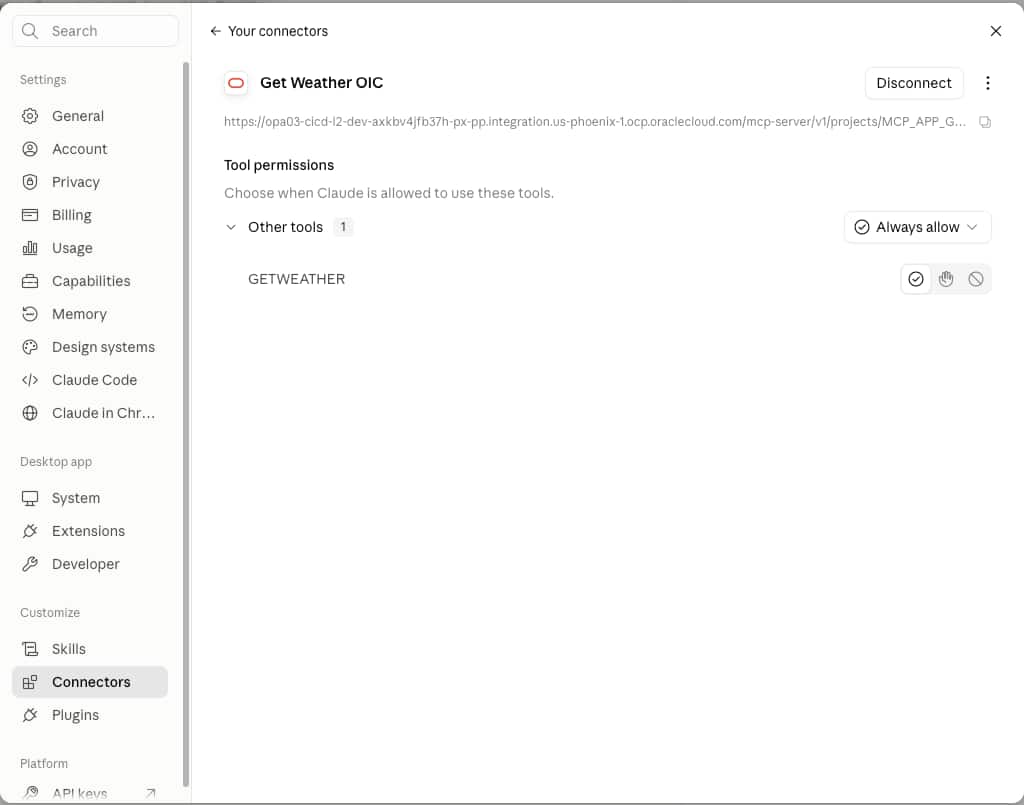
- Back in Settings → Connectors, open the connector to see its tools. Each has a permission: allow automatically, ask every time, or block. A read-only lookup like the example weather tool can stay on automatic. For anything that creates or changes data, ask is the sensible default.
Start a new chat, make sure the connector is enabled in the + menu, and ask a question the tool can answer. Claude picks the tool from the description you wrote in section 2.2, calls Oracle Integration with the user’s token, and answers from the result. For the example, that is “What’s the weather in Zermatt?”. For your integration it will be whatever your users naturally ask.
How the authorization code flow works
Everything above exists to make one standard OAuth 2.0 flow work: the authorization code grant against OCI IAM, exactly as we document it for any third-party client of Oracle Integration. What MCP adds is only the discovery step at the start (steps 1 and 2). Oracle Integration publishes RFC 9728 protected resource metadata. That is how Claude finds out that IAM is the authorization server and which scope to request, without you telling it. IAM does the authentication and consent; Oracle Integration just validates the resulting bearer token on each call.
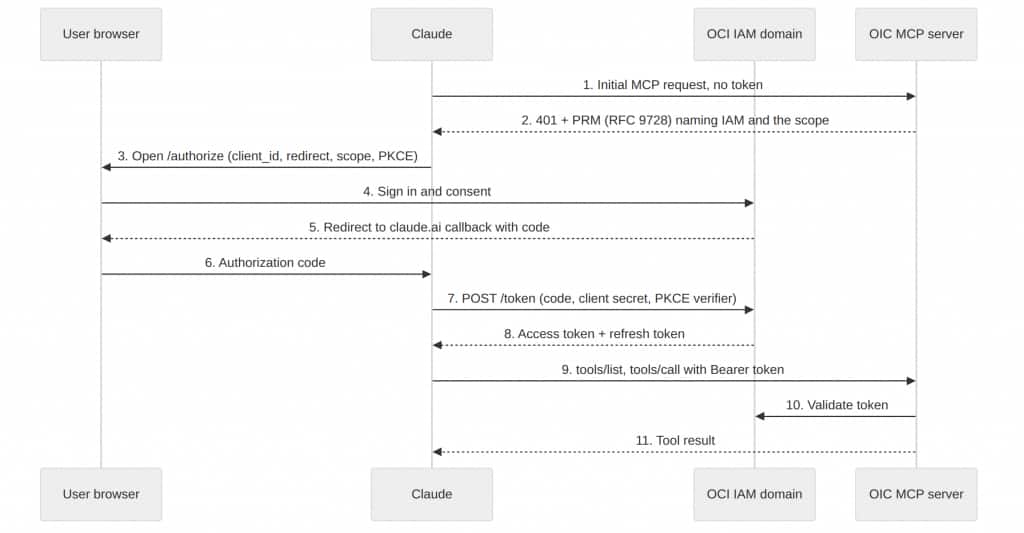
Step by step:
- When you click Connect, Claude sends an unauthenticated request to the Oracle Integration MCP endpoint.
- Oracle Integration replies
401 Unauthorizedwith aWWW-Authenticateheader whoseresource_metadataparameter points at the project’s protected resource metadata document (section 2.4). Claude fetches it, readsauthorization_serversto find your OCI identity domain, then fetches the domain’s authorization server metadata to learn its authorize and token endpoints. This is the discovery step, and it is why Claude could label the options Detected. - Claude opens the browser at the domain’s
/oauth2/v1/authorizeendpoint with the client ID you registered, thehttps://claude.ai/api/mcp/auth_callbackredirect URL, the Oracle Integration scope, a randomstate, and a PKCE code challenge. - You sign in to IAM, with whatever MFA the domain enforces, and approve the consent screen.
- IAM redirects the browser to the claude.ai callback with a short-lived authorization code.
- The browser delivers the code to Claude’s backend.
- Claude calls the domain’s
/oauth2/v1/tokenendpoint with the code, the client secret, and the PKCE verifier. This is server to server; the browser and the desktop app never see the secret. - IAM returns an access token and a refresh token.
- From now on, Claude calls the MCP endpoint (
tools/list,tools/call) withAuthorization: Bearer <token>. - Oracle Integration, acting as the resource server, validates the token (signature, expiry, and audience) against the identity domain and checks that the user holds the ServiceInvoker role before running the integration. It never sees the user’s password or the client secret.
- The integration’s response comes back as the tool result, and Claude uses it to answer the question.
When the access token expires (one hour by default in IAM), Claude uses the refresh token to obtain a new one without involving the user. IAM issues a refresh token only when offline_access is included in the requested scope; if you find users being asked to re-authenticate hourly, that is the first thing to check. Token refresh never shows the consent page. You do see it again each time you connect a new MCP server through the same IAM application, because each connector is a fresh authorization request for that resource.
One consequence of Claude’s model is that every call into Oracle Integration carries the identity of the person using Claude. Access is granted per user in IAM, can be revoked per user, and shows up in Oracle Integration’s activity stream as that user. If you need a shared service identity instead, that is a different client and a different grant, not a Claude connector.
Claude’s authentication options, and why a pre-registered OAuth client is the right choice
A note on identity. Oracle Integration MCP servers accept any bearer token your identity domain issues for the instance. Therefore, they work with service credentials (the client credentials grant or JWT user assertion) and with tokens issued to a signed-in user. Claude’s connector model only supports the second kind: it always signs a user in through OAuth and calls tools with that user’s token. That is why this post uses the authorization code flow. A useful side effect is that every call shows up in Oracle Integration’s activity stream and in IAM as the real person, and access can be granted and revoked per user. If you are connecting a headless agent framework rather than Claude, the client-credentials path in our documentation applies instead.
When you add a custom connector, Claude asks two separate questions: when should users sign in, and which OAuth client should Claude present to the authorization server.
When should the user sign in?
| Option | What it does | Fit for Oracle Integration |
|---|---|---|
| Sign in now | Every user completes the OAuth flow before any tool is available. | Yes. |
| Sign in when needed | Claude connects without credentials and prompts for sign-in when the server returns 401. | Works, but adds a failed first call. Meant for servers with a mix of public and private tools. |
| No sign-in | For open servers, or servers that take an API key sent as a request header. | No. |
Which OAuth client should Claude present?
This is the part that matters for OCI.
| Option | How it works | Supported by OCI IAM? |
|---|---|---|
| Use Claude’s published identity (CIMD) | The authorization server fetches a Client ID Metadata Document from a URL Anthropic hosts to learn Claude’s redirect URLs and identity. Nothing to register. | No. Identity domains do not implement CIMD. |
| Register automatically (DCR) | Claude calls the server’s dynamic client registration endpoint and creates a client on the fly, one per connecting user. | No. Identity domains do not expose a DCR endpoint. |
| Use your own OAuth client | You register a client in your identity provider and give Claude its ID and secret. | Yes. This is the confidential application from Part 1. |
Strictly speaking, the choice makes itself: OCI IAM only accepts pre-registered clients. But this is also the option most enterprise identity teams would pick if they had all three:
- The application is visible in the identity domain with an owner, an explicit list of assigned users and groups, and an explicit scope.
- Consent, MFA, network perimeter, and sign-on policies all apply to it like any other integrated application.
- Disabling it in the console cuts off every Claude user at once; removing a user from the ServiceInvoker role cuts off that one person.
- Nothing is created dynamically, so there is no build-up of anonymous client registrations to audit later.
The client secret lives in Claude’s backend and is only used in step 7 of the flow. Because the application is confidential and PKCE is layered on top, an intercepted authorization code is useless without both the secret and the verifier.
One limitation to know about: Anthropic uses the same OAuth client for every user of a connector. There is no per-tenant client. Therefore, on a Team or Enterprise plan, the organization owner registers one application in IAM and every member connects through it. Access is still scoped per person by their own IAM login and Oracle Integration role.
Troubleshooting
| Symptom | Likely cause | Fix |
|---|---|---|
| IAM shows invalid redirect URI during sign-in | Redirect URL on the confidential app is missing or mistyped. | Set it to exactly https://claude.ai/api/mcp/auth_callback (and add the claude.com variant). |
| Consent page appears, but tools return a 403 error | User has a token, but no Oracle Integration role. | Assign ServiceInvoker under Oracle cloud services → Application roles. |
| Claude connects but no tools appear | Integration is Active but not registered as an agentic AI tool, or MCP is not enabled on the project. | Create the tool from the integration’s Actions menu; tick Enable MCP server on the project. |
| Sign-in succeeds, then authorization with the MCP server failed | Token exchange blocked, often by the Client IP address network perimeter. | Allow Anthropic’s outbound range or set the client to allow all IPs. |
| Claude shows Detected as something other than Use your own OAuth client | The URL points at the wrong endpoint. | Check the URL ends in /mcp and uses the project identifier. |
| Need to change the client ID or secret | Authentication settings are immutable after adding. | Remove the connector and add it again; members reconnect. |
Wrapping up
One confidential application in IAM, one checkbox on an Oracle Integration project, one custom connector in Claude, and the integrations you choose to expose become tools your users can call from Claude under their own identity. The IAM application is not Claude-specific: add another client’s callback URL and the same project MCP server serves ChatGPT, Claude Code, or your own agent framework.
We would like to hear what you connect. If you encounter something this post does not cover, ask in the Oracle Integration community forum or raise it with your Oracle account team, and we will include the answer into the documentation.
Resources
- Use Integrations as Tools in an MCP Server (Oracle Help Center)
- Register an Integration as an Agentic AI Tool
- RFC 9728: OAuth 2.0 Protected Resource Metadata (IETF)
- MCP authorization specification (Model Context Protocol)
- Create and Activate the Client Application
- Use OAuth 2.0 Grants in Identity Domain Environments (Oracle Help Center: authorization code, client credentials and JWT assertion against Oracle Integration)
- OCI IAM Identity Domain OAuth and OpenID Connect Flows and Best Practices (Oracle white paper)
- Third-party connectors with remote MCP (Anthropic)
- Authentication for connectors (Anthropic)
- Building custom connectors via remote MCP servers (Anthropic support)