
Testing is built into the aistudio skill through ATLAS, the Agentic Testing and Lifecycle Automation Suite. You don’t have to ask for tests or write them: after a meaningful change, the assistant works out which tests the workflow or app needs, creates and runs them, and writes the reports. This blog covers what happens, where the tests and reports go, and how to read the results.
Terms used in this post
- Test sync: ATLAS’s loop that compares a workflow or app with its tests, then creates, updates, and runs what’s needed.
- Sync plan: The checklist behind a test sync: each scenario the workflow should be tested on, marked covered, create, update, review, or keep.
- Validation and Insights: The summary at the end of every test run: results, report links, Metrics, and Optimization.
- AI units: The measure of AI usage reported for each test and suite.
When tests run
| When | What runs |
|---|---|
| You create a workflow, or change what one does | The workflow test sync, automatically, after validation. |
| You create an app, or change an app that has agent panels | The tests for each backing workflow first, then the panel tests, automatically. |
| You ask, for example “run the tests for Position to Job Requisition” | The existing tests, without changing them. |
| You say “preview”, “skip tests”, or “local only” | Nothing runs. Preview shows the plan; the others skip testing for that change. |
If the tests need to run against your environment, the assistant saves the workflow or app as a DRAFT once before running them. It never publishes.
What happens in a test sync
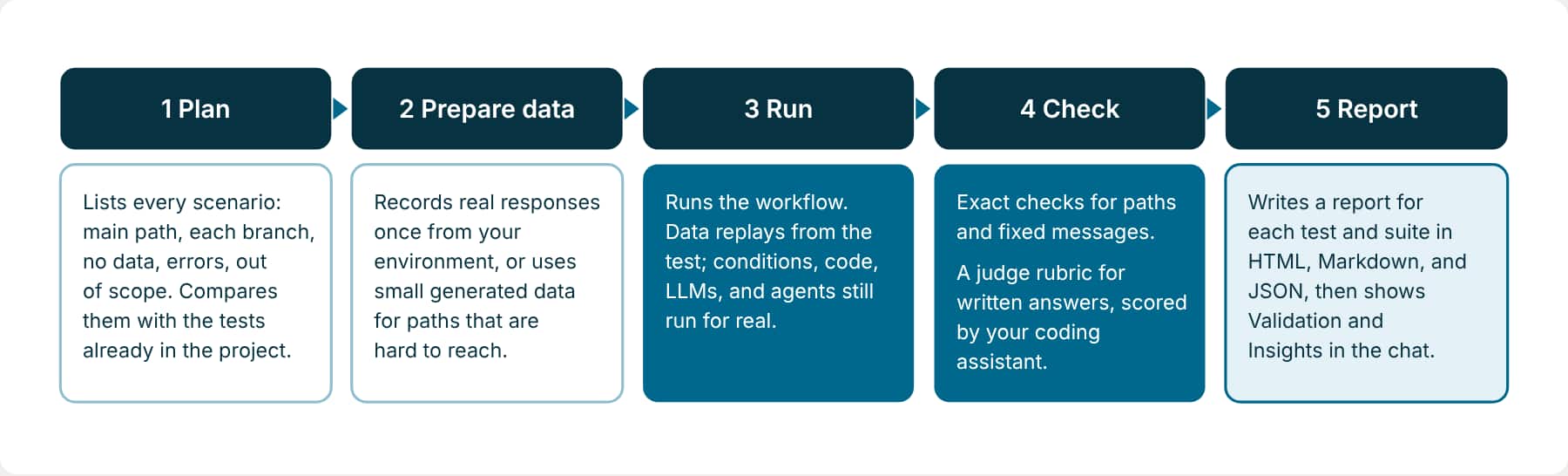
The sync plan marks each scenario with what needs to happen. Covered means a current test already proves it. Create means no test exists yet. Update means the workflow changed in a way that affects the test. Review means a test no longer matches any path, often because a branch was removed, and it waits for your decision. Keep means a test you asked for yourself, which ATLAS never rewrites or deletes.
Where tests and reports live
Tests are files in your project, next to the artifacts they test. Reports are generated beside them each time tests run.
In a project with the src layout
test/workflows/<workflow>/<test>.json             # one file per test: scenario, data, checks. Commit these.
test/apps/<app>/<panel-test>.json

test-reports/workflows/<workflow>/<test>/result.html      # one test (also .md and .json)
test-reports/workflows/<workflow>/suite-result.html        # all tests for one workflow
test-reports/apps/<app>/consolidated-suite-result.html     # an app, its panels, and its workflows
test-reports/suite-result.html                             # everything in the project
In an app package, tests sit under tests/ and reports under test-reports/<module>/ inside the package. Either way, commit the tests with the artifacts they cover, and keep test-reports/ out of Git: reports are rebuilt on every run.
Reading Validation and Insights
Every test run ends with this summary in the chat, and the same content is in the suite report. Here’s an abridged one from a real workflow suite, with the workflow name generalized.
Example · Validation and Insights (abridged)
Workflow test suite passed: 7/7 passed, 0 failed, 0 needs judge.

Reports:
- Workflow suite report: suite-result.html

Metrics:
- AI units: 30 total (6 token units, 5/7 cases computed).
- Latency: total workflow time 18.5s across 5/5 model-backed cases.

Optimization:
- Model optimization is available for this workflow. 5 passing tests exercise model-backed nodes.
- Suggested prompt: Run the model optimization sweep for this workflow and summarize
  the best model placement per LLM node.
- The sweep reports recommendations only. Applying model changes requires a separate approval.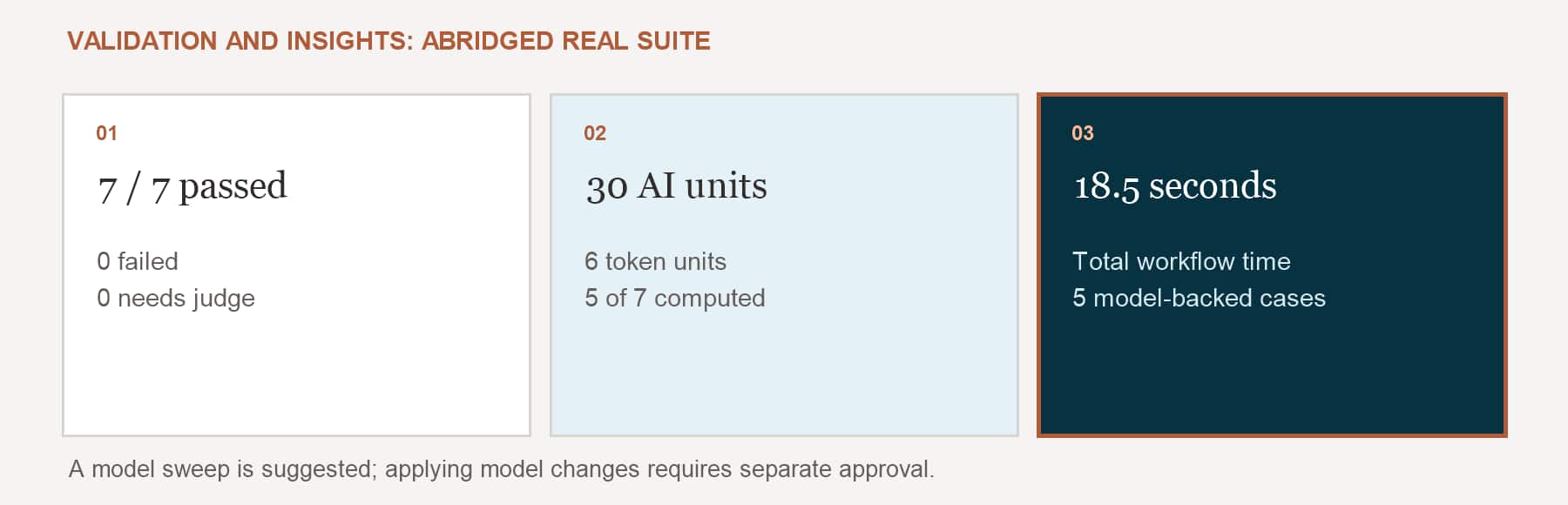
Test summary
How many tests passed, failed, or still need a judge result, with a link to each report. Open the report for anything that isn’t a pass.
Action Required
Appears only when something needs you, such as a failing test or a scenario that couldn’t be tested. Each item says what to do.
Metrics
AI units, tokens, and time for the run, so you can see what the workflow costs and how fast it is.
Optimization
Suggested next steps, often a model sweep that compares lighter and stronger models on the same tests. It only recommends; nothing changes without your approval.
Requests to try
Try it: See coverage before anything runs
Show me the test sync plan for position_to_job_requisition.wf. Explain each scenario, whether it's covered, missing, out of date, or needs review, and the data you'd use. Don't create or run anything yet.
Try it: Rerun with live data
Run the existing tests for Position to Job Requisition against live data instead of the recorded data, for the lookup paths only. Don't create a requisition. Tell me which results differ.
Try it: Work through failures
Show me every failing or pending test for the COE Manager Coaching Workspace and its workflows, grouped by cause, with the report link for each and the smallest safe fix.
Try it: Find a cheaper model
Run the model optimization sweep for this workflow and summarize the best model placement per LLM node. Don't change the workflow.
Explore ATLAS further
A dedicated ATLAS learning path is coming soon. It will cover how sync plans are worked out, recording and masking test data, writing judge rubrics, testing conversations with HUMAN and WAIT steps, testing app panels, and optimizing cost and quality.
Key takeaways
- Tests are created and run automatically after a meaningful workflow or app change. Say “preview”, “skip tests”, or “local only” when you don’t want that.
- Tests are JSON files you commit with your artifacts. Reports are HTML, Markdown, and JSON files rebuilt on every run.
- Read Validation and Insights after every run: results, Metrics, and Optimization suggestions.
Previous: Extend the Agentic App | Next: Run, Debug, and Release
Back to the Learning Path for Fusion AI Agent Studio CLI