
1. Problem Statement
Managing cloud infrastructure often requires administrators to perform operating-system-level tasks on compute instances. Traditionally, this means connecting to a server using SSH, executing commands, collecting logs, or modifying configuration.
But what happens when SSH is unavailable? The instance might be running in a private subnet without a public IP, port 22 might be intentionally restricted, or an SSH configuration problem might be the very issue you are trying to troubleshoot.
OCI Compute Run Command provides a controlled way to remotely execute scripts inside supported OCI Compute instances without requiring a direct inbound SSH session.
2. What Is OCI Compute Run Command?
OCI Compute Run Command enables authorized administrators to execute commands or scripts within an OCI Compute instance. The Compute Instance Run Command plugin, managed by Oracle Cloud Agent, receives the command and executes it inside the operating system.
For example, an administrator can check disk utilization or the status of a service:
df -h
systemctl status httpd
Run Command is particularly useful for targeted configuration, administration, and troubleshooting when interactive server access is unavailable or unnecessary.
3. How OCI Run Command Works
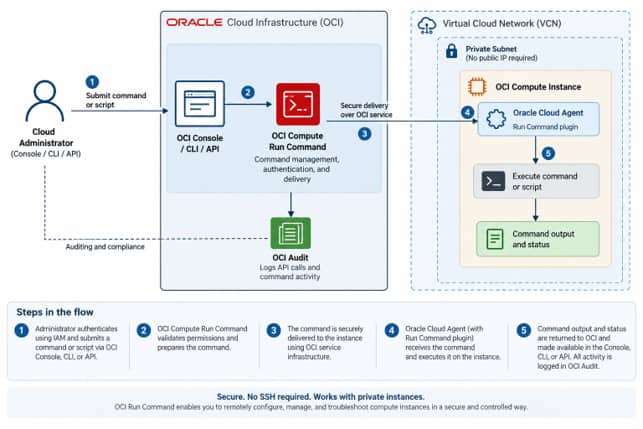
4. Prerequisites
- Oracle Cloud Agent must be installed and running on the Compute instance.
- The Compute Instance Run Command plugin must be enabled and running.
- OCI IAM policies must authorize the administrators or operators submitting commands.
- Instance-side permissions must allow the required command execution.
On Linux, Run Command scripts execute through the Run Command plugin under its configured operating-system identity. Commands requiring elevated privileges must have the appropriate operating-system permissions.
5. Implementation / Step-by-Step
In the OCI Console, navigate to Compute → Instances, select the target instance, and navigate to Run Command under Management tab. Create a command, enter or provide the script, select the output option, submit it, and monitor the execution status
Steps:
1. Create a Command on an OCI Compute Instance
- In the OCI Console, open the Navigation menu and select Compute → Instances.
- Select the Compute instance on which you want to run the command.
- Under Management tab->Run Command
- Click Create command.
- Enter a Name for the command.
- In Timeout in seconds, specify how long the Run Command plugin can execute the command before timing out. Enter 0 for no timeout.
- Under Add script, choose one of the following:
- Paste script – Paste the command or script directly(as shown in below screenshot)
- Select a file – Upload a .txt script file.
- Import from an Object Storage bucket – Select the bucket and specify the object name.
- Import from an Object Storage URL – Provide the URL of the script in Object Storage
- Under Output type, choose where the command output should be stored:
- Output as text – View the output directly from the instance details.
- Output to an Object Storage bucket – Store the output in a selected bucket.
- Output to an Object Storage URL – Store the output using the specified Object Storage URL.
- Click Create command to submit and run the command on the instance.
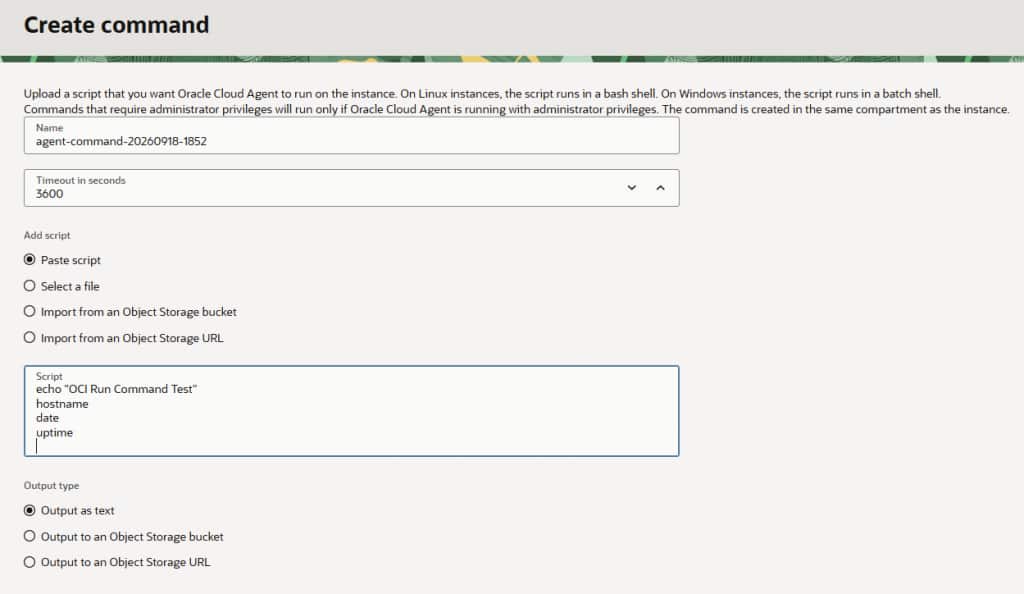
echo "OCI Run Command Test"
hostname
date
uptime
2. Run the Command on an OCI Compute Instance
- In the OCI Console, go to Compute → Instances.
- Select the required Compute instance.
- Under Management->Run command
- Locate the command you created.
- Click the command name to open its details.
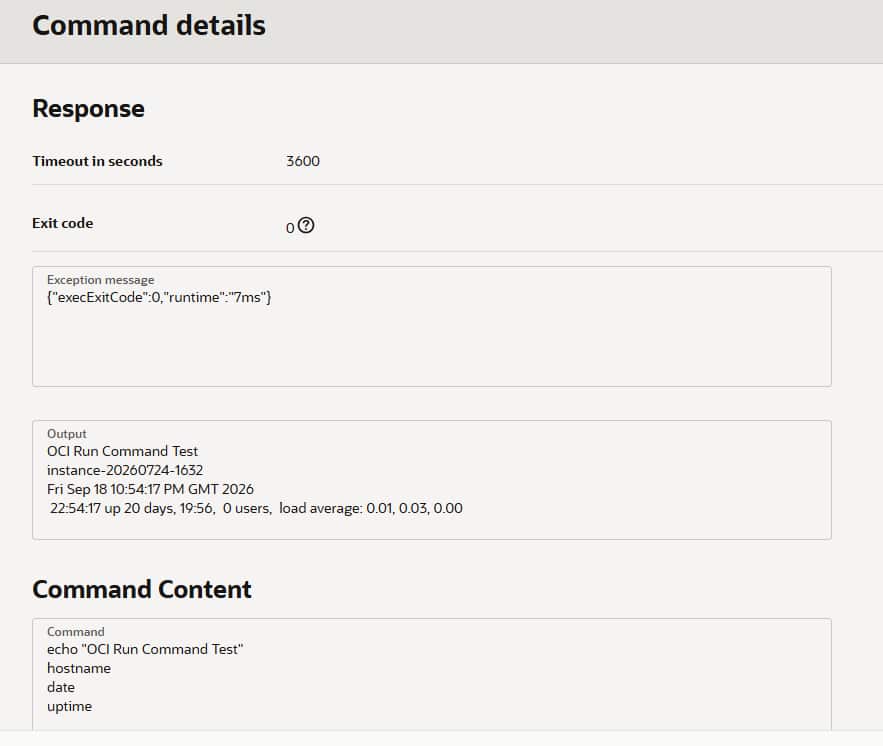
- The command is executed automatically after it is created. Monitor the Execution Status until it changes to Succeeded or Failed.(Please refer OCI Run Command Command Lifecycle States below )
- After completion, review the Exit code and Output.
- If Output as text was selected, view the command output directly in the Console.
- If Object Storage was selected for output, open the specified bucket/object to view the results.

Wait for few mins to see a change of status for Execution status attribute.

Now, View command details to see the output
OCI Run Command – Command Lifecycle States:
| Lifecycle State | Meaning | What is Happening |
| ACCEPTED | Command has been accepted and queued. | OCI has received the command and is waiting for the instance to execute it. |
| IN_PROGRESS | Command is currently executing. | The Compute Instance Run Command plugin is running the command on the instance. |
| SUCCEEDED | Command execution completed successfully. | Execution has finished. Check the exit code and output for the result. |
| FAILED | Command execution failed. | The command ran but encountered an error. Check the exit code, command output, and logs for details. |
| TIMED_OUT | Command exceeded its configured timeout. | The command execution exceeded the allowed time limit. |
| CANCELED | Command execution was canceled. | The command was canceled before it could complete. |
6. Policies that are required
1. IAM Policy
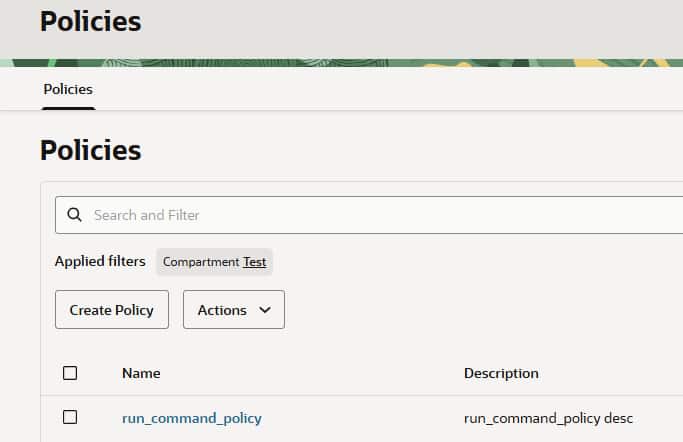
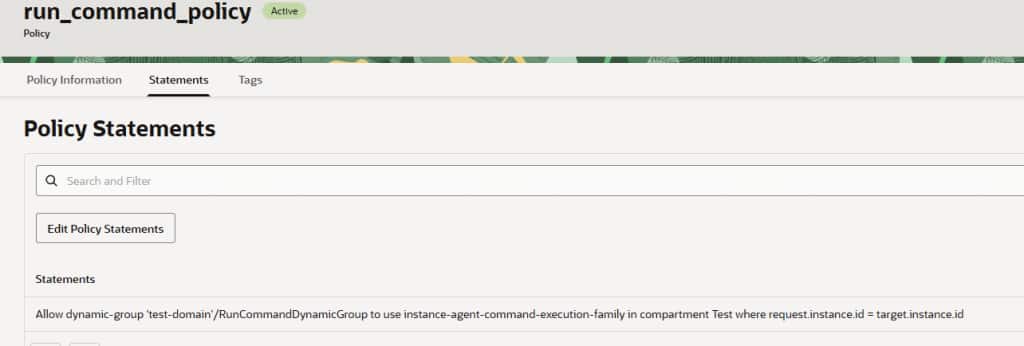
Allow dynamic-group 'test-domain'/RunCommandDynamicGroup to use instance-agent-command-execution-family in compartment Test where request.instance.id = target.instance.id2. Dynamic Group Rule
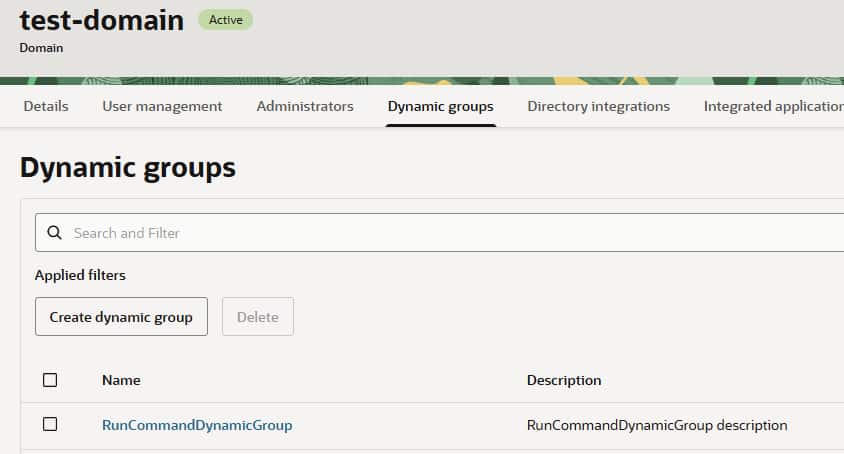
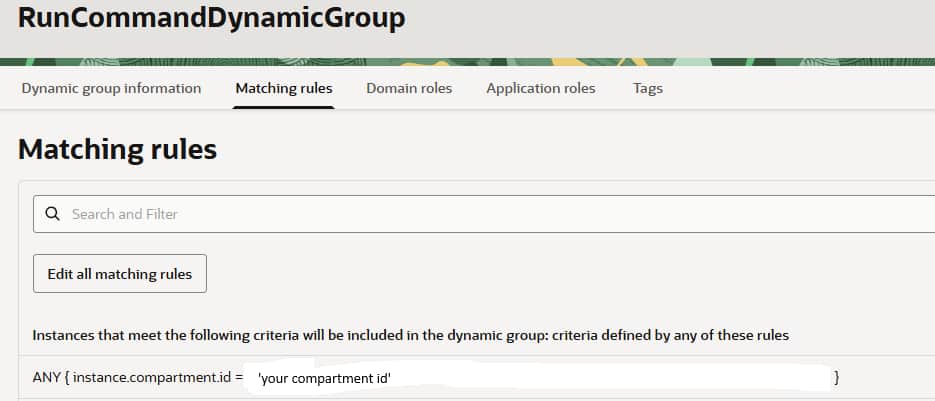
ANY { instance.compartment.id = 'Your Compartment ocid' }7. Real-World Use Cases
Troubleshoot Disk-Space Problems
If an application is failing because a filesystem is full, Run Command can quickly provide disk usage information.
df -h
du -sh /var/* 2>/dev/null
Check an Application Service
Administrators can check whether a service is running and, where the operating-system permissions allow it, restart the service.
systemctl status httpd
sudo systemctl restart httpd
Investigate Logs
Run Command can retrieve recent operating-system or application log entries during incident troubleshooting.
tail -100 /var/log/messages
journalctl -u httpd --no-pager -n 100
Troubleshoot SSH
One of the most useful scenarios is diagnosing SSH when SSH itself is unavailable.
systemctl status sshd
sshd -t
Collect a Health Snapshot
#!/bin/bash
hostname
uptime
free -m
df -h
systemctl --failed
A small diagnostic script like this can give operations teams enough information to determine the next troubleshooting step without establishing an interactive connection.
8. Limitations / Things to Consider
Run Command is not an interactive shell and should not be viewed as a replacement for every administration or automation tool. Interactive SSH remains useful for exploratory administration, while OCI Bastion can provide controlled connectivity to private resources.
For large-scale, repeatable configuration, Infrastructure as Code, configuration-management platforms, or orchestration tools are usually more appropriate. Run Command is strongest for targeted operational actions, diagnostics, recovery tasks, and controlled script execution.
Administrators should also account for service limits, execution time, script and output size, operating-system privileges, and the handling of sensitive data. Current limits and supported behavior should always be verified against Oracle’s OCI documentation before production implementation.
9. Security Considerations
When using the Run Command feature, do not provide or retrieve passwords, secrets, credentials, or other confidential information in plain text. Command input and output should be treated as potentially visible and therefore should not be used as a mechanism for exchanging sensitive data.
For workflows that require confidential information:
- Use OCI Object Storage to securely store and retrieve script files and command responses rather than embedding sensitive information directly in commands.
- Use Oracle Cloud Infrastructure Vault to manage encryption keys, passwords, tokens, and other secret credentials.
- Avoid including sensitive values in command arguments, scripts, logs, or command output whenever possible.
Following the above practices helps prevent credentials and other sensitive information from being inadvertently exposed through command execution or its output.
10. Conclusion / Key Takeaways
- OCI Compute Run Command enables remote execution of commands and scripts on supported OCI Compute instances.
- It is useful when direct SSH access is unavailable, restricted, or unnecessary.
- Oracle Cloud Agent and the Compute Instance Run Command plugin are core components of the workflow.
- Correct OCI IAM and operating-system permissions are essential.
- Run Command is well suited to targeted administration, troubleshooting, diagnostics, and recovery.
- It complements rather than replaces SSH, OCI Bastion, Infrastructure as Code, and configuration-management tools.
For OCI architects designing private and tightly controlled compute environments, Run Command can be a valuable part of the operational and troubleshooting strategy.
References
https://docs.oracle.com/en-us/iaas/Content/Compute/Tasks/runningcommands.htm
https://docs.oracle.com/en-us/iaas/Content/Compute/Tasks/instances.htm#instance-permissions