
Oracle Cloud VMware Solution (OCVS) is a fully certified and supported vSphere solution that uses Oracle Cloud Infrastructure (OCI) to host a highly available and scalable VMware software-defined data center (SDDC). Customers enjoy full administrative control of the SDDC, and as a standard VMware implementation, no operational practice refactoring is needed.
Earlier, I published a blog about how you can deploy VMware Hybrid Cloud Extension (HCX) on an on-premises data center with VMware environment and create a Compute profile, network profile, perform a site pairing, and create the service mesh with the help of OCVS. You need those prerequisites before migrating on-premises VMware workloads to Oracle Cloud VMware Solution. Many customers have asked me what the next step is. How do they migrate their VMware workloads from an on-premises data center to OCVS using VMware HCX?
This blog post explains the steps to help you successfully migrate VMware workloads from on-premises data center to OCVS after completing the steps outlined in the previous blog.
Solution architecture
The following solution requires a connection between OCI and the on-premises data center through an OCI FastConnect virtual circuit. You can choose the FastConnect port size, which varies between 1–10Gbps, depending on your throughput requirement for the migration of VMware workloads. This solution doesn’t require a VMware NSX network switch to be deployed on-premises for the migration of VMware workload to work. However, you do need a distributed virtual switch within the on-premises VMware environment for HCX to work.
The following diagram illustrates the architecture of the solution:

Before you start migrating virtual machines (VMs) from the on-premises VMware environment to the Oracle Cloud VMware Solution, complete the following steps:
-
Create an OCVS cluster on OCI with HCX.
-
Configure a dedicated private network using OCI FastConnect to connect OCI to your on-premises data center.
-
Create and configure the required network routing configurations on your OCI VCN for connecting OCVS environment to the on-premises environment.
-
Allow security ports by creating corresponding security rules on OCI VCN and on-premises data center network devices.
-
Refer to this blog to deploy HCX connector for on-premises VMware environment.
Migrating your VMware workload from an on-premises VMware environment to Oracle Cloud VMware Solution
Step 1: Verify the configuration of HCX connector on-premises VMware environment
-
Log in to the on-premises HCX connector using IP/FQDN and the on-premises vCenter server SSO.
-
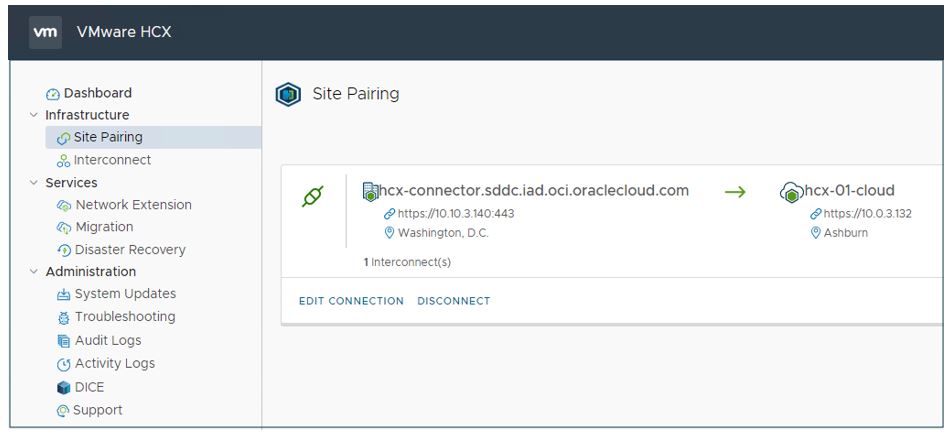
Click Site Pairing to see that the pairing between on-premises HCX and Oracle Cloud HCX is connected successfully.
-
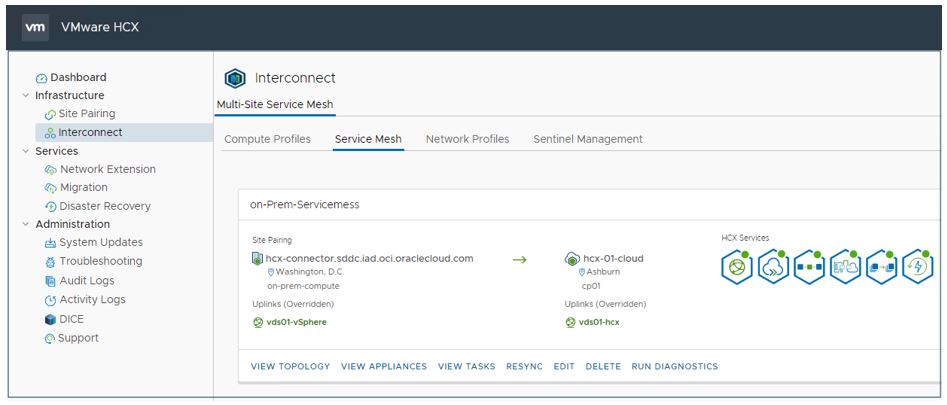
Click Interconnect and then Service Mesh to check that the service mesh is successfully created and HCX services are available.
Step 2: Migrate VM from an on-premises VMware environment to OCVS using HCX
You can perform a live migration of VMs using vMotion migration profile, or you can choose bulk migration profile to migrate multiple VMs in parallel. Choose the migration profile that’s best suited for your business needs.
-
Log in to the on-premises HCX connector using IP/FQDN and the on-premises vCenter server SSO.
-
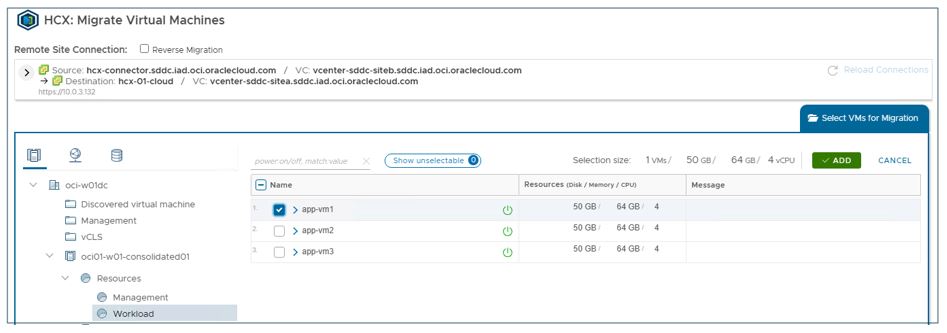
Click Migration and then Migrate. This selection retrieves the list of VMs ready for migration.
-
Select the VMs and click the ADD button to add them to the VMs for Migration list.
-
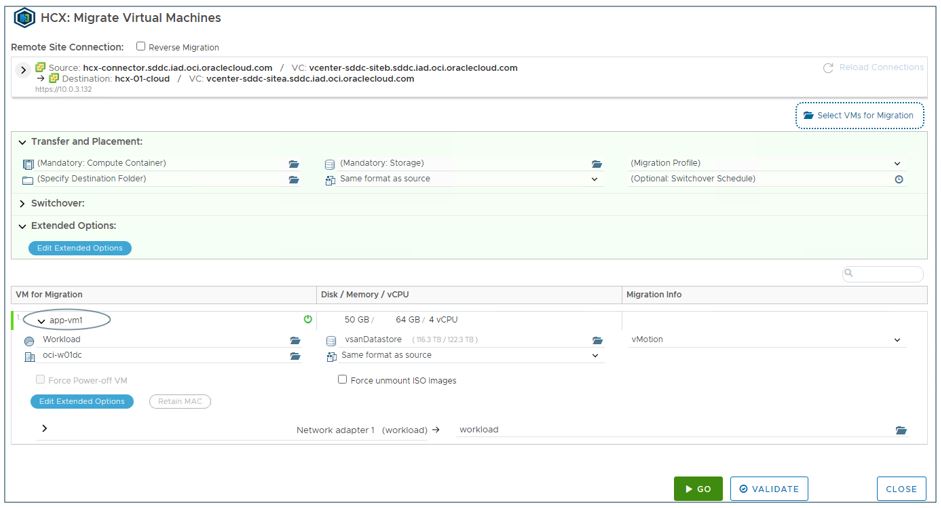
Click and expand each VM added to the VM for Migration list and set the properties for the VM, such as “Destination Compute Container,” “Destination Storage,” “Migration Profile,” or “Destination Folder,” and map to the destination virtual machine network. On the following screen, you can confirm the source and destination for the VM migration. Click Validate to ensure that the migration properties are accurate. The VMs are ready for migration.
-
Click GO to migrate the VMs. You can monitor and check on the progress of the VM migration.
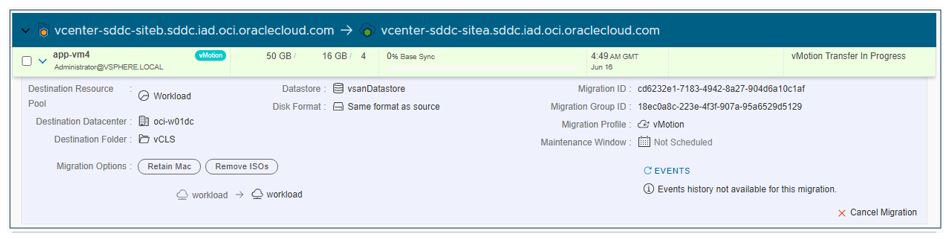
You can see the “Migration Complete” message at the end of a successful migration.
Migrating your VMware workload from Oracle Cloud VMware Solution to an on-premises VMware environment
Step 1: Migrate VM from an OCVS environment to an on-premises VMware environment using HCX
You can perform a live migration of VMs using vMotion migration profile, or you can choose bulk migration profile to migrate multiple VMs in parallel. Choose the right migration profile that is best suited for your business needs.
-
Log in to the on-premises HCX connector using IP/FQDN and the on-premises vCenter server SSO.
-
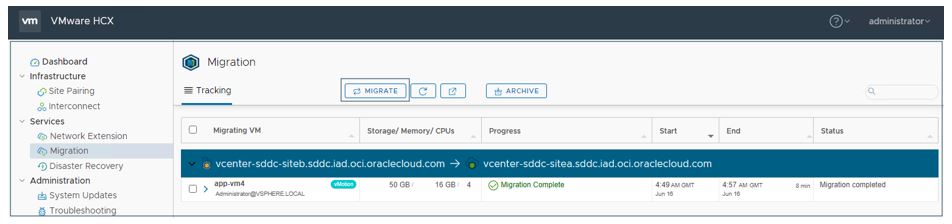
Click Migration and then Migrate.
-
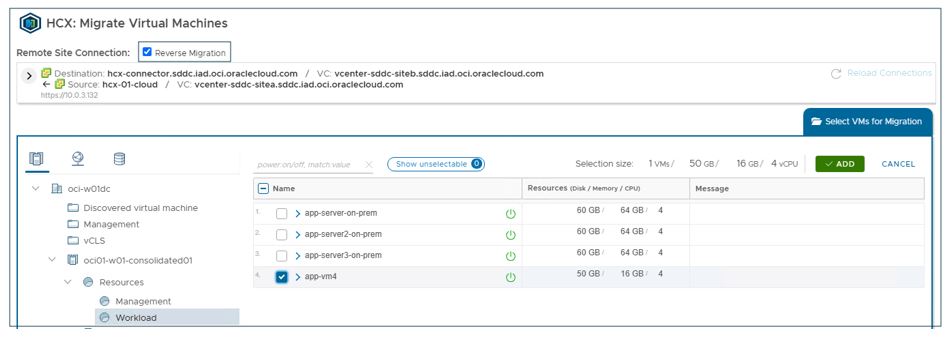
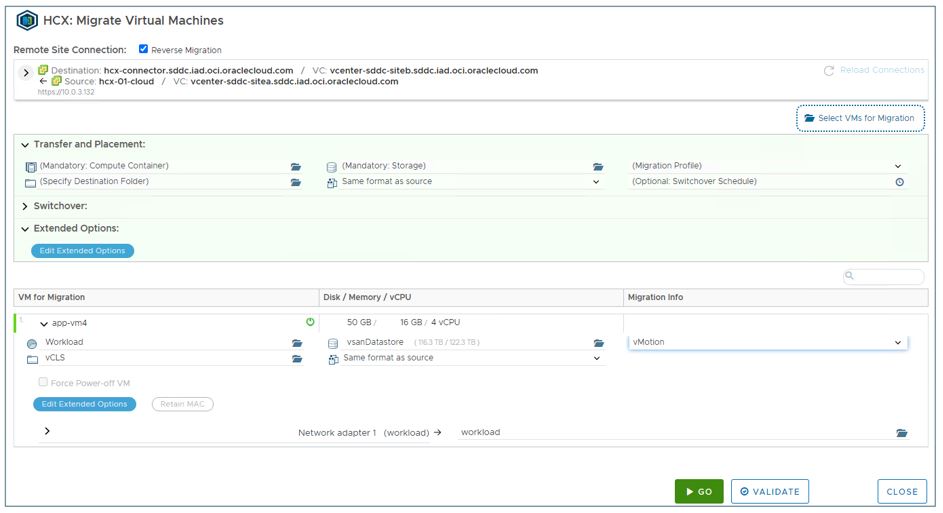
Select the check box for “Reverse Migration.” This choice changes the source to OCVS environment and destination to on-premises VMware environment. It also retrieves the list of VMs from OCVS environment that are ready to migrate. Select the VMs and click ADD to add the VMs to the VM for Migration list.
-
Click and expand each VM added to the VMs for Migration list and set the properties for the VM, such as “Destination Compute Container,” “Destination Storage,” “Migration Profile,” and “Destination Folder,” and map to the destination virtual machine network. Click Validate to ensure that the migration properties are accurate and the VMs are ready to migrate. From the screen, you can confirm the source and destination for the VMs is correct.
-
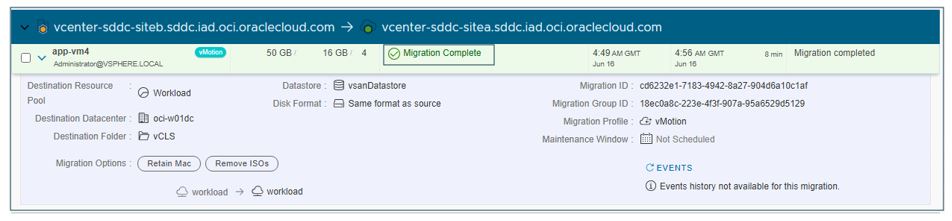
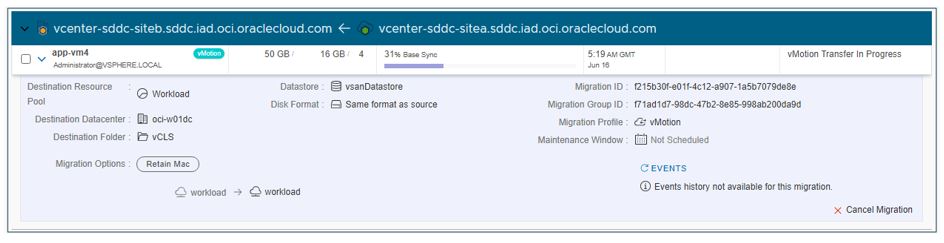
Click GO to migrate the VMs. You can monitor and check the progress of VMs migration as shown in the following screenshot.
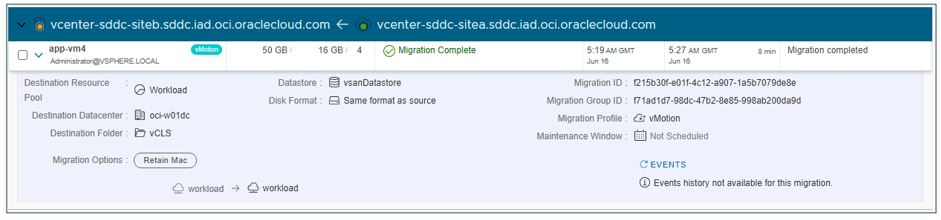
You can see the “Migration Complete” message at the end of a successful migration.
Conclusion
Oracle provides VMware HCX as part of the Oracle Cloud VMware Solution. It helps customers to easily perform migration of their VMs from their on-premises VMware environment to Oracle Cloud VMware Solution without extra cost using the HCX Advanced version. You can also use HCX for migrating VMs running on Oracle Cloud VMware Solution to your on-premises VMware environment. Choose between live migration or offline migration, depending on your business needs and operational constraints.
Learn more about Oracle Cloud VMware Solution, migration of on-premises VMware workloads to Oracle Cloud VMware Solution using VMware HCX and setting up hybrid software defined data center solution (SDDC) using Oracle Cloud VMware Solution and VMware HCX by referring to the guides and reference architectures.