
OCI Secret Management helps you securely store, retrieve, and manage sensitive information, such as passwords, API keys, and tokens across your cloud environments. Secrets are an essential part of modern application security, enabling safe automation and secure communication between services without exposing credentials.
Now, OCI is introducing a new dedicated console experience for Secrets where customers will be able to easily find their secrets in the dedicated “Secrets” console under the Identity & Security tab in the OCI Console. This update provides a cleaner layout, faster navigation, and a more intuitive workflow for managing secrets. All APIs, SDKs, CLI workflows, automation scripts, permissions and policies remain fully unchanged.
Key Benefits
Simpler experience, faster access:
Customers can now access Secrets directly from the Identity & Security menu making it faster and easier to find and manage secrets.
Improved visibility and control:
A dedicated interface gives you clear visibility into your secrets inventory and makes features like cross-region replication easier to understand and use.
How does the new UI change look?
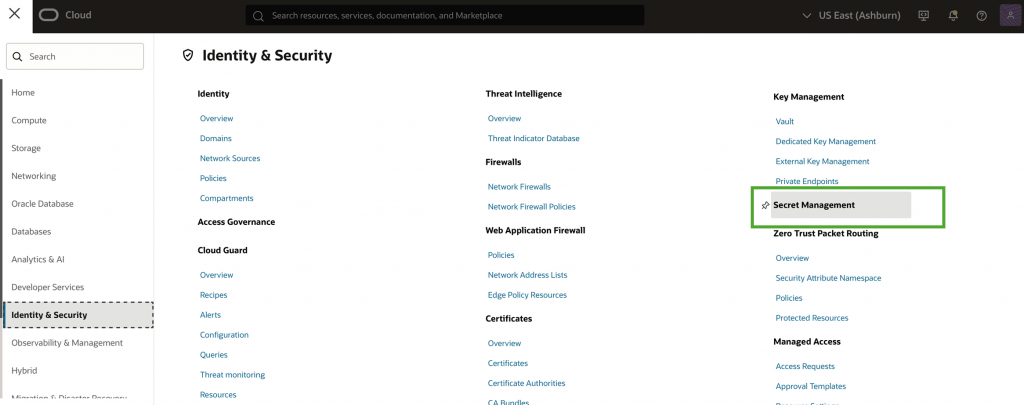
When you enter the Console, you will see a new section for Secrets Management under ‘Identity & Security’ called ‘Secret Management.’
How to Create a Secret
- In the OCI Console, open the ☰ (hamburger menu) and go to Identity & Security → Secret Management.
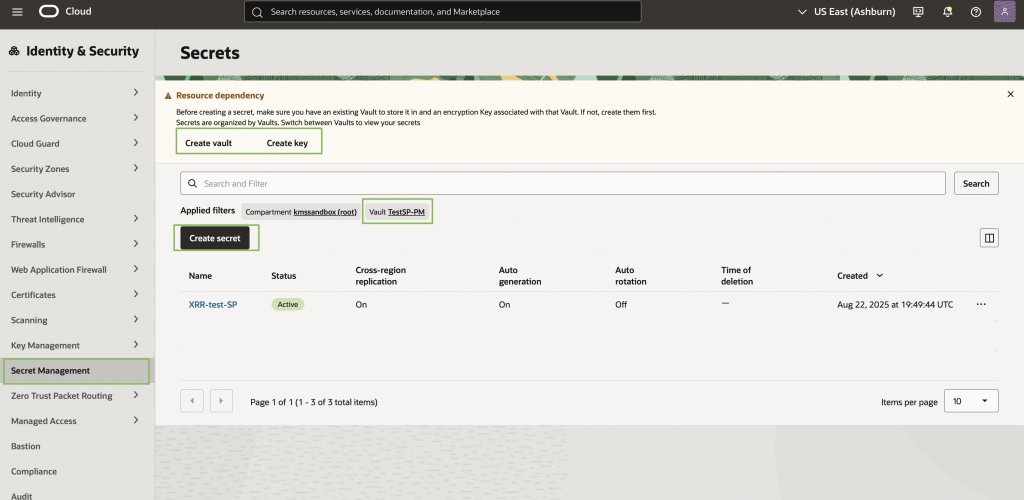
- Click Create Secret.
- If you don’t already have a Vault or Key, you’ll see a notification with quick links to create them. You need a key to encrypt the secret and a vault to store the encrypted key.
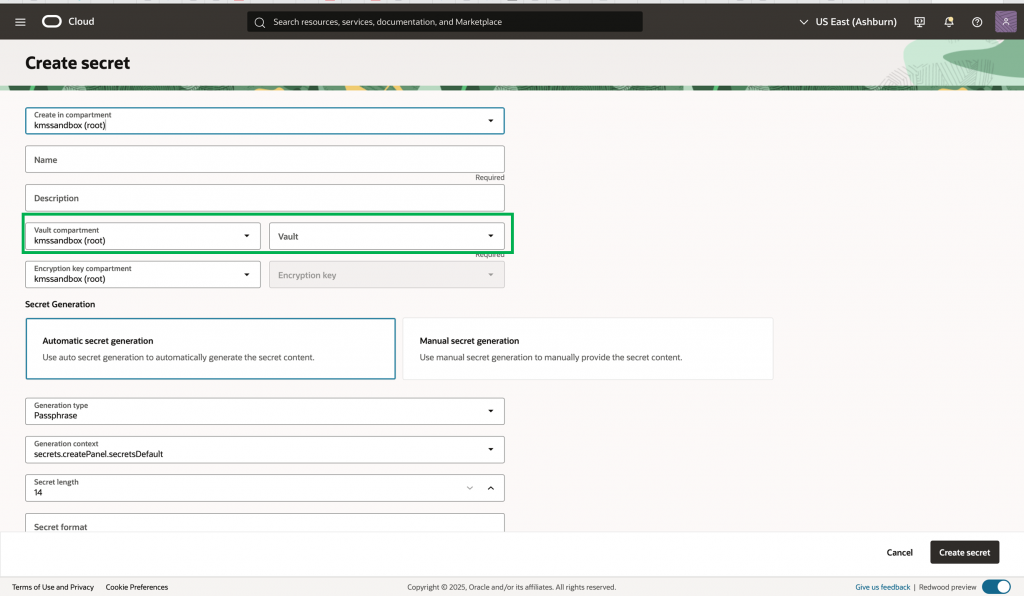
- Enter the Name and Description for your secret.
- Choose the Vault compartment and Vault where your encryption key is stored.
- Select the Encryption key compartment and Encryption key, then complete the remaining fields as usual.
- Click Create Secret to finish.
How to View Your Secrets
- Go to Identity & Security → Secret Management in the OCI Console.
- You will see your secrets from the most recently used vault.
- To view secrets from another vault, use the Vault filter at the top of the page.
- Each secret shows key details such as Name, Status, Cross-region replication, Auto-generation, Auto-rotation, and Created time.
- To find the Vault OCID, click the “…” (More options) next to the Created column.
What remains the same?
No changes to APIs, SDKs, or CLI workflows for Secrets or Key Management. All automation, scripts, and programmatic tools will continue to function as before. Any backend relationships or permissions required for secrets, vaults and keys remain unchanged at this time. Secrets will still use vaults for encryption and key storage. All existing behaviors, including the requirement for secret name uniqueness within each vault, remain unchanged. The customer support portal, documentation links still fall under KMS. Customers would still have to write vault IAM policies to manage secrets.
What’s next?
Read more about how the feature works in the technical documentation.
The best way to learn about it is to give it a try! Visit our website to learn more about Oracle Cloud Infrastructure Security products and sign up for a Free Tier account and to take a closer look.