
Multi-factor authentication (MFA) is a popular security feature that can help customers reduce risk by strengthening their assurance that an application user is who they claim to be. MFA works by requiring users to provide more than one authentication factor. Think of authentication factors in three categories: Something you know (such as a password or PIN), something you have (such as a security token or mobile phone), and something you are (such as biometric data like a fingerprint or face scan).
The most used factor for app authentication is a password. However, passwords can be difficult to remember and relatively easy to capture using common cyber-attack techniques, such as network sniffing, phishing, and brute-force attacks. So, many organizations are trying to be less reliant on passwords or to even eliminate passwords altogether.
MFA can dramatically reduce the risk associated with account takeover attacks. Even if an attacker manages to obtain your password, if you have MFA enabled, the attackers can’t authenticate themselves as you without also providing the extra evidence required by MFA. This addition can help prevent unauthorized access and protect against sensitive information being compromised or inappropriate actions being taken. Enabling MFA can also help address regulatory compliance requirements and adherence to industry standards, such as those provided by the National Institute of Standards and Technology (NIST).
In this post, we guide you through the process to enable MFA in the Oracle Cloud Infrastructure (OCI) Identity and Access Management (IAM) service.
Evaluating authentication methods
OCI IAM supports multiple authentication methods and MFA factors, including the following commonly used factors:
- Short message service (SMS): You receive a one-time passcode sent to your phone by an SMS text message. You enter the code to complete the authentication process.
- Mobile app one-time-passcode (OTP): You have installed an app that generates a one-time passcode whenever you need one. You enter the passcode to complete the authentication process.
- Mobile app push: You have installed an app that prompts you when someone tries to authenticate using your credentials. You select Allow to complete the authentication process.
- Fast ID Online (FIDO) security key: You present a FIDO-based hardware authenticator to complete the authentication process.
- Biometric: You present biometric evidence, such as a fingerprint or facial recognition, to complete the authentication process.
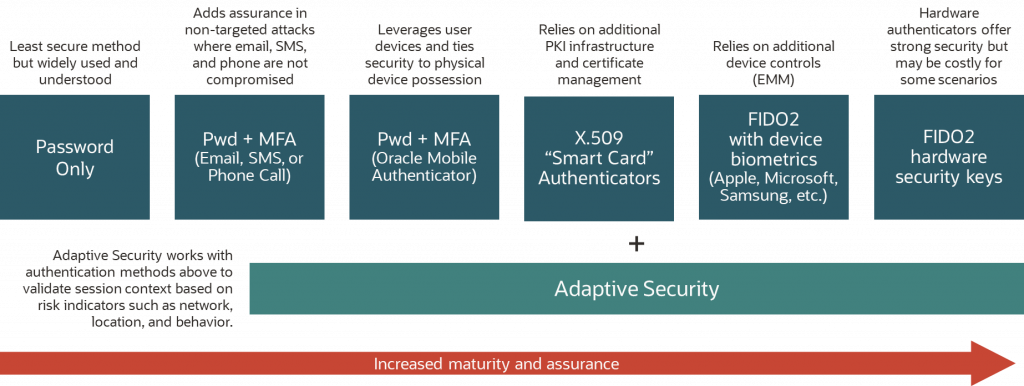
The following diagram explains several common authentication methods and their relative strengths. For optimal security, we recommend you use phishing-resistant FIDO2 hardware authenticators, especially for cloud administrators who have access to your critical systems.
Best practices for deploying MFA
While MFA offers significant value in reducing risk, it can be challenging to implement. Deploying MFA to all users at once can be overwhelming and lead to some resistance by the end users. So, having a well-planned strategy that takes into consideration the unique needs of your organization and its users is important. The following best practices can help ease the deployment of MFA in your organization:
- Prioritize users and systems: Start by identifying the most critical systems and users in your organization that need to be protected by MFA. This category might include high-level executives, IT personnel, and users who have access to sensitive information. When you have identified these priority areas, you can deploy MFA to these users and systems first before gradually expanding to others. Deploying MFA in phases can help reduce resistance from users and allow for any issues to be identified and addressed before moving on to the next phase.
- Educate users: Before deploying MFA, educate users on the benefits of this security measure and how to use it effectively. Explain the importance of MFA in protecting their personal and company information and provide clear instructions on how to use MFA. You can also conduct training sessions or provide online resources to ensure that users are comfortable with the new system.
- Allow flexibility: Providing some flexibility to users who might view MFA as an inconvenience can help ease MFA adoption. For example, you can choose to allow users to select the authentication factor that works best for them. This method ensures that they can use the most convenient mechanism for their personal situation.
- Allow use of multiple factors: To allow for authentication even if a user loses their physical device, consider allowing users to enroll more than one MFA factor. For example, users who use the mobile authenticator app might want to use a FIDO2 hardware authenticator or bypass code to authenticate if their mobile device is not available.
- Monitor and evaluate: When MFA has been deployed, monitor its effectiveness and evaluate its impact on users. Keep track of any issues that arise and adjust as needed. You can also conduct surveys or gather feedback from users to determine their level of satisfaction with the new system and identify any areas for improvement.
Enabling MFA with OCI IAM
This section provides step-by-step guidance on how to implement MFA in the OCI IAM service. First, enable the use of MFA within an OCI IAM identity domain. Then, apply policies that require MFA for the use cases you want to cover and specify which factors are acceptable. You must be a domain administrator to apply these configurations.
Enable MFA in an OCI IAM identity domain
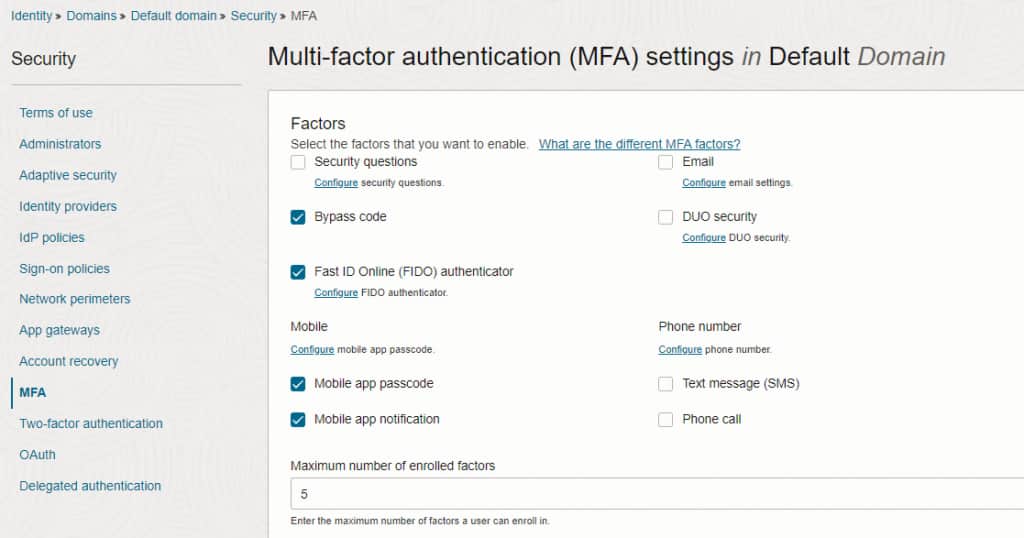
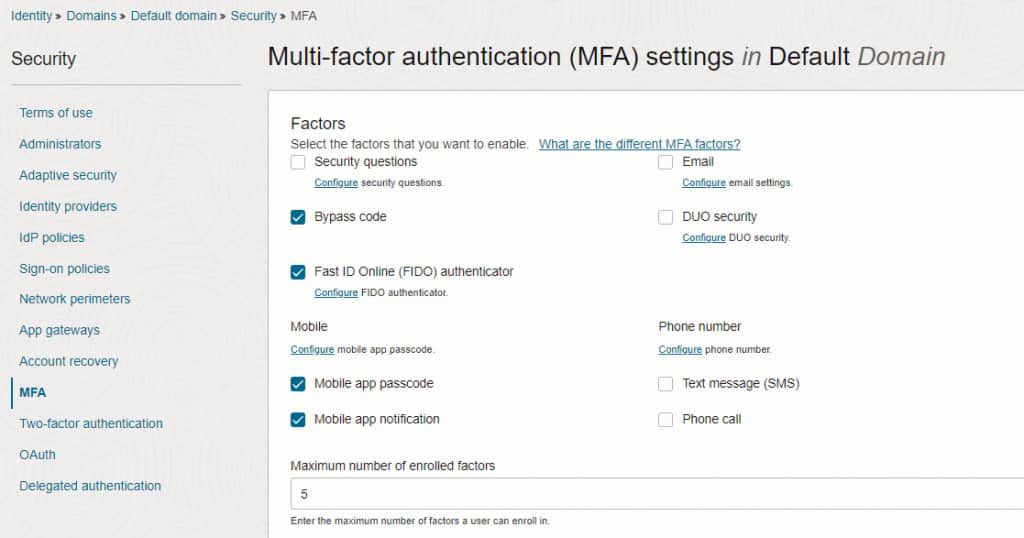
To enable MFA for an OCI IAM identity domain, navigate to the domain’s security settings and select MFA. On this screen, you can enable use of MFA for the domain and specify which factors are allowed for the domain.
Configure an OCI IAM identity domain sign-on policy for MFA
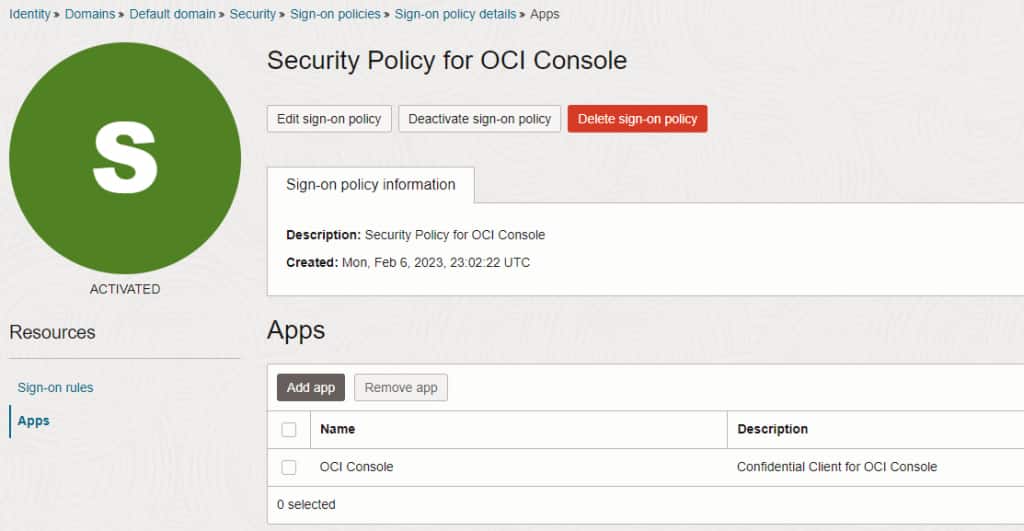
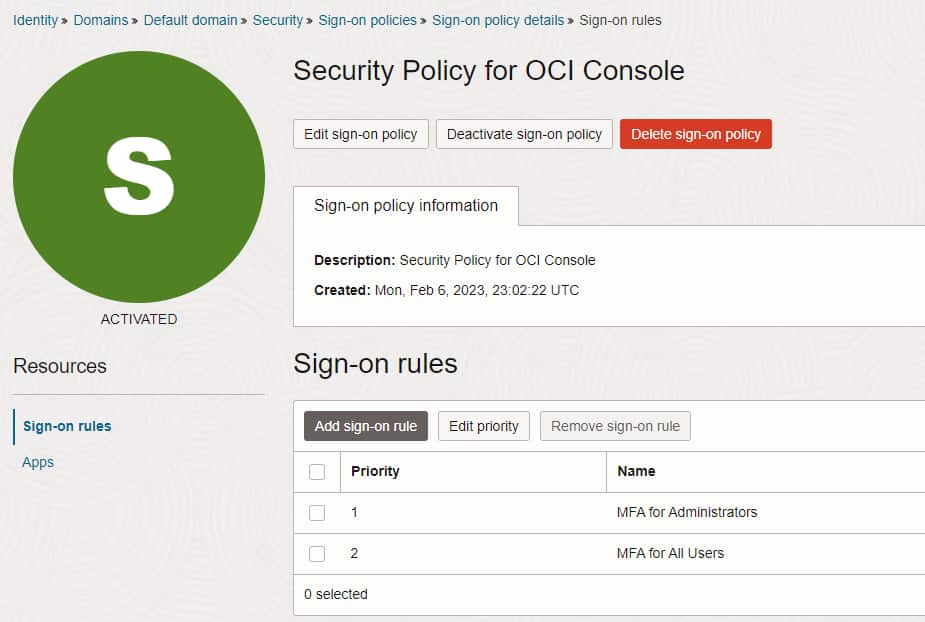
To require MFA during an authentication flow, you need to configure the sign-on policy for that authentication flow. To modify a sign-on policy, navigate to the domain’s security settings and select Sign-On Policies. Sign-on policies allow administrators to define the authentication path for specific applications or users. You can define different rules and MFA strategies for different use cases. The following sample sign-on policy forces administrators and all other users to use MFA when accessing the Oracle Cloud Console.
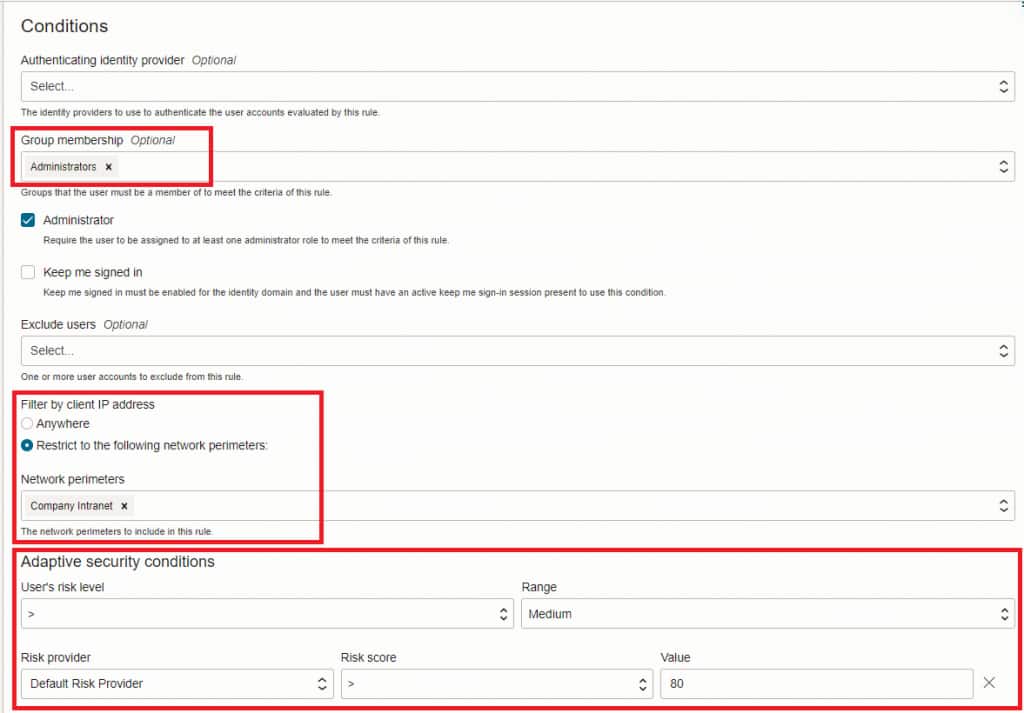
With MFA, we strongly recommend that you use OCI IAM’s Adaptive Security features to identify high-risk users or sessions. This feature is also configured in sign-on policies. You can apply conditions, such as network perimeters and user risk scores, to restrict access to your applications based on those conditions and apply more security controls for high-risk users.
Monitoring use of MFA
If you’re relying on MFA to secure access to any high-risk application, monitoring IAM events to ensure that users aren’t being granted access to that app without MFA is a good practice. You can enable this option by configuring your security monitoring tools to review the IAM identity domain audit logs.
Configure your monitoring tools to review events that have an event type of InteractiveLogin. As you’re looking at InteractiveLogin events, a node exists within the event called data and a sub-node called additionalDetails. Within the additionalDetails node is an attribute called auditEventMapValue. Within auditEventMapValue, look for values assigned to the attribute ssoCompletedFactors that map to various authentication mechanisms.
For example, a value of Username_Password=Auth_Success in the ssoCompletedFactors attribute means that the user provided a valid username and password.
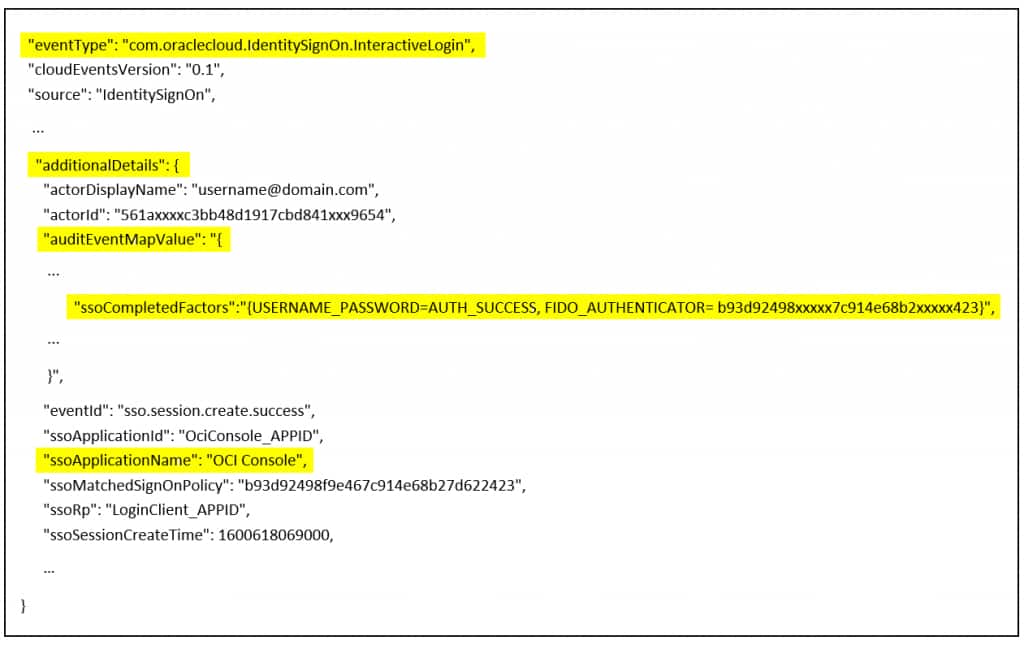
Values for ssoCompletedFactors that indicate successful authentication events include the following examples:
- “Username_Password=Auth_Success”: Indicates successful authentication by username and password without MFA.
- “Username_Password=Auth_Success”,”FIDO_AUTHENTICATOR=[GUID value]”: Indicates successful MFA authentication by a FIDO2 authenticator.
- “Username_Password=Auth_Success”,”TOTP=[GUID value]”: Indicates successful MFA authentication by mobile app one time password.
- “Username_Password=Auth_Success”,”PUSH=[GUID value]”: Indicates successful MFA authentication by mobile app Push mechanism.
- “Username_Password=Auth_Success”,”SMS=[GUID value]”: Indicates successful MFA authentication by SMS.
- “Username_Password=Auth_Success”,”Email=[GUID value]”: Indicates successful MFA authentication by Email.
- “Username_Password=Auth_Success”,”BYPASSCODE=AUTH_SUCCESS”: Indicates successful MFA authentication by a bypass code.
- “Username_Password=Auth_Success”,”SECURITY_QUESTIONS=AUTH_SUCCESS”: Indicates successful MFA authentication by security questions.
- “Username_Password=Auth_Success”,”TRUSTED_TOTP=AUTH_SUCCESS”: Indicates successful authentication for a trusted device without MFA.
Within the additionalDetails node is an attribute called ssoApplicationName, which maps to the application being accessed. You can use this attribute to validate that any users authenticating to the specified app with one of the approved MFA factors. If, by policy, you have required the use of a FIDO2 authenticator for a specific app, you can limit the event monitoring logic to ensure that all successful logins to that app have the appropriate values (“Username_Password=Auth_Success” and “FIDO_AUTHENTICATOR”) in the ssoCompletedFactors attribute.
Next steps
MFA provides a relatively easy-to-implement mechanism to improve your security posture and minimize the risk associated with account takeover attacks. By prioritizing higher risk users and applications, educating users, deploying in a phased approach, allowing for flexibility, and monitoring results, you can successfully implement multi-factor authentication for your organization.
For more information about the concepts in this post and Oracle Cloud Infrastructure, see the following resources: