

Artificial Intelligence is rapidly changing how users interact with analytics platforms. Instead of manually building dashboards or writing SQL queries, users can ask questions in natural language and receive immediate insights. AI Agents in Oracle Analytics Cloud enable this conversational analytics capability by combining natural language processing with enterprise datasets, knowledge documents and predefined business logic.

This blog provides a technical guide for Oracle users on how to write effective instructions and tune AI Agents in Oracle Analytics Cloud.
What is an Oracle Analytics AI Agent?
Oracle Analytics AI Agent is an intelligent software component that understands user requests, analyses available data and knowledge documents as well as generates insights automatically.
Unlike traditional analytics tools, AI Agents allow users to simply ask questions such as:
- Show total invoice amount last month
- What is the spend trend by carrier name?
- Show the top 10 states by spend
The AI Agent interprets the request and automatically generates the appropriate analysis. Oracle describes AI Agents as tools that combine business data, tailored instructions, and knowledge documents to deliver reliable insights through natural language interaction.
Why supplemental instructions in AI Agent matter?
AI Agents rely on instructions to understand:
- Which metrics to use
- How to interpret dimensions
- How to apply default filters
- How to perform calculations
- How to generate visualizations
Without clear instructions, the AI Agent may:
- Choose incorrect metrics
- Misinterpret dimensions
- Fail to generate queries
- Return inconsistent results
Well-designed instructions act as a semantic guide for the AI Agent.
AI Agent instruction components
A well-structured AI Agent instruction set contains the following elements:
1. Define metrics
Begin by clearly defining your business metrics. This ensures the AI Agent uses the correct aggregation logic. Without this definition, the AI Agent may incorrectly interpret metrics such as count, sum, or average.
Example Instruction: Define metrics
Metrics:
- Total Invoice Count = COUNT DISTINCT Invoice Number
- Invoice Amount = SUM(Invoice Item Amount)
- Spend = SUM(Invoice Item Amount)
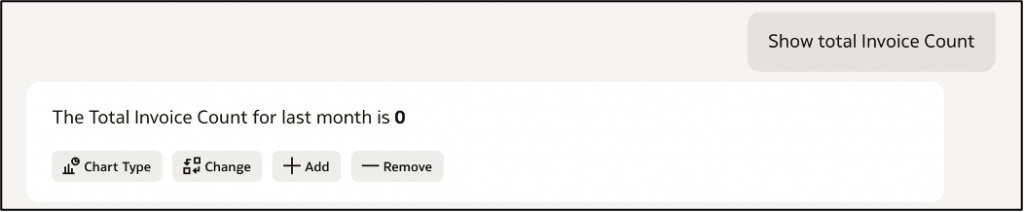
2. Set the default date logic
Users frequently ask questions without specifying a time period. To ensure consistent results, define a default date filter.
Example Instruction: Use last month as the Default Date. Adding logic for last year and year ago
Default Date Logic
- All analytical queries must include a date filter using the field “Invoice Date”.
- If the user specifies a date range, use that date range.
- If the user does not specify a date range, automatically apply the default filter: Invoice Date = Last Month.
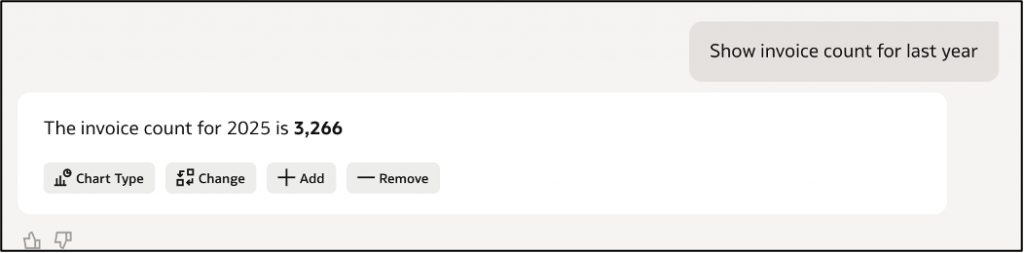
Last Year Rule
Last year means the previous calendar year relative to the current year.
Example:
- If the current year is 2026,
- Last year = 2025.
Apply the filter: Year(“Invoice Date”) = Year(Current Date) – 1
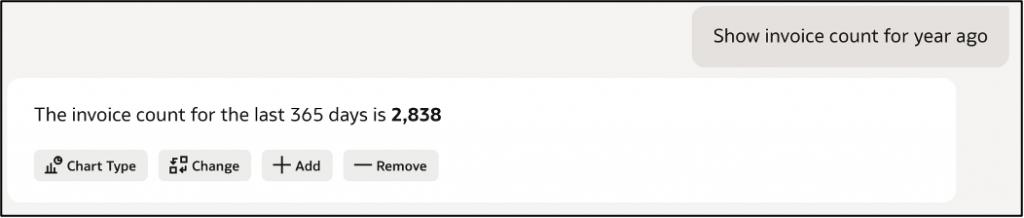
Rolling Time Rule
When users ask for:
- year ago
- last 365 days
- past 12 months
- year-ago-today
Interpret this as a rolling 365-day period ending today.
Apply the filter: Invoice Date between (today – 365 days) and today.
Example response:
- Showing results for last month.
- You can specify another date range such as last quarter, this year, or a custom period.
Example interaction:
User: Show total invoice amount
Agent internally applies: Invoice Date = Last Month
User: Show invoice spend for last year
Agent internally applies: Invoice Date = Last Year
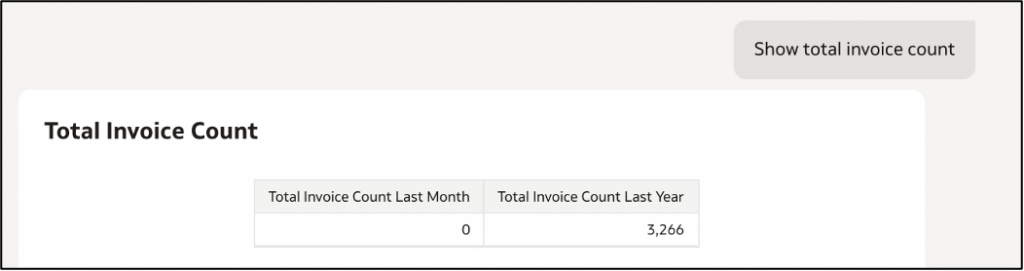
Example Instruction: Use last month and last year as the default dates
Date Context Rule
- All analytical queries must use the field “Invoice Date”.
Period Comparison Rule
- When a user asks for a metric without specifying a time period, calculate the metric for both:
- Last Month
- Last Year
Return both values in the response.
Date Period Rule
Last Month Rule
- Last Month means the calendar month immediately before the current month.
- Example: If the current month is March 2026, Last Month = February 2026.
Last Year Rule
- Last Year means the previous calendar year.
- Example: If the current year is 2026, Last Year = 2025.
For each metric:
- Calculate the value for Last Month.
- Calculate the value for Last Year.
- Return both results.
Dual Period Rule
- Always calculate Last Month and Last Year separately.
- Do not replace one period with another.
Example interaction:
User: Show total invoice amount
Agent response logic:
- Invoice amount for Last Month
- Invoice amount for Last Year
Response Rule:
Always mention the applied time period in the response.
Example: Showing invoice amount for Last Month and Last Year
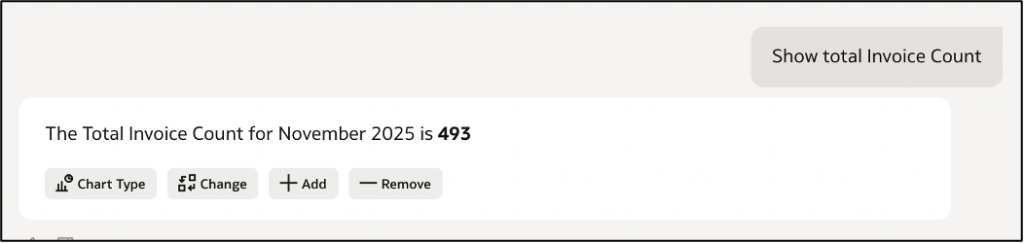
Example Instruction: Use November 2025 as the default date range
Default Date Logic
- All analytical queries use the field “Invoice Date”.
- If the user specifies a date range, use that date range.
- If the user does not specify a date range, use the date range November 2025.
- When this happens, inform the user that the result is shown for date range November 2025.
Example response:
- Showing results for the November 2025.
- You can specify another date range such as last quarter or January 2024 – March 2024.
Example interaction:
User: Show total invoice amount
Agent internally applies: Month(Invoice Date) = November 2025
User: Show invoice spend for last quarter
Agent internally applies: Invoice Date = Last Quarter
3. Set Top-N query logic
Users frequently ask for top results such as:
- Top 10 carriers
- Top 10 cities by invoice amount
This rule can be used for handling these queries.
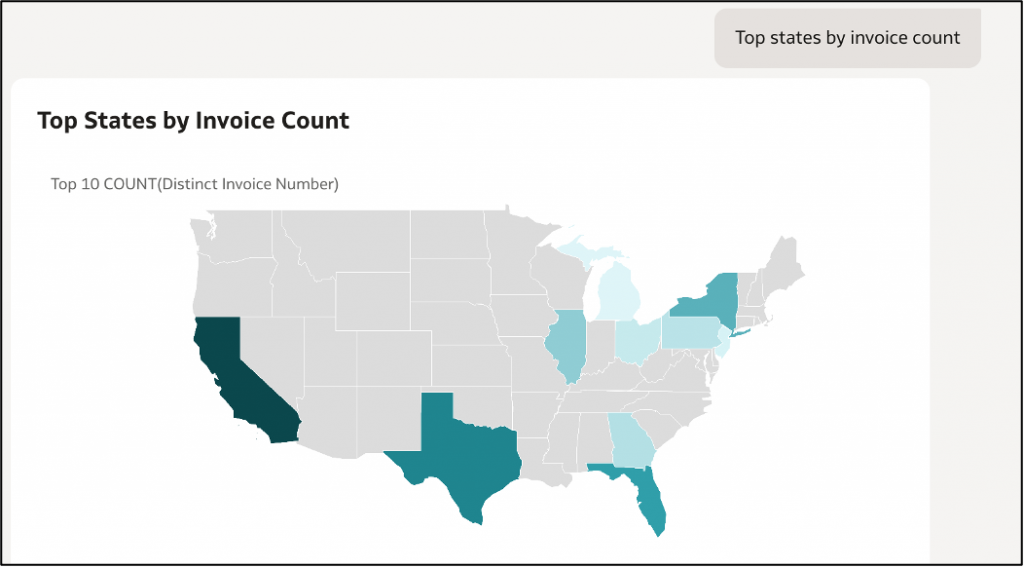
Example Instruction: Set the topN query logic
Top-N Rule
- When user asks for top results such as “top commercials”
- Return the top 10 results by default based on relevant metric
- By default use SUM(Invoice Item Amount)
Example interaction:
User: Top carriers by invoice amount
Agent internally applies: order by SUM(Invoice Item Amount) descending and limit to 10
4. Set growth calculation logic
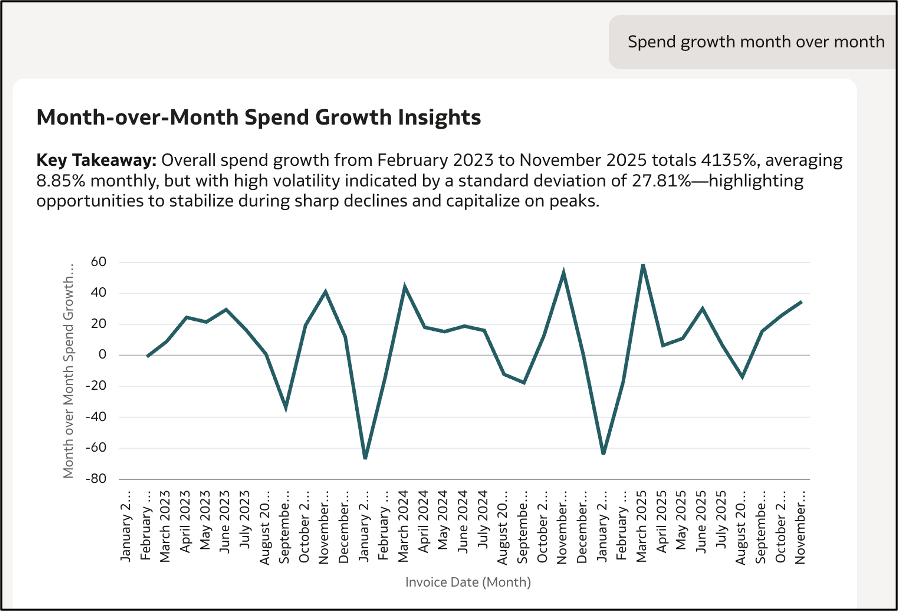
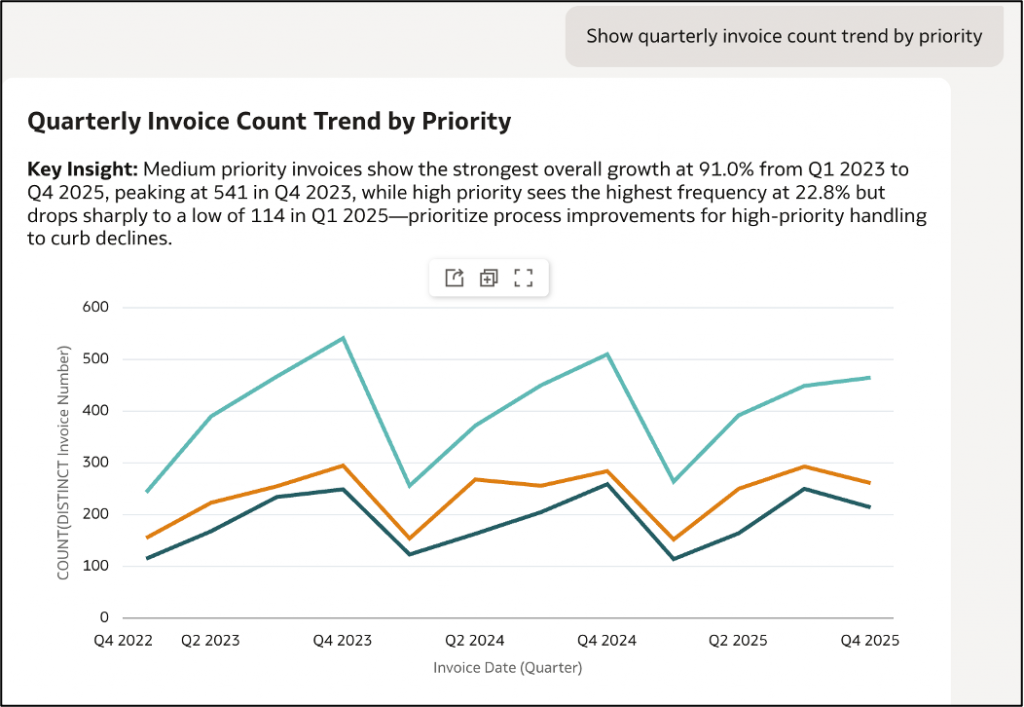
Growth Calculation Rule tells the AI Agent to calculate the percentage change between the current period and the previous period using aggregated values.
Example Instruction: Set the growth calculation logic
Growth Calculation rule
- When users ask about growth, increase, change, or comparison over time, calculate period-over-period change using the aggregated metric values.
- Always use “Invoice Date” to calculate Month, Year, Quarter.
Growth
- ((Current Period Value − Previous Period Value) / Previous Period Value)
Supported Metrics for Growth
- Invoice Amount
- Spend
- Invoice Count
Example Calculations:
- Month-over-Month Invoice Amount Growth = ((Current Month Spend − Previous Month Spend) / Previous Month Spend)*100
- Quarter-over-Quarter Invoice Growth = ((Current Quarter Invoice Count − Previous Quarter Invoice Count) / Previous Quarter Invoice Count)*100
Visualization Rule
- Always show the line graph
4. Set time intelligence rules
AI Agents must interpret time-based questions correctly.
Example Instruction: Show the trend
Trend Rule
When users ask for trend, change, or over time, group results by the time dimension “Month(Invoice Date)”.
Dimension Phrase Mapping
- “in Carrier Name”
- “by Carrier Name”
- “per Carrier Name”
- “grouped by Carrier Name”
- all mean grouping results by “Carrier Name”.
Universal Grouping Rule
If users request results by multiple dimensions, group the metric by all specified dimensions.
Example interaction:
User: Show invoice amount trend
Agent internally applies: Invoice Amount by Month(Invoice Date)
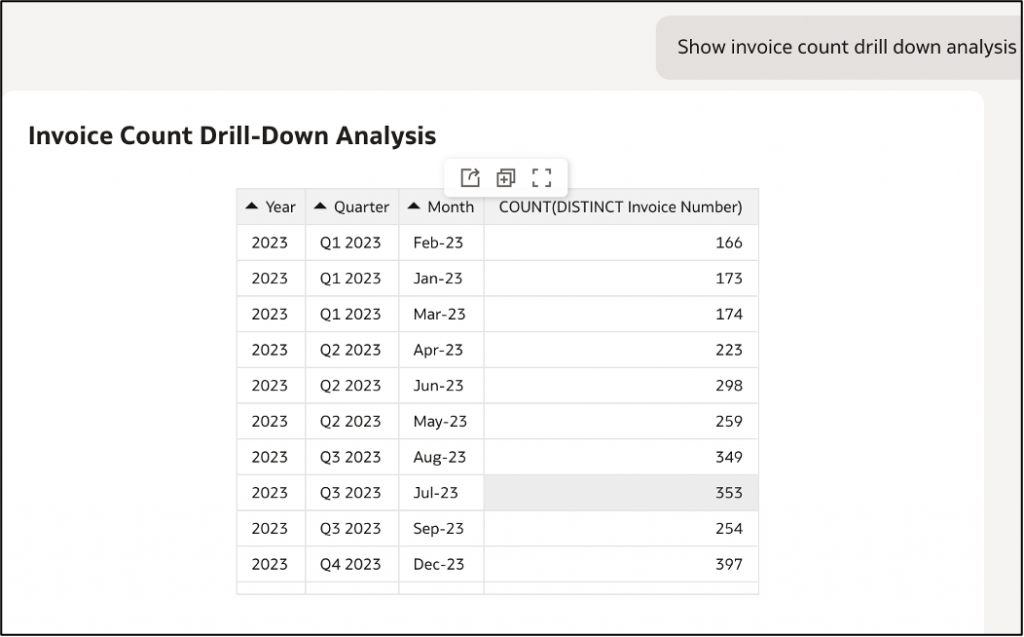
Example Instruction: Show the drill down analysis
Time Hierarchy for Invoice Analysis
Use the following hierarchy when analysing invoice data by time:
- Year → Quarter → Month
The hierarchy is based on the field “Invoice Date”.
Definitions:
- Year = Year extracted from “Invoice Date”
- Quarter = Quarter extracted from “Invoice Date”
- Month = Month extracted from “Invoice Date”
When users request drill-down analysis, follow this hierarchy order.
6. Set the currency conversion logic
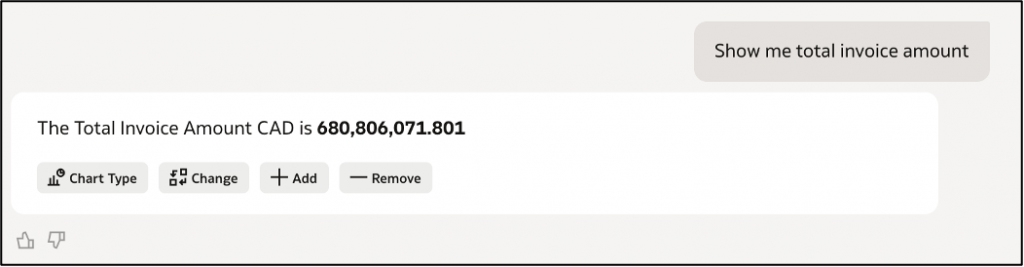
Currency conversion logic ensures that all financial values are normalized to the same currency before performing calculations. Without conversion, totals would be incorrect because values from different currencies would be added together.
Example Instruction: Currency conversion logic
Use the following logic when calculating Invoice Amount:
FILTER(“Invoice Item Amount” USING “Currency Code”=’CAD’)
+
FILTER(“Invoice Item Amount” USING “Currency Code”=’USD’) * 1.37
Invoice Tax Amount must always be returned in CAD.
Use the following logic when calculating Invoice Tax Amount:
FILTER(“Invoice Tax Amount” USING “Currency Code”=’CAD’)
+
FILTER(“Invoice Tax Amount” USING “Currency Code”=’USD’) * 1.37
Rules:
- Never return the raw “Invoice Item Amount” column.
- Never return the raw “Invoice Tax Amount” column.
- Always apply the currency conversion before aggregation.
- Do not use CASE statements.
- Use FILTER USING with Currency Code.
- Aggregate using REPORT_AGGREGATE when necessary.
7. Retain the previous filters
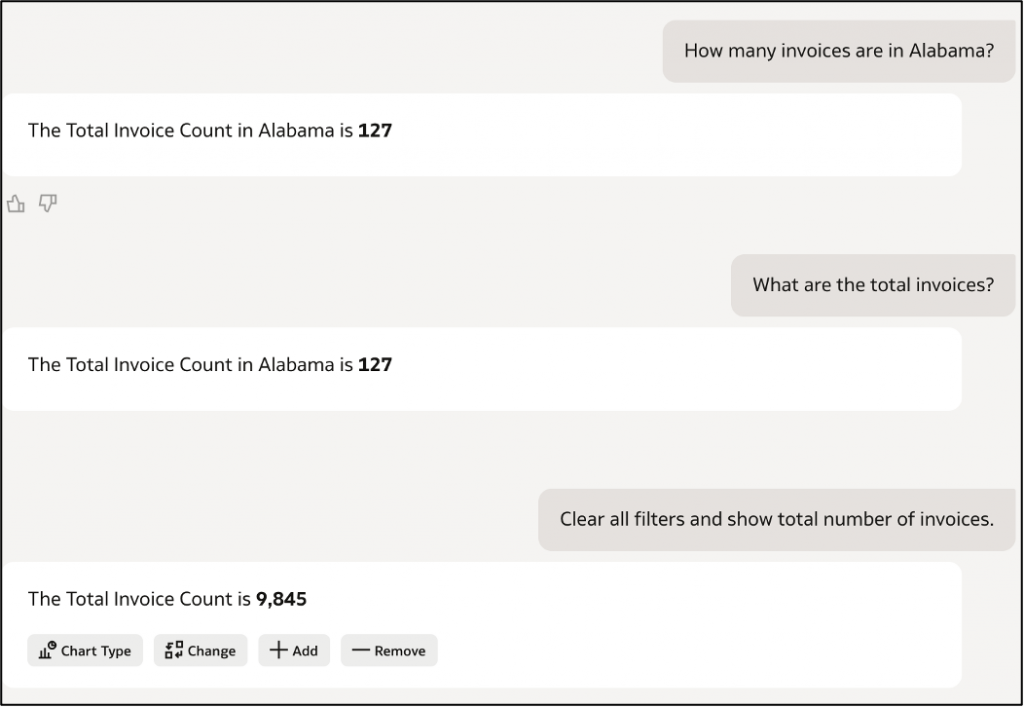
You can add a filter retention rule to your AI Agent instructions. This helps the AI Agent to maintain conversation context during follow-up questions.
Example Instruction: To retain previous filters
Conversation Context Rule:
- When a user asks a follow-up question, retain filters from the previous query.
Example:
- If the previous query filtered State = Washington,
- The next query should continue using that filter unless the user explicitly asks to change or reset the scope.
Filter Persistence Rule
If the user asks a follow-up question such as:
- “What about the days to payment?”
- “What are the invoice numbers?”
Retain all filters applied in the previous query.
Filter Reset Rule
If the user explicitly asks to clear filters, remove all previously applied filters.
Examples:
- “Clear all filters”
- “Reset filters”
- “Show invoices globally”
Conclusion
AI Agents are transforming how users interact with analytics by enabling natural language queries and conversational data exploration. However, the effectiveness of an AI Agent depends heavily on how well its instructions and business logic are designed. Well-structured instructions also help the AI Agent handle complex scenarios such as trend analysis, growth calculations, multi-dimension grouping, and currency normalization.
By carefully designing and refining these instruction rules, organizations can turn AI Agents into powerful analytical assistants that provide consistent, accurate, and actionable insights. As conversational analytics continues to evolve, properly tuned AI Agents will play a critical role in simplifying data access and enabling faster, data-driven decision making across the enterprise.
Call to Action
The AI Agent is available as of the Oracle Analytics Cloud January 2026 update. For a demo, check out this YouTube video.
Get Started Today
✅ Connect to your Oracle Analytics Cloud instance
✅ Enable indexing on the dataset to use with the AI Agent
✅ Create an Oracle Analytics AI Agent and add supplement instructions
✅ Add the AI Agent to workbook or use it as a standalone product
Join the Community
Have questions or want to share your journey?
Join the conversation in the Oracle Analytics ad AI Community, connect with other practitioners, and get expert insights.
Learn More
To learn more about Oracle Analytics Cloud:
- Visit the Oracle Analytics product page
- Follow twitter@OracleAnalytics
- Read the documentation on Oracle Help Center