
In today’s data-driven world, businesses need faster and more efficient ways to turn data into insights. Oracle Analytics Cloud delivers powerful analytics for analyzing complex datasets and AI agents take it further—enabling natural language interaction and smarter decisions without deep data science expertise.
What are AI Agents in Oracle Analytics Cloud?
Oracle Analytics AI Agents empower consumer users to get deeper, more context-aware insights by combining enterprise data, custom instructions, and proprietary knowledge documents within the Oracle Analytics. Oracle Analytics AI Agents use Retrieval-Augmented Generation (RAG) to enhance generative AI with enterprise data, enabling large language models (LLMs) to “look up” relevant information before responding. This feature allows organizations to tailor how the Oracle Analytics AI Agent responds, helping ensure answers are accurate, relevant, and aligned with internal policies.
- Set the dataset sources: Select data sources such as a dataset, local subject area, or subject area.
- Add supplemental instructions: Implement rules of up to 6,000 characters to enable the agent to understand and apply domain-specific metrics.
- Upload knowledge documents: Upload up to 10 PDF or TXT files to RAG, allowing the agent to reference internal policies or documentation. Here, priorities also can be defined when multiple documents are uploaded.
- Provide a welcome message: The first interaction text that provides guidance to users and sets the context for their interaction with the AI.
Steps to create AI agents
In this article, we’ll walk through a step-by-step guide to create and configure Oracle Analytics AI Agents with the Workforce Employee dataset.
Here’s an example of how AI Agents work in Oracle Analytics Cloud. For instance, we have a dataset containing workforce employee data such as tenure, performance metrics, Join date, exit date, and department of employee records.
Here are the prompts (to name just a few) an AI Agent can answer for a user’s questions instead of manually analyzing data and creating reports:
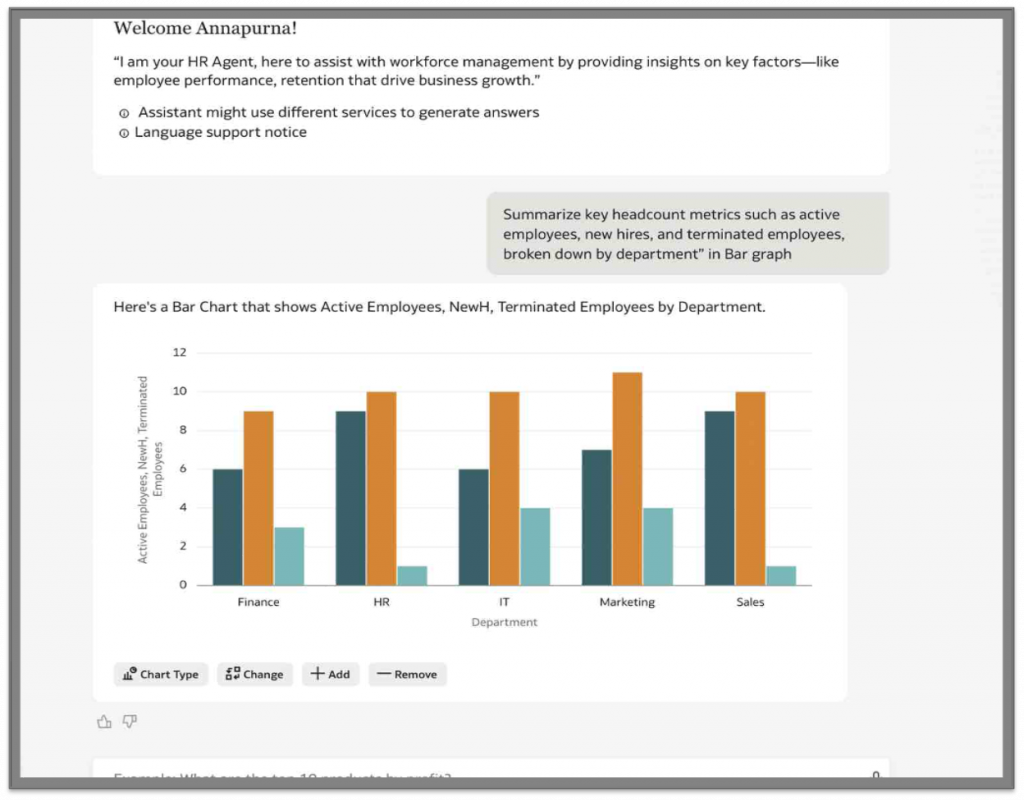
- “Summarize key headcount metrics such as active employees, new hires, and terminated employees, broken down by department”
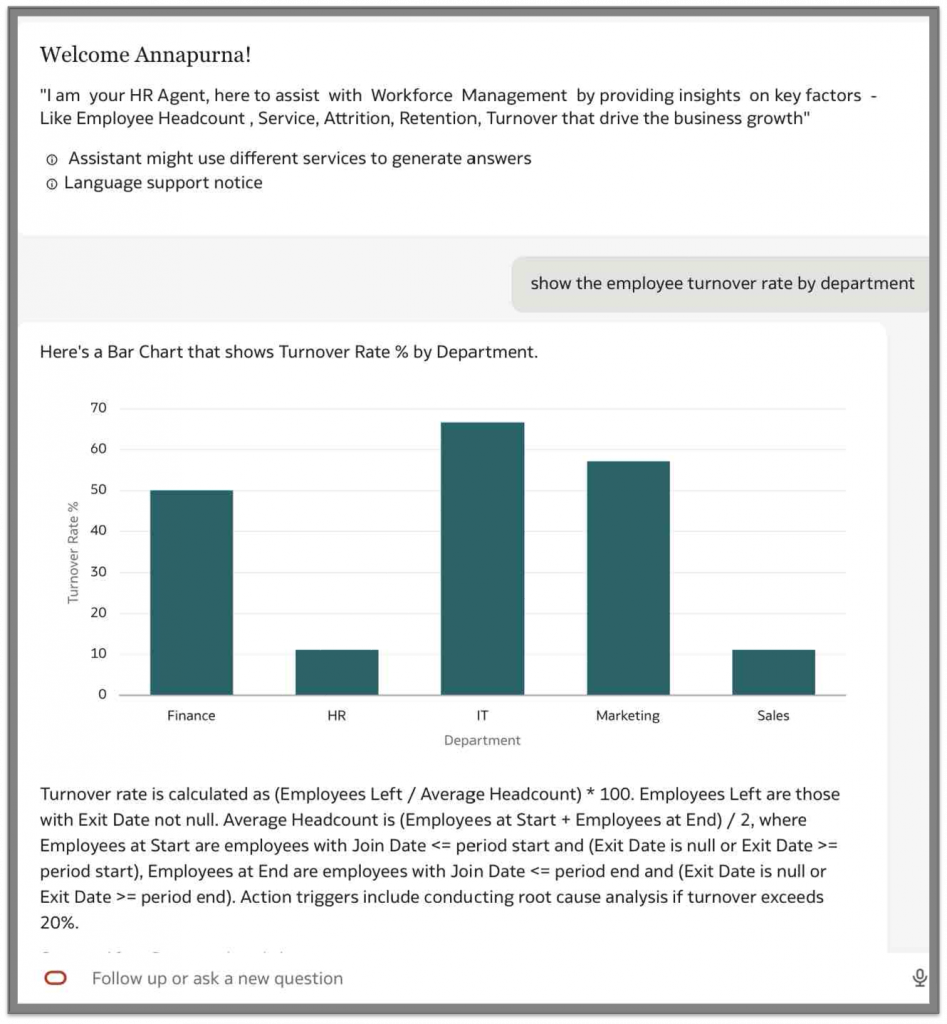
- “Show The Employee Turnover Rate By department To Take Action“
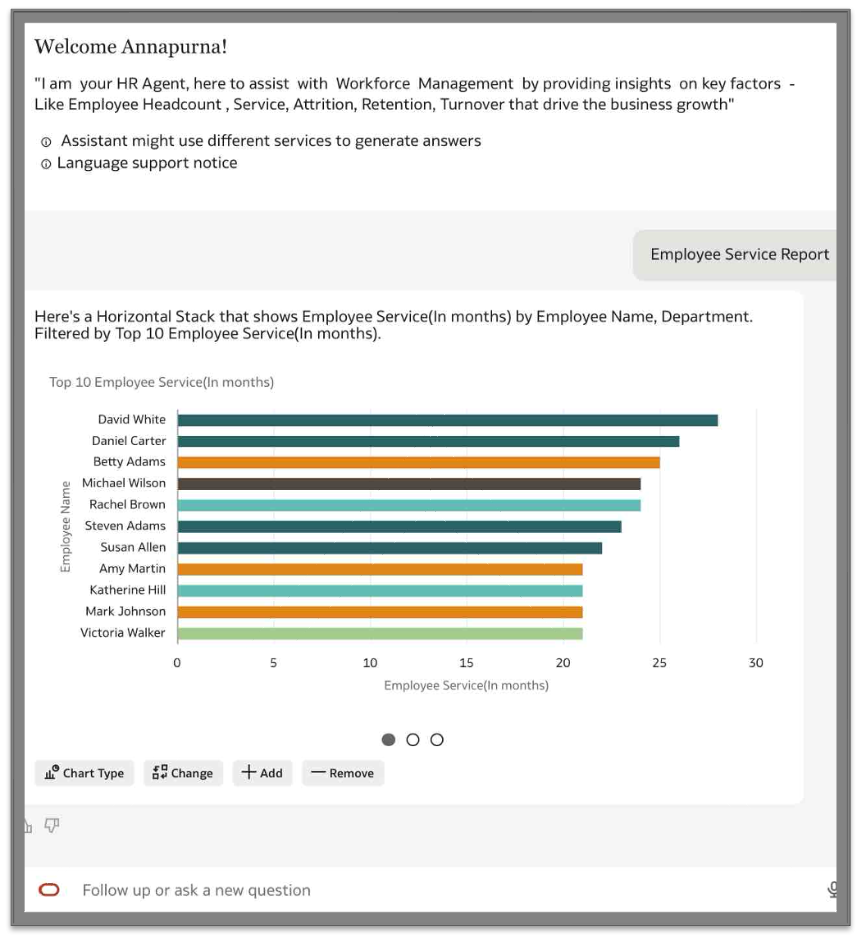
- “Show the employee Service Report”
- “Which department has the highest performance improvement over last 2 years?”
1) Confirm that your Oracle Analytics Cloud instance is for the newest update (January 2026 update or later).
2) Set roles and permissions. This is the required to access for creating AI Agents in Oracle Analytics Cloud.
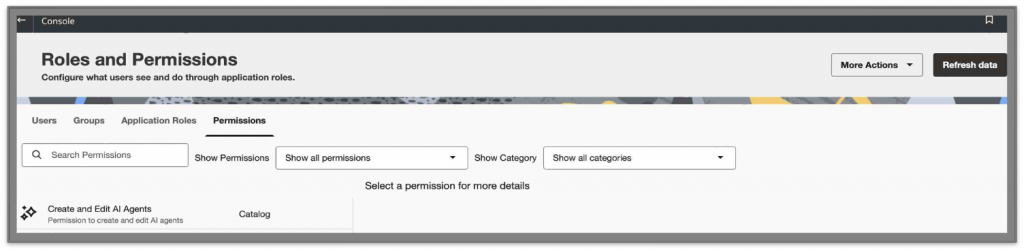
3) Create an AI Agent:
- On the Oracle Analytics Cloud Home page, click Create, and then AI Agent.
- Add the required dataset from a dataset, subject area, or local subject area.
- Save the agent.
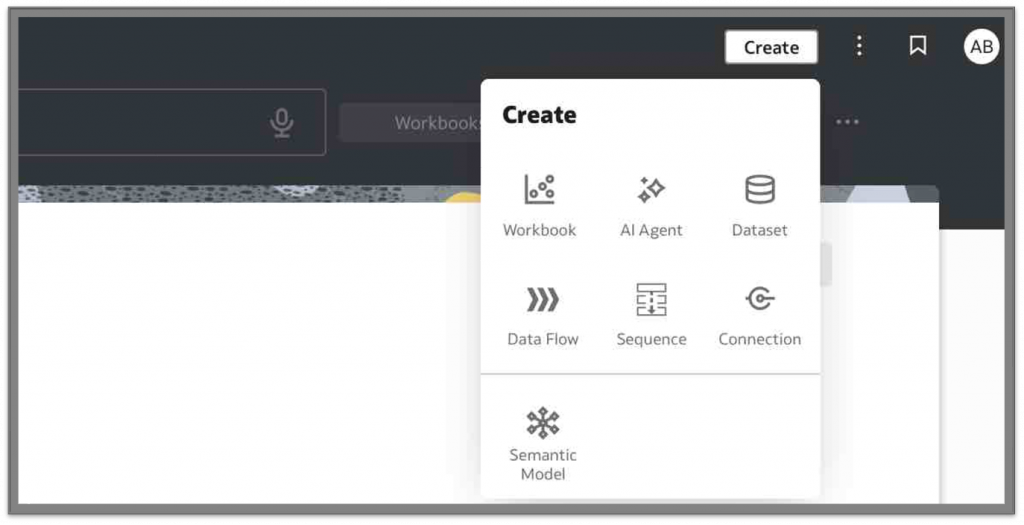
4) Connect to the source data. This can be a dataset, subject area, or local subject area.
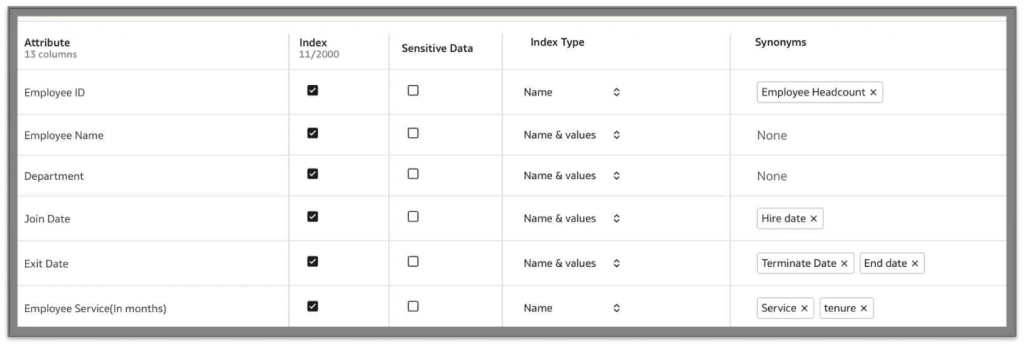
5) Index columns. Ensure the necessary columns are indexed in the source data.
6) Select synonyms. Set the synonyms for the business terms your organization uses. Synonyms interpret different terms as equivalent and improve accuracy and comprehension with no ambiguity.
For example, Synonyms for Exit date column – End Date and Terminate Date
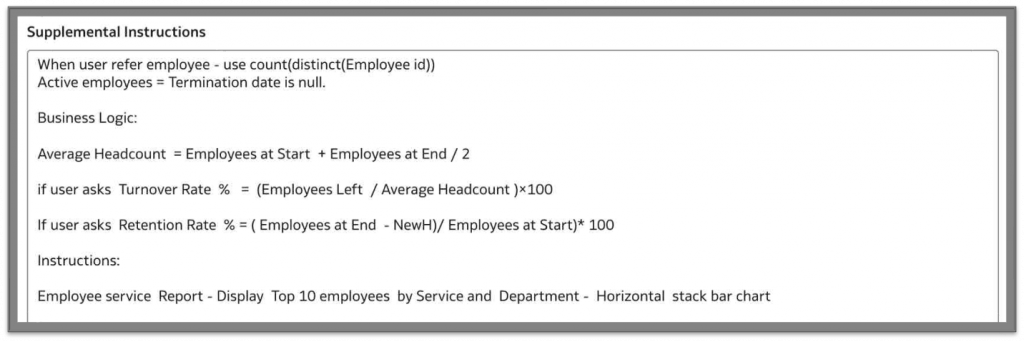
7) Add custom instructions. This includes business logic or special instructions.
For example, Workforce Employee dataset : Special instructions – ”When a user asks to display the “Employee Service dashboard”, always Display Top 10 Employees By service and Department – Horizontal Bar chart
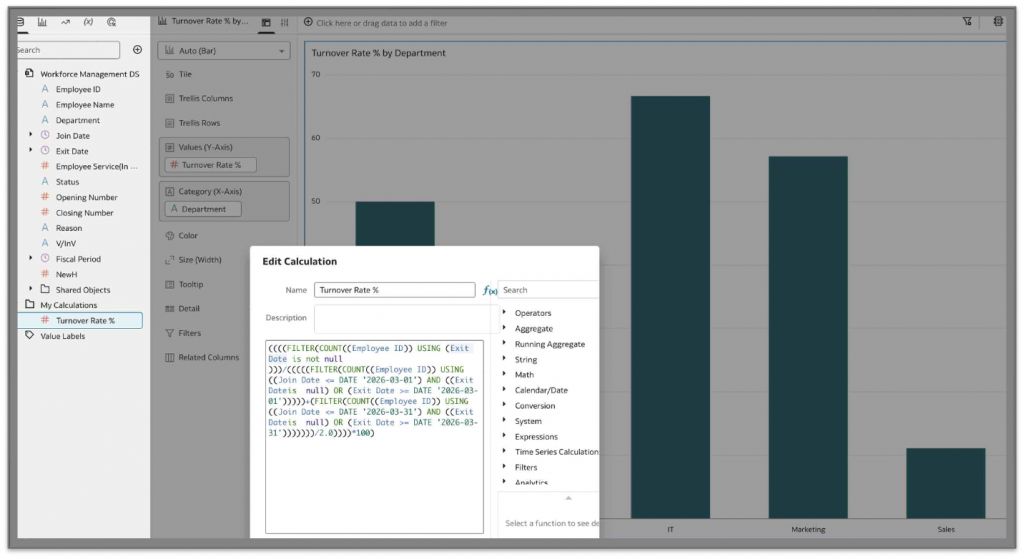
You can also add the business logic say, “When users ask for Turnover Rate % = (Employees Left / Average Headcount )×100”
8) Add knowledge documents:
- Upload reference files (such as policy documents, rulebooks, or guidelines) that define your business rules, compliance requirements, or validation criteria. This reduces the manual verification effort and improves data quality, consistency, and accuracy.
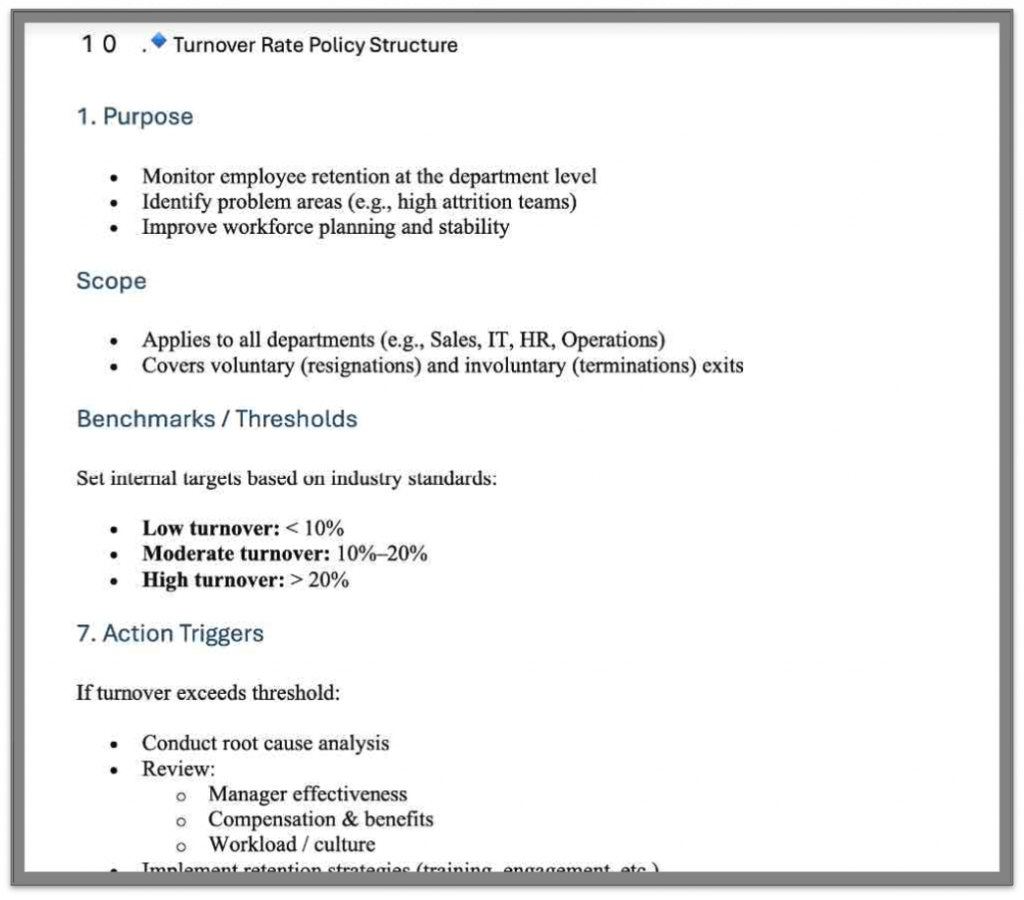
- The AI Agent leverages RAG to reference datasets and knowledge documents before generating responses, ensuring enterprise-verified accuracy and consistency.
For example, “Business rules in this workforce management example activate actions when turnover exceeds thresholds, with performance-based banding providing insights to support targeted retention initiatives.”
9) Add a welcome message. For example, “I am your HR Agent, here to assist with workforce management by providing insights on key factors—like employee performance, retention, and training—that drive business growth.”
10) Save the AI Agent.
AI Agent Results (Workforce Management Agent)
The following results illustrate the performance of the AI Agents based on the configuration described in the previous steps. Presented below are the natural language queries submitted by users to the AI Agent—developed using workforce employee data as specified above—along with the corresponding responses generated from the configured dataset and knowledge documents, following the supplementary instructions provided to the AI Agent.
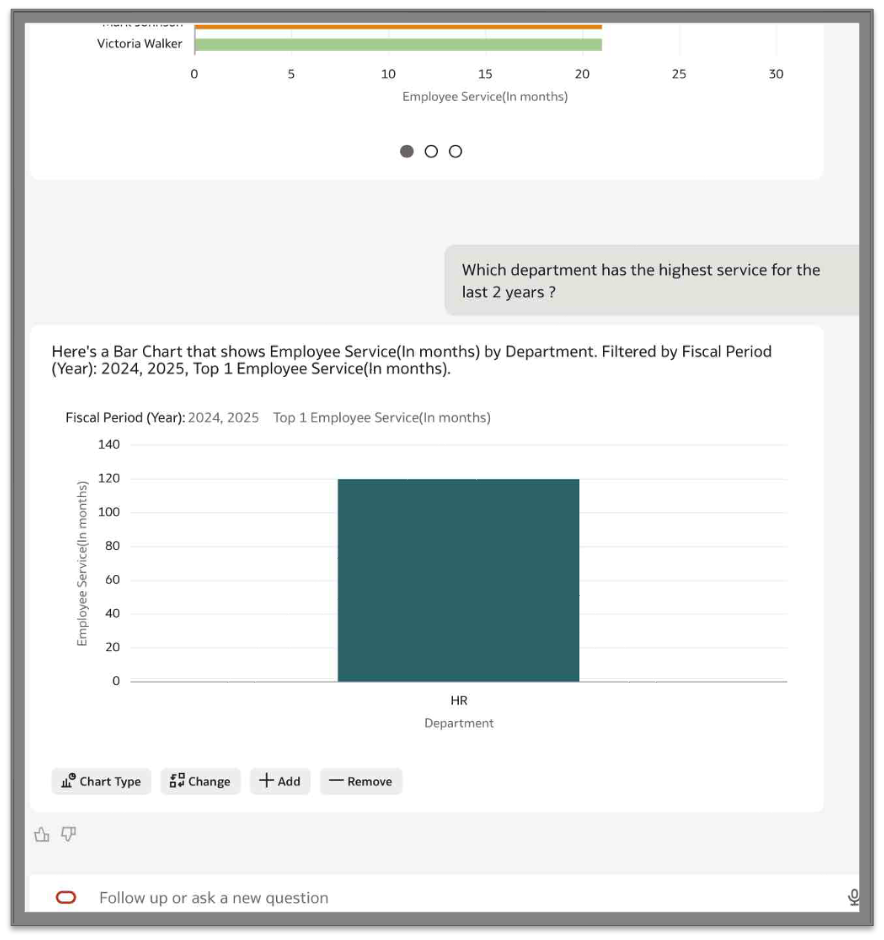
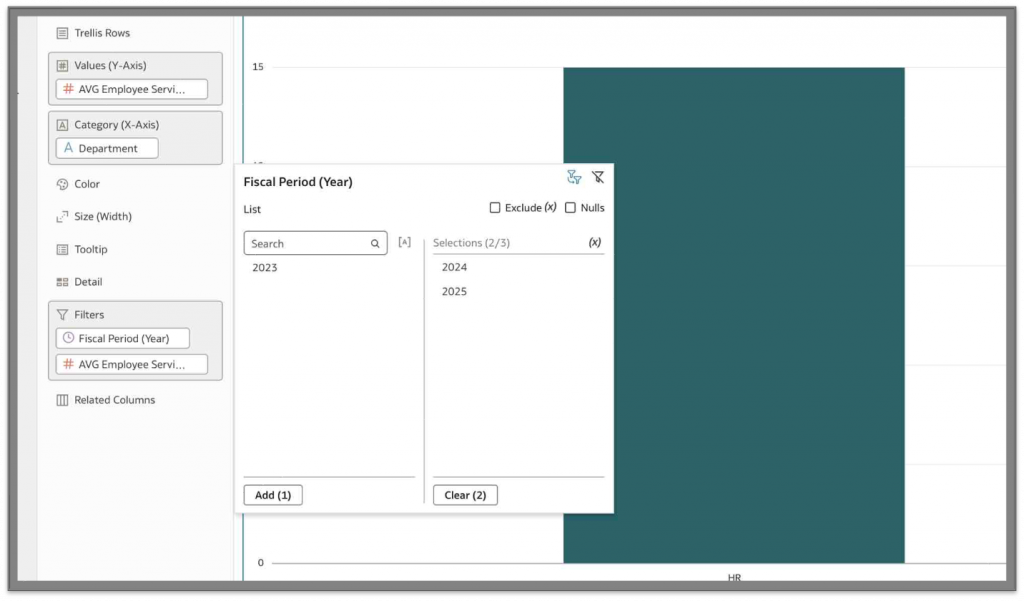
Which department has the highest service for the last 2 years?
Summarize key headcount metrics such as active employees, new hires, and terminated employees, broken down by department
Show The Employee Turnover Rate By department To Take Action
Show the Employee Service Report
Call to action
Ready to empower your consumers with conversational analytics?
Log in to your Oracle Analytics Cloud to enable the AI Agents for consumer users from the Insights Panel.
With just a few clicks, your business users can start asking questions in plain language and get instant, AI-powered answers.
Additional resources
For a visual walkthrough and official product guidance, explore these resources:
- Video tutorial: OAC AI Agent YouTube video
- Oracle documentation: Oracle Analytics Cloud AI Agent
Join the Oracle Analytics and AI Community
Have questions or want to share your journey?
Join the conversation in the Oracle Analytics and AI Community, connect with other practitioners, and get expert insights.