
Installing Oracle Analytics Server (OAS) 2026 can be challenging when the target Oracle Autonomous AI Database used for the Repository Creation Utility (RCU) requires a wallet-based connection.
These instructions may also apply to OAS 2025, but the steps below were specifically validated with OAS 2026.
For security reasons, many customers now prefer to use wallet-based authentication with Oracle Autonomous AI Database. Although OAS supports this configuration, the required steps differ slightly from what’s currently documented. In particular, the OAS Marketplace installation workflow doesn’t work when the target Autonomous Database uses a wallet, so you must use a manual installation and configuration process.
You can still deploy the OAS Marketplace image and then manually configure the environment using the following steps.
Note: This walkthrough primarily targets Linux deployments because most OAS Marketplace and OCI-based implementations use Linux hosts. However, the overall installation flow, wallet configuration concepts, and RCU recommendations also apply to Windows environments. The specific commands and file paths can vary between operating systems.
Find links to the certification matrix and official documentation at the end of this article.
Step 1: Download Fusion Middleware Infrastructure
Download the Oracle Fusion Middleware (FMW) 14c Infrastructure installer:
fmw_14.1.2.0.0_infrastructure_generic.jar
Step 2: Download OAS Installation Binary Files
Linux
Oracle_Analytics_Server_2026_Linux.jar
Oracle_Analytics_Server_2026_Linux2.jar
Windows
Oracle_Analytics_Server_2026_Windows.jar
Step 3: Verify Prerequisites
Before installation, verify that all required operating system packages and prerequisites for FMW 14c are installed. Missing packages commonly cause failures during OAS configuration.
Reference:
- FMW 14c System Requirements
Step 4: Install Fusion Middleware Infrastructure
Example Linux command:
/home/oracle/jdk/jdk17.0.12/bin/java -jar fmw_14.1.2.0.0_infrastructure_generic.jar
Step 5: Install OAS Binary Files
Example Linux command:
$JAVA_HOME/bin/java -jar Oracle_Analytics_Server_2026_Linux64.jar
Step 6: Upload and Extract the Wallet
Upload the Autonomous Database wallet to the server and extract the contents to a local directory.
Step 7: Configure Environment Variables for RCU
Before starting RCU, run the following commands as the oracle user. Update the wallet location to match your environment.
export RCU_SSL_MODE=true
export TNS_ADMIN=/u01/data/Wallet_OAS2026ATP/
RCU is in:
$ORACLE_HOME/oracle_common/bin
Step 8: Run RCU
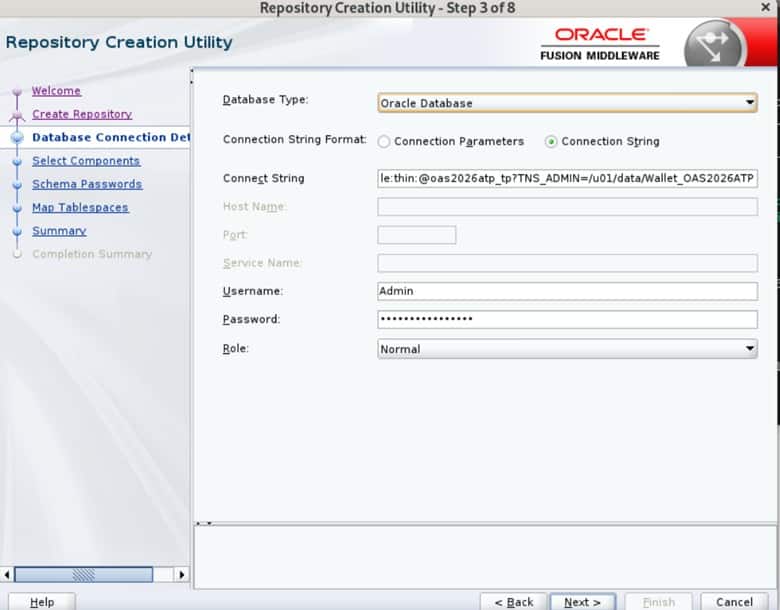
- Start RCU, then select:
- Create Repository
- System Load and Product Load
- On the next screen, change the default option from:
Oracle Database enabled for edition-based redefinition.
to:
Oracle Database
- For the connection string, first try using the string from the tnsnames.ora file.
If that doesn’t work, try this JDBC format:
jdbc:oracle:thin:@oas2026atp_tp?TNS_ADMIN=/u01/data/Wallet_OAS2026ATP
For ATP databases:
- Don’t use SYSDBA.
- Ignore the warning messages displayed by RCU.
Step 9: Override Tablespace Mappings in RCU
During tablespace mapping, use the following values:
| Tablespace Type | Value |
| Default Tablespace | DATA |
| Temporary Tablespace | TEMP |
| Additional Tablespaces | DATA |
This step is mandatory for ATP-S environments and helps prevent schema creation failures.
Step 10: Run OAS Configuration
Run the OAS configuration utility:
$ORACLE_HOME/bi/bin/config.sh
Use the same terminal session that was used for RCU, or re-run the environment variable exports from Step 7.
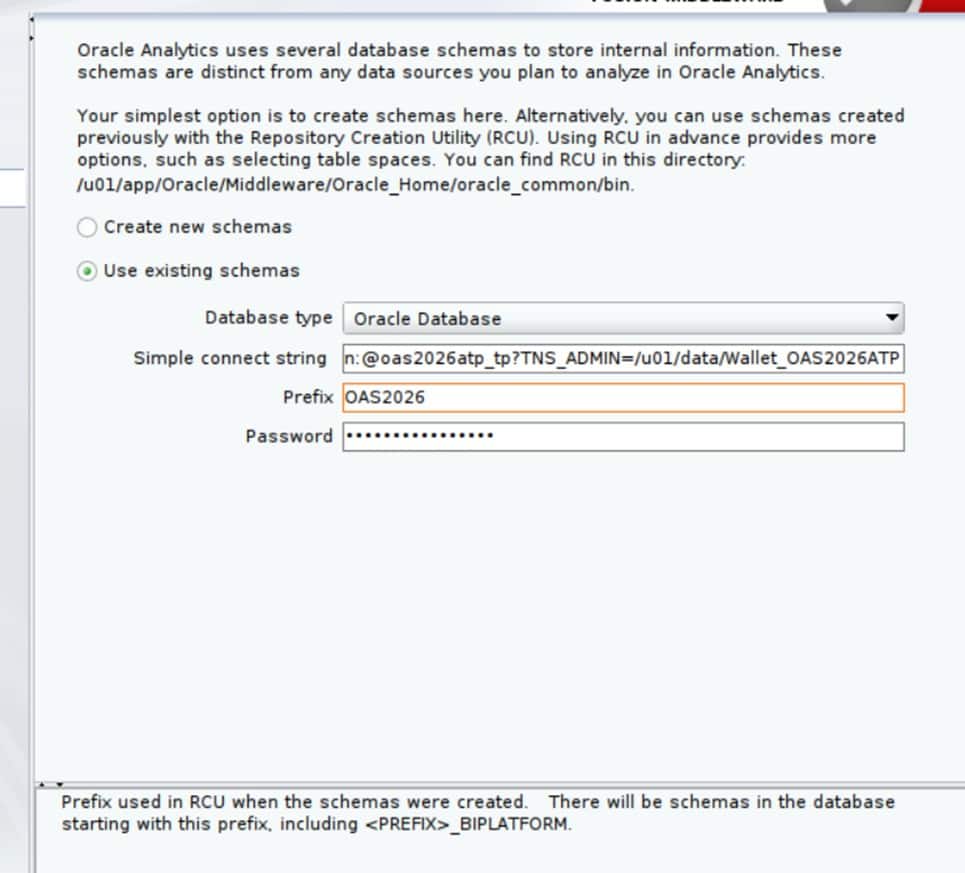
Use:
- The same connection string used during RCU.
- The same schema created earlier.
Common Errors and Troubleshooting
RCU Can’t Connect to the Autonomous Database
If RCU can’t connect to the database, verify the following:
- TNS_ADMIN points to the correct wallet directory.
- The wallet has been fully extracted.
- The correct service name is being used.
- The wallet files are readable by the oracle user.
Example:
export TNS_ADMIN=/u01/data/Wallet_OAS2026ATP/
You can also try using the JDBC connect string format:
jdbc:oracle:thin:@oas2026atp_tp?TNS_ADMIN=/u01/data/Wallet_OAS2026ATP
SSL Handshake or Certificate Errors
SSL-related failures are usually caused by:
- Incorrect wallet location
- Missing wallet files
- Expired certificates
- RCU_SSL_MODE not being enabled
Verify that the following environment variable is set before launching RCU or running the OAS configuration utility:
export RCU_SSL_MODE=true
Schema Creation Failures in ATP-S
If RCU fails during schema creation or tablespace validation, confirm that the tablespaces were overridden correctly.
Use the following mappings:
| Tablespace Type | Value |
| Default Tablespace | DATA |
| Temporary Tablespace | TEMP |
| Additional Tablespaces | DATA |
This is required for many ATP-S deployments.
Missing Operating System Packages
OAS and FMW 14c require several operating system dependencies. Missing packages can cause:
- Configuration Assistant failures
- Silent installer crashes
- OAS startup issues
- Oracle WebLogic deployment failures
Revalidate all prerequisites for:
- Oracle Fusion Middleware 14c
- Oracle Analytics Server 2026
This is one of the most common installation problems.
OAS Configuration Utility Cannot Connect to the Repository
If config.sh fails to connect to the repository schemas:
- Re-run the wallet export commands.
- Verify that the same connection string used during RCU is being used during configuration.
- Confirm the schemas were successfully created in RCU.
Example:
export RCU_SSL_MODE=true
export TNS_ADMIN=/u01/data/Wallet_OAS2026ATP/
Incorrect File Permissions on Wallet Files
If the wallet files are owned by another user or have restrictive permissions, RCU and OAS can fail to connect.
Verify:
- The wallet directory is accessible.
- The oracle user can read all wallet files.
- The unzip operations preserved the required file structure.
Marketplace Deployment Limitations
The current OAS Marketplace deployment workflow doesn’t fully support wallet-based Autonomous Database configurations during automated setup.
If your target database requires a wallet:
- Deploy the Marketplace image.
- Skip the automated configuration.
- Perform the manual configuration steps outlined in this article.
Documentation
- OAS 2026 Installation Documentation
- OAS Certification Matrix
- OAS Patches (select OAS to view required quarterly patches)
- Pre-Requisites for FMW14c
Call to Action
Try the installation process in your environment and share your results in the Oracle Analytics Community. You can also use the community to ask questions and provide feedback.
Conclusion
For additional details, refer to the Oracle Analytics documentation and Help Center resources.