
One canvas. Multiple workbooks. Endless insights.
This centralized reporting solution consolidates multiple workbooks for Oracle Analytics into a single, unified reporting interface with dynamic, button-driven navigation using iframe visualizations. Traditionally, users access workbooks by navigating through the Catalog, browsing multiple folders, or clicking hyperlinks that open reports in separate pages, tabs, or windows. When workbooks are distributed across different report locations and subject areas, switching between them can become time-consuming and disruptive.
When multiple workbooks are embedded into a single interface, users can seamlessly switch between reports without leaving the page. This eliminates the need to browse Catalog folders, manage multiple browser tabs, or rely on hyperlinks to access workbooks stored in different locations. The result is a streamlined analytics experience that provides faster access to insights, reduces navigation effort, improves usability, and enables more efficient decision-making.
Another advantage of this approach is its support for AI-enabled analytics experiences. When an embedded workbook is configured with Oracle Analytics AI Assistant or AI Agent capabilities, users can directly access those AI-powered features within the workbook. This enables users to interact with their data using natural language, generate insights more efficiently, and leverage AI-driven assistance without leaving the centralized analytics environment.
This article explores how to build an interactive Executive Dashboard using HTML, CSS, and JavaScript embedded with an iframe visualization, which helps to bring together multiple workbooks—such as Workforce Attrition, Promotions, and Sales—into a single, unified interface.
Implementation Steps
- Open the New workbook in Oracle Analytics Cloud (OAC).
- Navigate to Visualizations, and select the iframe visualization.
- Paste the iframe code provided below to replicate the layout demonstrated in the accompanying video.
- Update the following values to match your environment per the guidance in OAC documentation:
- OAC instance details
- Workbook/canvas location details – embedded
- Report URL
- Configure the iframe settings as follows:
- Enable SRCDOC
- Enable Allow Scripts
- Enable Allow Same Origin
- Save the workbook and run it to validate the integrated reporting experience.
- Once configured, users can seamlessly access and navigate across multiple reports and workbooks from a single, unified reporting interface eliminating the need to switch between separate workbooks or pages.
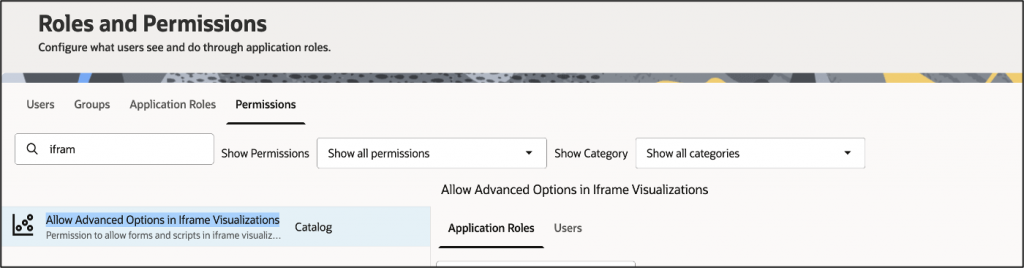
- Specify permissions to allow users to use iframe visualizations by selecting Allow Advanced Options in Iframe Visualizations.

// the page layout with sidebar and report section.
<!DOCTYPE html>
<html lang="en">
<head>
<meta charset="UTF-8" />
<meta name="viewport" content="width=device-width, initial-scale=1.0" />
<title>Executive Dashboard</title>
<style>
:root {
--corporate-blue: #003366;
--button-blue: #0059b3;
--button-hover: #0073e6;
--focus-color: #ffcc00;
}
html, body {
height: 100%;
margin: 0;
}
body {
font-family: Arial, sans-serif;
background-color: #f0f2f5;
}
.container {
display: flex;
gap: 20px;
padding: 10px;
height: 100vh;
box-sizing: border-box;
}
.sidebar {
display: flex;
flex-direction: column;
gap: 10px;
min-width: 250px;
padding: 15px;
border-radius: 8px;
background-color: var(--corporate-blue);
height: 97%;
}
.button-group .oj-button.left-btn {
width: 100%;
background-color: var(--button-blue);
color: white;
border: none;
padding: 12px;
border-radius: 6px;
cursor: pointer;
font-weight: 600;
transition: background-color 0.2s;
}
.button-group .oj-button.left-btn:hover {
background-color: var(--button-hover);
}
.button-group .oj-button.left-btn:focus {
outline: 2px solid var(--focus-color);
outline-offset: 2px;
}
.button-group .oj-button.left-btn.active {
background-color: var(--button-hover);
font-weight: 700;
}
.report-section {
flex: 1;
padding: 15px;
border-radius: 8px;
background-color: var(--corporate-blue);
display: flex;
flex-direction: column;
}
.report-heading {
color: white;
margin-bottom: 15px;
}
.report-embed {
width: 100%;
flex: 1;
border-radius: 8px;
background-color: white;
overflow: hidden;
}
.report-embed iframe,
.report-embed oracle-dv {
width: 100%;
height: 100%;
border: 0;
display: block;
}
</style>
</head>
<body>
<div class="container">
// Sidebar Navigation: Each button represents a report:
<nav class="sidebar button-group" role="navigation" aria-label="Report selection">
<button class="oj-button left-btn active" type="button"
data-type="iframe"
data-src="https://example.com/ui/dv/ui/project.jsp?pageid=visualAnalyzer&reportmode=full&reportpath=%2F%40Catalog%2Fshared%2FIFRAME%2FIFRAME%2FHR%20Attrition%20WB"
onclick="switchReport(this)">
Workforce Employee Attrition Report
</button>
<button class="oj-button left-btn" type="button"
data-type="dv"
data-project-path="/@Catalog/shared/IFRAME/IFRAME/Sales Portfolio"
data-tab-id="snapshot!canvas!19"
onclick="switchReport(this)">
Sales Report
</button>
<button class="oj-button left-btn" type="button"
data-type="dv"
data-project-path="/@Catalog/shared/IFRAME/IFRAME/customer and region performance " data-tab-id="snapshot!canvas!21"
data-tab-id="snapshot!canvas!21"
onclick="switchReport(this)">
Customer &amp; Region Performance
</button>
<button class="oj-button left-btn" type="button"
data-type="dv"
data-project-path="/@Catalog/shared/IFRAME/IFRAME/Promotions1"
data-tab-id="snapshot!canvas!1"
onclick="switchReport(this)">
Promotions Report
</button>
</nav>
// Report Display Area: Acts as a placeholder and Oracle Analytics reports load dynamically here
<main class="report-section" role="main">
<h2 class="report-heading">Executive Dashboard</h2>
<div id="reportContainer" class="report-embed"></div>
</main>
</div>
//Oracle Analytics Embedding SDK
<script src="https://example.com/public/dv/v2/embedding/auto/embedding.js"></script>
<script>
let dvInstance = null;
function loadIframe(src) {
const container = document.getElementById('reportContainer');
container.innerHTML = `
<iframe src="${src}" allowfullscreen></iframe>
`;
}
//Load a report dynamically
function loadDV(projectPath, tabId) {
const container = document.getElementById('reportContainer');
container.innerHTML = '';
if (!dvInstance) {
dvInstance = document.createElement('oracle-dv');
dvInstance.setAttribute('id', 'oracleDV');
dvInstance.setAttribute('project-path', projectPath);
dvInstance.setAttribute('active-page', 'insight');
dvInstance.setAttribute('active-tab-id', tabId);
dvInstance.setAttribute(
'project-options',
'{"bDisableMobileLayout":false,"bShowFilterBar":false}'
);
container.appendChild(dvInstance);
} else {
dvInstance.setAttribute('project-path', projectPath);
dvInstance.setAttribute('active-tab-id', tabId);
dvInstance.setAttribute(
'project-options',
'{"bDisableMobileLayout":false,"bShowFilterBar":false}'
);
container.appendChild(dvInstance);
}
//Applying Bindings: This ensures the selected report is rendered properly.
oracle.oa.embedding.ready().then(oApp => {
oApp.applyBindings();
console.log(`Report loaded: ${projectPath} - ${tabId}`);
});
}
// Switch report based on clicked button
function switchReport(button) {
const type = button.getAttribute('data-type');
document.querySelectorAll('.left-btn').forEach(btn => {
btn.classList.toggle('active', btn === button);
});
if (type === 'iframe') {
loadIframe(button.getAttribute('data-src'));
} else {
loadDV(
button.getAttribute('data-project-path'),
button.getAttribute('data-tab-id')
);
}
}
// Load default report on page load
oracle.oa.embedding.ready()
.then(() => {
const defaultButton = document.querySelector('.left-btn.active');
if (defaultButton) {
switchReport(defaultButton);
}
})
.catch(error => console.error('Oracle Analytics failed to load:', error));
</script>
</body>
</html>User Permissions: Permissions are required to enable iFrame functionality with the browser security settings “Allow Forms”, “Allow Scripts”, and “Allow Same Origin” enabled.
What We’re Building? What are the Key Benefits of This Approach?
This approach offers several key benefits:
- Enhanced User Experience: Users can access all relevant reports and workbooks from a single, centralized interface, providing a seamless and intuitive analytics experience.
- Simplified Navigation: Users can switch between reports and workbooks without managing multiple browser tabs, hyperlinks, Catalog folders, or report locations.
- Improved Productivity: Users gain faster access to insights, which reduces the time spent searching for information, enabling them to focus on analysis and decision-making.
- AI-Powered Analytics: Users can access AI Assistant and AI Agent capabilities directly within embedded workbooks, enabling conversational analytics and faster insight discovery.
- Greater Adoption: Users follow a streamlined and intuitive interface that encourages broader usage of analytics across the organization.
- Scalable Architecture: Designers can integrate new reports and workbooks into the centralized canvas as business needs evolve.
Conclusion
By centralizing multiple Oracle Analytics workbooks into a single, unified reporting interface using iframe visualizations, organizations can deliver a more seamless and intuitive analytics experience. Users gain easier access to reports, smoother navigation, and the ability to move between workbooks without disruption. By providing a unified interface, organizations can reduce navigation complexity, improve accessibility to insights, and create a more cohesive reporting experience.
Call to action
Modernize your analytics delivery by leveraging iframe visualizations and the Oracle Analytics Embedding SDK to centralize Oracle Analytics workbooks within a unified reporting interface. This approach simplifies navigation, enhances usability, increases user adoption, and accelerates access to insights, enabling faster and more informed business decisions.
See this video – https://youtu.be/Tgi2v_nn9p8?si=onUUXzR9CyIHZmdv
See the documentation: https://docs.oracle.com/en/cloud/paas/analytics-cloud/acsdv/considerations-embedding-oracle-analytics-content-iframe.html
Join the Oracle Analytics and AI Community
Have questions or want to share your journey?
Join the conversation in the Oracle Analytics and AI Community, connect with other practitioners, and get expert insights.