
Oracle AI Data Platform is pleased to announce support for files within AI agent conversations, starting November 2026. With this capability, users can upload supported files directly into an agent conversation, ask questions, analyze their contents, and generate downloadable reports, summaries, and data exports.
But before we dive into what this feature is, let’s understand why it is helpful within agent conversations. Business questions often depend on new information sitting in a file: a fresh sales export, a supplier report, a service invoice, or a screenshot. That information may be relevant to an immediate decision or agent conversation, even when it has not been added to the data systems an agent already uses.
With support for files in agent conversations, this information gap is plugged by connecting the new information (file, report or invoice) available in the moment and utilizing it to facilitate decision making, generate an updated summary, or task list – all within the agent conversation.
With the why addressed, let’s dive into what will explore in this blog:
- Set up an agent to support File Read and File Write (Generation).
- Use File Read to introduce additional context into an agent conversation.
- Use File Write to generate ready-to-use artifacts directly from the conversation.
The walkthrough follows two roles: the developer, who configures the agent, and the sales manager, who uploads the report, requests a summary, and downloads the result.
1. Set up the agent to support File Read and File Write
The developer starts with an existing agent configured with a model that supports the intended file inputs and outputs. An attached AI compute cluster enables testing in Playground.
For this example, the sales manager has received a PDF sales report and needs a short summary to share with colleagues. The developer configures the agent to accept PDF uploads and generate downloadable text files.
File Read and File Write are configured independently through the Chat Trigger. Supported file formats depend on the selected model.
The developer opens the agent in Development mode and selects the Chat Trigger and sees the File Read and File Write configuration tabs.
The File Read and File Write configuration tabs provide a variety of options that allow agent developers to control the types, sizes, and number of files an agent can handle or generate. This provides critical oversight and governance levers, as these capabilities can cause agent safety issues in certain scenarios.
Configure File Read
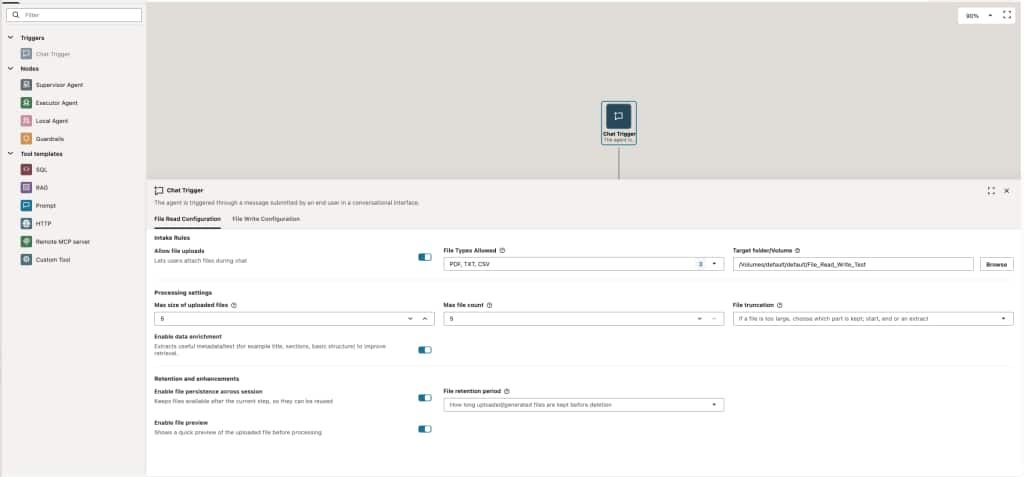
In File Read Configuration, the developer enables uploads and selects the formats the agent will accept.
| Setting | Configuration for this example |
| Allow file uploads | Enabled |
| File Types Allowed | PDF, TXT, CSV |
| Target folder/Volume | A selected destination for uploaded files |
| Max size of uploaded files | 5 MB – Sufficient to accommodate the report within the applicable model and platform limits |
| Max file count | 5 files are sufficient for the task, in case the reports are split into multiple files |
The developer can also enable file preview so the uploaded document can be inspected before processing.
Additional processing controls include data enrichment, which extracts useful text and metadata such as titles, sections, and document structure, and file truncation, which determines which content is retained when a file is too large for the processing context.
For this walkthrough, the sales manager uses a report that fits the configured limits.
For full details of available file read configuration options, refer to the documentation.
Configure File Write (Generation)
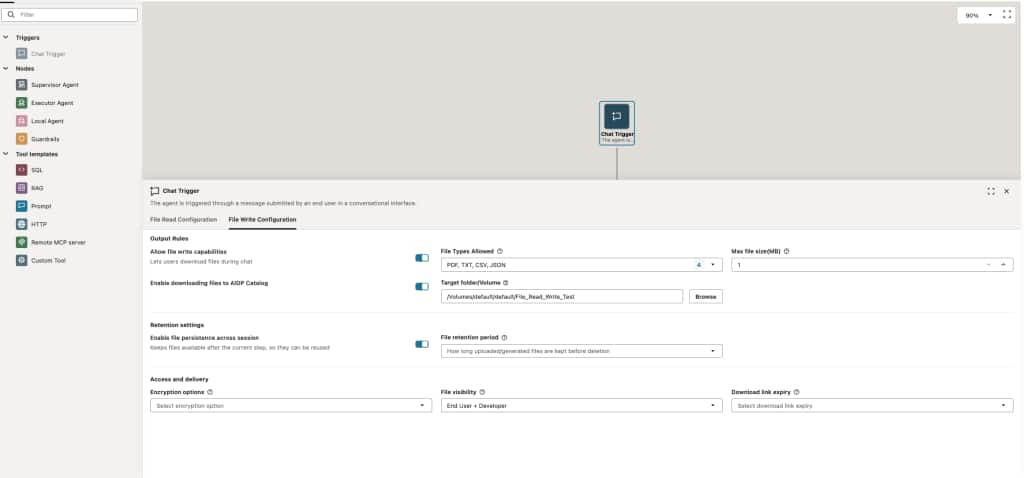
The developer then opens File Write Configuration and enables file generation. Since the manager needs a shareable text summary, the developer includes PDF, TXT and CSV in the allowed output formats.
| Setting | Configuration for this example |
| Allow file write capabilities | Enabled |
| File Types Allowed | PDF, TXT, CSV |
| Max file size | 1MB – Sufficient for a summary |
The configuration also includes an option to save generated files to the AIDP Catalog using a selected target folder or volume. The developer can enable this when the workflow requires catalog storage.
For both uploaded and generated files, persistence and retention settings determine whether files remain available for reuse and how long they are kept.
Generated-file controls also include encryption options, file visibility, and download-link expiry. Visibility determines whether access is limited to the end user or also includes the developer. Download-link expiry determines how long a particular download link remains usable.
The developer selects these settings according to the workflow’s storage and access requirements.
For full details of available file write (generation) configuration options, refer to the documentation.
2. Use File Read to introduce additional context into the conversation
Let’s switch to the use of this updated agent, by the sales manager.
He has received a fresh sales report from the field. The report is not yet part of the underlying agent dataset, but its contents are relevant to an upcoming team discussion.
The manager starts an agent conversation, uploads the fresh sales report PDF, and asks:
“Summarize this sales report in five bullet points.”
The agent uses the uploaded document to produce a summary in the conversation. The report supplies the additional context needed for this task.
The manager reviews the summary and can ask follow-up questions about the same report. For example:
“What actions are mentioned in the report?”
The conversation remains focused on the uploaded material. The manager can examine the main updates and any actions described in the source before preparing a summary to share.
The manager can also adjust the response:
“Make the summary shorter, with one sentence per bullet.”
Or:
“Include the actions mentioned in the report below the summary.”
These requests refine the content already being discussed. The manager can review the revised response and decide when it is ready to share.
Throughout this interaction, the uploaded sales report provides context for the conversation. The developer has established the supported file types and processing controls, while the manager directs the task through straightforward requests.
3. Use File Write to generate ready-to-use artifacts
Once the summary is ready, the sales manager asks:
“Create a downloadable text file containing this summary.”
The agent generates the file and makes it available to download directly from the conversation.
The manager downloads the text file and can share it with colleagues or use it in meeting preparation. The output contains the summary developed during the conversation.
If a further change is needed, the manager can request an updated artifact:
“Add the report title at the top and generate an updated text file.”
The agent can then produce a revised output, subject to the configured file capabilities and limits.
The developer’s File Write settings determine which output formats are available, the maximum file size, and the applicable storage, retention, and access controls. The sales manager specifies what the artifact needs to contain.
The completed workflow is simple: the manager uploads a fresh report, uses the agent to understand and summarize it, and downloads a file ready for the next task.
In a nutshell then, File Read and File Write (generation) extends the agent workflow capabilities from receiving new information to producing an output that is ready to share. Developers configure file handling and access controls, while business users supply relevant context and request the artifacts they need. This keeps the agent nimble, allowing for even more utility, even when all relevant context may not be available during design phase, but is available during the actual conversation.
For more information: