
The Oracle AI Data Platform team has released a series of new agentic features to help you build, test, and deploy AI agents. You can configure conversation context and long-term memory, connect to additional model providers, and add reusable skills in the visual flow builder. AI compute autoscaling and deployment improvements also help you manage agents in production. This post walks through the key updates and explains where to configure them.
Manage conversation context and long-term memory
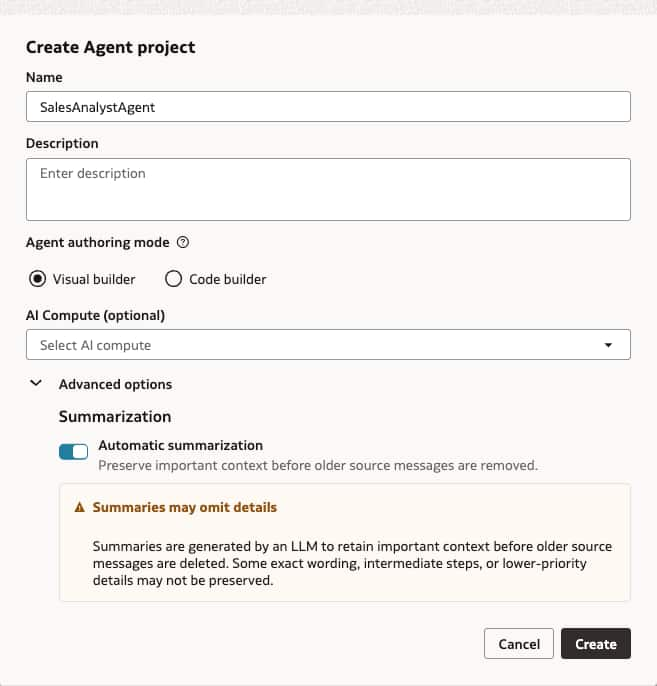
You have more control over your agent’s conversation context. When creating an agent, you can enable automatic summarization of older messages when conversation history would exceed 80% of the selected model’s context window. Summarization helps retain important context while keeping conversation history within the context window.
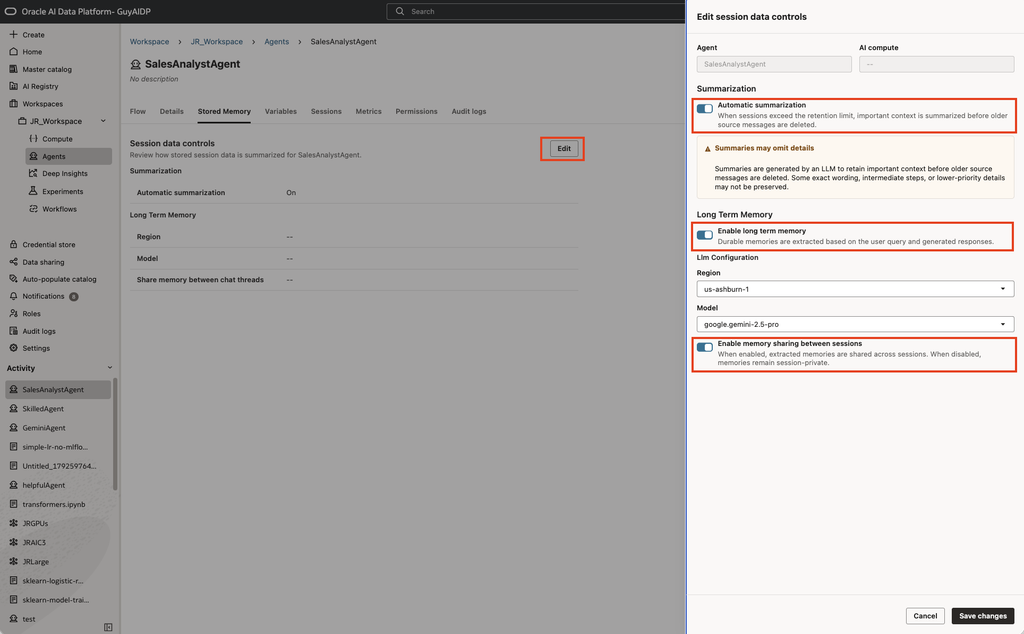
You can also enable automatic summarization in your agent’s Stored Memory tab. Separately, this tab lets you configure long-term memory, including which model extracts memories and whether memories are shared across sessions initiated by the same user. By default, extracted memories are available only within the session in which they were created.
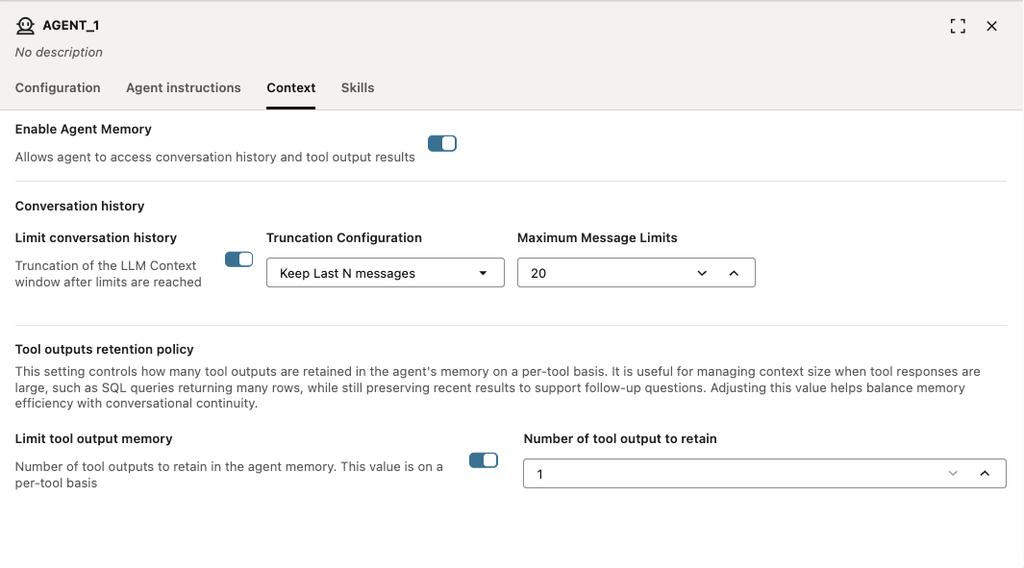
The Context tab of an agent node lets you configure which conversation history and tool outputs are included in the agent’s context window. These controls are especially useful when tools return large results, such as SQL query results, that could consume much of the available context.
Connect agents to additional model providers
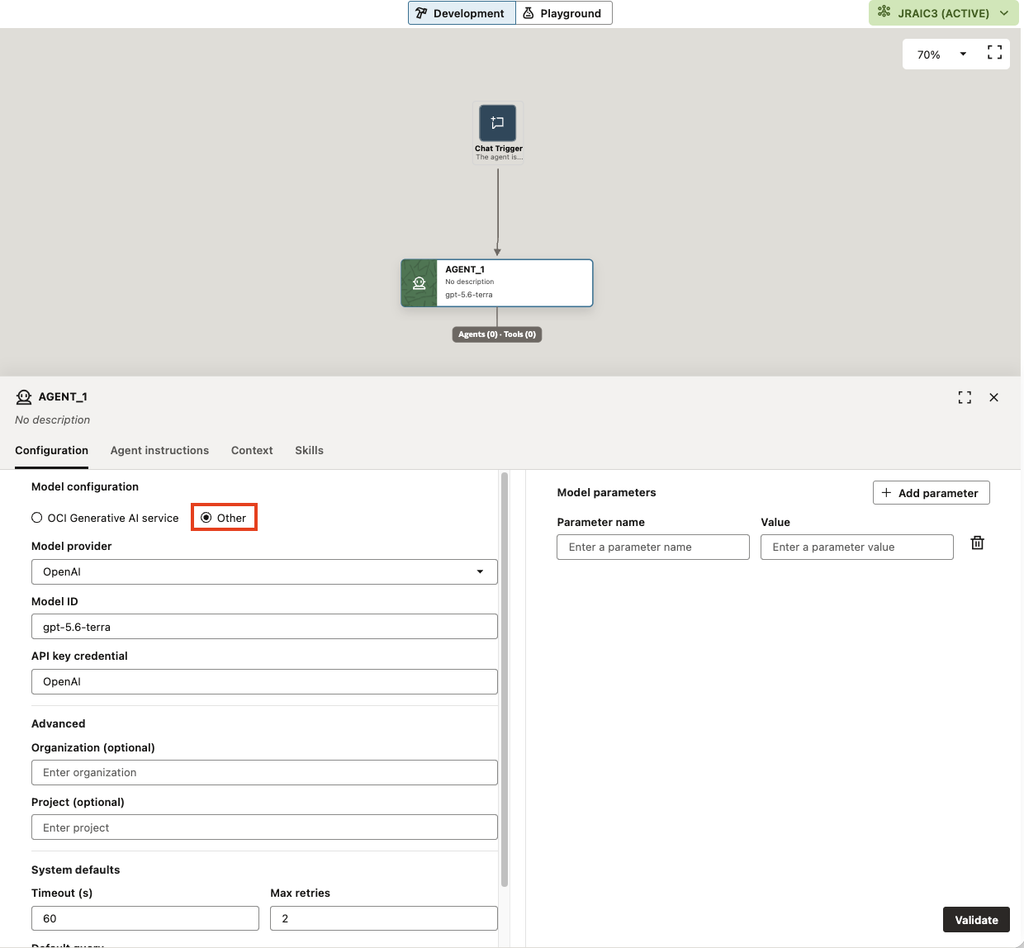
In addition to models available through the OCI Generative AI service, you can connect to models from OpenAI, Google (Gemini), and Anthropic in the visual flow builder.
Select a model provider, save its API key in the Credential Store, and configure the model for your agent. The external model provider configuration uses fields based on OpenAI SDK parameters.
Add reusable agent skills in the visual flow builder
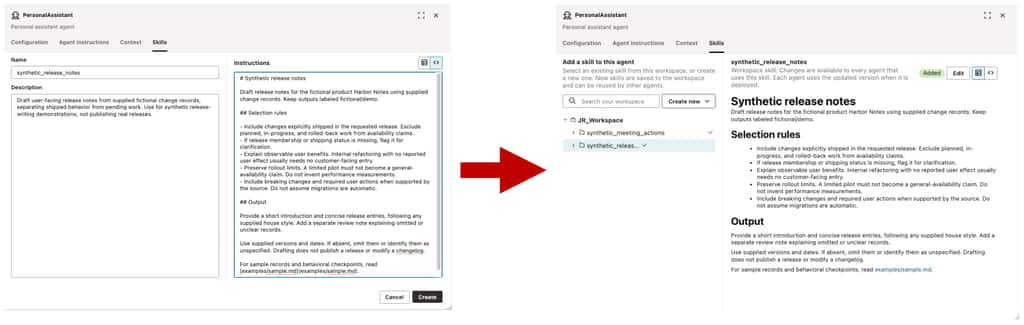
Skills package task-specific instructions and expertise that agents can use in common workflows. They make organizational knowledge easier to reuse. As Shruti Mathur explained in a recent post, skills can be packaged and used when developing agents through code. Skills are now also supported in the visual flow builder.
To add a skill, upload a local skill folder in your agent’s Skills tab.

You can also create a skill directly in the Skills tab using the skills editor.
Configure AI compute autoscaling
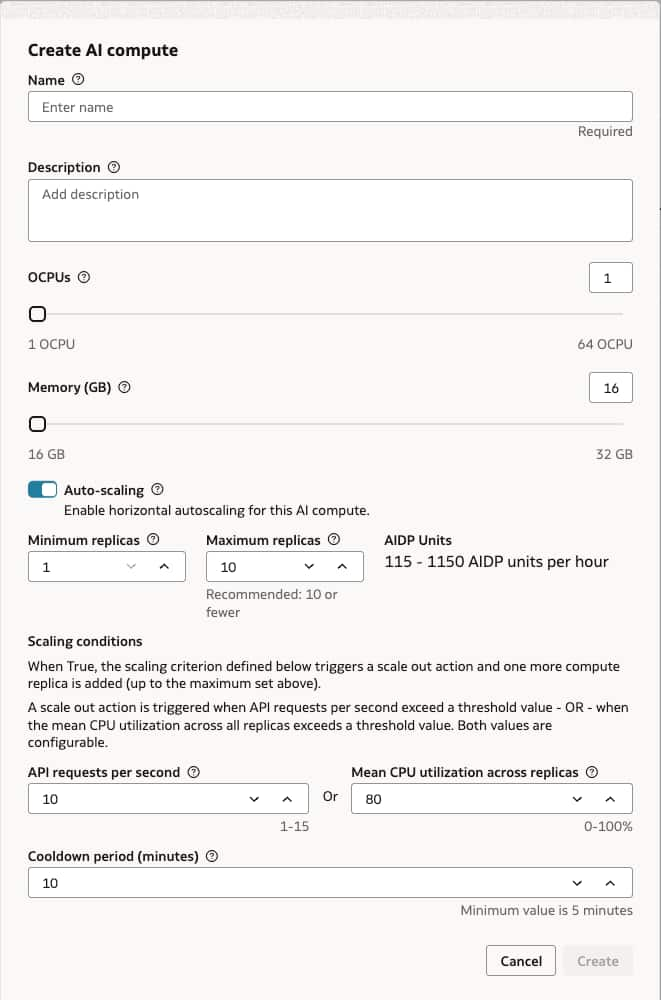
AI compute autoscaling helps your agents handle changes in demand without requiring you to add replicas manually. You can configure scaling based on API requests per second or average CPU utilization across the AI compute replica set. Set minimum and maximum replica counts to define boundaries on compute capacity.
Simplify playground and deployment workflows
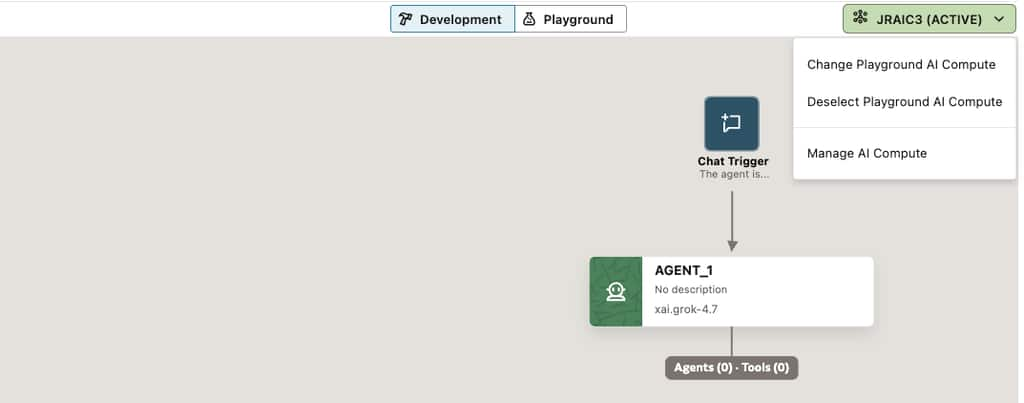
You can now change or deselect the AI compute hosting the playground from the compute menu.
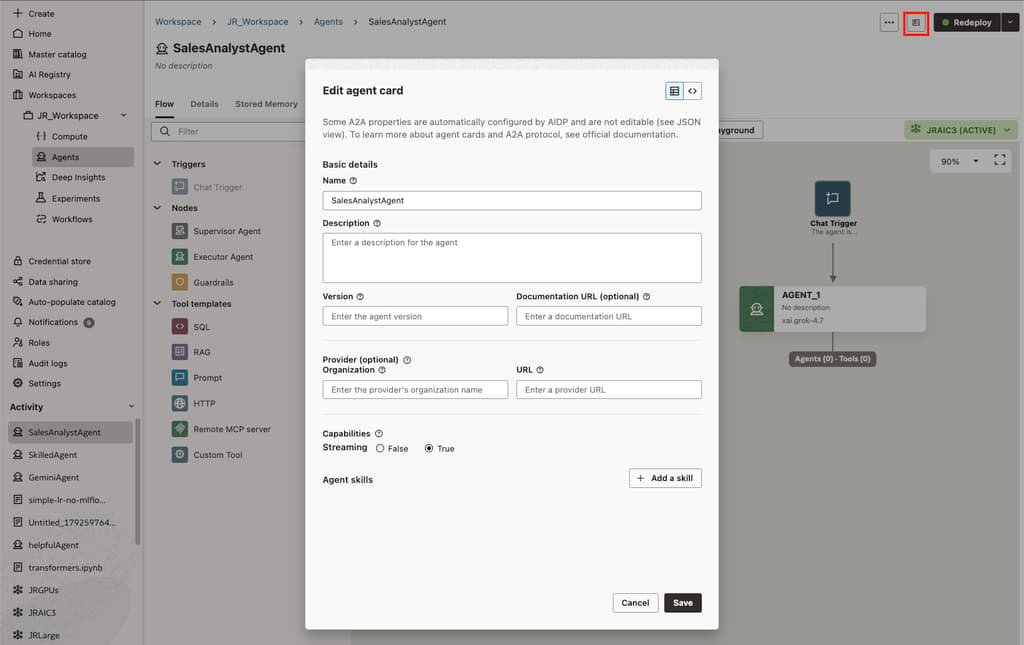
Updating a deployed agent is also simpler. After making changes, click Redeploy to update the agent at its existing endpoint without first undeploying it.

Choose a runtime identity with Run As
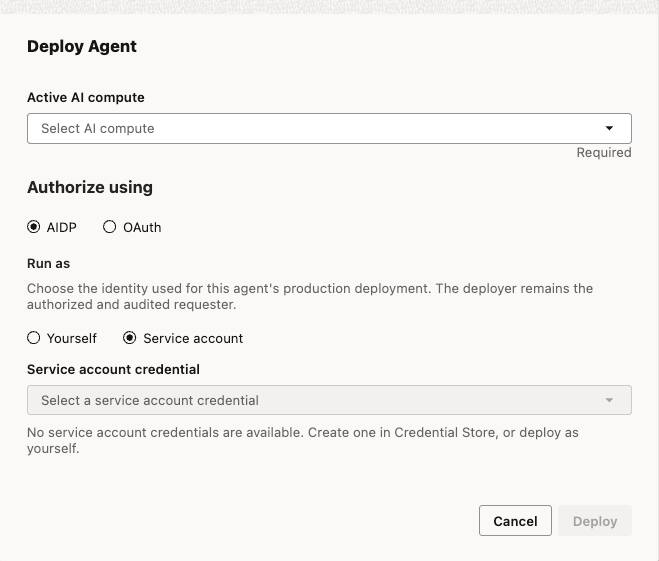
The Run As feature lets you choose the identity a deployed agent uses for platform operations. Select your own identity or a service account to keep the deployment independent of an individual user’s access.
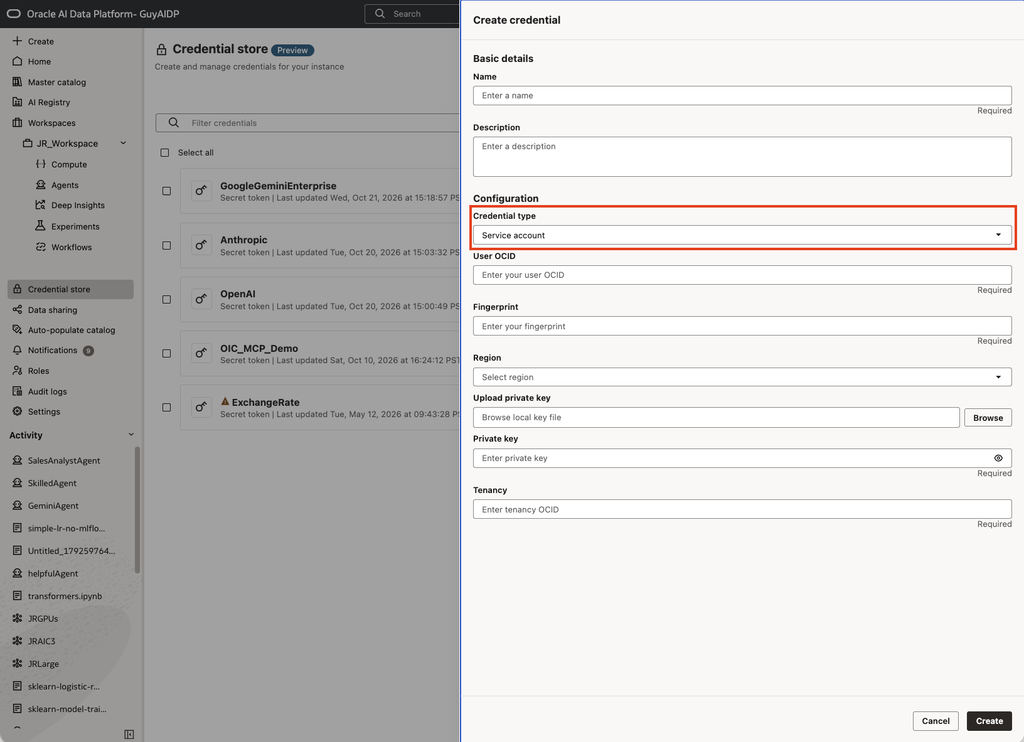
To use a service account, register its credentials in the Credential Store by selecting the user OCID and uploading the associated private key. Assign the account’s user to the appropriate platform role. The agent then performs platform operations with the permissions associated with that account.
Run As determines the identity used for the deployed agent’s platform operations. Access to invoke the agent and authentication to downstream tools are configured separately.
Ready to explore the updates? Open an agent in the visual flow builder and start by reviewing its memory settings or adding a reusable skill. Use the resources below to learn more.