
Introduction
The WebLogic Kubernetes Operator (WKO) simplifies running WebLogic workloads in Kubernetes clusters, including those managed by Oracle Cloud Infrastructure (OCI) Kubernetes Engine (OKE). When deploying WebLogic in a Kubernetes cluster, each node that runs WebLogic pods must be covered by a WebLogic license and support contract. OKE enables you to group these nodes into node pools that share the same compute configuration and can be labeled to ensure that pods run exclusively on the nodes within a specific pool.
Moreover, if you are running WebLogic on OKE, you do not necessarily need to purchase or own perpetual WebLogic licenses or pay for support contracts. Instead, you can pay per OCPU/hour for entitlement and support to run WebLogic Server on OKE with WebLogic Server for OKE UCM images.
This blog will guide you through the process of creating node pools using WebLogic Server for OCI OKE images, dedicated to running WebLogic pods. By doing so, you can take advantage of the Universal Credits Model (UCM), where you are charged a price per OCPU.
This blog explains how to:
- Create an image subscription for the WebLogic for OKE UCM image.
- Create a new node pool in an existing OKE cluster, using the WebLogic for OKE UCM image.
- Create a WebLogic domain whose pods will run in the new node pool dedicated to WebLogic workloads.
This blog assumes the following:
- You already have an OKE cluster with managed nodes. Managed nodes can have custom images.
- Your OCI user has the necessary permissions to create a new node pool in the OKE cluster.
- You have installed the OCI CLI and jq on a Linux or Mac computer to run the commands to update a node pool, or you can use OCI CloudShell instead.
- You can access your OKE cluster using kubectl.
Create a Compute PIC Image Subscription and Get the Image OCID
To create compute instances using the WebLogic for OKE UCM images, you need to create a compute partner image catalog (PIC) subscription. For this, you must have the app catalog listing ID and the resource version. You also need the OCID of the image to be used by the new OKE node pool for WebLogic pods.
The following table contains information on the latest images for Enterprise Edition and Suite images:
| Edition | Marketplace listing id | Image name | Image ocid | App catalog listing id | Resource version |
| Enterprise Edition (EE) | 70276523 | 26.2.2-ol8.10-2026.04.30-3-OKE-1.35.2-260523-1 | ocid1.image.oc1..aaaaaaaaz37o4xzc6v4blha4gye5x2cckvno6qcfx2elokdleo3tzf6yt5za | ocid1.appcataloglisting.oc1..aaaaaaaa653zc2e4fsem5hhwinmfgnv3xp4dmbq6c6gvf45okxf6xz3smhiq | 26.2.2-ol8.10-2026.04.30-3-OKE-1.35.2-260523-1 |
| Suite | 70277452 | 26.2.2-ol8.10-2026.04.30-3-OKE-1.35.2-260523-1 | ocid1.image.oc1..aaaaaaaaexyj6gigmppgimugigs2h53sjljrbsvbj6hywzlwndb6rwnr7hma | ocid1.appcataloglisting.oc1..aaaaaaaaq2vkow7zwkxg6ky4zxsnckdlfgtgmg7i4kkyev3y6zyo72mpkgza | 26.2.2-ol8.10-2026.04.30-3-OKE-1.35.2-260523-1 |
Read the Oracle Terms of Use
The Oracle terms of use are part of the agreement accepted when creating the subscription. To read the Oracle terms of use, run the following commands from your terminal or CloudShell and open the link in the oracle-terms-of-use-link field. Use the listing_id and resource_version from the table above, depending on whether you want to use the EE or Suite image.
listing_id=< app catalog listing from table >
resource_version=< version from table >
oci compute pic agreements get --listing-id "$listing_id" --resource-version "$resource_version"
Example:
user@cloudshell:~ (us-ashburn-1)$ listing_id=ocid1.appcataloglisting.oc1..aaaaaaaabw6dti6ejlfe4h5vcdtuemmzcbxc6myje2t4au6fox5excyiy2ma
user@cloudshell:~ (us-ashburn-1)$ resource_version=22.4.1-221016100801
user@cloudshell:~ (us-ashburn-1)$ oci compute pic agreements get --listing-id "$listing_id" --resource-version "$resource_version"
{
  "data": {
    "eula-link": null,
    "listing-id": "ocid1.appcataloglisting.oc1..aaaaaaaabw6dti6ejlfe4h5vcdtuemmzcbxc6myje2t4au6fox5excyiy2ma",
    "listing-resource-version": "22.4.1-221016100801",
    "oracle-terms-of-use-link": "https://objectstorage.us-ashburn-1.oraclecloud.com/n/partnerimagecatalog/b/eulas/o/oracle-apps-terms-of-use.txt",
    "signature": "5027cb65b2967079b58e5da35012b919ef852c08958dbdd36d7ccb82ef6a1078",
    "time-retrieved": "2025-12-12T18:44:33.431000+00:00"
  }
}
user@cloudshell:~ (us-ashburn-1)$
Create PIC Image Subscription
To create the PIC image subscription, run the following commands, specifying the compartment where you want to create the compute instances for the WebLogic node pool nodes, and the listing_id and resource_version:
compartment_id=< compartment_ocid >
listing_id=< app catalog listing from table >
resource_version=< version from table >

echo "Fetching agreements for listing:$listing_id and version:$resource_version"
agreements=$(oci compute pic agreements get --listing-id "$listing_id" --resource-version "$resource_version")
signature=$(printf "%s" $agreements | jq -r '.data."signature"')
time_ret=$(printf "%s" $agreements  | jq -r '.data."time-retrieved"' | sed -e 's/000+00:00/Z/')
oracle_tou_link=$(printf "%s" $agreements | jq -r '.data."oracle-terms-of-use-link"')

echo 'Creating subscription'
oci compute pic subscription create --compartment-id "$compartment_id" --listing-id "$listing_id" --resource-version "$resource_version" \
   --signature "$signature" --oracle-tou-link "$oracle_tou_link" --time-retrieved "$time_ret"
This is an example for creating a subscription for the EE image:
compartment_id=< compartment_ocid >
listing_id=ocid1.appcataloglisting.oc1..aaaaaaaabw6dti6ejlfe4h5vcdtuemmzcbxc6myje2t4au6fox5excyiy2ma
resource_version=22.4.1-221016100801

echo "Fetching agreements for listing:$listing_id and version:$resource_version"
agreements=$(oci compute pic agreements get --listing-id "$listing_id" --resource-version "$resource_version")
signature=$(printf "%s" $agreements | jq -r '.data."signature"')
time_ret=$(printf "%s" $agreements  | jq -r '.data."time-retrieved"' | sed -e 's/000+00:00/Z/')
eula_link=$(printf "%s" $agreements | jq -r '.data."eula-link"')
oracle_tou_link=$(printf "%s" $agreements | jq -r '.data."oracle-terms-of-use-link"')

echo 'Creating subscription'
oci compute pic subscription create --compartment-id "$compartment_id" --listing-id "$listing_id" --resource-version "$resource_version" \
   --signature "$signature" --oracle-tou-link "$oracle_tou_link" --time-retrieved "$time_ret"
You can save these instructions in a file called example_pic_subscription.sh and run it from your terminal:
sh example_pic_subscription.shGrant OKE Access to the Marketplace Image
After creating the PIC subscription, grant the OKE service and node-pool resource principals permission to read the application catalog listing. Creating the subscription with your own OCI user does not automatically grant these permissions to OKE.
Create an IAM policy in the compartment where the worker nodes will be provisioned, or in a parent compartment, containing the following statements. Replace <worker_node_compartment_name> with that compartment’s name:
Allow service oke to read app-catalog-listing in compartment <worker_node_compartment_name>
Allow any-user to read app-catalog-listing in compartment <worker_node_compartment_name> where request.principal.type = 'nodepool'
The second statement is restricted to node-pool resource principals; it does not grant catalog access to every user.
Without the required permissions, worker-node provisioning can fail with the following error, even when the PIC subscription exists and you can launch a standalone Compute instance using the same image:
Invalid COMPUTE_INSTANCE: Authorization failed or requested resource not found while provisioning node(s).List Shapes Compatible with the Image
You need to know which shapes are compatible with the image to use in the WebLogic node pool. Run the following command to get the shapes compatible with the image (use the image OCID from the table above):
oci compute image-shape-compatibility-entry list --image-id < image_ocid >This is an example for the EE image:
user@cloudshell:~ (us-ashburn-1)$ oci compute image-shape-compatibility-entry list --image-id ocid1.image.oc1..aaaaaaaatkqoykn3a3jkeipctecrii4ellujvj6ogmvk77epqpuzllyh6waa
{
  "data": [
    {
      "image-id": "ocid1.image.oc1..aaaaaaaatkqoykn3a3jkeipctecrii4ellujvj6ogmvk77epqpuzllyh6waa",
      "memory-constraints": null,
      "ocpu-constraints": null,
      "shape": "VM.Optimized3.Flex"
    },
    {
      "image-id": "ocid1.image.oc1..aaaaaaaatkqoykn3a3jkeipctecrii4ellujvj6ogmvk77epqpuzllyh6waa",
      "memory-constraints": null,
      "ocpu-constraints": null,
      "shape": "VM.Standard.AMD.Generic"
    },
    {
      "image-id": "ocid1.image.oc1..aaaaaaaatkqoykn3a3jkeipctecrii4ellujvj6ogmvk77epqpuzllyh6waa",
      "memory-constraints": null,
      "ocpu-constraints": null,
      "shape": "VM.Standard.E2.1"
    },
    {
      "image-id": "ocid1.image.oc1..aaaaaaaatkqoykn3a3jkeipctecrii4ellujvj6ogmvk77epqpuzllyh6waa",
      "memory-constraints": null,
      "ocpu-constraints": null,
      "shape": "VM.Standard.E2.2"
    },
    {
      "image-id": "ocid1.image.oc1..aaaaaaaatkqoykn3a3jkeipctecrii4ellujvj6ogmvk77epqpuzllyh6waa",
      "memory-constraints": null,
      "ocpu-constraints": null,
      "shape": "VM.Standard.E2.4"
    },
    {
      "image-id": "ocid1.image.oc1..aaaaaaaatkqoykn3a3jkeipctecrii4ellujvj6ogmvk77epqpuzllyh6waa",
      "memory-constraints": null,
      "ocpu-constraints": null,
      "shape": "VM.Standard.E2.8"
    },
    {
      "image-id": "ocid1.image.oc1..aaaaaaaatkqoykn3a3jkeipctecrii4ellujvj6ogmvk77epqpuzllyh6waa",
      "memory-constraints": null,
      "ocpu-constraints": null,
      "shape": "VM.Standard.E3.Flex"
    },
    {
      "image-id": "ocid1.image.oc1..aaaaaaaatkqoykn3a3jkeipctecrii4ellujvj6ogmvk77epqpuzllyh6waa",
      "memory-constraints": null,
      "ocpu-constraints": null,
      "shape": "VM.Standard.E4.Flex"
    },
    {
      "image-id": "ocid1.image.oc1..aaaaaaaatkqoykn3a3jkeipctecrii4ellujvj6ogmvk77epqpuzllyh6waa",
      "memory-constraints": null,
      "ocpu-constraints": null,
      "shape": "VM.Standard.Intel.Generic"
    },
    {
      "image-id": "ocid1.image.oc1..aaaaaaaatkqoykn3a3jkeipctecrii4ellujvj6ogmvk77epqpuzllyh6waa",
      "memory-constraints": null,
      "ocpu-constraints": null,
      "shape": "VM.Standard.x86.Generic"
    },
    {
      "image-id": "ocid1.image.oc1..aaaaaaaatkqoykn3a3jkeipctecrii4ellujvj6ogmvk77epqpuzllyh6waa",
      "memory-constraints": null,
      "ocpu-constraints": null,
      "shape": "VM.Standard2.1"
    },
    {
      "image-id": "ocid1.image.oc1..aaaaaaaatkqoykn3a3jkeipctecrii4ellujvj6ogmvk77epqpuzllyh6waa",
      "memory-constraints": null,
      "ocpu-constraints": null,
      "shape": "VM.Standard2.16"
    },
    {
      "image-id": "ocid1.image.oc1..aaaaaaaatkqoykn3a3jkeipctecrii4ellujvj6ogmvk77epqpuzllyh6waa",
      "memory-constraints": null,
      "ocpu-constraints": null,
      "shape": "VM.Standard2.2"
    },
    {
      "image-id": "ocid1.image.oc1..aaaaaaaatkqoykn3a3jkeipctecrii4ellujvj6ogmvk77epqpuzllyh6waa",
      "memory-constraints": null,
      "ocpu-constraints": null,
      "shape": "VM.Standard2.24"
    },
    {
      "image-id": "ocid1.image.oc1..aaaaaaaatkqoykn3a3jkeipctecrii4ellujvj6ogmvk77epqpuzllyh6waa",
      "memory-constraints": null,
      "ocpu-constraints": null,
      "shape": "VM.Standard2.4"
    },
    {
      "image-id": "ocid1.image.oc1..aaaaaaaatkqoykn3a3jkeipctecrii4ellujvj6ogmvk77epqpuzllyh6waa",
      "memory-constraints": null,
      "ocpu-constraints": null,
      "shape": "VM.Standard2.8"
    },
    {
      "image-id": "ocid1.image.oc1..aaaaaaaatkqoykn3a3jkeipctecrii4ellujvj6ogmvk77epqpuzllyh6waa",
      "memory-constraints": null,
      "ocpu-constraints": null,
      "shape": "VM.Standard3.Flex"
    },
    {
      "image-id": "ocid1.image.oc1..aaaaaaaatkqoykn3a3jkeipctecrii4ellujvj6ogmvk77epqpuzllyh6waa",
      "memory-constraints": null,
      "ocpu-constraints": null,
      "shape": "BM.Standard.E2.64"
    },
    {
      "image-id": "ocid1.image.oc1..aaaaaaaatkqoykn3a3jkeipctecrii4ellujvj6ogmvk77epqpuzllyh6waa",
      "memory-constraints": null,
      "ocpu-constraints": null,
      "shape": "BM.Standard2.52"
    },
    {
      "image-id": "ocid1.image.oc1..aaaaaaaatkqoykn3a3jkeipctecrii4ellujvj6ogmvk77epqpuzllyh6waa",
      "memory-constraints": null,
      "ocpu-constraints": null,
      "shape": "BM.Optimized3.36"
    },
    {
      "image-id": "ocid1.image.oc1..aaaaaaaatkqoykn3a3jkeipctecrii4ellujvj6ogmvk77epqpuzllyh6waa",
      "memory-constraints": null,
      "ocpu-constraints": null,
      "shape": "BM.Standard3.64"
    }
  ]
}
user@cloudshell:~ (us-ashburn-1)$
Create a New Node Pool Using the WLS for OKE UCM Image
You cannot specify a custom image when creating a new node pool in an OKE cluster using the OCI console. Therefore, first create a new node pool using one of the standard images, and then update the node pool to set the WebLogic for OKE UCM image.
Using the OCI console, add a new managed node pool to the existing OKE cluster:
- In the Advanced options section, after the Kubernetes version field, add another pair of Kubernetes labels. These will be used to target the WebLogic workloads to this pool. In this blog, a label with key: usage and value: weblogic is used.
- Make sure that you choose a shape that is compatible with the WebLogic for OKE UCM image. You have obtained the compatible shapes in a previous step.
- Use one of the OKE Worker Node Images.
- Under Node Pool Options, set the Node count to 0. You do not want to create a node yet.
- Click Add to add the new node pool.
Update the image of the new node pool. For <image_ocid>, use the OCID of the image from the table. Run the following command from your terminal or CloudShell:
oci ce node-pool update --node-pool-id < node_pool_ocid > --node-source-details '{"imageId":"< image_ocid >", "sourceType":"IMAGE"}'Verify that the node pool is now using the WLS for OKE UCM image. In the OCI console, select your OKE cluster, go to the Node pools tab, click the node pool you created, and check under the Details tab to verify that the Image name is now wlsoke-custom-nodepool-image-*.
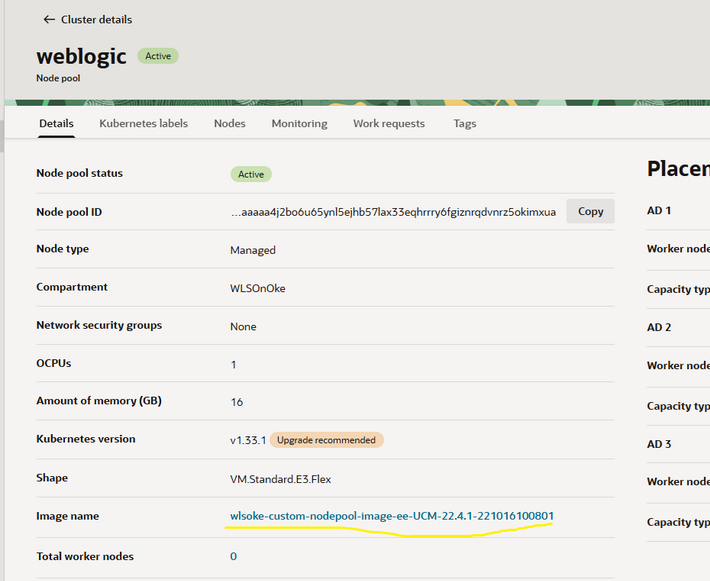
Use the OCI Console to edit the node pool and increase the number of nodes in the node pool. Add at least 2 nodes if you want to create a JRF WebLogic domain. The new worker nodes will use the WebLogic for OKE UCM image.
Go to the Nodes tab, and wait until the nodes are in the Active state. Take note of the private IP addresses of the nodes; you will need them later.
Create Your WebLogic Domain and Run the WebLogic Pods in the Node Pool with the WebLogic for OKE UCM Image
After adding a node pool with the WebLogic for OKE UCM image to your OKE cluster, you can create a WebLogic domain. The WebLogic Kubernetes Operator provides extensive documentation and samples.
There are samples to create non-JRF domains (such as the QuickStart sample and the model-in-image domain sample) or JRF domain samples (where you need to use persistent volumes). Note that Oracle recommends using Oracle Cloud Infrastructure File Storage (FSS) for persistent volumes to store the WebLogic domain home or log files when running the Kubernetes cluster on Oracle Container Engine for Kubernetes (OKE).
When creating your domain, be sure to specify in your model YAML file that the WebLogic pods should run in the node pool using the WebLogic for OKE UCM image. You can do this by adding a node selector to your model YAML. For example, add the node selector to serverPod:
 # Settings for all server pods in the domain including the introspector job pod
  serverPod:
    nodeSelector:
      usage: weblogic
    env:
    - name: CUSTOM_DOMAIN_NAME
      value: "domain1"
    - name: JAVA_OPTIONS
      value: "-Dweblogic.StdoutDebugEnabled=false"
    - name: USER_MEM_ARGS
      value: "-Djava.security.egd=file:/dev/./urandom -Xms256m -Xmx1024m "
    resources:
      requests:
        cpu: "500m"
        memory: "1280Mi"
In this way, all server pods in the domain will run on nodes labeled usage: weblogic.
After your domain resource is created, verify that the pods are running on the nodes of the node pool created for WebLogic workloads. Run the following command to get all the pods in the namespace of your WebLogic domain, and the nodes where the pods are running. Validate that all pods are running on nodes that belong to the WebLogic node pool:
kubectl get pods -n < namespace > -o wideFor example, if you followed one of the WKO samples, and used the namespace sample-domain1-ns:
$ kubectl get pods -n sample-domain1-ns -o wide
NAME                                READY   STATUS    RESTARTS   AGE   IP             NODE        NOMINATED NODE   READINESS GATES
sample-domain1-admin-server         1/1     Running   0          30d   10.244.4.130   10.0.4.6    <none>           <none>
sample-domain1-managed-server1-c1   1/1     Running   0          30d   10.244.3.130   10.0.4.11   <none>           <none>
sample-domain1-managed-server2-c1   1/1     Running   0          30d   10.244.4.131   10.0.4.6    <none>           <none>
$
Summary
In this blog, you learned how to create a node pool in an OKE cluster to run your WebLogic workloads and how to use the UCM model for licensing those workloads. You also learned how to ensure your WebLogic workloads run in the new node pool by using node selectors.