
Most joins are between tables in a one-to-many (1:M) relationship. This means for each row in the “to one” table, there can be many associated rows in the “to many” table. So the join can duplicate each row in the “to one” table many times in the results.
For example, each country can have many address locations. When you join these tables along the 1:M relationship, the results will show each location once and duplicate each country once for each location it has:
Duplicating rows from the “to one” side is normal and expected. Problems arise if the query duplicates rows in the “to many” table.
For example, you may only want to see the locations that have a department registered to them. To do this, you can add departments to the join list above:
Each location can have many departments. So now the query returns many identical rows per location: one for each department at that address. Presenting these duplicates to data consumers is generally a mistake.
This suggests the second query is incorrect for one of two reasons:
- If departments are the subject of the query: you should select its columns so rows are no longer duplicates.
- If locations are the subject of the query: you should filter them by departments using an
inorexistssubquery in thewhereclause, aka a semijoin. This ensures each location appears at most once.
Which action you should take depends on your requirements. When you only want to filter locations, use a semijoin. Join to departments when you want to include their columns in the results.
The problem is the database doesn’t catch the mistake in the second query. It’s easy to overlook the fact it returns duplicate rows. This is especially true if few or no locations have many departments. This leaves data consumers guessing. Are duplicate rows really different places or unwanted copies?
To fix this problem, Oracle AI Database 23.26.2 introduces new syntax: join to one. This raises an error instead of silently duplicating data.
Prevent unwanted duplicates with join to one
The basic syntax of join to one is:
FROM subject_table JOIN TO ONE ( t2, t3, ... )The table in the from clause is the subject table: this is the one whose rows you’re listing or counting. By default, every row from this table will appear once in the results. This is also known as the row-widening table.
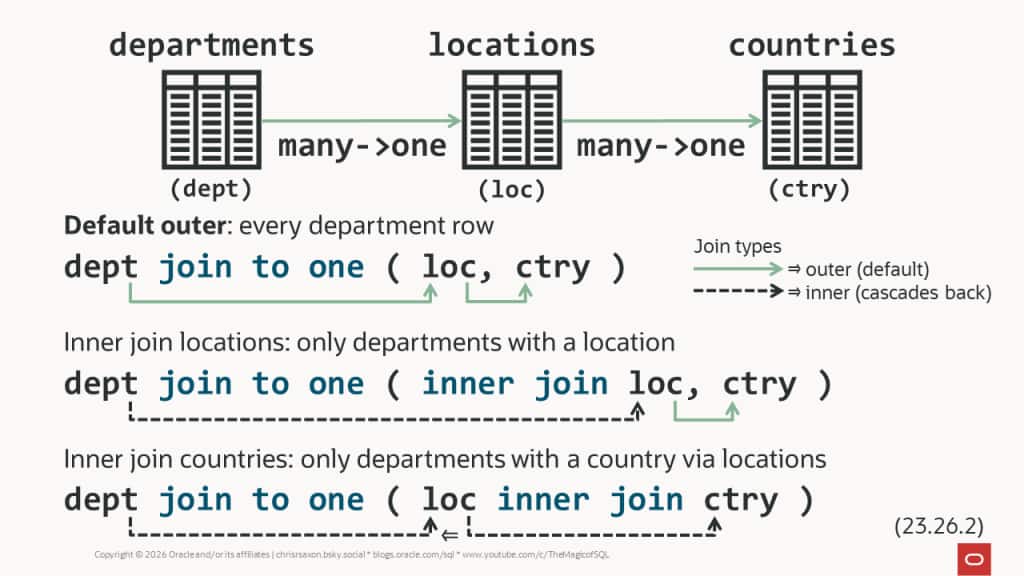
The database works left-to-right through the tables in join to one, joining them to the existing tables. It returns every row from the subject table, meaning it defaults to outer joins. This is different from traditional joins, which default to inner. So, with join to one expect to get more rows from the subject table compared to traditional joins.
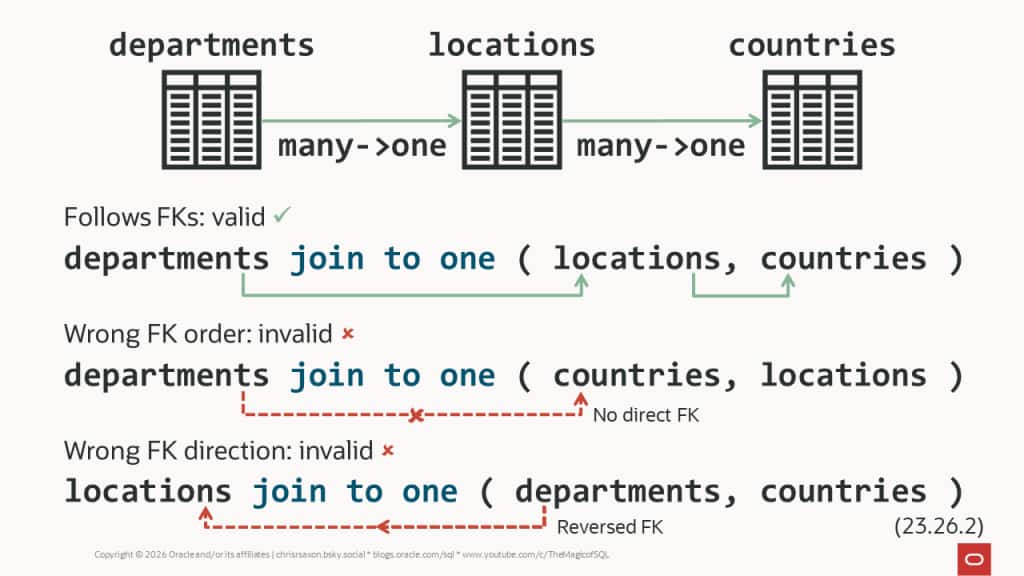
By default, join to one uses foreign keys (FKs) to determine the join conditions. For each table, the database checks if there’s an FK to it from one of the tables to its left in join to one.
For example, there is an FK from locations to countries. So, you could write the query at the start of this post using join to one like so:
Adding departments to the join list highlights the problem. The FK is from locations to departments. This is the wrong direction for join to one, so the query raises an error:
You’ll also get this error if there are no FKs defined on the tables. You can overcome this by specifying the join condition after each table in join to one using on.
Add a join condition to the previous query and it now raises a different error:
This tells you the output contains duplicate location rows. As before, to fix this either:
- You should filter locations using a semijoin to departments.
- You should move departments into the
fromclause instead of locations. This makes departments the subject table.
As with traditional joins, you need to decide which of these solutions is correct for the query.
The key point is join to one no longer silently duplicates location rows. Instead it errors, forcing you to correct the query.
Note the database only raises the ORA-18640 error when it fetches a duplicate row. If you limit the query to return only one row, there can be no duplicates. So, the query succeeds:
This is safer than silent duplication; the error leaves data consumers in no doubt that there’s a problem. But it means mistakes can still make it to production code. You still need tests to cover cases where duplicates are possible to avoid this.
This is especially true when there are many paths to a table.
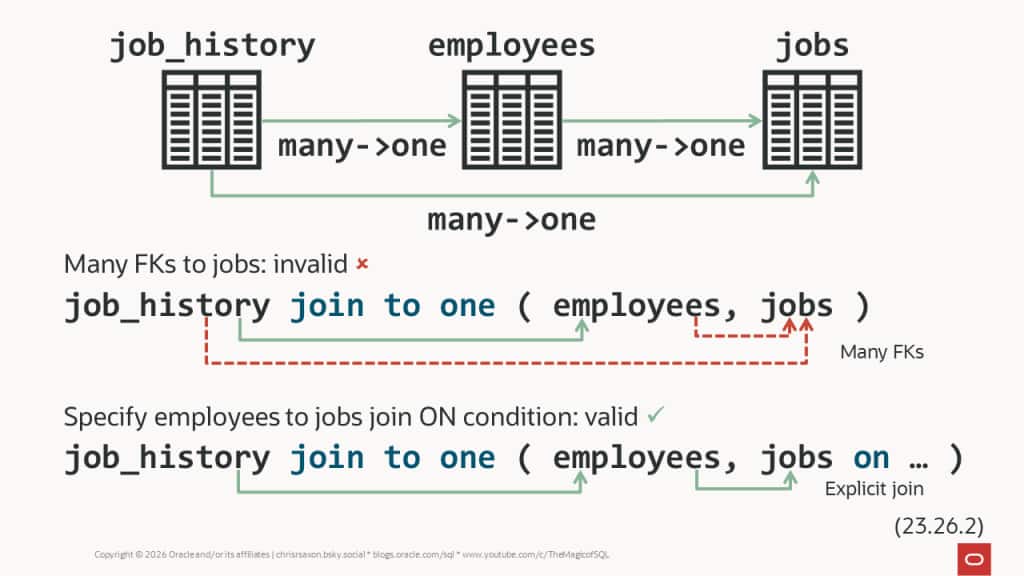
Table order in join to one
Ensuring tables are in the correct order is a critical step for join to one. Get this wrong and you’ll get errors or unexpected results.
We’ve already seen that listing tables in the opposite order to the FK leads to errors. But you can still run into surprises when the joins follow the FKs.
For example, the following query joins a person’s job history to their historical job. Then their employee record:
But if you move jobs to the end of the table list, the database joins job history to the employee record. Then it’s stuck: both job_history and employees have FKs to the jobs table. The database doesn’t know which to use, so raises an error:
This happens whenever there are many FKs to choose from, whether spread across many tables or only listed in one. To resolve this, specify the join condition. This fixes the previous query by joining to the employee’s current job:
While you can use the implied FK joins, it’s good practice to explicitly list the join criteria for each table in join to one. New FKs can be added or existing ones removed at any time. Stating the join condition protects your code against these changes.
It also ensures the query won’t find FKs you’ve forgotten about.
Surprise FKs
Picking the wrong subject table typically raises an error. But if you’re unfamiliar with the schema join to one may still run and return unexpected results.
For example, this successfully goes from departments to employees to count the staff in each department:
Instead of an error, this shows zero or one employees in each department.
Why?!
Because each department has a manager, which is an FK back to employees! The query picks up the manager FK instead of the traditional employees to departments FK.
Each department has at most one manager and join to one defaults to (left) outer joins. So, the result includes departments with no staff.
Stating the join is on the department_id column avoids this surprise. The query now raises a duplicate row error when you run it:
So, what’s the problem now?
To count employees per department, employees need to be the subject. Swap the tables around to resolve this:
This now counts the employees per department. Note that the outer join means it includes employees with no assigned department. If you only want assigned employees, you can change this to an inner join.
Change join to one join type
You can specify the join method before each table in join to one. This can be either:
inner join[left] outer join
The following tweaks the previous query to inner join employees to departments:
Traditional joins default to inner and join to one defaults to outer, so you may want to state the join type before every table for clarity. The join type only applies to the table that immediately follows it. Note inner joins cascade backwards, overriding earlier outer joins. Meaning if you inner join the last table in the list, all the joins are inner.
You can mix-and-match commas and joins for separating tables in join to one. Each pair of tables can only be separated by either join or comma.
For example:
Tips for using join to one
- Ask yourself: which table is the subject of the query? Whose rows are you counting or listing? Place this table in the
fromclause. - Determine which order you want to join the other tables. List them in this order in
join to one. - For safety, specify the join conditions. You must do this if there are many or no foreign keys to a table in the list.
- Optional: specify
inner joinif needed.
- Optional: specify
- If you’re only accessing a table to filter the data, link it with a semijoin.
Further reading
Read the full details on how join to one helps you write correct joins in the Database Development Guide.
See join to one in action in April’s Ask TOM Live session on this feature: