Oracle Solaris Cluster Manager (Cluster Manager) provides a way to set up and administer disaster recovery (DR) orchestration starting in Oracle Solaris Cluster 4.3. Prior to this version, DR orchestration could be administered only by using the command line interface (CLI). The Cluster Manager browser interface makes it easier by providing a user-friendly way of doing it, with either clicks or by typing in the user-defined fields, eliminating the need to memorize the commands and the sub-commands. Providing inline and online help, Cluster Manager also eliminates potential errors by doing appropriate checks.
Prerequisites for DR Orchestration to Be Usable Under Oracle Solaris Cluster Manager 4.3
- Geographic Edition software is installed.
# pkg info ha-cluster/group-package/ha-cluster-geo-full - Geographic Edition infrastructure is enabled and the Geographic Edition resource groups and resources are running.
# /usr/cluster/bin/geoadm show
# /usr/cluster/bin/clresourcegroup status geo-clusterstate geo-infrastructure
# /usr/cluster/bin/clresource status -g geo-clusterstate,geo-infrastructure
Access the DR Orchestration
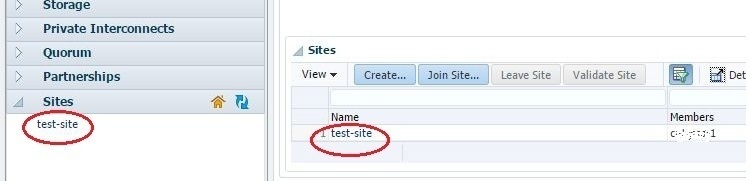
In version 4.3, the DR orchestration feature is accessed via the Sites folder in the navigation pane.
Access Sites Details
The site details can be accessed in one of the following ways:
- Click the site name in the tree under Sites folder in the navigation pane.
- Click the Sites folder. Then, click the site name in the Sites table in the main panel.
Access Multigroup Details
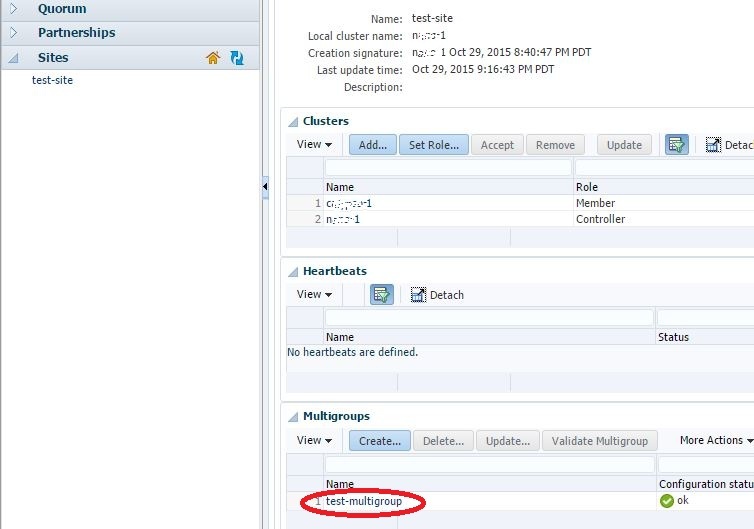
Browse to the site details page as mentioned above, then click the multigroup name in the Multigroups table.
Access the Details of a Protection Group In a Multigroup
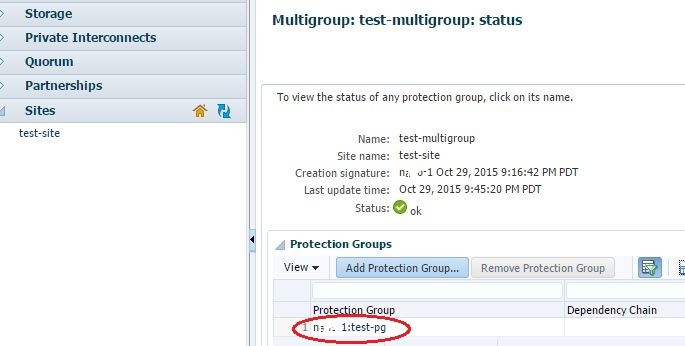
Browse to the Multigroup details page as mentioned above, then click the protection group name in the Protection Groups table.
Creating a Site and a Multigroup
Creating a Site
- Click the Sites folder. Click the Create button in the Sites table. A wizard will pop up.
- In the Initial Setup step, enter the Site Name. The role of the current cluster is controller by default. Click the Add Cluster button to add more clusters. Enter the name of the cluster in the table below the button and the role of the cluster. To skip the next step and use the default site properties, check the checkbox.
Note: In version 4.3, the cluster to be added to the current cluster must have the same password for root user as that of the current cluster.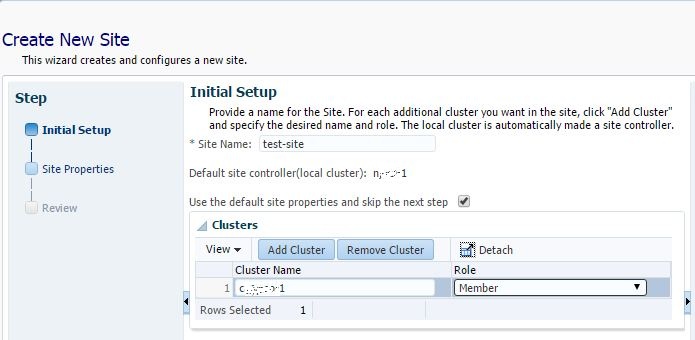
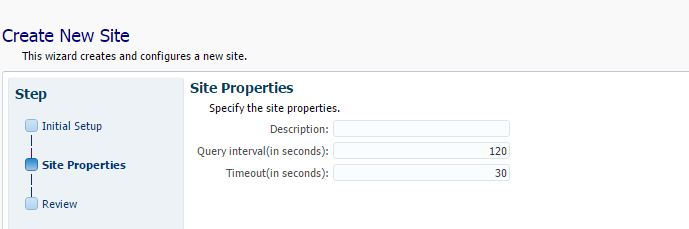
- In the Site Properties step, enter the different site property fields.
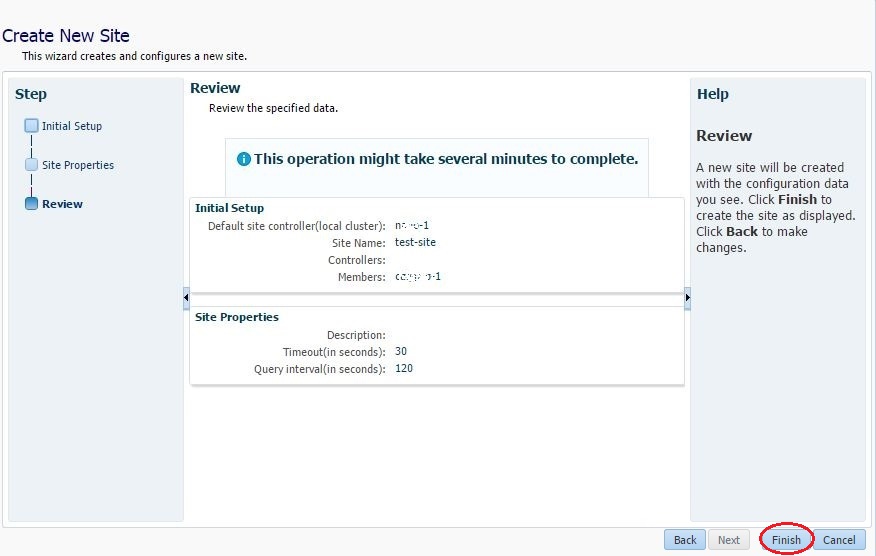
- In the Review step, review the already entered values and click Finish.
Creating a Multigroup
- Browse to the Site details page as mentioned earlier.
- Click the Create button in the Multigroups table.
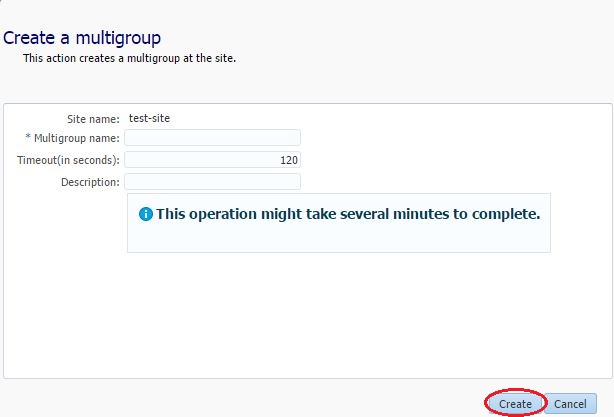
- In the pop-up, enter the multigroup name. The other fields are optional. Then click Create.
DR Orchestration Operations Available in the Cluster Manager Browser Interface
Site Operations
In All Sites Table
- Create site
- Join Site
- Leave Site
- Validate Site
In Site Details Page
- Add Cluster to the site
- Set Role for clusters in the site
- Accept another cluster in the site as controller
- Remove a cluster from the site
- Update site information from another cluster in the site
Multigroup Operations
In the Multigroups Table
- Create a multigroup
- Delete a multigroup
- Update a multigroup information from another cluster in the site
- Validate a multigroup with another cluster in the site
- Start Multigroup
- Stop Multigroup
- Switch Over Multigroup
- Take Over Multigroup
In the Protection Groups Table of the Multigroup Details Page
- Add Protection Group
- Remove Protection Group
Editing Site and Multigroup Properties
- Browse to the Site or Multigroup details page.
- Click the Properties tab at the top below the breadcrumb.
- Click the Edit button.
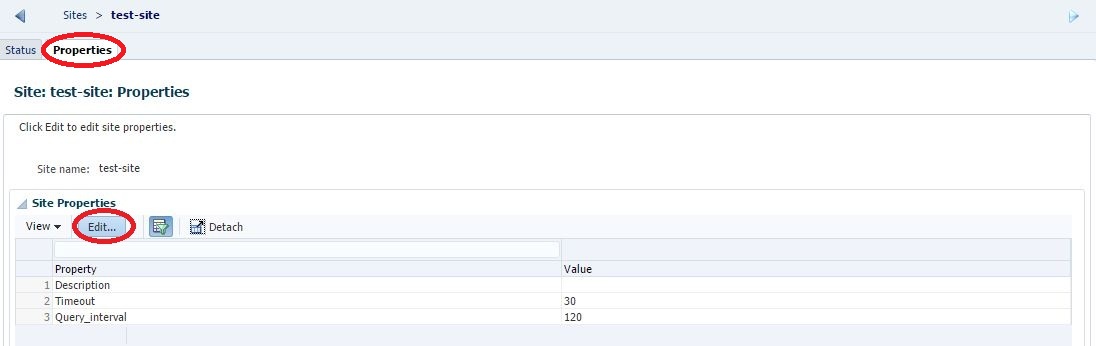
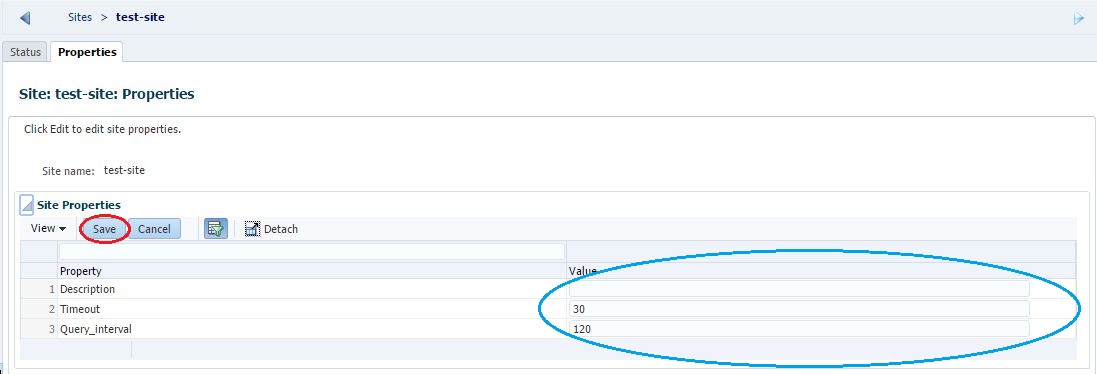
- The area with the Edit button now have Save and Cancel button. The value column changes into editable fields wherever applicable(encircled in blue). Make the changes and click the Save button.
To see more on configuring, administering and CLI options of Oracle Solaris Cluster 4.3 Geographic Edition, follow the links below:
- Configuring Sites and Multigroups
- Administering Sites
- Administering Multigroups
- geomg(1M)
- geosite(1M)