
Author: Glenn Faden
Multilevel ZFS Filesystems
A new zfs option, multilevel, was introduced in Oracle Solaris 11.1. See the section entitled How to Create and Share a Multilevel Dataset in the Trusted Extensions Administration and Configuration Guide.
I’ve written a labeldemo shell script that can be used to try out this new feature. Although it implemented using ksh, it uses two GNOME applications to provide GUIs for file selection and relabeling. The file selection uses zenity(1) and the relabeling uses the tgnome-selectlabel utility. The demo can be run in either the global zone or in a labeled zone using the Trusted Desktop.
Here are some of the preliminary steps:
- Create a multilevel file system in the global zone and mount it on /multi
zfs create -o multilevel=on -o mountpoint=/multi rpool/multi
- Create top-level directories corresponding to your zone labels
cd /multi
mkdir -m 777 red
setlabel "zone red" red
mkdir -m 777 blue
setlabel "zone blue" blue

 ...
- Make this filesystem available to your labeled zones via a loopback read-write mount.
zoneccfg -z red "add fs;set dir=/multi;set special=/multi;set type=lofs;end"
- Add the relabeling privileges to each zone:
zonecfg -z red set \ limitpriv=default,win_mac_read,win_mac_write,win_selection,file_downgrade_sl,\ file_upgrade_sl,sys_trans_label
- Add the following profile to the user doing the demo:
usermod -P +"Object Label Management" myname
- Set the default directory pathname that the demo should open when you start it by editing line 21 in the shell script:
21 default="/multi/white"
- Now run the labeldemo by invoking the shell script as the user. Here’s the first dialog you’ll see:
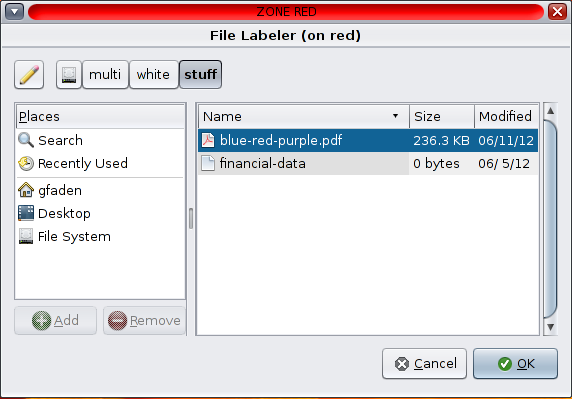
Use this dialog to select a file to be relabeled. Then the second dialog will appear:
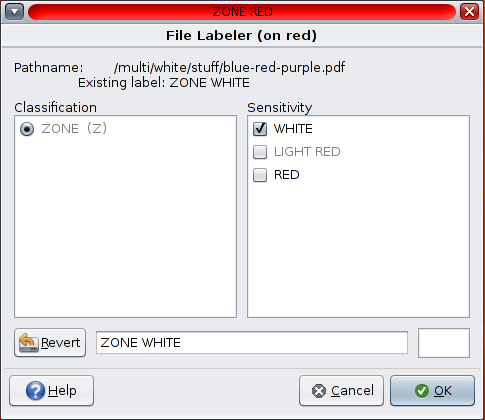
Note that the available labels are restricted since each file and directory must dominate its parent directory. The OS ensures that the labels are monotonically non-decreasing as the pathnames are traversed. So you can upgrade a file in place, up to the label of the zone in which you are running.
Here is where the warning about the upper bound check is generated:
 49         if [ "$flabel" == "$plabel" ]; then
 50             upgrading=0
 51             x=$(zenity --warning \
 52                 --title="$title" \
 53                 --text="$lbl \n\nCannot upgrade this pathname\n\
 54 higher than the zone label.")
 55          fi
But you can only downgrade a file to the label of its directory. If you want to apply a lower label, you must first move the object to a directory which is dominated by that new label. However, this a quick rename if the destination directory is in the same multilevel filesystem.
In line 73 the selected file is moved into the selected lower-level directory.
 56         if [ "$flabel" == "$minlabel" ]; then
 57             x=$(zenity --question \
 58                 --title="$title" \
 59                 --text="$lbl \n\n\
 60 Cannot downgrade in place because the pathname\n\
 61 is constrained by its parent label.\n\n\
 62 Do you want to select a directory to which the file will be moved?")
 63             if [ $? == 0 ]; then
 64                 dirname=$(zenity  --file-selection \
 65                     --title="$title" \
 66                     --directory \
 67                     --filename=$default )
 68                 if [[ -z $dirname ]]; then
 69                     if [ upgrading == 0 ]; then
 70                         break
 71                     fi
 72                 else
 73                     err=$(mv $pathname $dirname 2>&1)
 74                     if [ $? != 0 ]; then
 75                         x=$(zenity --warning \
 76                             --title="$title" \
 77                             --text="$lbl \n\n\
 78 The file label must dominate the directory label.")
 79                         break
 80                     fi
 81                     filename=$(basename $pathname)
 82                     pathname=$dirname/$filename
 83                     lbl=$(getlabel $pathname 2>&1)
 84                     if [ $? != 0 ]; then
 85                         break
 86                     else
 87                         flabel="$(echo $lbl|cut -d" " -f2-99)"
 88                     fi
 89                 fi
 90             fi
 91         fi