
Oracle Solaris Cluster Manager (Cluster Manager) is a browser interface available starting in Oracle Solaris
Cluster 4.2 running on Oracle Solaris 11.
Like its predecessor in Oracle Solaris Cluster 3.3 for Oracle Solaris
10, Cluster Manager displays all cluster objects with their status and details
and allows all management actions including creating and deleting
objects.
Getting Started
Making Sure Cluster Manager Is Installed
The browser interface is delivered as two IPS packages:
ha-cluster/system/manager
ha-cluster/system/manager-glassfish3
These packages are automatically installed as part of incorporationha-cluster-full or can be manually installed later if necessary with this command:
# pkg install ha-cluster/system/manager
After package installation these two SMF services:
online Aug_06 svc:/system/cluster/manager-glassfish3:default
online Aug_06 svc:/system/cluster/manager:default
will be started automatically and will come online. See Troubleshooting below if either service does not come online.
Running Cluster Manager
Point your browser at a cluster node where the browser interface services are
online:
https://<nodename>:8998
Only https is supported, which means that the first time accessing Cluster Manager you’ll be given a certificate warning. Take a moment to
assure yourself that you really are talking to the correct machine,
then allow your browser to add this name to its exceptions list for
certificates.
Authentication
By default, the target machine to authenticate into is “localhost”.
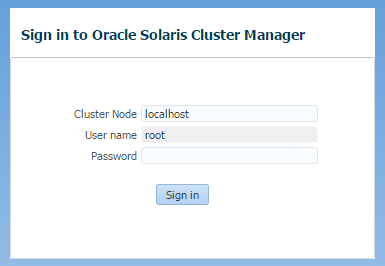
You may enter any machine name where at least Oracle Solaris Cluster 4.2 is installed, even if it’s in a different cluster than the machine
you browsed to. In version 4.3, if the target machine isn’t yet a cluster
node but cluster software is present on that machine you’ll be able
to connect and then bring up the cluster configuration wizard.
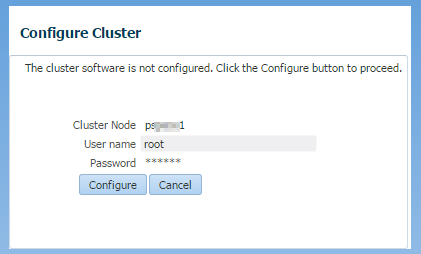
A future post will go into detail on using this wizard.
Overview
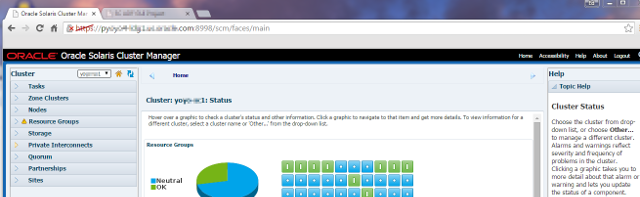
Cluster Manager in version 4, as in version 3, is laid out with a navigation pane to the
left and the details pane in the center. New in version 4 is a right–side
online help pane with links to more documentation.
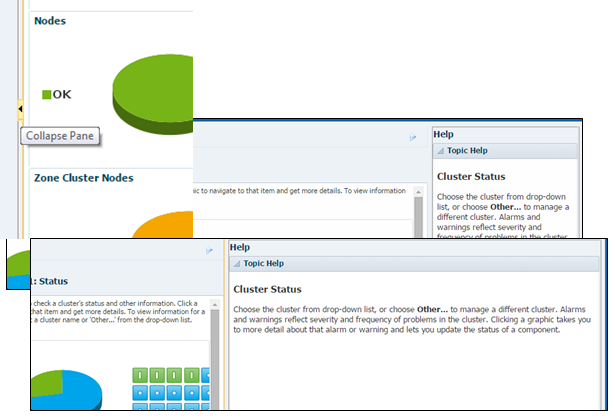
Both the
navigation and online help panes can be pushed aside by clicking on
the little black triangle halfway down the center border, and
restored by clicking it again. Alternatively, the panes can be
resized wider or narrower by grabbing that border and dragging.
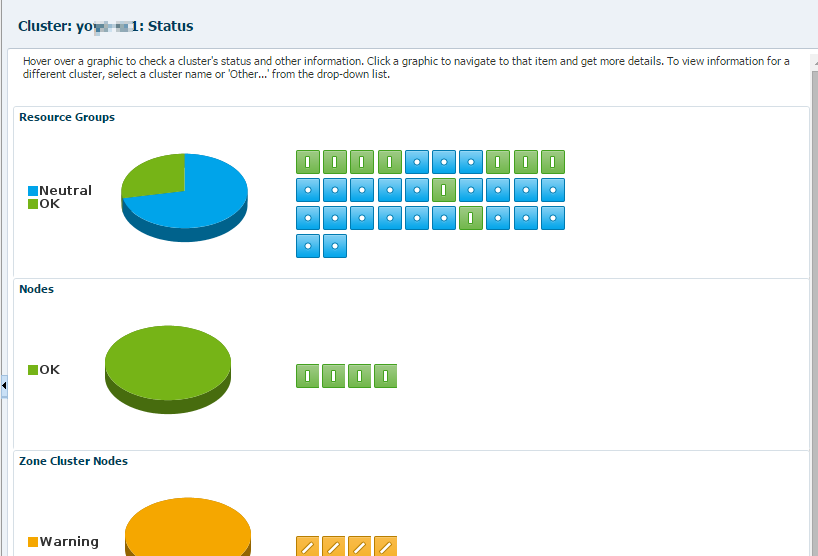
New in version 4 is a “cluster landing page” showing an overview of the
state of important cluster objects, such as resource groups and nodes
as a group, as well as “grid boxes”, which display information on
individual objects. Hovering over the pie graphs and grid boxes
brings up tool tips with information. Clicking on the pie graphs or
grid boxes is a speedy way to navigate to overview or detail pages
for these objects.
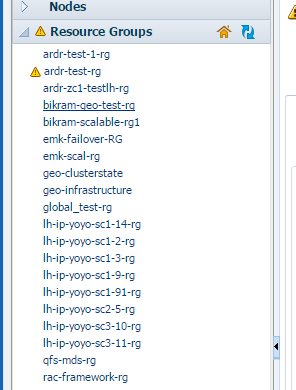
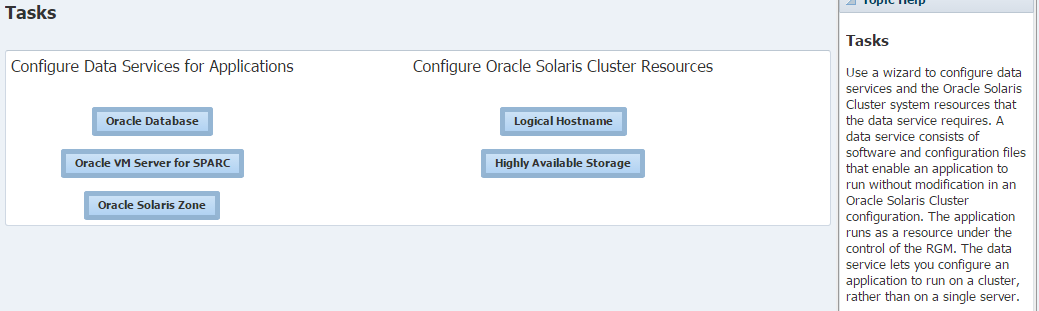
Each folder in the navigation pane (except for Tasks, which opens a
page of buttons for launching various data service configuration
wizards) is dedicated to a specific part of Oracle Solaris Cluster. The
folders open to show lists of objects such as resource groups or
zone clusters by name, as well as the “landing page” for that type of
object.
New in version 4, Geographic Edition partnerships are included in the main browser interface,
and in version 4.3 the “disaster recovery
orchestration” feature is supported via the Sites folder in the
navigation pane.

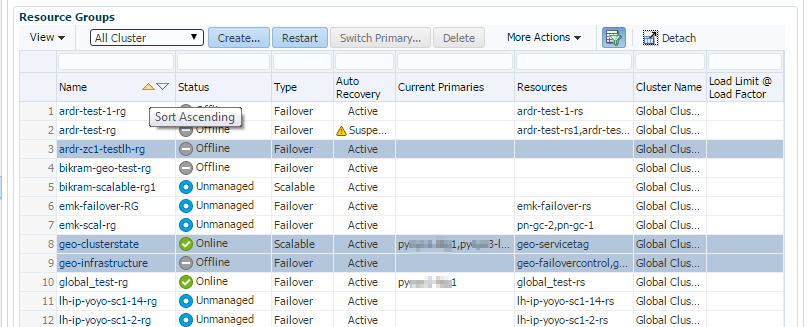
Each folder of the navigation pane has an overview page with tables
listing instances of the objects along with their status and other
details.
Most of the tables contain buttons for management actions
that can be taken on one selected row in
the table, and sometimes multiple selected rows. Click a row in the leftmost column to select it. Shift
and control clicks allow selection of multiple rows. Most tables can
be re-sorted by clicking in the column headers. Other customization
is available by clicking on the View drop-down list in the upper left of
each table. Many tables have a Create or New button, which will
launch wizards for creating new objects such as resource groups,
resources, zone clusters, and more.
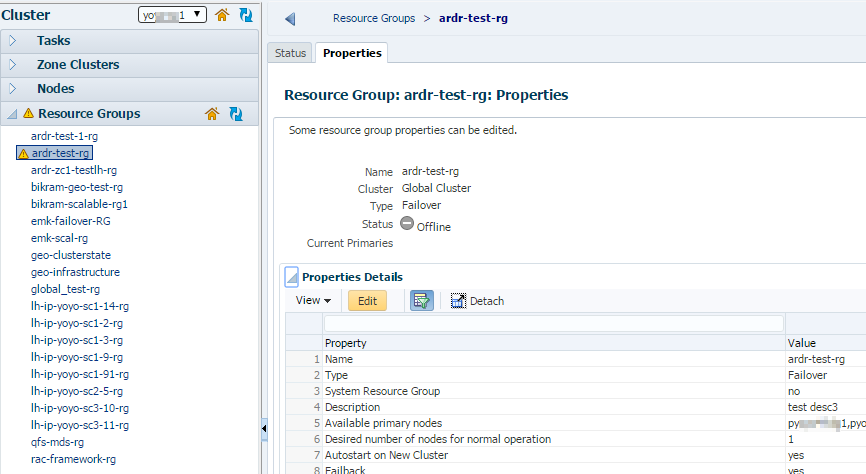
Clicking an individual object’s name in the table drills into the
details for that object. Some of these details pages have a Properties
tab as well as the default Status tab. The Properties tabs start in
read-only mode and can be converted to edit mode by clicking on the
Edit button.
Wizards
In addition to the various object–creation wizards available on some tables, the Tasks page hosts wizards for data services
ranging from HA Storage and Logical Hostname to HA for Oracle Database. Cluster Manager 4.3 also offers wizards to create HA for Oracle Solaris Zone and
HA for Oracle VM Server for SPARC. Future posts will describe these new wizards in detail.
Resource Groups Topology View
First available in 4.2 is a completely new topology view of resource
groups with their resources and how they are laid out, both across
global and zone cluster nodes and within global and zone clusters as
entities. Navigate to the Resource Groups folder/overview/Status
page, then click the Topology tab.
Multi-Cluster Management
Another feature first delivered in 4.2 is the ability to
authenticate into multiple clusters at once, then switch back and
forth quickly between them. At the top of the navigation pane, next
to the “Cluster” heading, is a drop–down list that, when closed, shows the name of the
“current cluster.” This drop–down list contains names of all clusters authenticated into
during this session and also contains the names of Geographic Edition
partners.
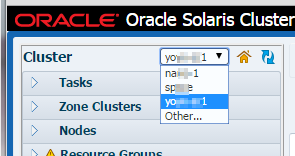
At the bottom is the “Other…” choice, which pops up a dialog to
allow authenticating into additional clusters. In a Partnership
detail page, clicking on the name of a partner allows authenticating
into that cluster.
Troubleshooting
1) Is the Cluster Manager service available?
The browser interface depends upon two SMF services:
online Aug_06 svc:/system/cluster/manager-glassfish3:default
online Aug_06 svc:/system/cluster/manager:default
If either of these services is not online, the browser interface will not be
available. The very first time cluster/manager is started takes a
bit longer than subsequent times because the Cluster Manager application is being
deployed into the application server. Sometimes following an
uncivilized shutdown, the manager-glassfish3 service might take longer than usual
to start.
If either service goes into the maintenance state, first check the
SMF logs:
/var/svc/log/system-cluster-manager-glassfish3:default.log
/var/svc/log/system-cluster-manager:default.log
to see if any useful error messages are present. Often, simply
clearing the service will be enough to bring it online. Make sure themanager-glassfish3 service is online first, and if not, clear the service
# svcadm clear -s svc:/system/cluster/manager-glassfish3:default
Then check that the cluster/manager service is online, and if not, clear that
service:
# svcadm clear -s svc:/system/cluster/manager:default
2) Sometimes an error might cause a loss of connection to the
application server. If this should happen, the easiest recovery is to
remove the browser cookie for the machine you browsed to, then log in
again. In some rare cases, it might be necessary to cycle the
application server by performing:
# svcadm restart -s svc:/system/cluster/manager-glassfish3:default
# svcadm enable -s svc:/system/cluster/manager-glassfish3:default
If you ever need to contact Oracle Support about an issue with Cluster Manager, please
provide copies of the server log:/var/cluster/ClusterManager/glassfish3/domains/domain1/logs/server.log,
and possibly the next older log as well if the log has rolled over
recently.
3) Cluster Manager depends upon the common agent container. This service
will come online when packages are installed. Some additional
configuration will be done at first cluster boot. If an error message
indicates that there may be a problem with the common agent container,
you can check it this way:
# svcs -a | grep common-agent-container
# /usr/sbin/cacaoadm status
If the service is not online, use the svcdm command to start, clear, or restart it as appropriate.
See also the Oracle Solaris Cluster documentation Troubleshooting
Oracle Solaris Cluster Manager.