
Someone recently asked on the opensolaris-help forum if it was possible to log ssh events into his OpenSolaris box. I provided a brief answer on how to use the OpenSolaris audit feature to track this information, but I thought a more thorough introduction to auditing may be warranted.
Determining What to Audit
Probably the most difficult part to auditing is figuring out what information you want to track. In the case of the forum post, it was very clear – ssh attempts, successful or unsuccessful, into the box. You have to be careful what you chose, because auditing can generate copious amounts of data.
Everything that occurs in OpenSolaris is associated with an event, and the types of events that can be audited are grouped into classes. The classes are defined in /etc/security/audit_class:
no:invalid class
fr:file read
fw:file write
fa:file attribute access
fm:file attribute modify
fc:file create
fd:file delete
cl:file close
nt:network
ip:ipc
na:non-attribute
lo:login or logout
ap:application
cy:cryptographic
ss:change system state
as:system-wide administration
ua:user administration
am:administrative (meta-class)
aa:audit utilization
ad:old administrative (meta-class)
ps:process start/stop
pm:process modify
pc:process (meta-class)
xp:X - privileged/administrative operations
xc:X - object create/destroy
xs:X - operations that always silently fail, if bad
xx:X - all X events (meta-class)
io:ioctl
ex:exec
ot:other
all:all classes (meta-class)
So, for example, if you just wanted to audit every time a file was deleted, you would configure to audit the fd class. For our example, we want the lo class, for logins and logouts of the system.
The actually system events that map to the audit classes are defined in /etc/security/audit_event, of which there are over 500 unique system events. A given event can map to one or more audit classes. The events that map to lo are as follows:
6152:AUE_login:login - local:lo
6153:AUE_logout:logout:lo
6154:AUE_telnet:login - telnet:lo
6155:AUE_rlogin:login - rlogin:lo
6158:AUE_rshd:rsh access:lo
6159:AUE_su:su:lo
6162:AUE_rexecd:rexecd:lo
6163:AUE_passwd:passwd:lo
6164:AUE_rexd:rexd:lo
6165:AUE_ftpd:ftp access:lo
6171:AUE_ftpd_logout:ftp logout:lo
6172:AUE_ssh:login - ssh:lo
6173:AUE_role_login:role login:lo
6212:AUE_newgrp_login:newgrp login:lo
6213:AUE_admin_authenticate:admin login:lo
6221:AUE_screenlock:screenlock - lock:lo
6222:AUE_screenunlock:screenlock - unlock:lo
6227:AUE_zlogin:login - zlogin:lo
6228:AUE_su_logout:su logout:lo
6229:AUE_role_logout:role logout:lo
6244:AUE_smbd_session:smbd(1m) session setup:lo
6245:AUE_smbd_logoff:smbd(1m) session logoff:lo
9101:AUE_ClientConnect:client connection to x server:lo
9102:AUE_ClientDisconnect:client disconn. from x server:lo
Configuring the Audit
The classes you decide to audit are configured in /etc/security/audit_control. Below is the default content of the audit_control file:
dir:/var/audit
flags:
minfree:20
naflags:lo
The default audit directory is /var/audit. You may wish to change this to another location, like an NFS mount to another server. We specify the classes we wish to audit with the flags property, so we will add lo to our file as follows:
dir:/var/audit
flags:lo
minfree:20
naflags:lo
The minfree property is the percentage of free space required before an audit warning script is invoked, which will generally be configured to send somebody an e-mail. See the audit_warn(1M) man page for how to work with the audit warning script.
The naflags (non-attributable flags) property is for events that cannot be attributed to a particular user, which is mainly programs that are launched during system boot.
Turning on the Audit
Turning on the audit requires running /etc/security/bsmconv and rebooting the machine:
bleonard@os200906:~$ pfexec /etc/security/bsmconv
This script is used to enable Solaris Auditing and device allocation.
Shall we continue with the conversion now? [y/n] y
bsmconv: INFO: checking startup file.
bsmconv: INFO: turning on audit module.
bsmconv: INFO: initializing device allocation.
Solaris Auditing and device allocation is ready.
If there were any errors, please fix them now.
Configure Solaris Auditing and device allocation by editing files
located in /etc/security.
Reboot this system now to come up with auditing and device allocation enabled.
bleonard@os200906:~$ pfexec reboot
After reboot you’ll have a single file in /var/audit:
bleonard@os200906:~$ ls /var/audit
20100621202538.not_terminated.os200906
To view the contents of the file, you need to use the print audit trail file utility, praudit:
bleonard@os200906:~$ pfexec praudit /var/audit/20100621202538.not_terminated.os200906 > audit.txt
bleonard@os200906:~$ cat audit.txt
file,2010-06-21 16:25:38.984 -04:00,
header,44,2,system booted,na,2010-06-21 16:23:25.458 -04:00
text,booting kernel
header,69,2,login - local,,localhost,2010-06-21 16:27:25.183 -04:00
subject,bleonard,bleonard,staff,bleonard,staff,477,3112795690,0 0 localhost
return,success,0
header,69,2,login - local,,localhost,2010-06-21 16:28:24.881 -04:00
subject,bleonard,bleonard,staff,bleonard,staff,615,3530634311,0 0 localhost
return,success,
However, the audit trail data can also be extracted as XML and then converted to HTML for even better formatting:
bleonard@os200906:~$ pfexec praudit -x /var/audit/20100621202538.not_terminated.os200906 > audit.xml
bleonard@os200906:~$ xsltproc audit.xml > audit.html
Then just view the file in Firefox:
bleonard@os200906:~$ firefox audit.html &
[1] 1919
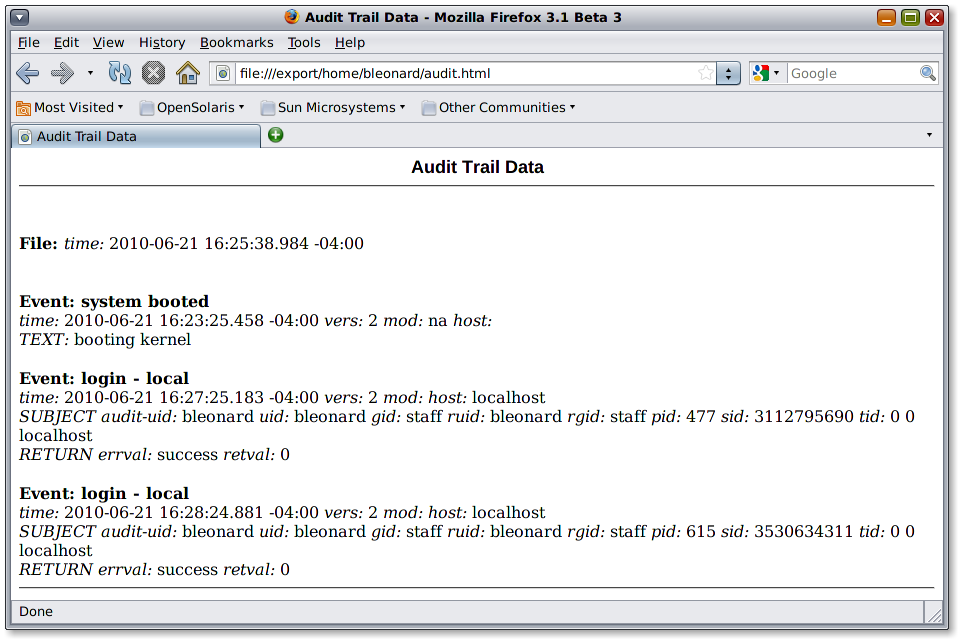
You can see in this short audit trail that I logged into OpenSolaris at 4:28 PM on Monday June 21st.
Modifying the Audit
If you decide you want to audit additional events, simply add those events to the audit_control file. For example, auditing executed commands is pretty popular audit option. Executed commands can be captured by adding the ex class.
dir:/var/audit
flags:lo,ex
minfree:20
naflags:lo
The audit_control file is read when a user logs in to the system. If we look at the audit configuration at this point, we’ll see that we are still only auditing the lo class:
bleonard@os200906:~$ pfexec auditconfig -getaudit
audit id = bleonard(101)
process preselection mask = lo(0x1000,0x1000)
terminal id (maj,min,host) = 0,0,localhost(127.0.0.1)
audit session id = 3530634311
However, if we ssh into the machine, the audit configuration changes are picked up:
So now run a command like zfs list -t all, and extract the audit trail again.bleonard@os200906:~$ ssh -X bleonard@os200906
The authenticity of host 'os200906 (127.0.0.1)' can't be established.
RSA key fingerprint is 6c:c7:63:7f:dc:1f:33:1e:94:ee:eb:24:23:de:8f:90.
Are you sure you want to continue connecting (yes/no)? yes
Warning: Permanently added 'os200906' (RSA) to the list of known hosts.
Password:
Last login: Mon Jun 21 16:28:24 2010
Sun Microsystems Inc. SunOS 5.11 snv_111b November 2008
bleonard@os200906:~$ pfexec auditconfig -getaudit
audit id = bleonard(101)
process preselection mask = ex,lo(0x40001000,0x40001000)
terminal id (maj,min,host) = 12324,202240,localhost(127.0.0.1)
audit session id = 3339125594
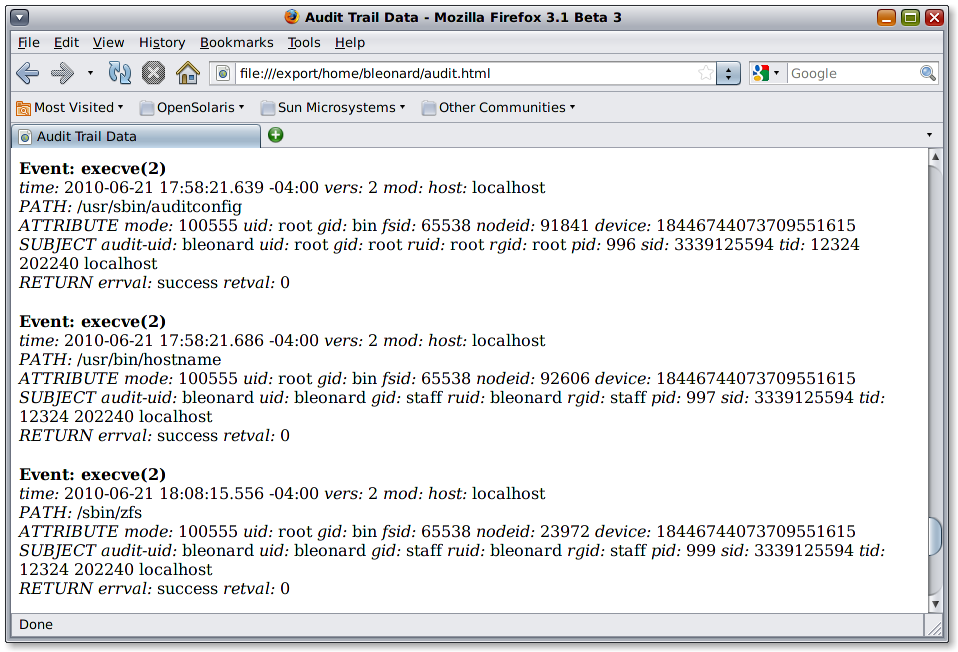
In the 3rd entry you can see /sbin/zfs was executed. What’s also interesting is that in the first entry on the page you can see /usr/sbin/auditconfig was called. This is how our audit changes got picked up when we logged into the machine.
Audit Policy
In addition to the events that are selected for audit, you can also control the amount of data collected per audit event by setting an audit policy. The policy settings can be set dynamically using the auditconfig command, or permanently by setting the policy in the /etc/security/audit_startup file. One popular audit policy to set is +argv, which will include the arguments passed to any executed commands when auditing exec events.
For example, in the ZFS audit record above, we know that user bleonard executed a zfs command, but that’s the extent of it. Did he take a snapshot, make a clone, export data…?
Turn on exec() arguments as follows:
bleonard@os200906:~$ pfexec auditconfig -setpolicy +argv
To permanently enable the +argv policy, add the command to audit_startup:
Then run the command zfs list -t all again and regenerate the audit report:/usr/sbin/auditconfig -setpolicy +argv
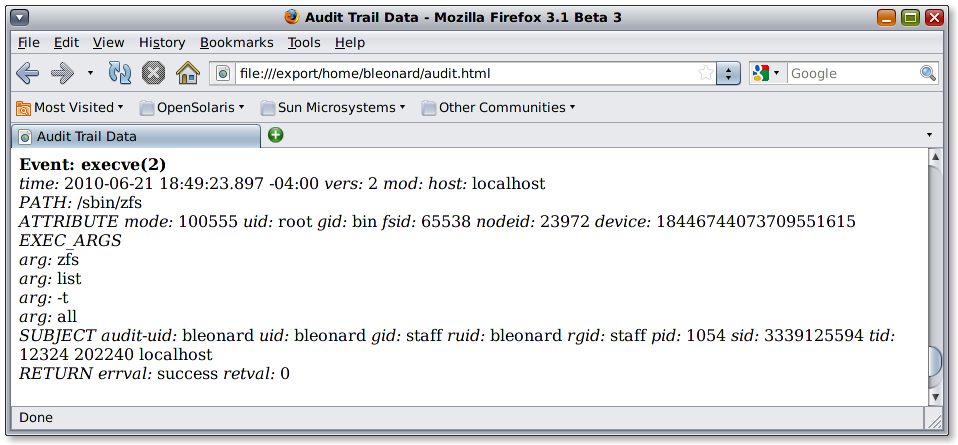
Here we can see that EXEC_ARGS are now part of the audit trail and that the arguments list, -t and all were passed to zfs.
Stopping the Audit
The audit service is managed by SMF:
bleonard@os200906:~$ svcs -l auditd
fmri         svc:/system/auditd:default
name         Solaris audit daemon
enabled      true
state        online
next_state   none
state_time   Mon Jun 21 16:25:41 2010
logfile      /var/svc/log/system-auditd:default.log
restarter    svc:/system/svc/restarter:default
contract_id  73
dependency   require_all/none svc:/system/filesystem/local (online)
dependency   require_all/none svc:/milestone/name-services (online)
dependency   require_all/none svc:/system/system-log (online)
So to stop it, simply:
bleonard@os200906:~$ svcadm disable auditd
Stopping the audit service will also terminate the log. When it’s started again a new log file will get created.
Audit Review Script
Here’s a convenience script to extract and display the audit records in HTML. After launching Firefox it refreshes the underlying HTML file every 10 seconds, so a browser refresh will show the latest records:
bleonard@os200906:~$ cat showauditlive
pfexec praudit -x /var/audit/\*not_term\* > audit.xml
xsltproc audit.xml > audit.html
firefox audit.html &
while [ true ]; do
        pfexec praudit -x /var/audit/\*not_term\* > audit.xml
        xsltproc audit.xml > audit.html
        sleep 10
done
This article just touched the surface of what’s possible with auditing. For a more thorough discussion of auditing see the Solaris Auditing section of the System Administration Guide: Security Services.