
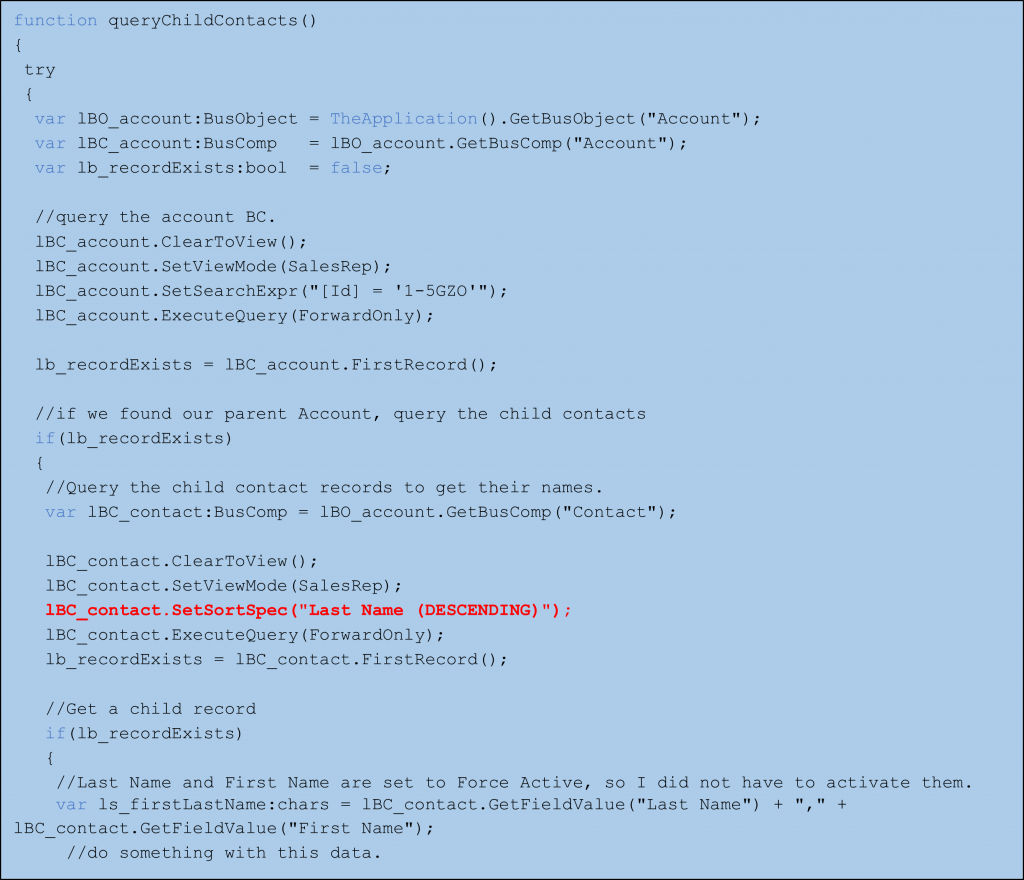
Expanding on the previous article’s simple query for parent and child data, this script introduces the ability to sort the results. The script first queries the parent Business Component (such as Account). If a record is found, it then queries the child Business Component (such as Contact) and retrieves the associated child data, applying sorting to the Contact results.
Script:
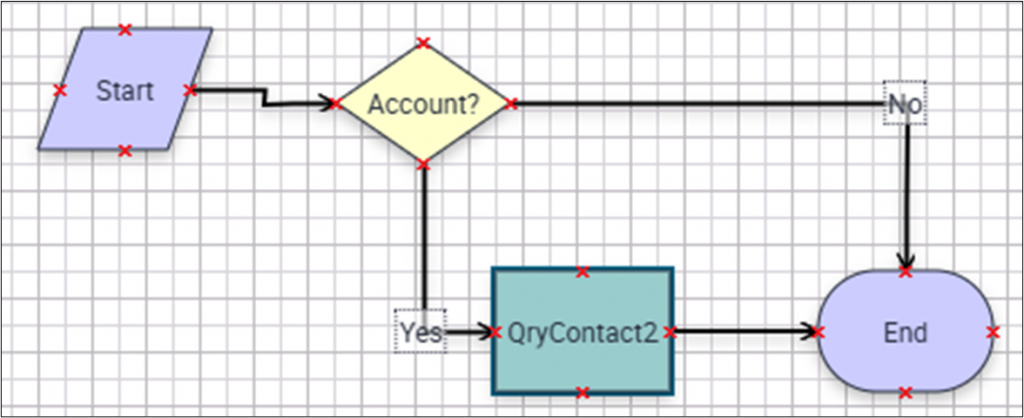
Workflow equivalent
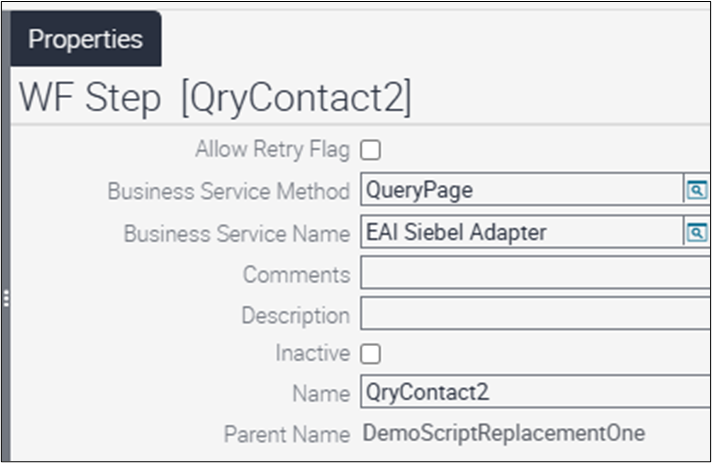
A Siebel Operation Step cannot provide a Sort Specification and will instead use the Sort Specification defined on the Business Component. As a result, an alternative approach is required for custom sorting. In this scenario, the automatic query performed by the Primary Business Component is insufficient. To specify a custom Sort Specification, you can use the QueryPage method of the EAI Siebel Adapter Business Service, which allows you to define the sorting criteria needed for your query.
Note: While this approach enables sorting of Contact data, the results are returned in a Property Set. Currently, Workflow Processes and Business Services do not provide a straightforward way to iterate through the entire record set returned by EAI Siebel Adapter methods—you can access only the first record’s data. This limitation is recognized, and improvements to address it are being considered.
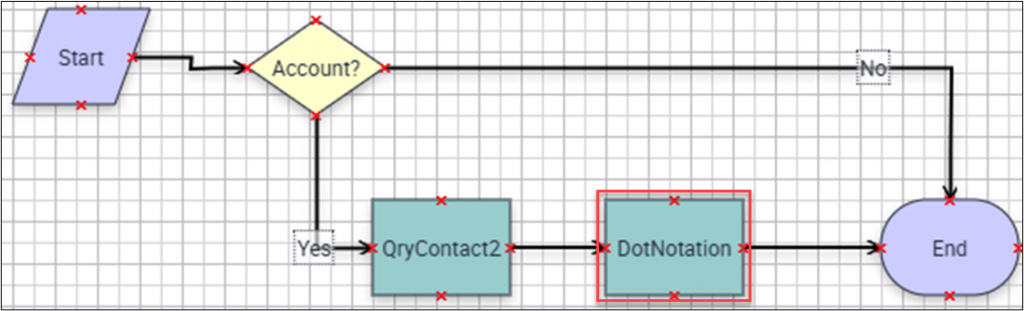
- The Workflow Process is the same, but I have replaced the Business Service Step with a call to the EAI Siebel Adapter.
2. Here is the setup for the call using the QueryPage method of the EAI Siebel Adapter.
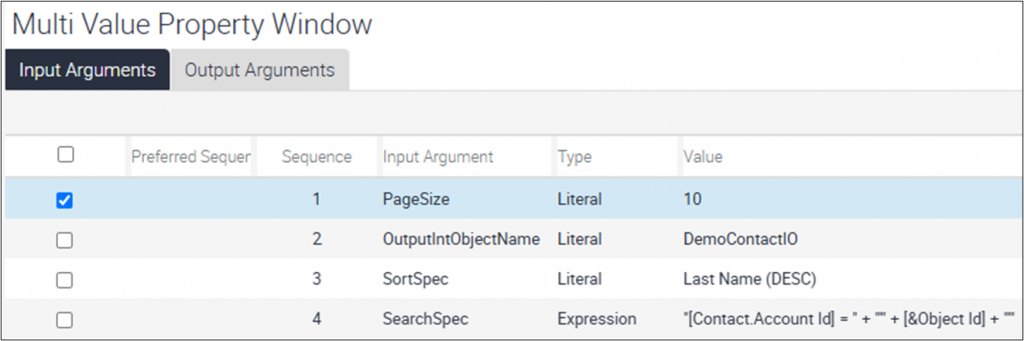
3. The input arguments are described here.
| Name | Type | Value | Description |
| PageSize | Literal | 10 | Mandatory input argument. This tells the Business Service how many records to return. The default is 10. |
| OutputIntObjectName | Literal | DemoContactIO | I created a simple Integration Object to use as the structure for the return data. |
| SortSpec | Literal | Last Name (DESC) | This is the key to sorting the data. I am sorting by the last name descending. |
| SearchSpec | Expression | “[Contact.Account Id] = “ + “’” + [&Object Id] + “’” | Since we must query our records and want them to be the children of the account, I am using this to ensure that. |
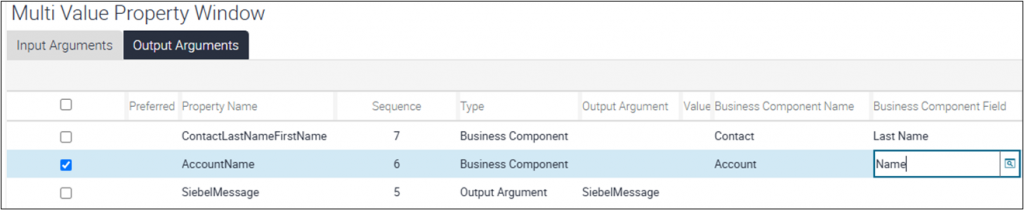
4. In the Output Arguments, I’ve included the result from the Contact Business Component as retrieved by the Workflow Process at its initiation. However, this value—stored in the ContactLastNameFirstName Process Property—will not reflect the sorted result and may not match our expectations. Its purpose is to highlight the difference between the result from the QueryPage method and the unsorted output. Additionally, I am retrieving the Account Name to confirm that we have the correct Account, and I am saving the result of the query in the SiebelMessage property.
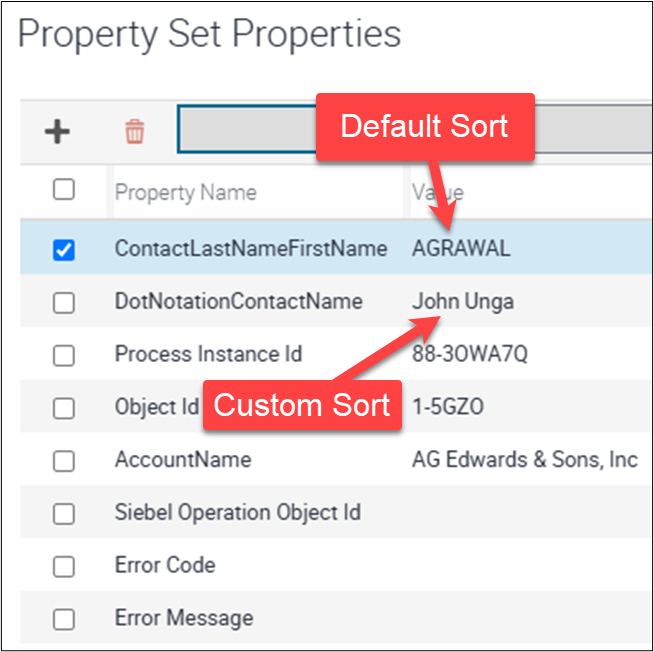
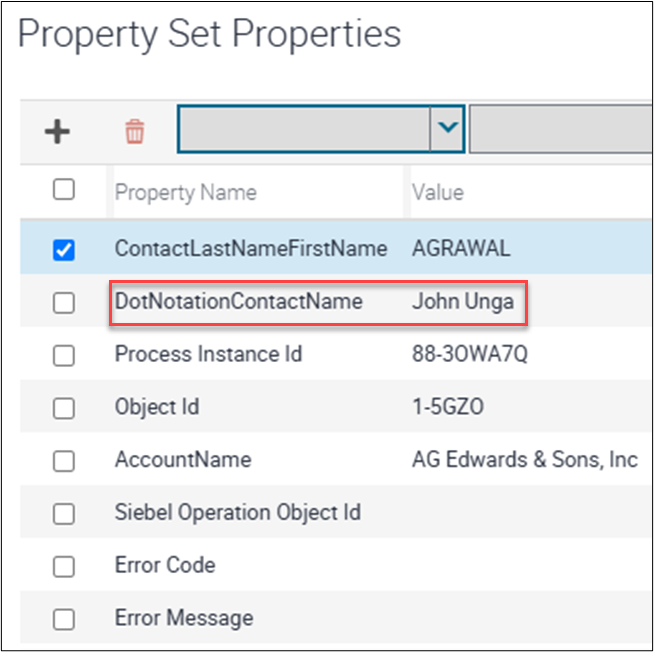
5. The query results, as observed in the Business Service Simulator, demonstrate that the unsorted record data from the Contact Business Component is stored in the ContactLastNameFirstName Process Property. In contrast, the sorted result is captured in the DotNotationContactName property. Next, I’ll explain how to access this sorted data.
6. To extract data from the SiebelMessage—which contains the results of the EAI Siebel Adapter query—you can use several methods. In this example, I am using dot notation. Dot notation allows you to reference each level of the Property Set hierarchy by separating each level with a dot (“.”).
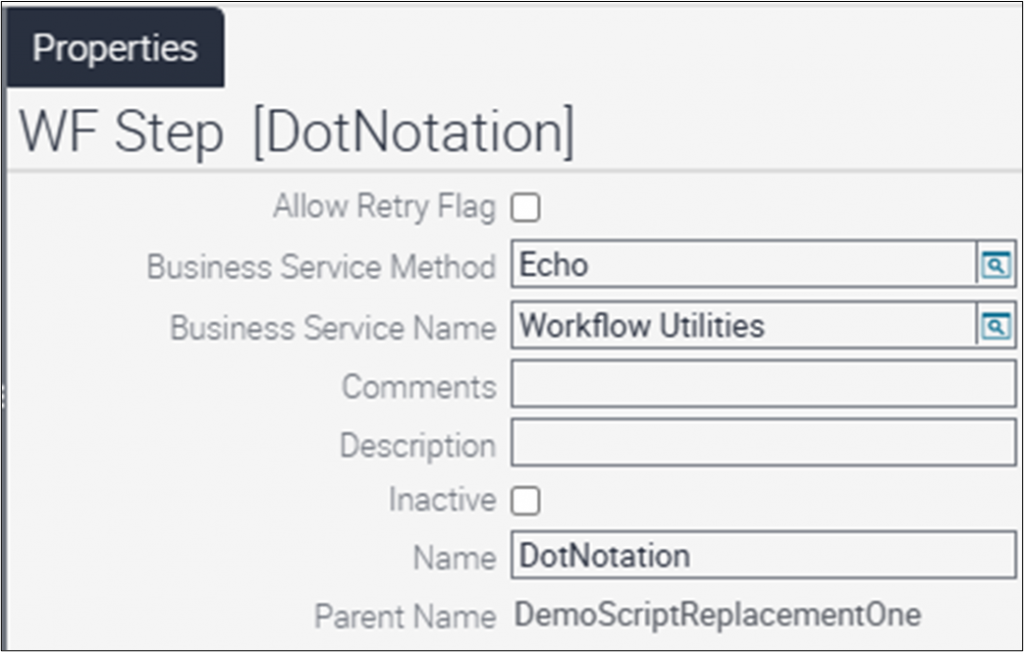
7. The adjusted Workflow Process includes a new step using the Workflow Utilities Business Service again.
8. Dot notation involves referencing each level of the hierarchy by separating them with a dot (“.”), continuing this pattern until you reach the specific data element—or leaf—that you want to access.

9. Now you can see that the value “John Unga” has been retrieved from the hierarchy.
Conclusion and Next Steps
Workflow Processes allow you to sort records, but iterating through the full record set remains challenging. If your requirement is simply to retrieve and return sorted records, Workflow Processes are well suited for the task. As always, prioritize configuration solutions before considering custom scripting.