
Custom script is often used to enforce business rules, but not every validation requirement needs code. Siebel Data Validation Manager (DVM) provides a declarative way to define validation rules, display user-facing messages, and guide users toward cleaner data.
DVM can evaluate simple or complex conditions across Business Components and fields. It can allow or deny record modifications, call workflows and business services, display configured error messages, and run from the end-user application, such as Call Center.
Why use Data Validation Manager
DVM is useful when you need to guide users toward data that meets business or regulatory requirements. Instead of writing script for every validation scenario, you can define rule sets, rules, messages, and actions through Siebel administration.
This makes validation logic easier to configure, test, and maintain for many common use cases.
Start with a rule set
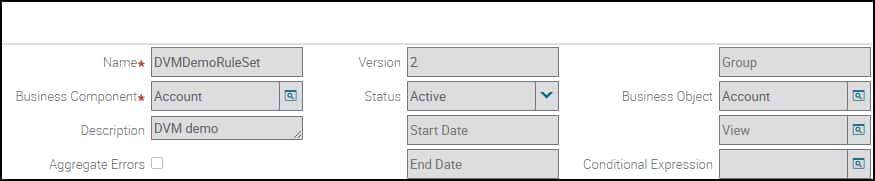
A rule set is the logical container for DVM rules. You can create one from Administration – Data Validation > Rule Sets.
The main rule set fields define when and where validation applies:
- Business Component: The Business Component that holds the data you want to validate.
- Conditional Expression: The expression that determines when the rule set should run.
- Aggregate Errors: When selected, messages from individual rules appear together at the end of the rule set instead of as separate pop-up messages.
Add messages and validation rules
After the rule set is in place, create the message users will see when validation fails. Specific messages are important because they tell users what must be corrected.

The validation rule contains the actual test. When the rule uses the same Business Component as the rule set, the Apply To value is read-only. Current Record evaluates only the active record, while All Records evaluates every record in the current query, which can take longer for large result sets.
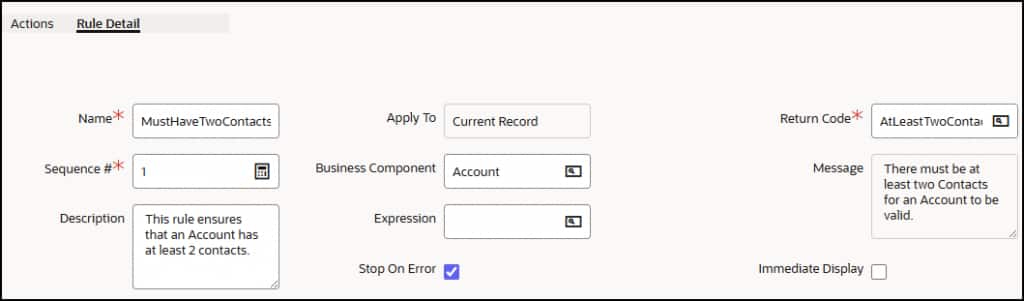
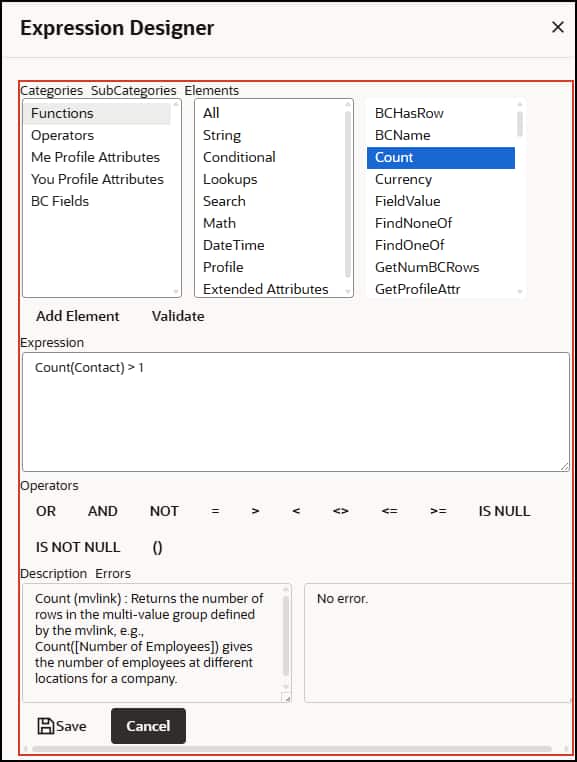
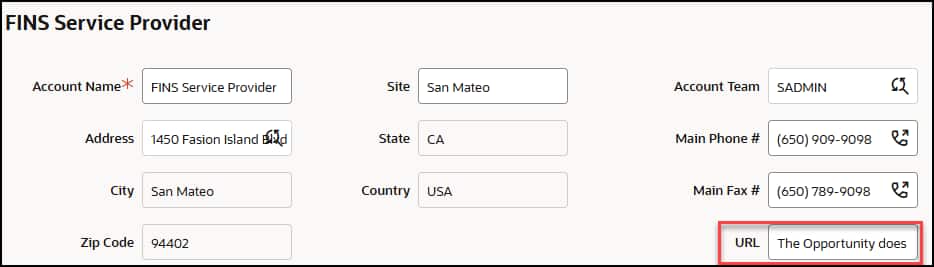
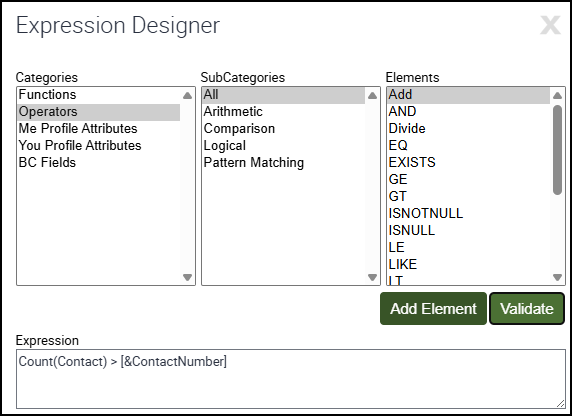
In a simple account example, an expression can use the Account Contact MVL and the Count method to check whether an account has fewer than two contacts. The rule must evaluate to false to trigger the configured message.
Activate and test the rule set
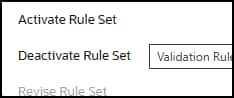
Once the message and rules are ready, activate the rule set. Activation makes it available for runtime evaluation.

Testing confirms whether the rule behaves as expected. In the account example, when a user tries to modify an account with only one contact, DVM evaluates the rule and returns the configured message. This provides a declarative way to block the update and explain what the user needs to fix.
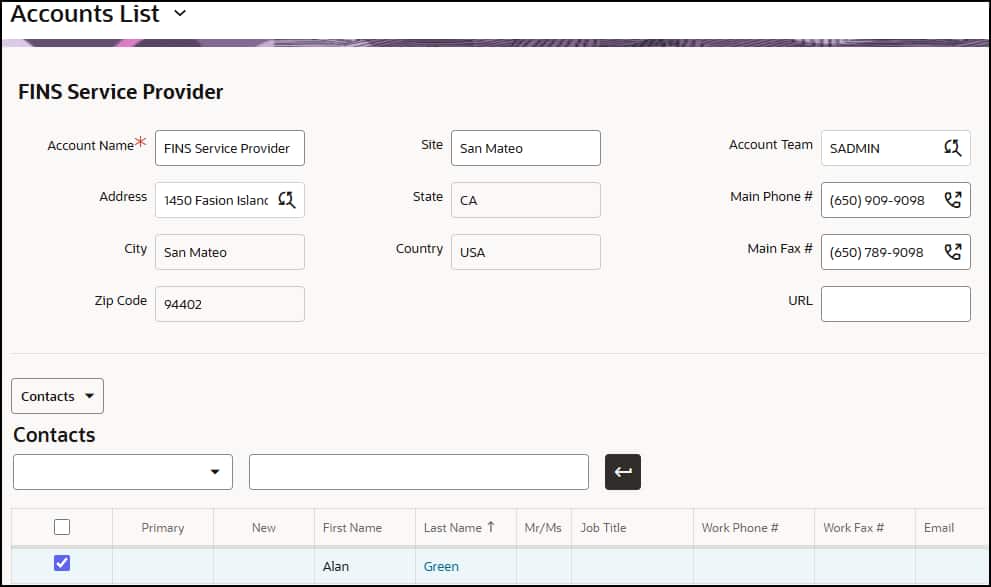
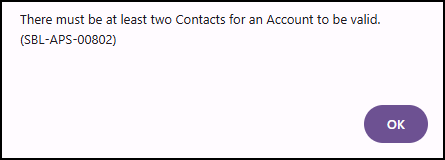
Use complex rules, actions, and arguments carefully
DVM can validate across more than one Business Component. A more complex rule set can add another rule, such as checking for at least one opportunity with revenue greater than zero. Rule sequence matters because the sequence in the rule set defines the order in which rules are evaluated.

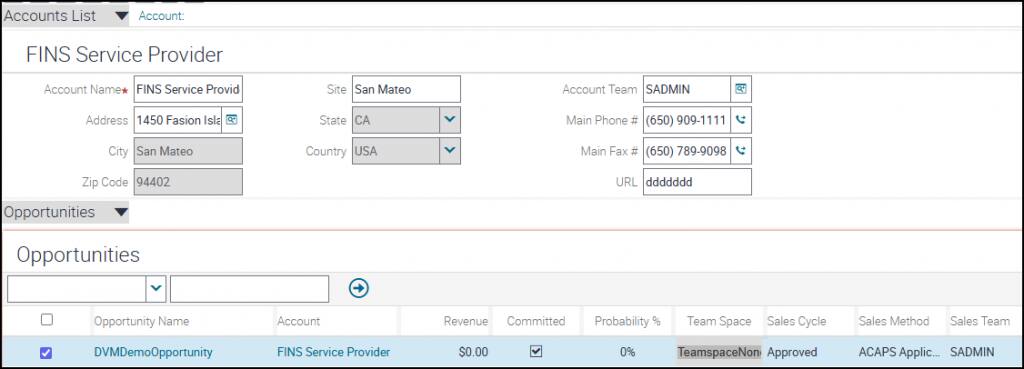


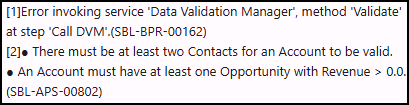
Rules can also do more than display an error. A failed rule can execute a Business Service or update a Business Component record. Use this carefully with Business Component Runtime Events because those events prevent the record from committing when validation fails, so Business Component operations configured as actions will not complete in that path.
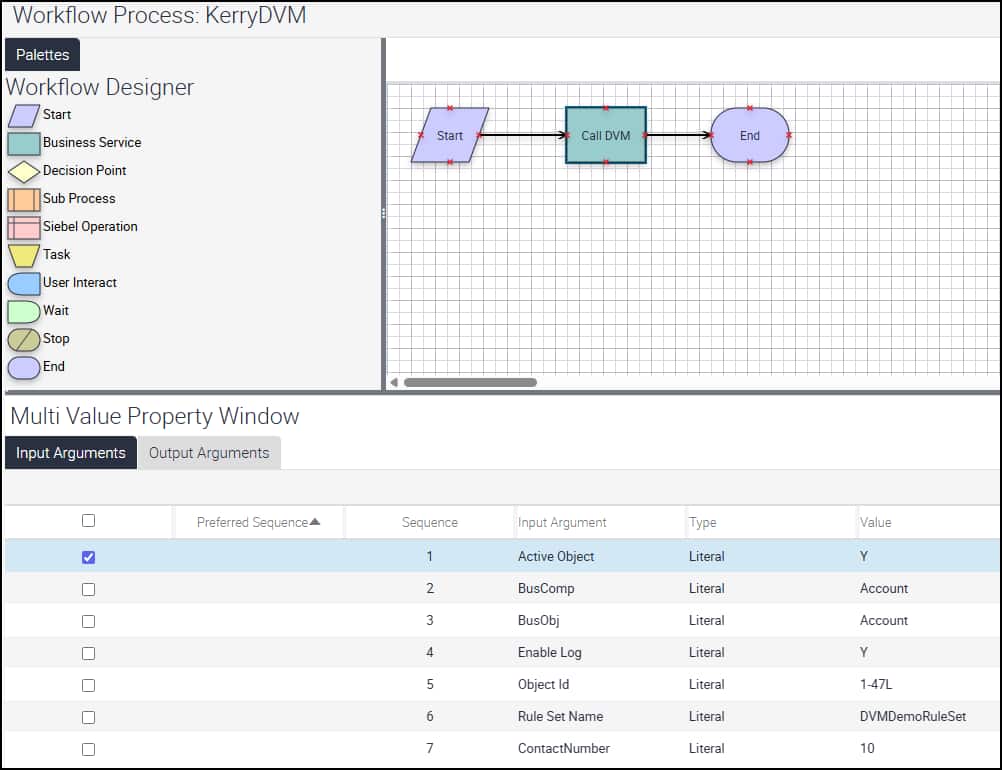
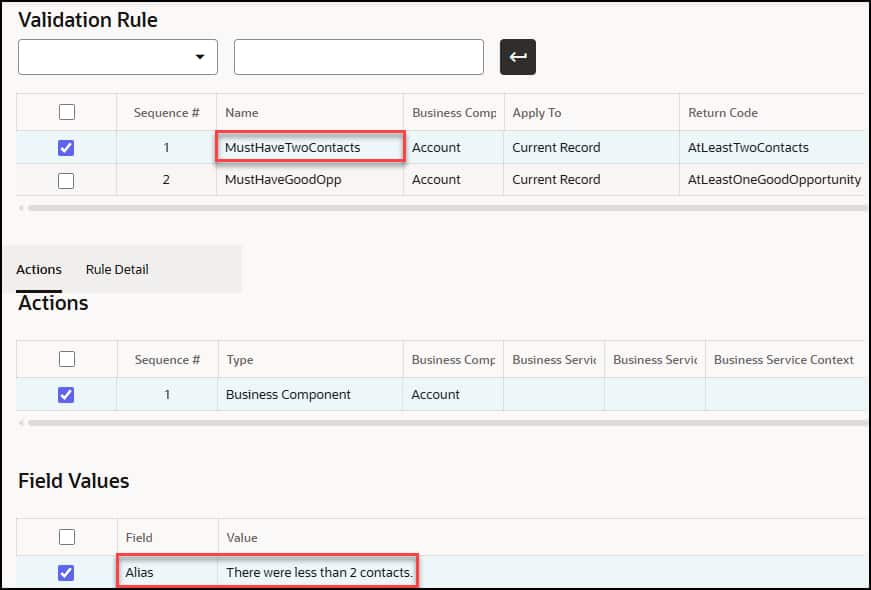
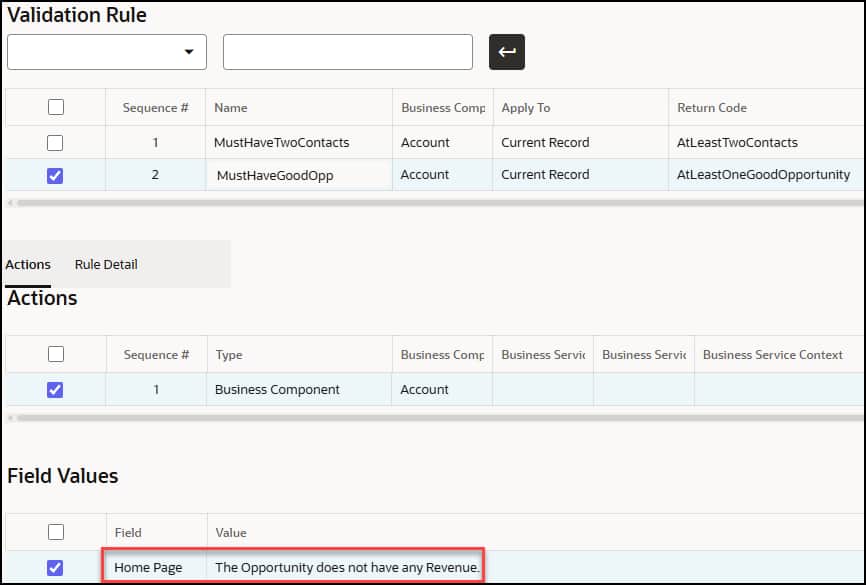
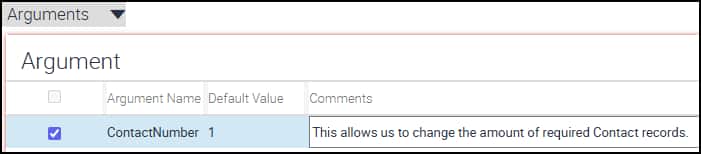
Rule Arguments add flexibility by allowing dynamic values to be passed into rule expressions. In a workflow-driven path, an argument can let validation compare against a runtime value instead of only constants defined in the rule.
Troubleshoot with validation history
When users cannot clearly describe a validation issue, Validation History is the place to start. It records what happened during validation and can help identify which rule ran, which condition failed, and what message or action resulted.

This is especially useful when rule sets contain multiple rules or when validation is invoked through a workflow path.
Limitations to keep in mind
Before using DVM for a validation scenario, review these considerations:
- DVM may not work with Siebel Mobile.
- Message IDs are limited to 30 characters.
- The Business Object must have a primary Business Component.
- Rule sequence controls the order of evaluation.
- DVM Action values for a Business Component field must be constants, not expressions.
- Invoking DVM from a workflow that was invoked by script will not work because the record context is not available.
- Invoking DVM from Business Service Simulator does not work.
- Invoking DVM from a Business Component Runtime Event will not allow Rule Actions to complete.
Getting started
Start with a validation requirement that is currently handled by script or manual review. Create a rule set, define the message users should see, add the validation rule, activate it, and test the result from the end-user application.
For a walkthrough, watch the Customer Connect webinar replay: Siebel Data Validation Made Easy: Replace Scripts with Declarative Rules.