
“Simplicity is the ultimate sophistication.” – Leonardo Da Vinci
When it comes to a self-service application like eProcurement, users will compare the user experience to their favorite consumer shopping applications and, therefore, have a lot of expectations for their business solutions.
Since eProcurement has a lot more functionality than the typical consumer shopping application (including entering Shipping and Accounting details), it is important to make this complex functionality as intuitive and as streamlined as possible to help prevent support calls, reduce clicks and guide the Requesters through the Requisition creation process.
For the PI 51 release, we have taken all the usability feedback from our customers, looked at the latest consumer trends and provided a brand-new UI that is more consumer grade, has a permanent cart (so the cart is always visible) as well as a host of other usability enhancements that will benefit all Requesters.
Let’s look at some of the new UX features:

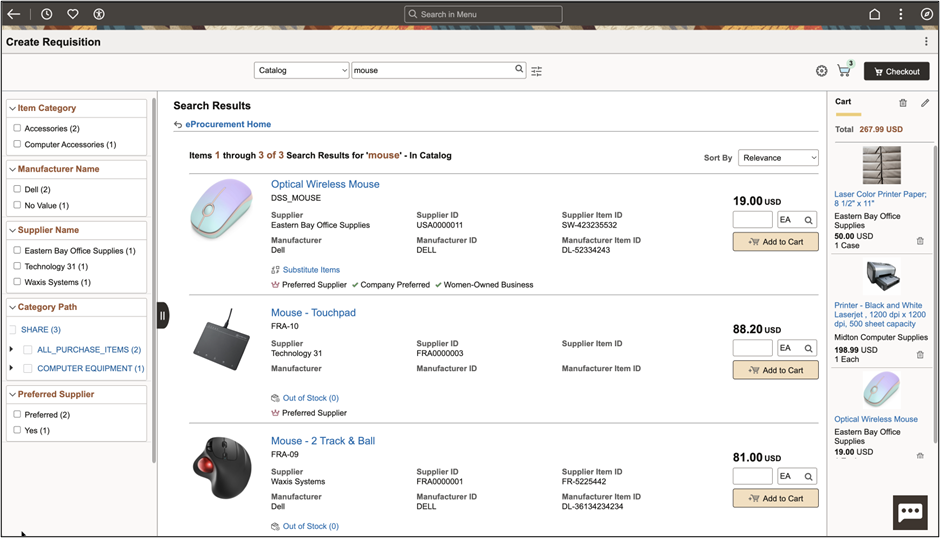
The number of Items in the cart is now visible on the eProcurement Create Requisition tile so you can easily see if you have pending items waiting to be checked out.

The Favorites page, Item History, Templates and Search pages have all been updated to provide a more consumer grade experience. The permanent cart is now always visible on the right-hand side of the screen so that the Requester can always see what’s in the cart at any time. In addition, Favorite groups have been renamed to Collections.
The search page will display the search results including any item or supplier attributes (Preferred Supplier, Woman-Owned etc). You can also set up custom attributes (like Company Preferred shown here) and have those display on the search page.
In addition, you now have the choice of which attributes you want to display on the search page row or the item details page. You may only want to display a subset of attributes on the search row and all the attributes on the Item Detail page.
When the Item description is selected, we will display the new Item Details page:

The Item Details page supports multi-image, a Previously Requisitioned date with a link to the Requisition Inquiry and a list of alternate Suppliers. In addition, any attributes (such as Substitutes, Preferred Supplier etc) will also be displayed. Favorites or Templates are visible as icons underneath the Price and Quantity fields.
If the Requester needs to update the quantity or UOM for the Item that is in the cart, this can be quickly achieved by clicking on the description in the Persistent cart. For example, if I was to click on the Printer that is already displayed in the cart:
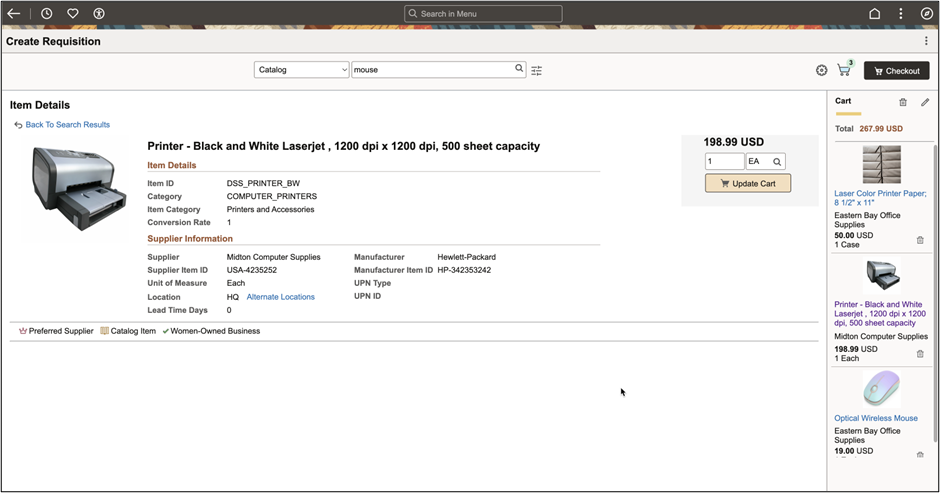
Now the Add cart icon changes to Update cart and I can easily change the Quantity or UOM and click the Update Cart button:

The cart now shows a quantity of two. This is so much easier and quicker than having to go to a separate Edit Cart page although we still allow that functionality if required.
There are a host of other changes including a new Fluid Navigation setup, new Settings icon instead of My Preferences, new icons for Special Request, Punchout and Forms so those are easily distinguishable from Items and many others.
Once the Requester has finished with the cart, they can hit Checkout and add shipping and accounting details, header and line comments, enter justification comments etc:

The Requisition can then be submitted as normal:
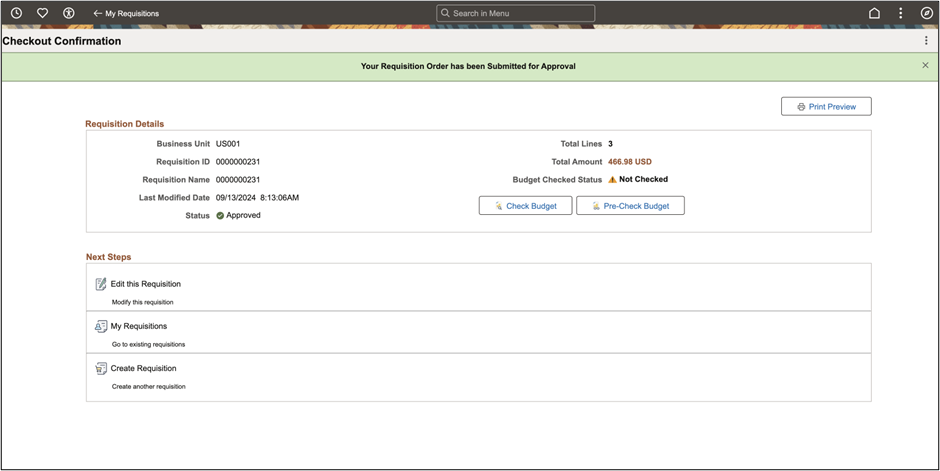
In summary, for PI 51, we have incorporated customer feedback and the latest consumer trends to provide a much-improved user experience for Requesters that will be more intuitive, reduce clicks and simplify the Requisition entry process.
For additional information on other UX changes, check out