
We’re excited to share a new enhancement in PeopleSoft Project Costing to Assign Project Costs to Assets feature! This upgrade streamlines and modernizes how your team manages, tracks, and capitalizes project-related costs—making the entire process clearer, faster, and easier to control.
Express Capitalization vs. Manual Capitalization: Which Is Right for You?
The Project Asset Capitalization process supports two main approaches—Express Capitalization and Manual Assignment — to fit your project and business needs:
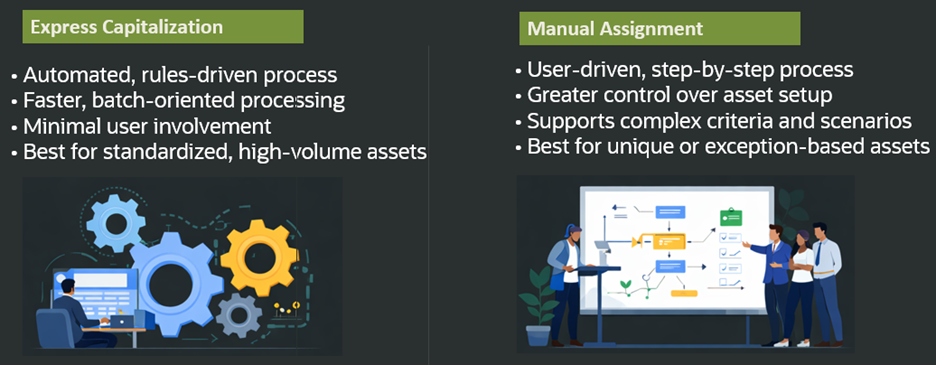
When to Use Each:
| If your project… | Consider: |
| Has routine, predictable cost assignment logic based on activity and chartfields | Express Capitalization |
| Involves exceptions or requires detailed review of specific transactions | Manual Assignment |
| Needs careful audit tracking and documentation | Manual Assignment |
What’s New?
PeopleSoft Update Image 56 includes new fluid components for manual assignment replacing classic components. Express capitalization functionality did not change.
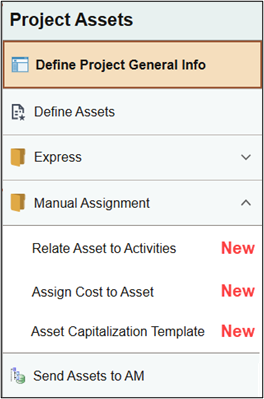
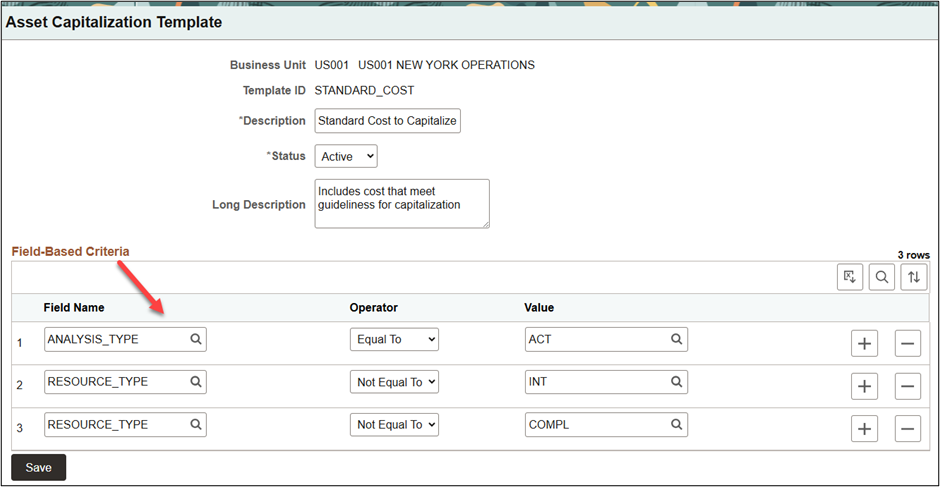
1. Reusable Criteria Templates in Fluid
- Create templates with your standard criteria for capitalization.
- Select ANY field in the project costing proj_resource table as criteria.
- Use operators equal to, not equal to, in and not in.
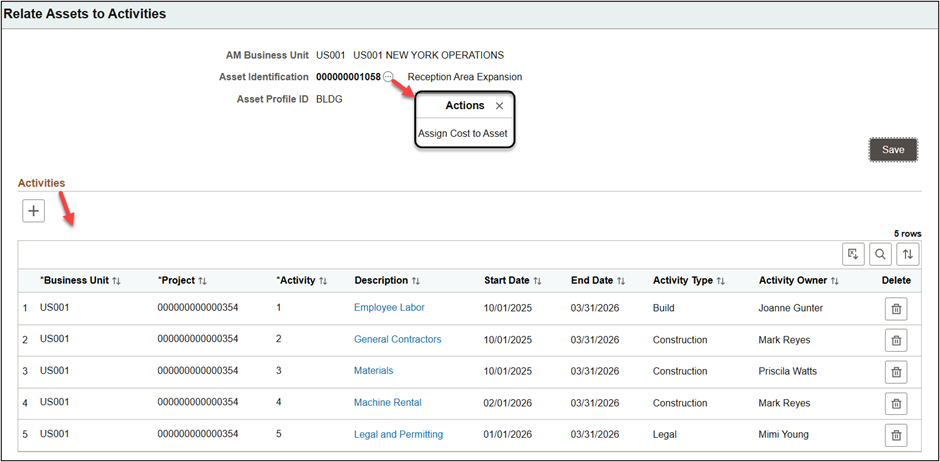
2. Simple Fluid Page to Relate Assets to Project Activities
- Quickly accessed from the Define Assets component.
- Drill down to activities for more information.
- Related action to open the Assign Cost to Asset component.
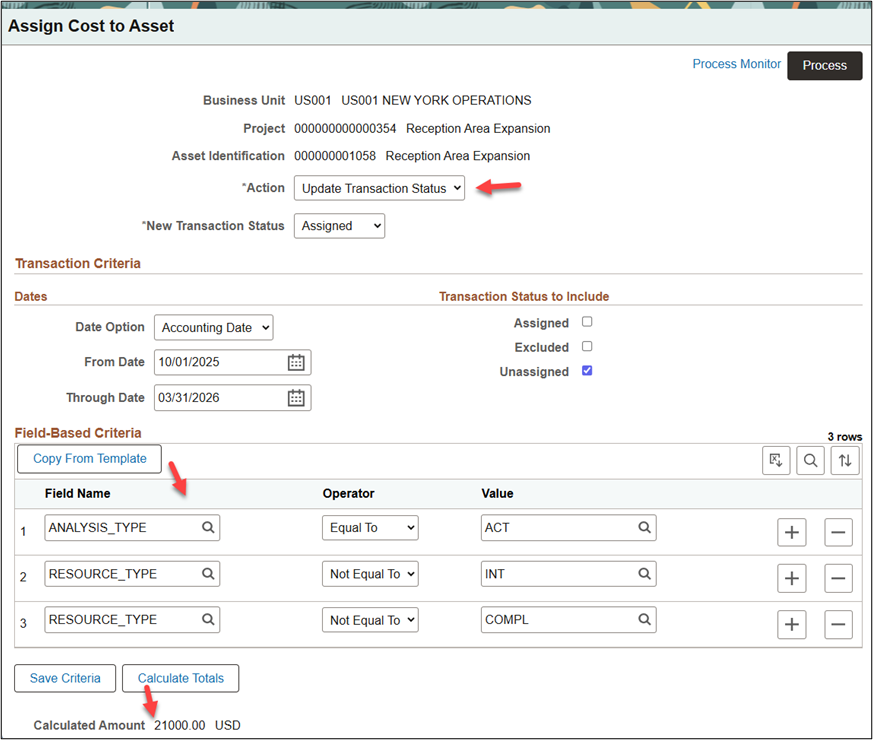
3. Configurable Criteria by Project Asset with Check Totals
- Copy criteria from templates as a starting point.
- Update the date range and add fields as criteria for more specific assignment of costs to an asset.
- Select ‘Calculate Totals’ for real-time check totals of transactions meeting the criteria before processing.
- Default action is to update transaction status to assigned.
- Easily accessed from the new Relate Assets to Activities page.
4. Enhanced Visibility in Excel
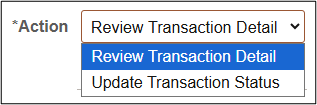
- Select the Review Transaction Detail action to review information in excel then process updates in batch using an application engine.
- No more review and updates of thousands of transactions on the page.
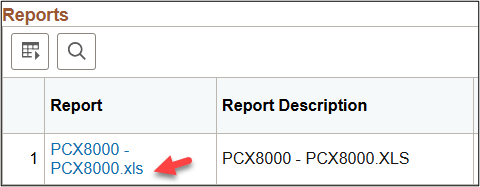
- Excel file is available in report manager prior to running the assignment application engine process and as output when you run the assignment process.
5. Flexibility to Exclude or Unassign Transactions
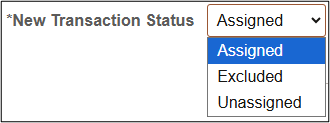
- Default action is to update transactions to an ‘Assigned’ status.
- Alternatively, consider using the ‘Exclude’ status to remove one or more transactions from capitalization and then capitalize all other costs not excluded. Depending on the number and mix of transactions this may be more efficient way of processing your updates.
- Easily reset the transaction status to ‘Unassigned’ to make corrections or change the asset.
How Does This Help You?
- Boosts Confidence: Real-time totals and clear filters help you ensure data accuracy—before you commit any updates.
- Saves Time: Setup once; repeat for similar projects using reusable criteria templates.
- Reduces Training Needs: Streamlined navigation and simplified choices make onboarding new team members easier.
- Supports Flexible Use Cases: Whether capitalizing all costs, just some, or correcting prior assignments, the new process covers your main scenarios—assigning cost to an asset, excluding cost from capitalization, and corrections.
- Stronger Audit Support: Transaction detail report available in excel.
This upgrade was developed with direct customer feedback—focusing on clarity, usability, and audit readiness. We hope you find the new Project Asset Capitalization feature a valuable addition to your toolkit!