
Overview
Element Browser reduces the time spent by teams Troubleshooting and Comparing Global Payroll or Absence Management Element definitions, it allows users to easily navigate through all elements without leaving the page. Element Browser has become one of my favorite features. This feature is available for Global Payroll Core, Absence Management, and all Supported Country Extensions.
Its main capabilities are:
- Allows you to review Element Definitions:
- Sections are hidden and un-hidden to provide detailed information based on each Element Type
- Sections are collapsible to provide a better User Experience
- All Elements contain a “Used By” and a “Uses” sections that allow you to navigate through related Elements
- Provides powerful Comparison functionality:
- Across Elements of the same type
- Same Element over the time (different Effective Dates)
- Across Databases
- Elements included in a Rules Package
- Enables you to perform actions:
- Run Element Relationship Map
- Edit the Element
Enhancing User Experience
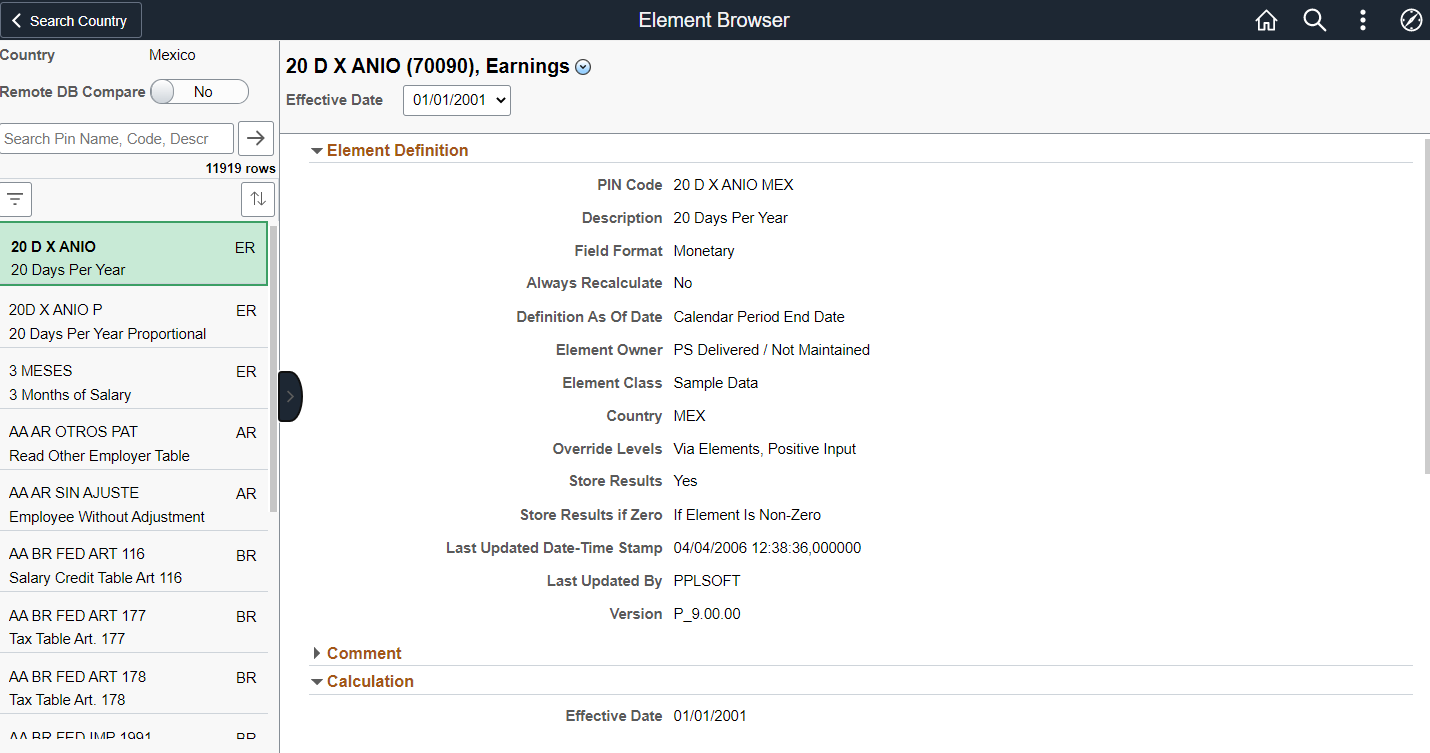
Figure 1: Element Browser Fluid Component
Element Browser is a Fluid component that enhances the user experience, by having a two column layout allowing you to easily search and view the Elements definition.
Searching, Filtering and Ordering Elements
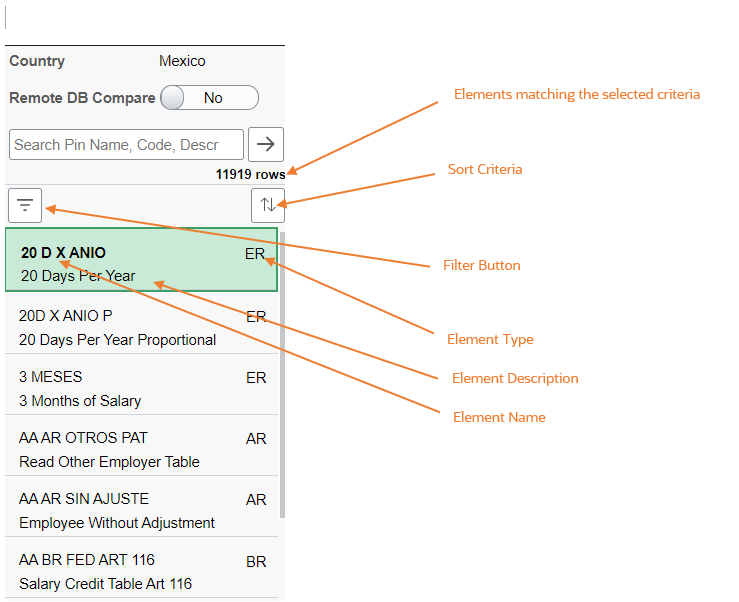
Figure 2: Left-side Panel
The left-side Panel provides additional searching capabilities; you can look-up for elements using partial or full element name, pin code or description, additionally you can filter by Element Type, Effective Date and/or Version to refine the results.
The Elements matching the selected criteria (country, name, type, etc.) are listed in the left-side Panel, each row contains the Element name, description, and type; you can click on any Element to get its detailed information in the right-side Panel.
You can use the Sort button to change the default order of the Result rows, the available options are Pin Code, Element Type and Description.
Detailed Information and Elements Navigation
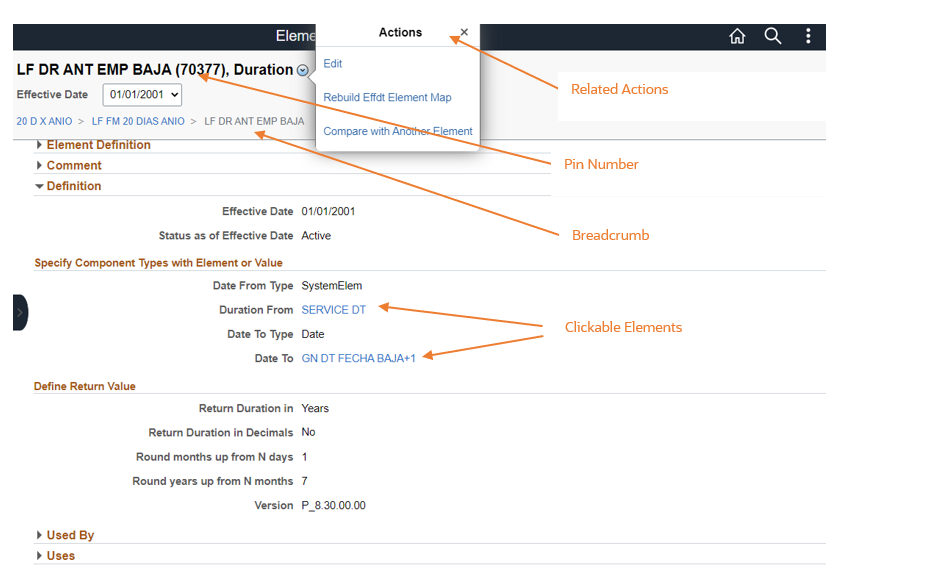
Figure 3: Right-side Panel: Detailed Info
The information is organized in multiple collapsible sections, this allows you to focus on the one you are most interested in. “Element Definition”, “Comments”, “Used by”, and “Uses” are common sections available for all Element Types, remaining sections are filled and displayed based on the selected Element Type.
You can navigate to new Elements by clicking on an Element name; The Breadcrumbs, located at the top of the right-side Panel, simplifies the navigation to all the related Elements that you have reviewed so far.
Related Actions
You can also run the Create Element Relationship process from here. If you want to Edit an Element, select the “Edit” link from the Related Actions menu, Element Browser will take you to the corresponding component using the selected Element, opening it in a new Tab in your browser so that you can keep track of your Element Navigation history in the Original Tab.
This is a very powerful tool for Administrators and Developers, they can review all Element definitions in a single Fluid Component; with Element Browser there’s no need to leave the page and navigate to other Components to troubleshoot and get other Element definitions.
To be continued… Keep posted to Learn more about Element Browser and its Comparison capabilities.