
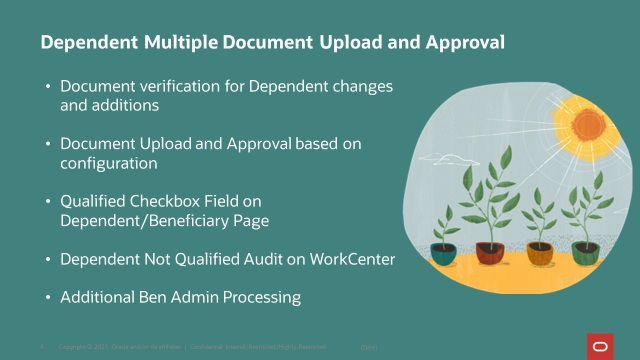
In my first blog, Tracking Benefits Dependent Data has gotten easier with new dependent document upload and approval – Part 1, the discussion was on how the new feature works. This slide may refresh your memory on the enhancements in this feature.
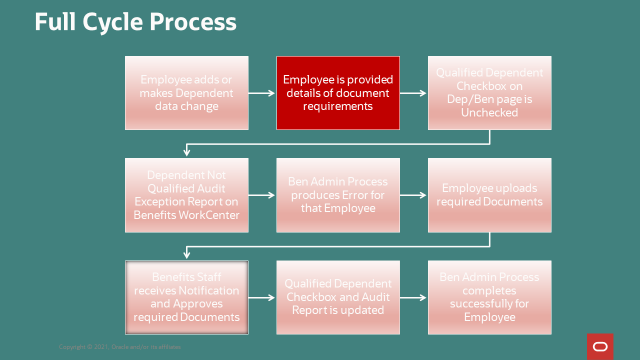
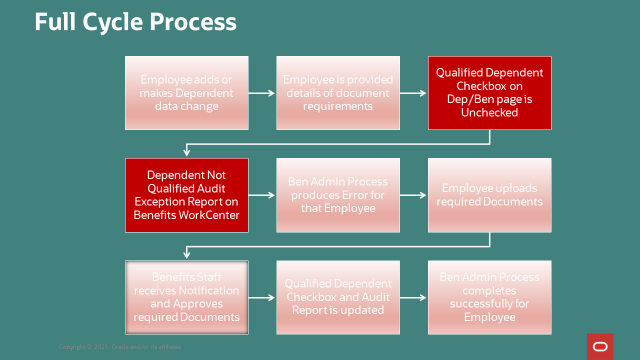
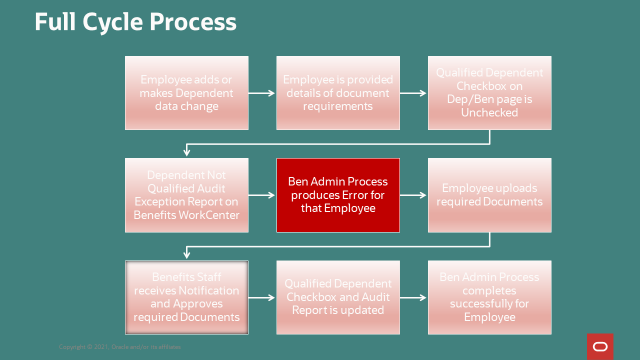
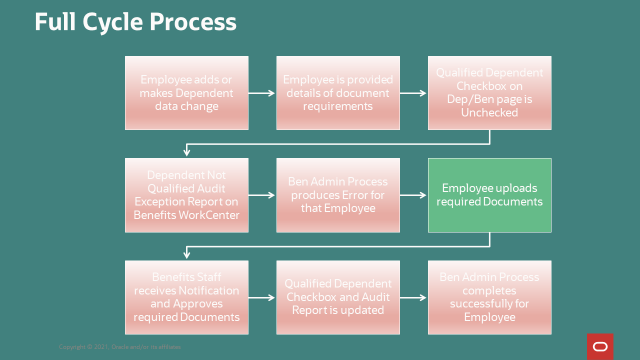
The process for Benefits Dependent Upload and Approval feature includes a number of steps. The slide below provides an illustration of these steps. I will use it to explain how each step is broken down and what you need to do to configure the system.
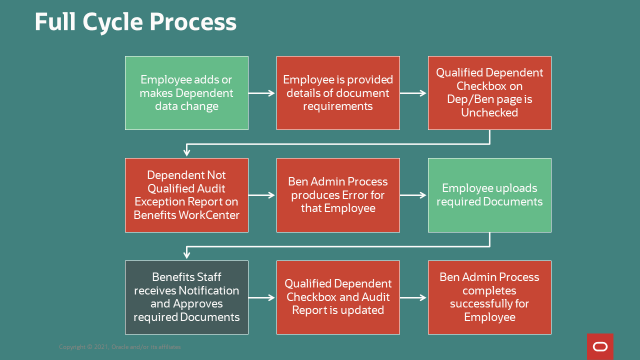
Process Step 1: Where do you want Employees to add or modify Dependent Data?
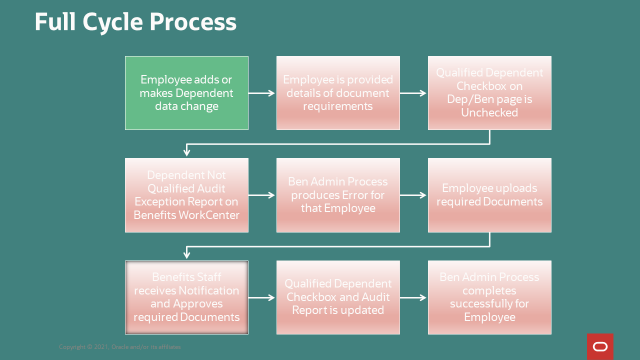
You can provide employees with three options of where to update and add Dependents. You can use all three or choose only to use the Benefits Card inside of the enrollment.
Option 1: Use the Add/Update Dependent on the Benefits Card
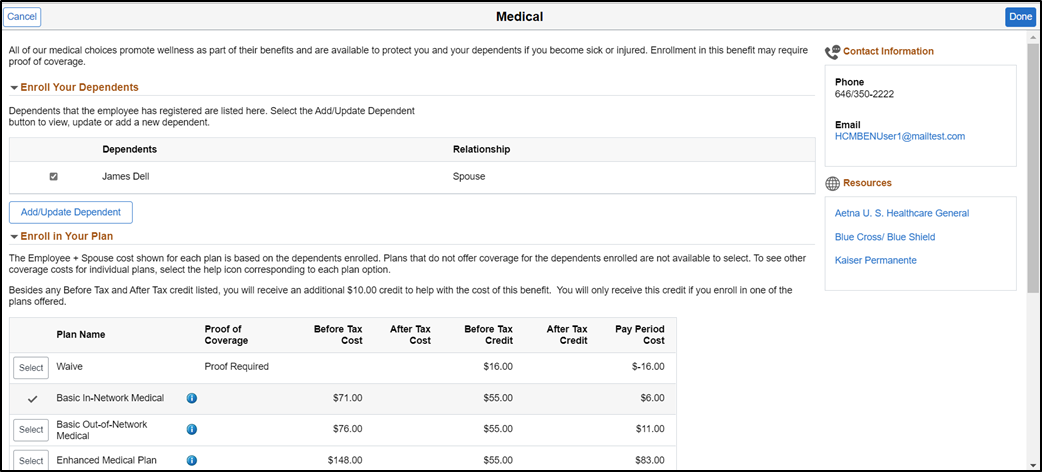
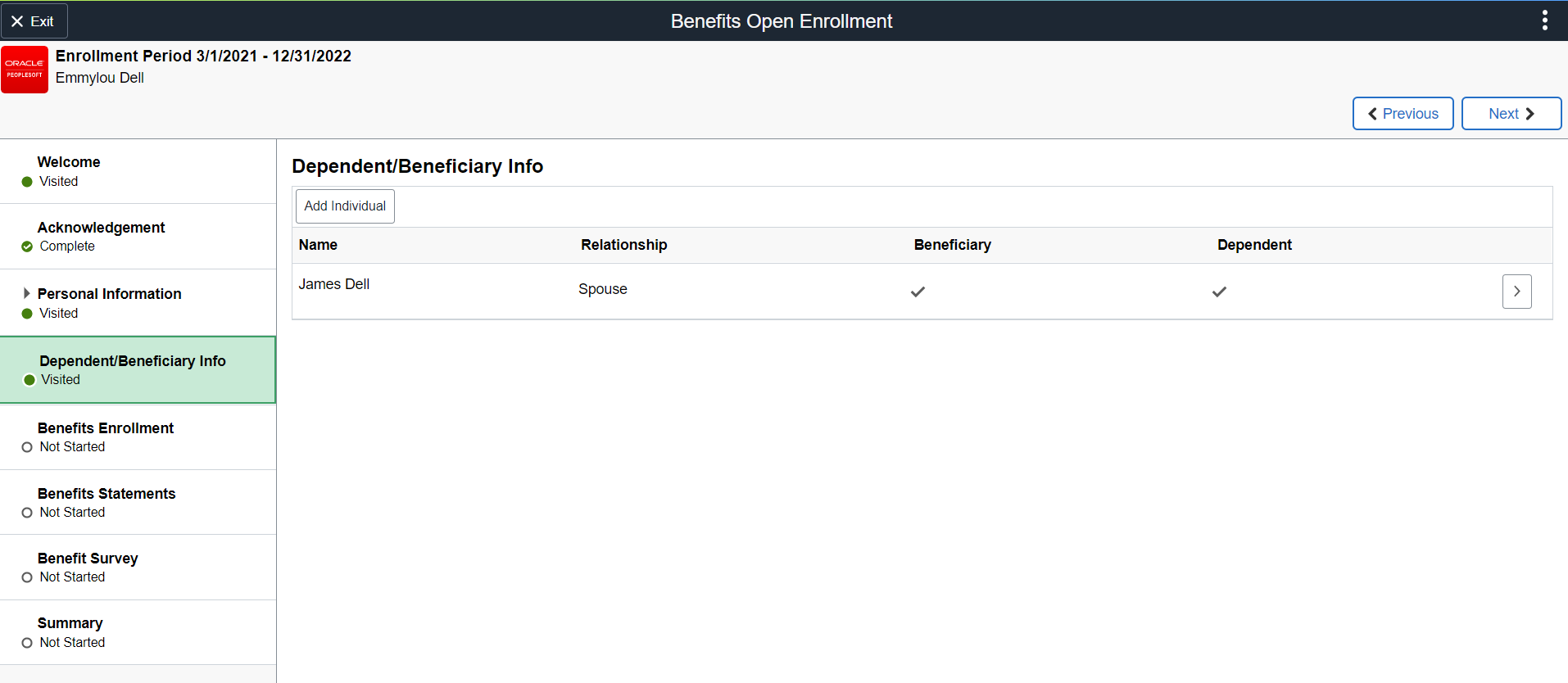
Option 2: Provide a separate Dependent/Beneficiary Info step during the enrollment process. Be sure to turn on the flag in the activity guide template to activate the attachment feature for this step.
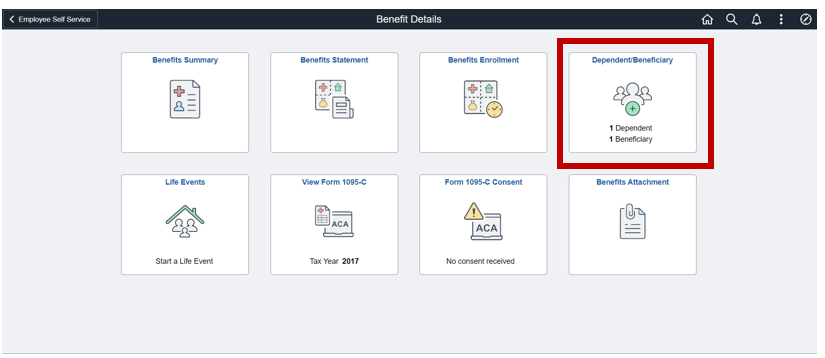
Option 3: Or you can use the Dependent/Beneficiary Tile, which may be outside of the enrollment event.
Process Step 2: What is your organization’s documentation requirements?
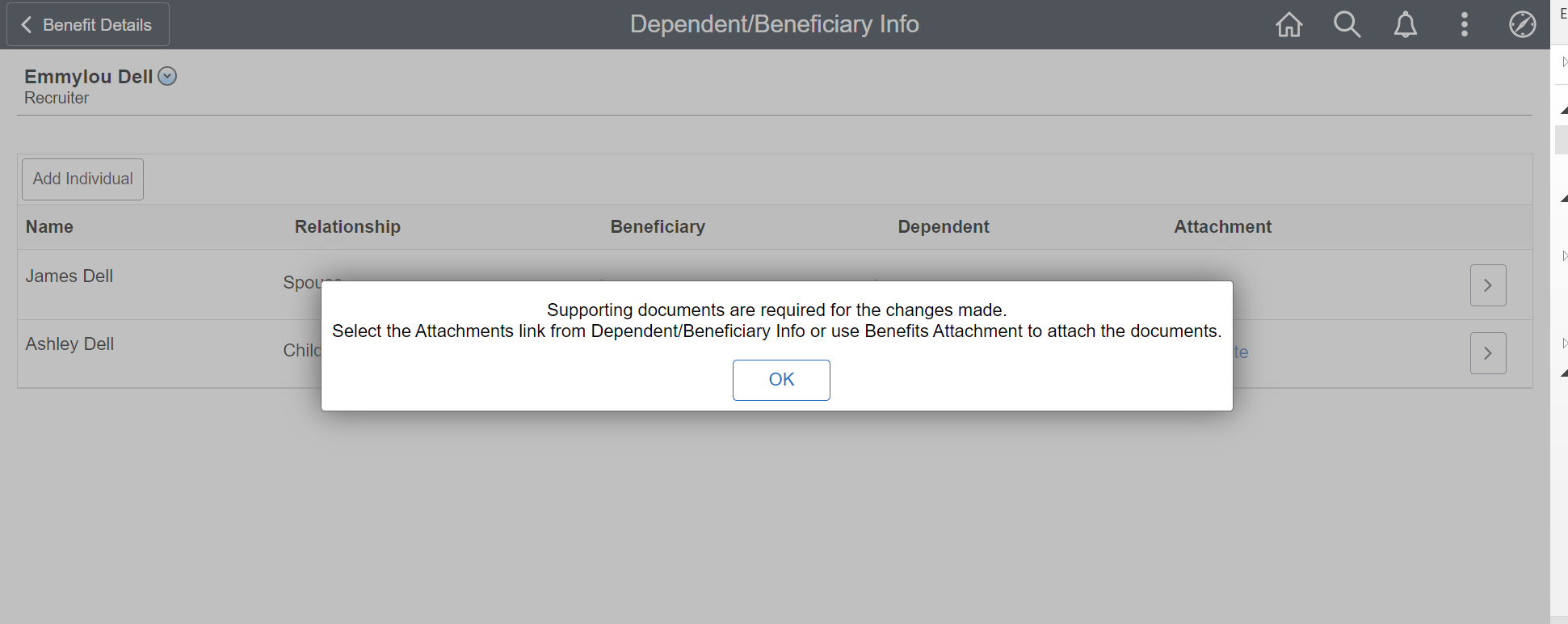
When an employee adds a new dependent or modifies a current dependent, they will receive a message with instructions for the needed supporting documentation.
Using the Attachment Mapping page, you control when documents are required based on the Field and if it is based on an Update or Add action.
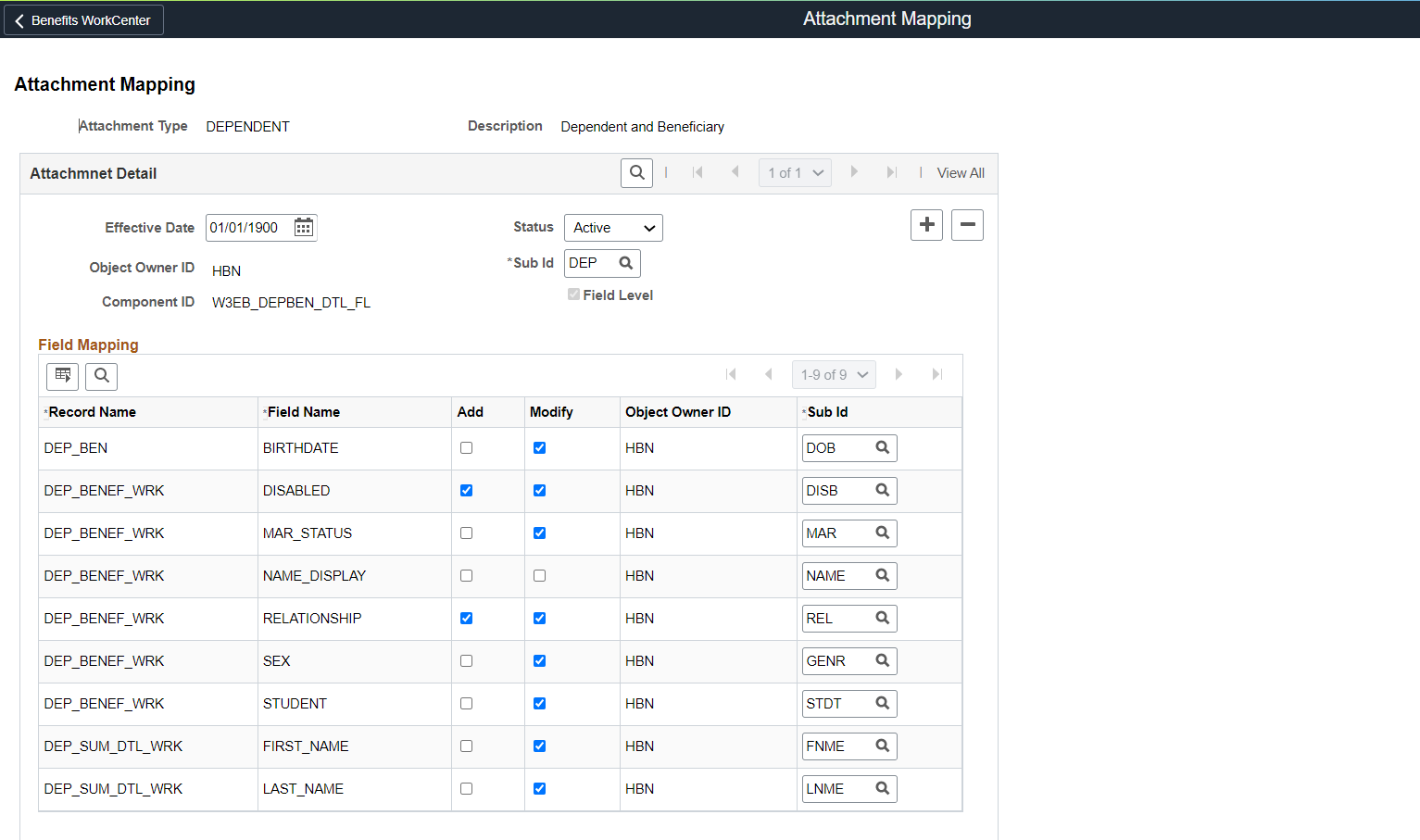
In our example, for new dependents the triggers are based on Relationship and Disabled fields. If an existing dependent’s data is changed or modified, we have selected many more fields to trigger the need for documentation. Of course this is just an example, you will add a new row and configure this page to meet your requirements.
We heard from many of our customers that changes on the Dependent are the hardest to track. Employees are notorious for changing the name of the spouse, date of birth, and other fields instead of reporting a divorce and subsequent marriage through Life Events. Using Dependent Data Upload and Approval may help you “catch” many of these issues.
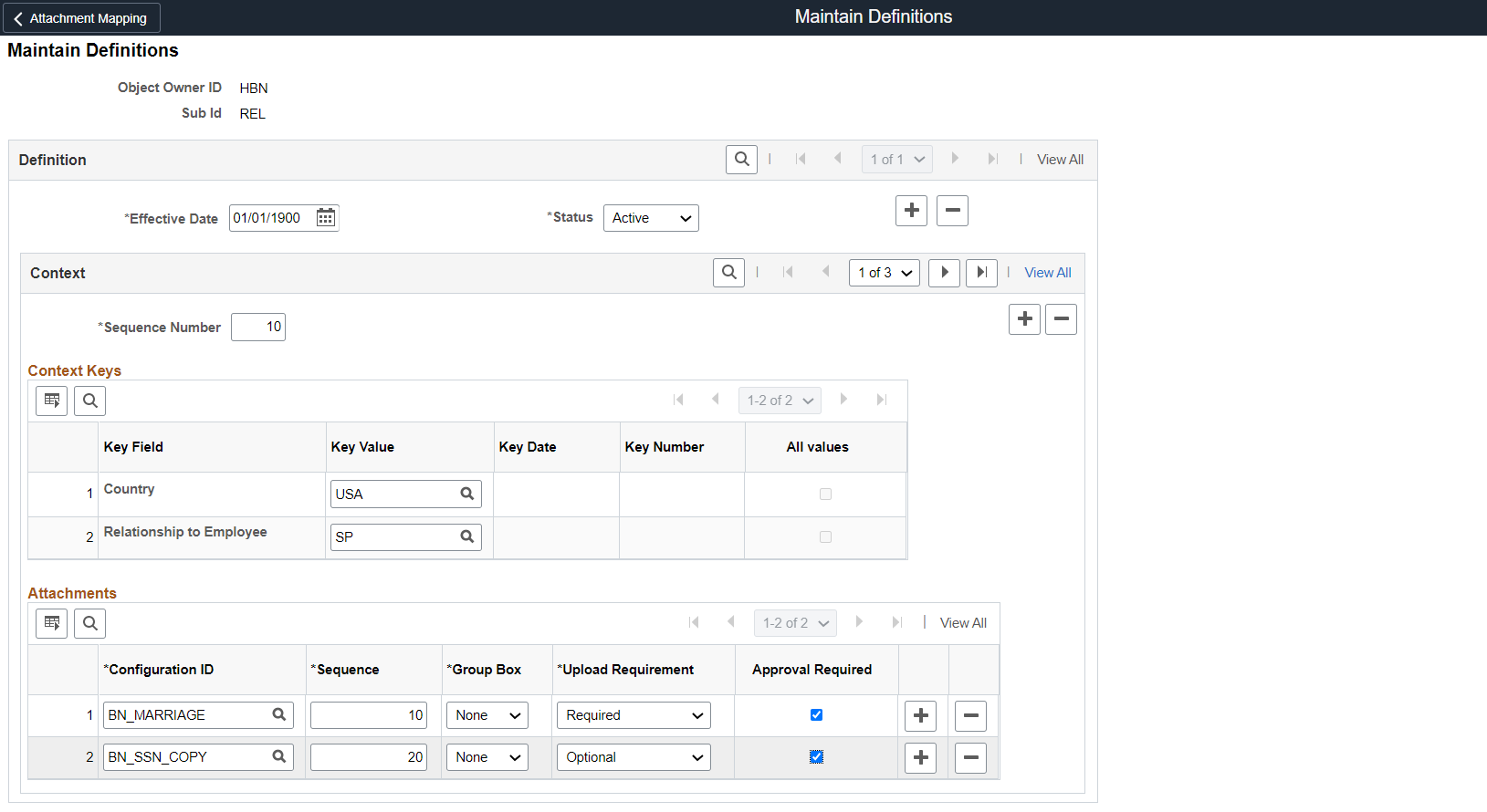
Next, you “map” the field to the type of documents that are required on the Maintain Definitions page to a Sub ID. For example, if the employee adds a relationship of Spouse, you may want to verify both the Marriage Certificate and Social Security Card.
When an employee adds a Child, you may want to verify the Birth Certificate.
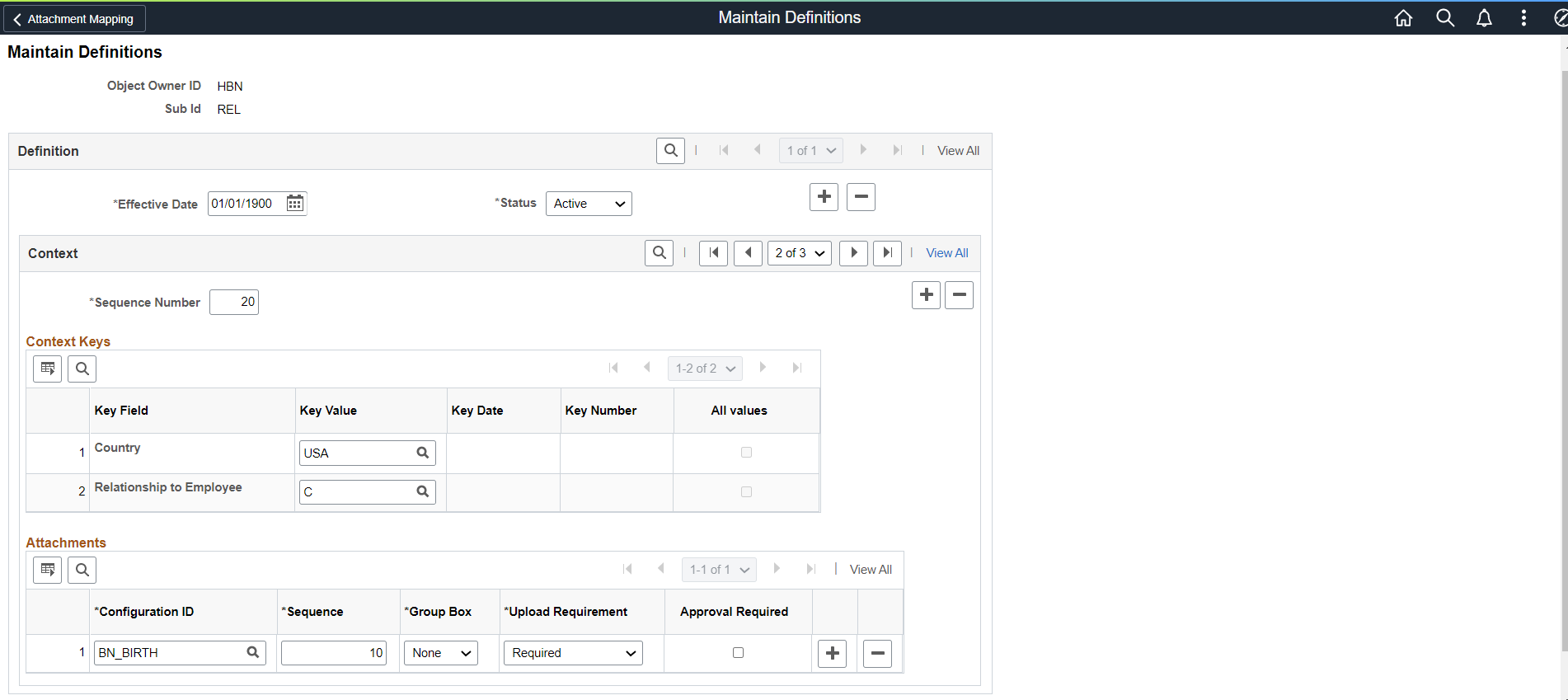
You can also control which documents are required for upload and if an approval is required by a Benefit’s Administrator. Organizations have the flexibility to require an upload without an approval, but we imagine that the majority of you will require approval of uploaded documents.
This part of the setup is probably the most time consuming in ensuring that you have the right documentation mapped to the Sub ID and the Record and Field Name.
Process Step 3 and 4:
My favorite pieces of the enhancement for the Benefits Dependent Data Upload and Approval are the addition of the Dependent Proof section on the Update Dependent/Beneficiary page and the Dependents Not Qualified Exception Report.
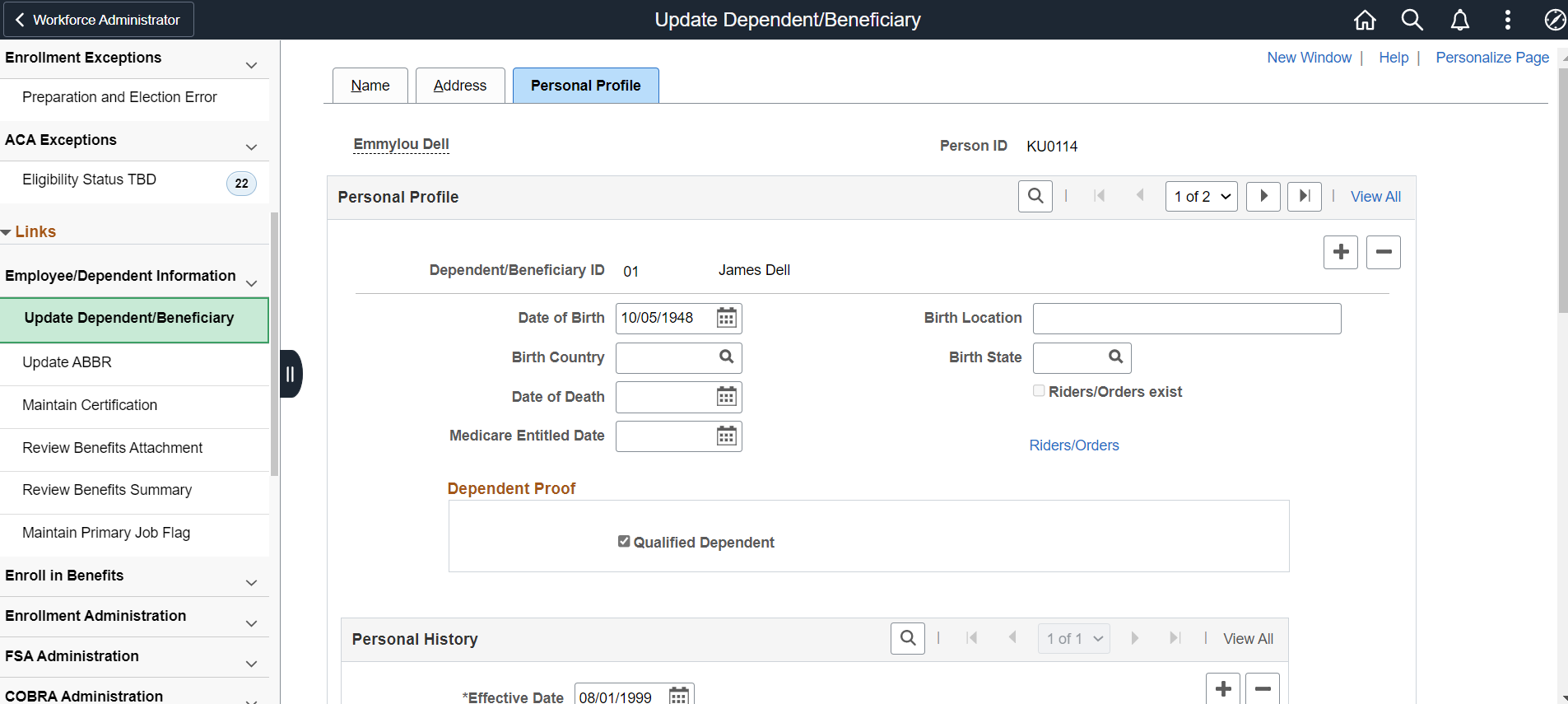
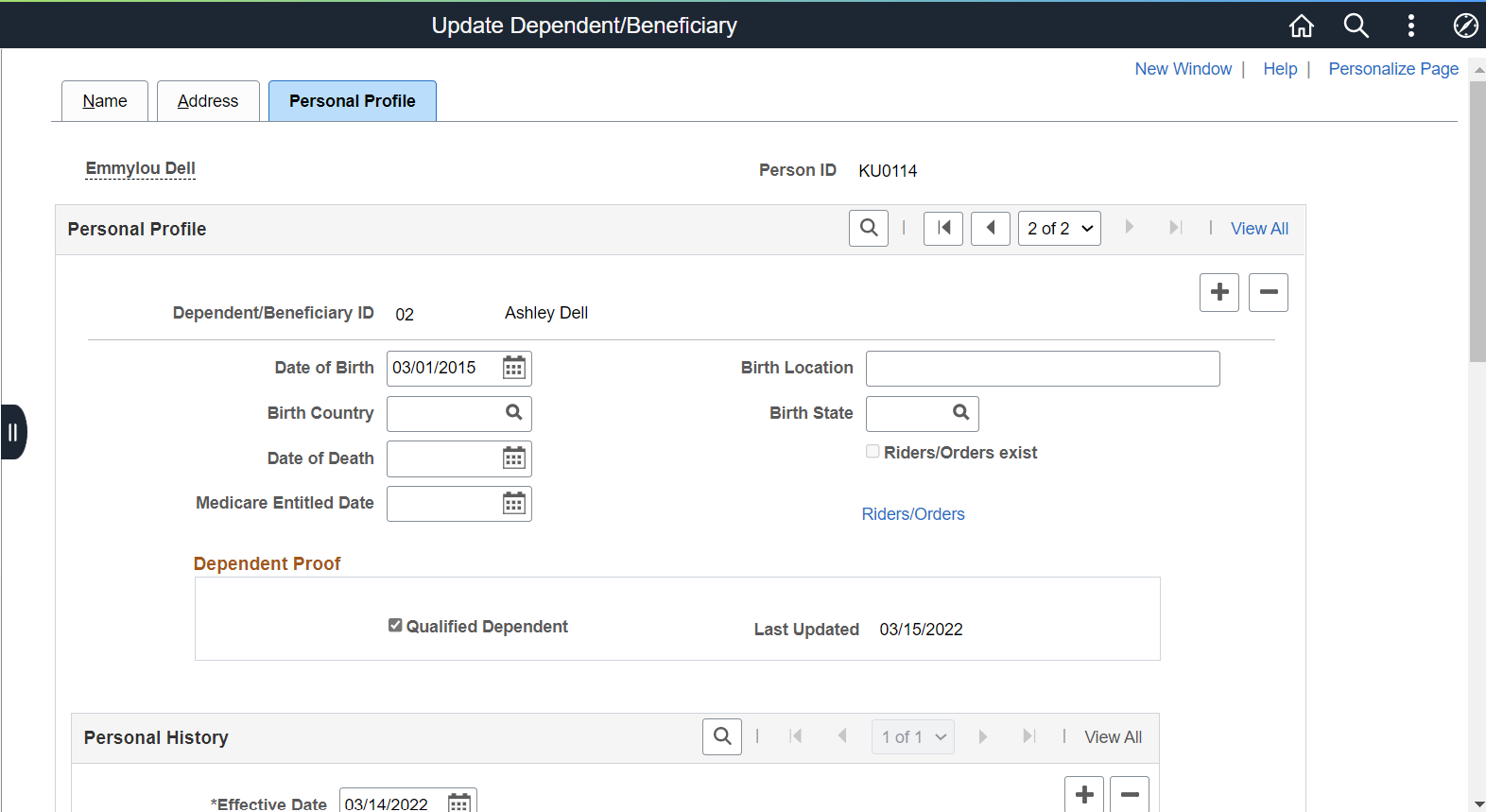
When you uptake the feature, the Dependent Proof box will be applied to all of your current Dependents/Beneficiaries. The Qualified Dependent box will be checked and no Last Updated date will be shown to give you a fresh slate to start with. Once the employee makes a change or adds a new dependent, this field will automatically be unchecked and a last updated date recorded.
Even if your organization doesn’t utilize Ben Admin, Base Benefits customer can still use the Qualified checkbox and date field.
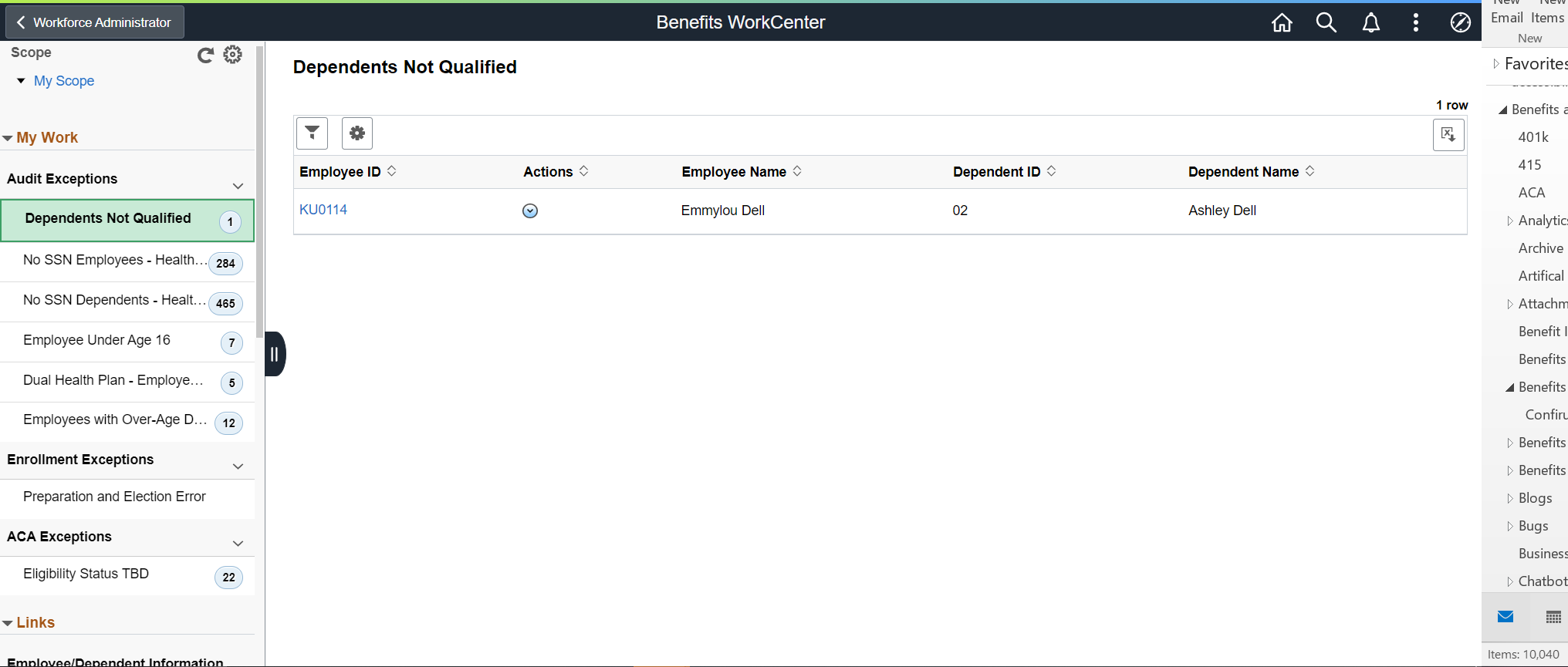
A Dependent Not Qualified Audit Exception report was created for the Benefits WorkCenter. This report provides you with information about dependents where the Qualified Dependent checkbox is not selected. The Employee ID hyperlink will take you directly to the employees Dependent/Beneficiary Personal Profile page. The Actions button provides you the ability to send the employee a notification. Once the Qualified Dependent box is checked, the audit report will be cleared as well upon refresh.
We also included the wording “Proof Required” on the Benefits Statement so Employees can be reminded to upload their documents.
Process Step 5: Do you want Ben Admin to only process qualified dependents?
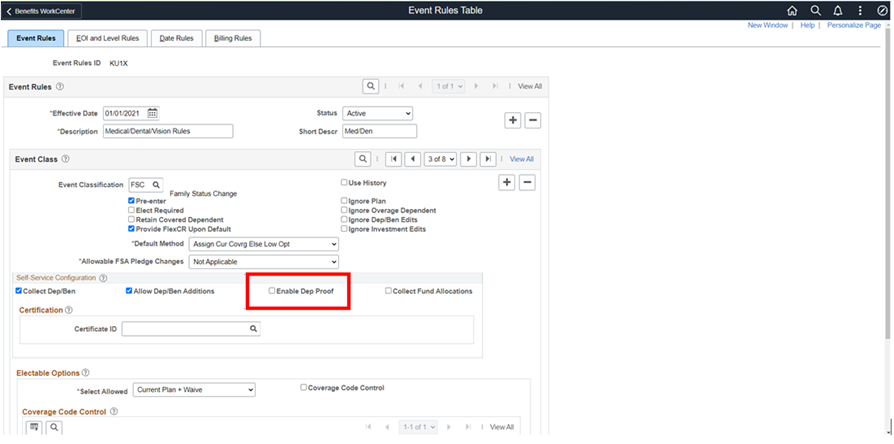
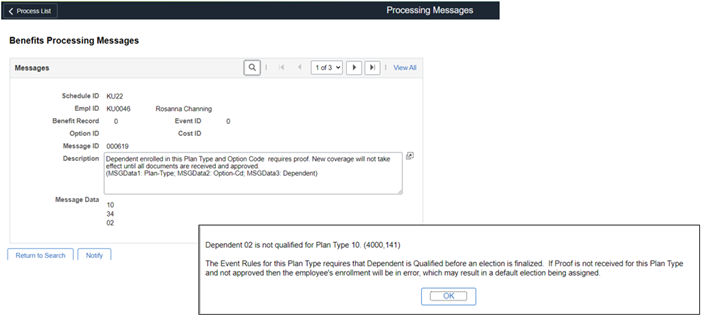
To add even more power to the process, we also delivered the ability for the Ben Admin batch event processing to only process employees’ dependents when the Qualified Checkbox has been selected. A new field ‘Enable Dep Proof’ was added to the Event Rules Table. Turning on the Enable Dep Proof, will first validate if a dependent is considered as qualified. If not, an error message will be generated. This is just another means to ensure that the approval process has been completed and you are not processing dependents before they are properly vetted.
Process Step 6 – Employees and Benefits Administrators can upload documentation.
While most customers will want the employees to upload their own documents via employee self-service, the Benefit Administrator has the ability to upload documents on behalf of the employee. The document is automatically approved upon upload by the administrator unless the approval is setup differently. The WorkCenter is used to provide a quick link to the page.
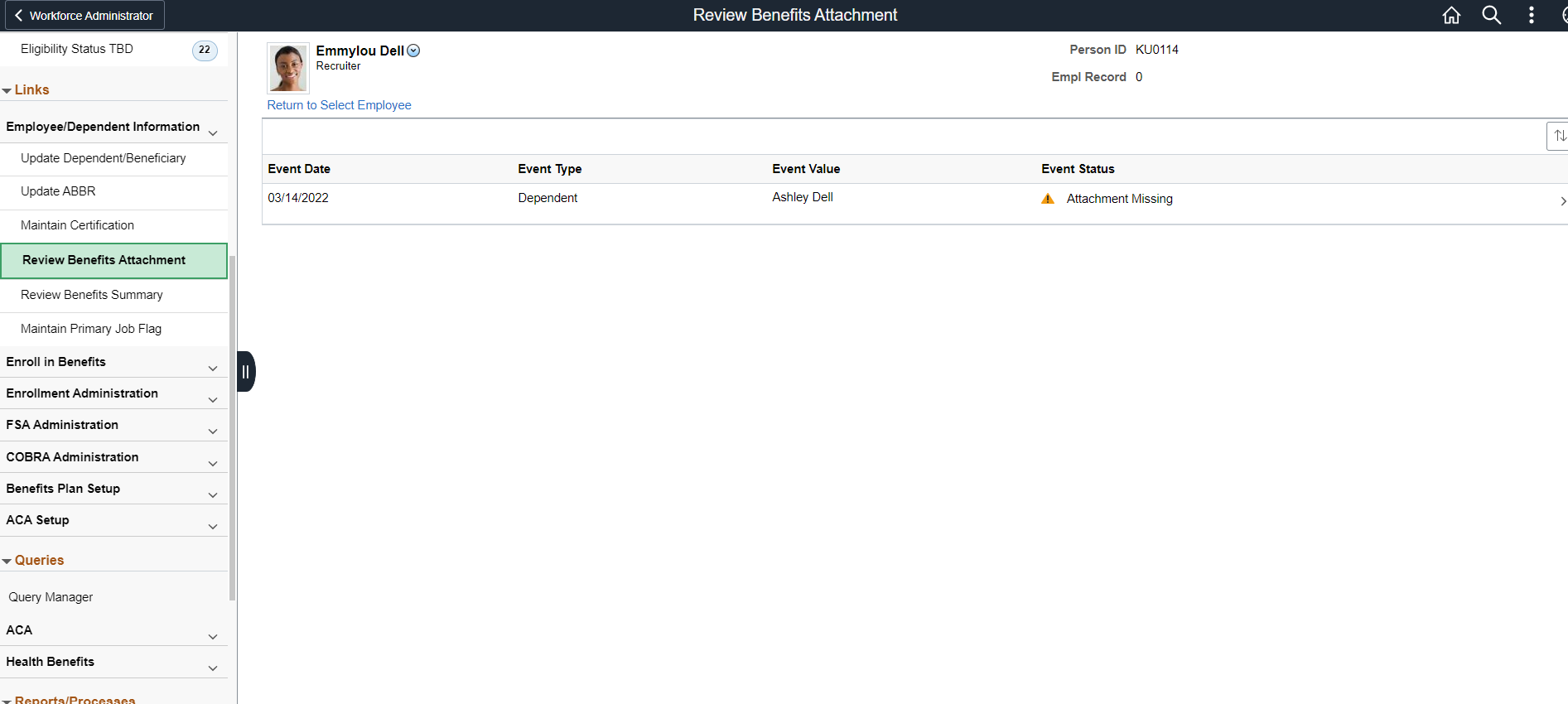
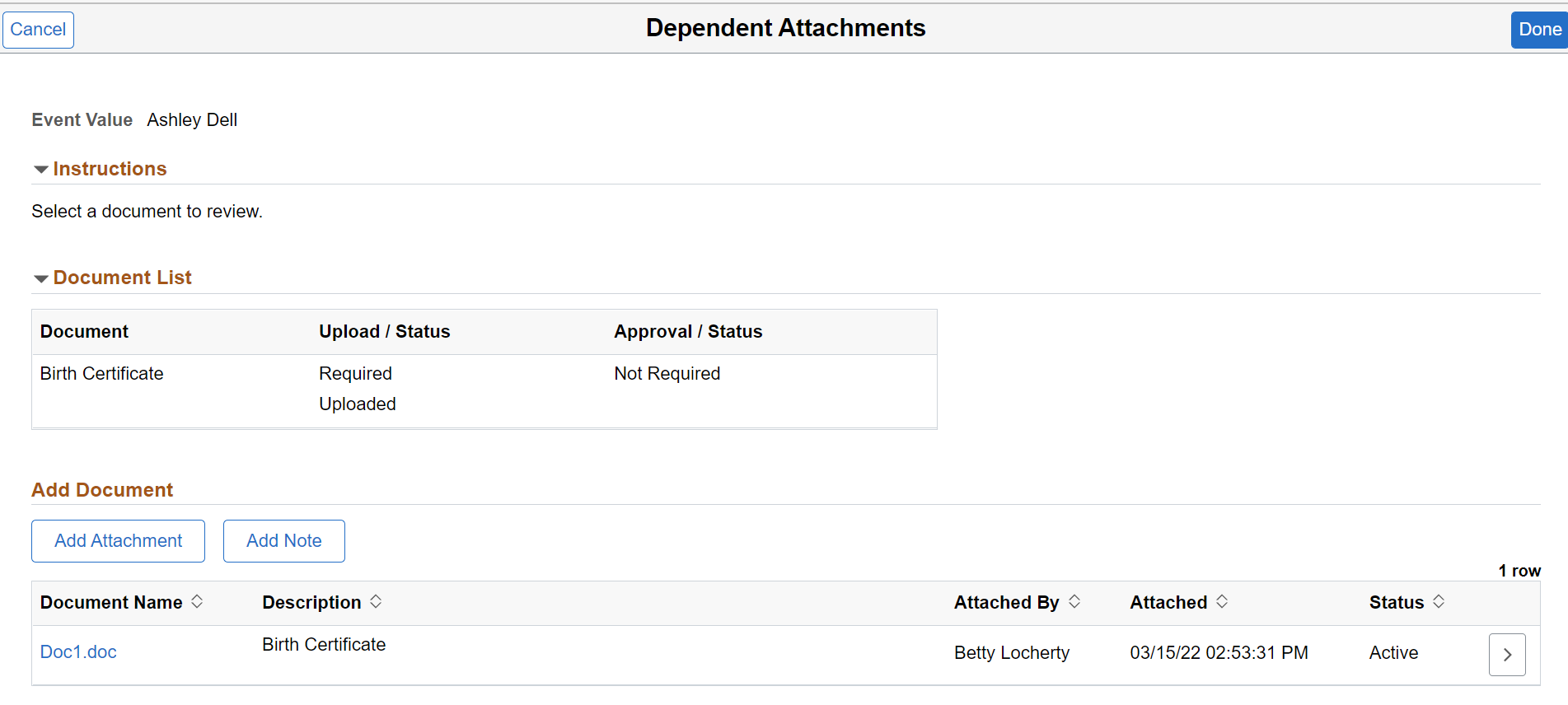
Process Steps 7, 8, and 9 –
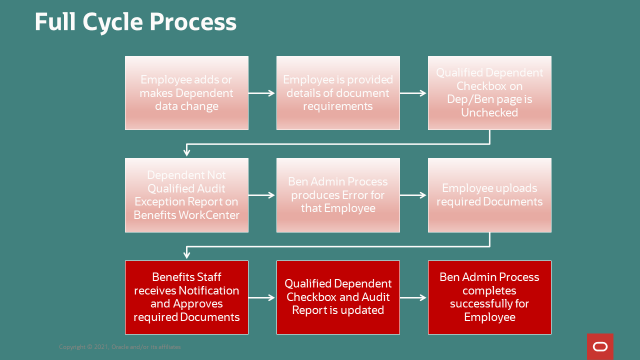
Once the approval is completed, a number of processes are triggered.
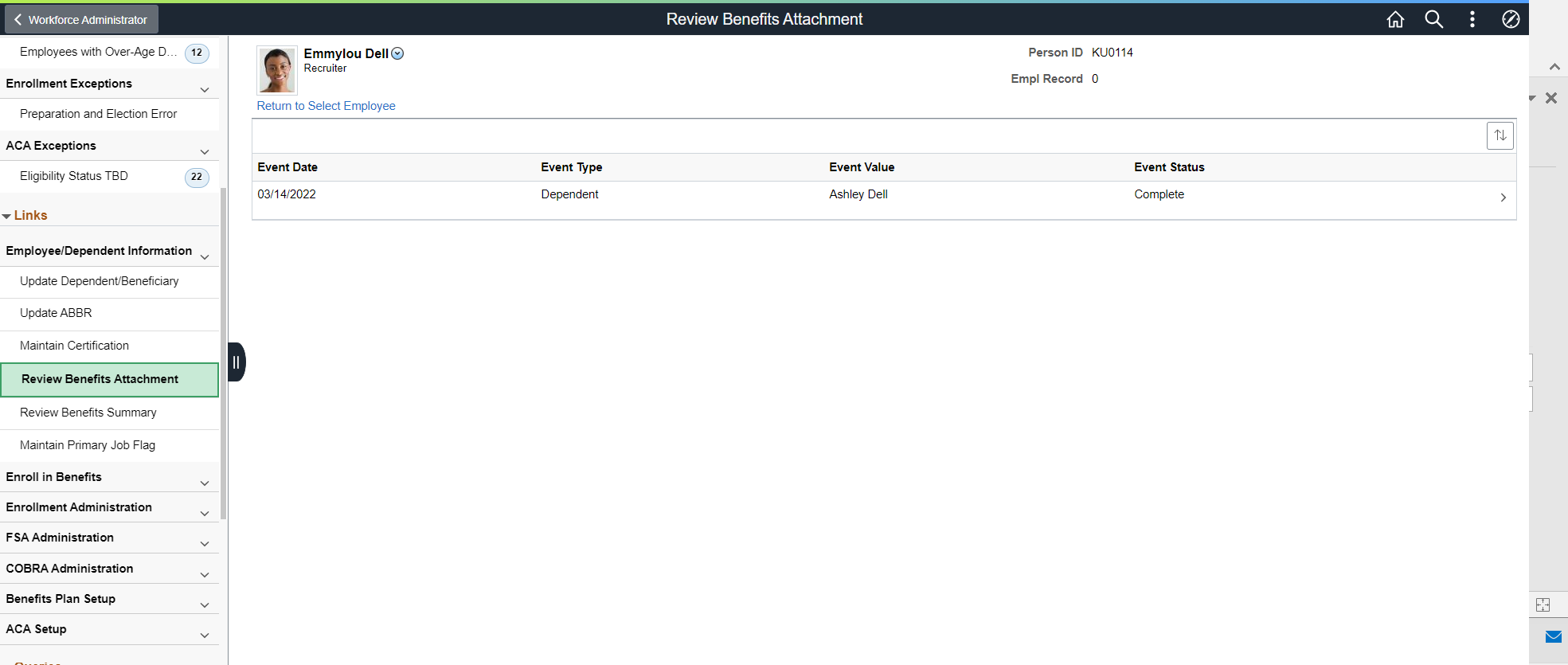
- The Event Status shows Complete
- The Qualified Dependent Box and Date are updated
- The Dependents Not Qualified audit exception report is cleared
- The Ben Admin Process will include the dependent in the next run
My recommendation is for organizations to spend some time thinking through your document requirements in order to set up the Attachment Mapping and associated Maintain Definition pages. You will need to determine what approvals are required and if you would like to use Ben Admin to control when a dependent can be processed. The results will provide you with a much more efficient way to track those dependent changes. Bet you won’t miss those excel spreadsheets, emails, and sticky notes.
For additional information on the Dependent Document Upload and Approval, please review the Installation and Supplemental Documents that can be found at this link under Human Resources for Bug 33026977.