
When a requester orders an item (say a monitor) and it is shipped to the organization from the supplier, there is typically a two-step process to get the monitor to the requester. The first is a receipt transaction (perhaps at the receiving dock) and the second would be a delivery transaction where the monitor would be delivered to that specific requester within their department and the requester would sign for it or their badge would be scanned as proof of delivery.
When viewing requisition details in My Requisitions, the requisition lifeline reflects the current status of the requisition as it moves through the various stages of the procurement process. For example, if a requester had ordered a monitor, it had been approved, a purchase order had been created and the monitor had been received from the supplier, the following lifecycle icons would be lit up:
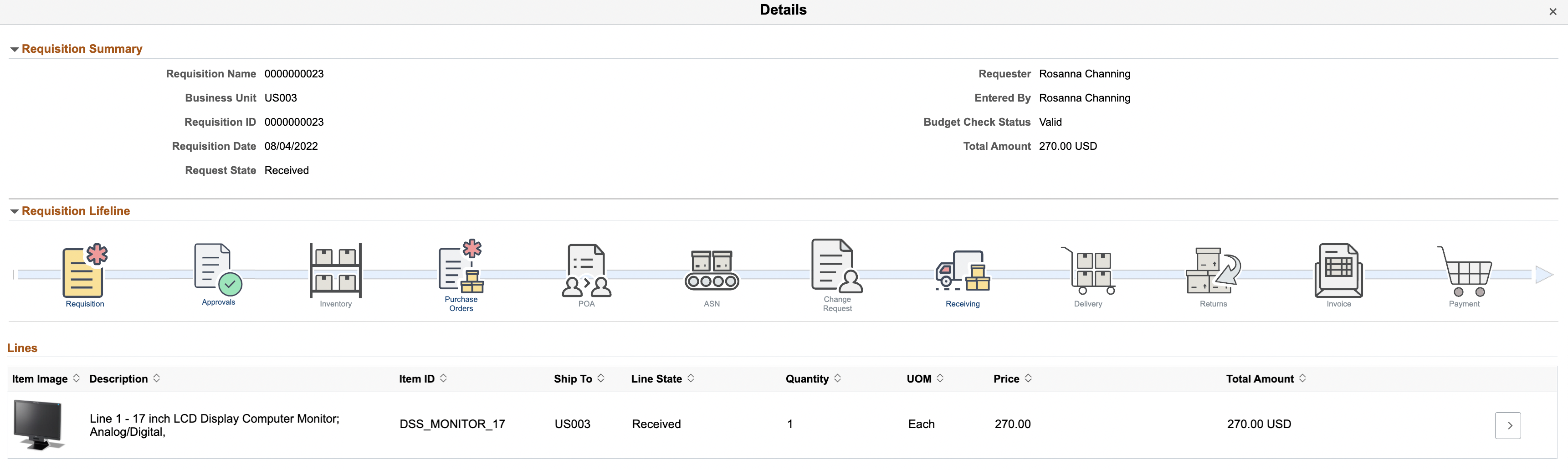
As we can see, the Receiving icon is lit up but the new Delivery icon is not.
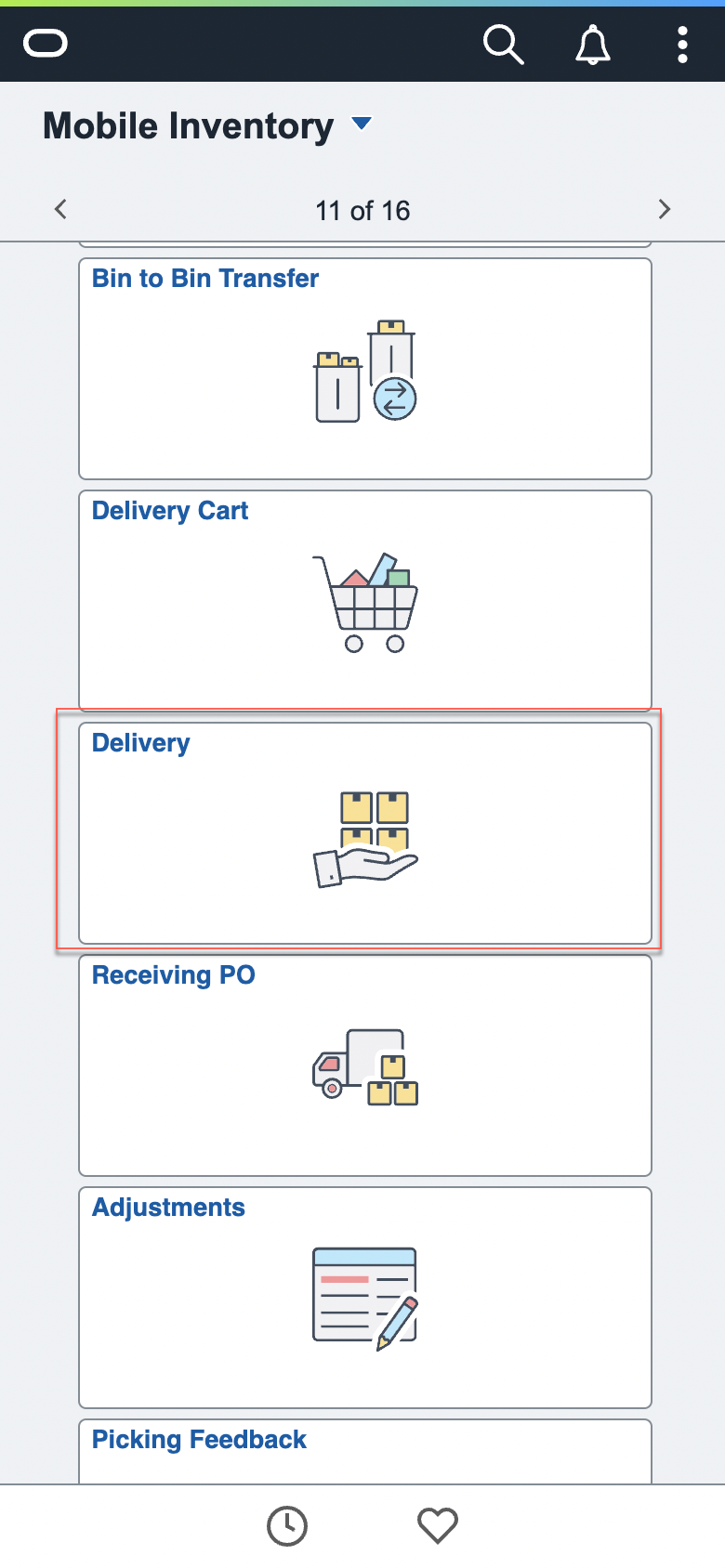
Let’s deliver this monitor using the mobile inventory Delivery transaction (typically done using a smartphone size device with scanning capability).
Select the Delivery transaction from the Mobile Inventory menu:
Once the pending delivery has been identified (via the Receipt, Purchase Order, or Item number), the badge number of the receiving requester could be scanned as shown below:

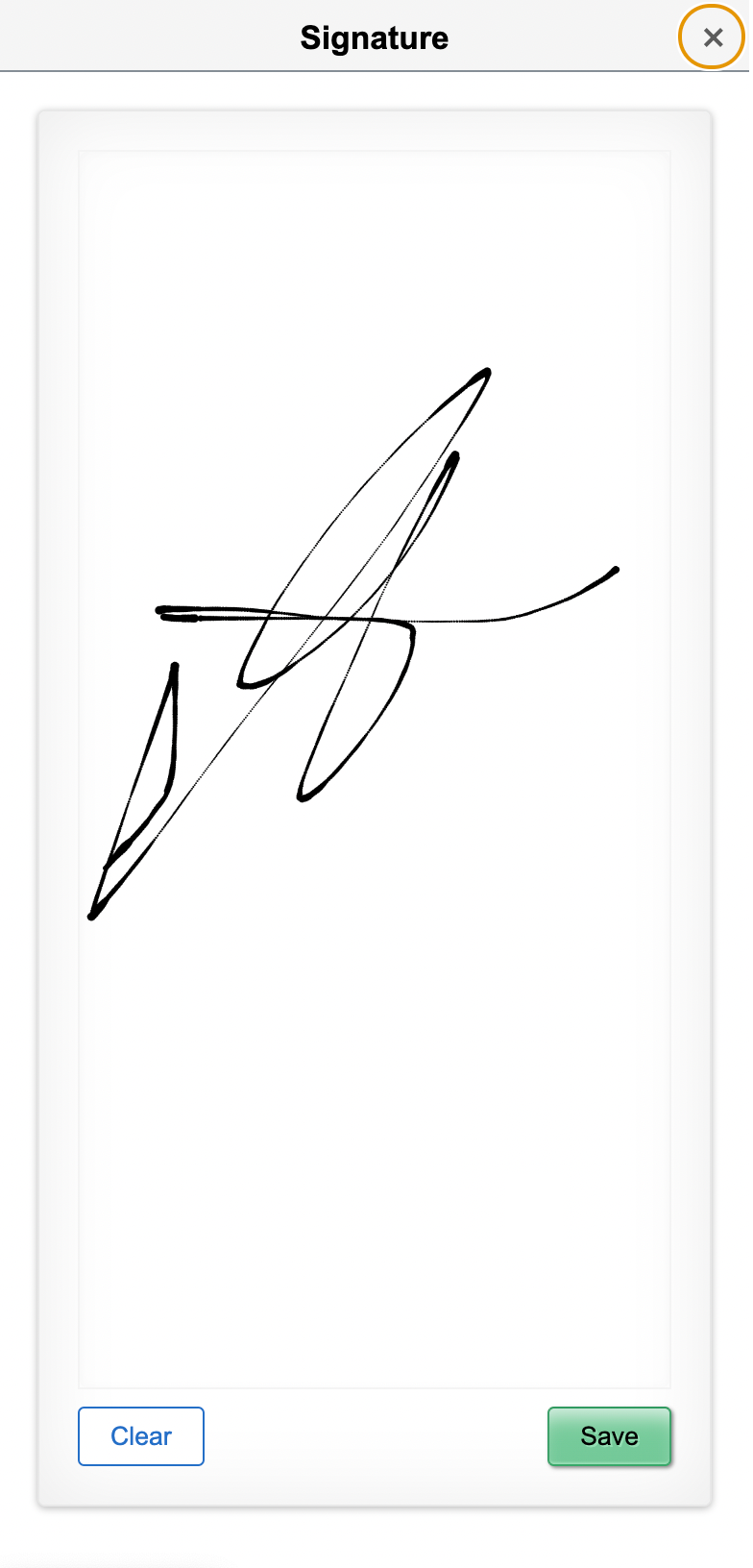
Alternatively, the requester could sign for the delivery:
Now that the Item has been delivered, when we go back to the Requisition lifeline, we can see that the Delivery icon is now lit up:
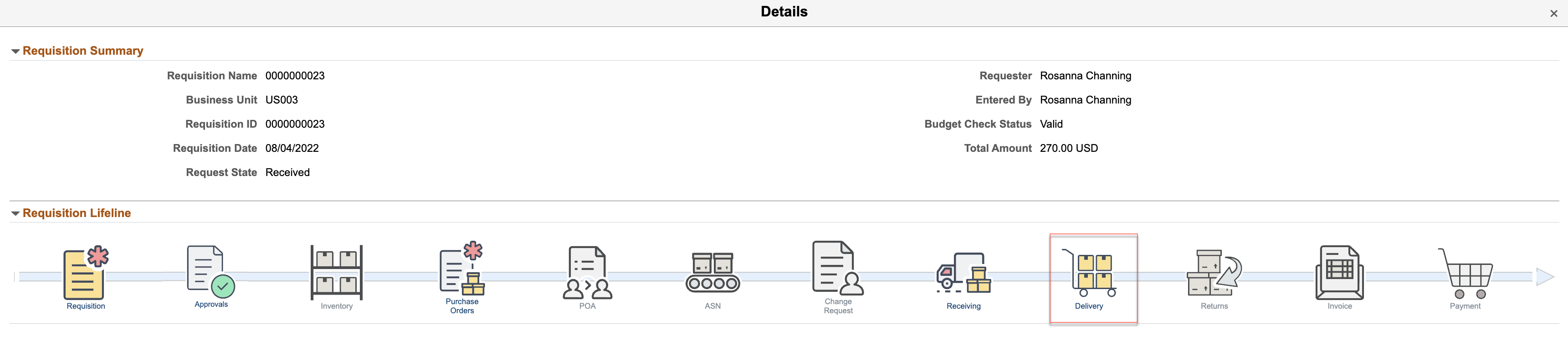
Clicking on the Delivery icon, will display the detail of the delivery:

Click on the view signature link to see the signature:

In summary, Requesters now have an indication when the Item was delivered, who it was delivered to and proof of delivery through a Badge scan or Signature.
For more information, go to www.peoplesoftinfo.com