

Oracle JD Edwards helps businesses manage core processes through a suite of integrated applications such as Human Capital Management, Financial Management, Order Management, Supply Management, Customer Relationship Management, and more. Ensuring strong performance of these tools is essential, as slowdowns or errors can directly impact daily value delivery.
This is where OCI Application Performance Monitoring (APM) comes in. APM instruments Java applications like Oracle JD Edwards to capture frontend-to-backend traces and pinpoint performance bottlenecks. While the default Java application monitoring is already powerful, you can enrich the trace data by capturing JD Edwards’ app, form, and error codes as well as translating them to meaningful names – e.g., capture the app code “P007032” and translate it into the more descriptive app name “Batches out of Balance”. This reduces the time needed to triage the performance bottlenecks found in APM traces by using terms specific to JD Edwards for a more meaningful context. You will know which exact JD Edwards applications and forms are impacted by the performance issues reported in APM. It allows management reporting to be created using JD Edwards terminology. In this blog, we will go through how to accomplish this.
There are three main steps:
- Prepare an APM domain. This contains all trace data collected by agents (click here for more).
- Deploy the APM agents—both the Java agent to collect backend data from Java servers and the JavaScript browser agent injected into web pages to capture frontend data from real user sessions. In this blog, we will extend the standard browser agent’s JavaScript code to also capture JD Edwards’ app, form, and error codes.
- In OCI, enable APM’s built-in enrichment rule for mapping JD Edwards codes to names or descriptions.
Deploy APM Java agents and enable JD Edwards monitoring attributes
When the APM domain is created, you will need to download, provision, and deploy the APM Java agent on the JD Edwards WebLogic domain by following the documented steps provided (click here for more).
The Java agent will run on your WebLogic servers next time you restart JD Edwards. For the browser agent configurations, you will find the default browser agent JavaScript code at $DOMAIN_HOME/oracle-apm-agent/config/<version>/BrowserAgentTemplate.txt. First, make a copy of the template to have the original version at hand if needed:
cp BrowserAgentTemplate.txt BrowserAgentTemplate.txt.origNow update BrowserAgentTemplate.txt, so it only contains the code below:
<script type="application/javascript">
document.apmrum = (document.apmrum || {});
document.apmrum.serviceName='@@SERVICE_NAME@@';
document.apmrum.webApplication='@@WEB_APPLICATION@@';
document.apmrum.ociDataUploadEndpoint='@@UPLOAD_ENDPOINT@@';
document.apmrum.OracleAPMPublicDataKey='@@PUBLIC_KEY@@';
document.apmrum.username='@@USER_NAME@@';
document.apmrum.trackPlainUserId='@@TRACK_PLAIN_USER_ID@@';
@@PROPAGATION_TYPE@@
@@GENERIC_ATTRIBUTES@@
//Gets JDE app and JDE form codes
function getPaneFormNames() {
const f=document.forms['E1PaneForm'];
const fname = f ? f.name : '';
const fparts = fname.split('_');
return fparts
}
//Gets JDE error code
function getJDEErrorCodeForApm() {
const inyfeContent = document.getElementById('INYFEContent');
const inyfeRows = inyfeContent ? inyfeContent.querySelector('[id^="DETAILID_0_"]').querySelectorAll('table tr') : '';
let errorId = '';
for (let i = 0; i < inyfeRows.length && errorId == ''; i++) {
const row = inyfeRows[i];
const firstTd = typeof(row) == 'object' && typeof(row.querySelector) == 'function' ? row.querySelector('td:nth-child(1)') : '';
const firstTdTxt = typeof(firstTd) == 'object' && firstTd.textContent ? firstTd.textContent.trim() : '';
if (firstTdTxt == 'Error ID') {
const secondTd = typeof(row) == 'object' && typeof(row.querySelector) == 'function' ? row.querySelector('td:nth-child(2)') : '';
errorId = typeof(secondTd) == 'object' && secondTd.textContent ? secondTd.textContent.trim() : '';
};
};
return errorId
}
//Sets JDE code attributes for spans
document.apmrum.udfAttributes = [
{ name: 'JdeAppCode', value: ()=> { let fp = getPaneFormNames(); return Array.isArray(fp) && fp.length == 2 ? fp[0] : '' } },
{ name: 'JdeFormCode', value: ()=> { let fp = getPaneFormNames(); return Array.isArray(fp) && fp.length == 2 ? fp[1] : '' } },
{ name: 'JdeErrorCode', value: ()=> { return getJDEErrorCodeForApm() } }
];
</script>
<script type="application/javascript" crossorigin="anonymous" src="@@UPLOAD_ENDPOINT@@/static/jslib/apmrum.min.js"></script>After updating BrowserAgentTemplate.txt, ensure that automatic injection of the browser agent is enabled in the APM Java agent. This adds the template’s modified JavaScript to web pages, so APM captures frontend spans with the JD Edwards code attributes. If needed, update the JD Edwards CSP headers as well. Click here for more information about the automatic injection and configuring CSP headers for APM.
Map JD Edwards codes to names with APM enrichment rules
APM enrichment rules modify your incoming trace data, e.g., by adding new attributes. These rules can be configured from scratch. Thankfully, APM provides one for JD Edwards out of the box. This enrichment rule translates the JD Edwards code attributes captured by the modified browser agent to meaningful names and descriptions. To enable the enrichment rule, please follow the steps below:
- In OCI, go to Observability & Management > Application Performance Monitoring > Administration. Select your APM domain.
- Under Resources, select Span enrichment and then click Create group.
- Give the span enrichment group a name like “JDE Enrichment Group”. You also need to specify a filter query to determine which spans the group’s enrichment rule(s) will apply to. Click on the pencil icon and manually enter “JdeAppCode is not omitted”. Then click Next.
- Under rule configurations, set name to “JDE Code Mapping” and select Oracle provided span rule. Then select JDE Suite under Oracle provided rule. Now click Finish.
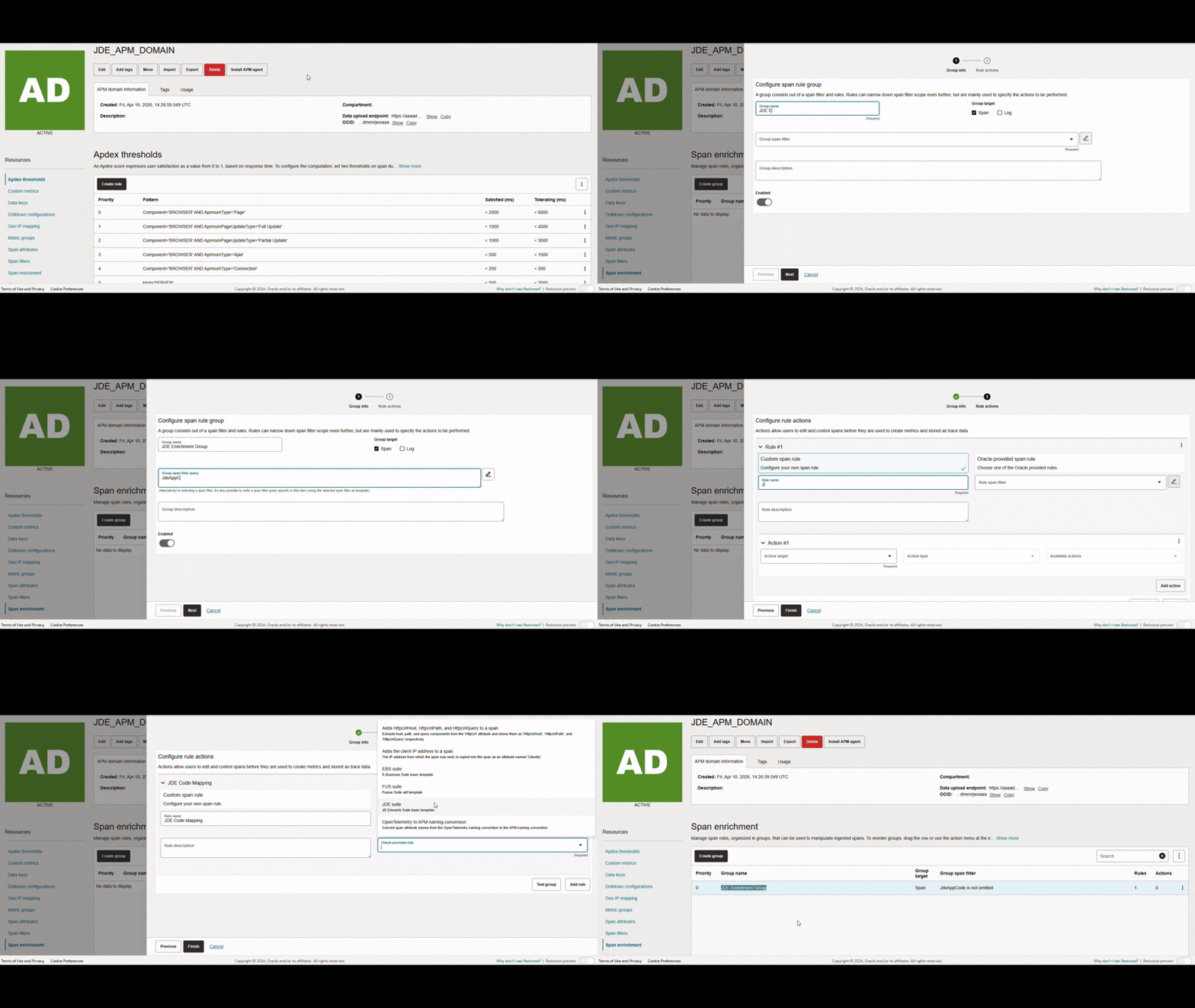
The enrichment rule in the newly created group will look for JD Edwards code attributes in spans specified by the filter. Then the code values will be translated into names assigned as values to new JD Edwards attributes using lookup tables included in the Oracle-provided rule.
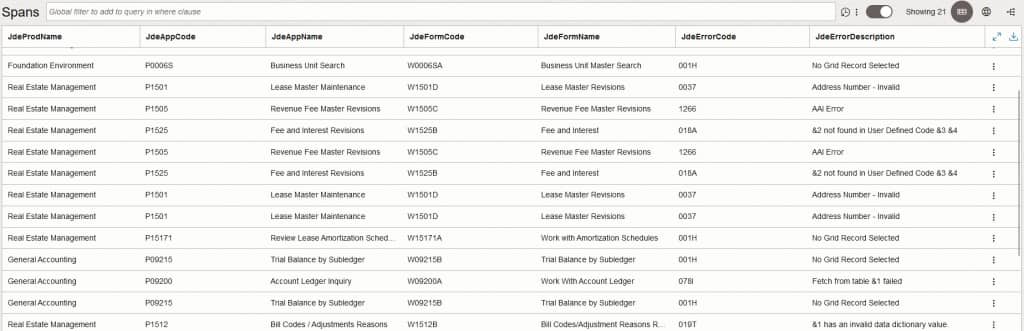
The APM Trace Explorer now shows which apps, forms, and errors are involved in your traces:
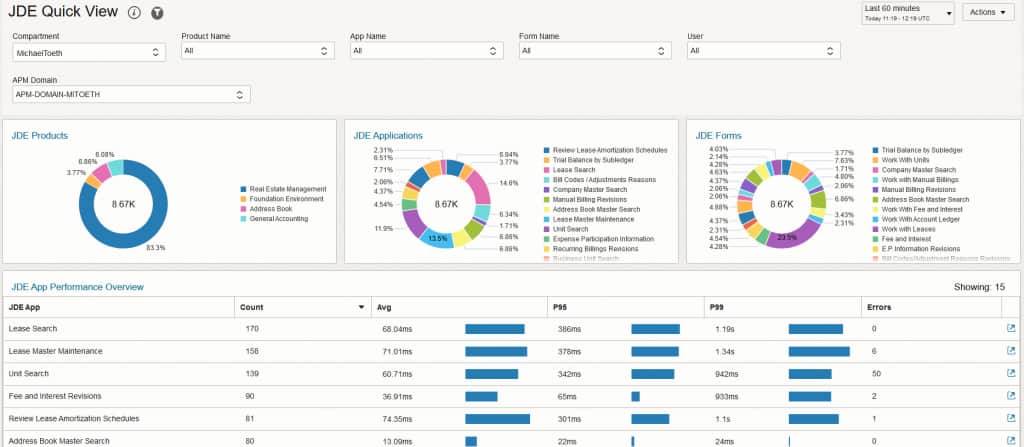
You can also create a dashboard like the example below:
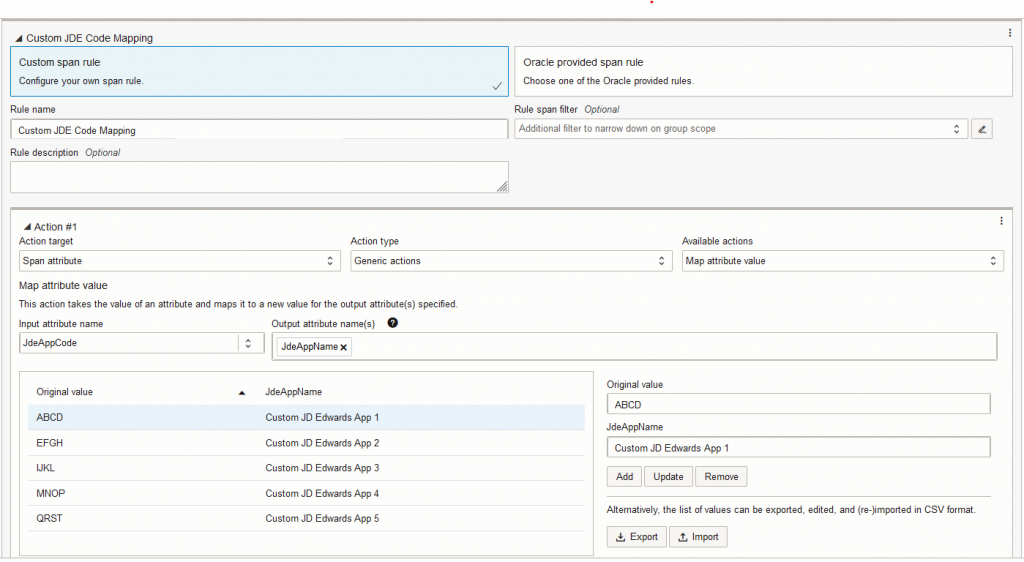
The out of the box span enrichment rule translates the JD Edwards codes of standard applications and forms. In case your JD Edwards includes custom applications and forms, you can add an additional custom rule to the JDE Enrichment Group which translates the codes of custom components into more descriptive names of your choice like shown below. Click here for more information about custom span enrichment rules.
Instrument the Oracle JD Edwards suite with OCI Application Performance Monitoring (APM) to capture app, form, and error codes. Enrich application traces with this additional context to identify performance bottlenecks found in APM and their impact on critical business functions managed via JD Edwards.