
In part 1, we saw how to deploy several resources to OCI, including a compute instance that will act as an application server and a MySQL HeatWave instance as a database.
In this article, we will see how to SSH into the deployed compute instance.
Getting the key
To connect to the deployed compute instance, retrieve the private SSH key created automatically during deployment.
This key is hidden and can be found in the “Job resources” of the Resource Manager’s Stack details of the “apply” job:
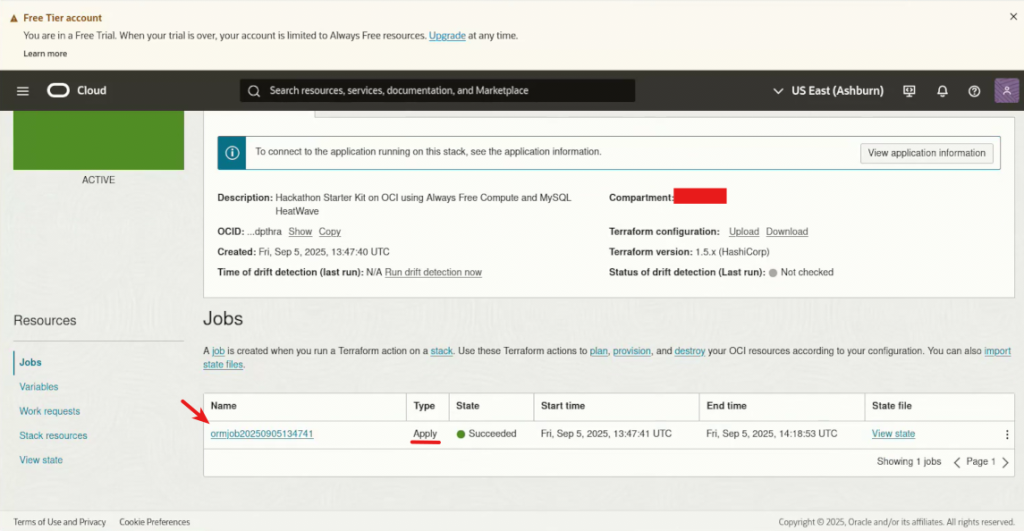
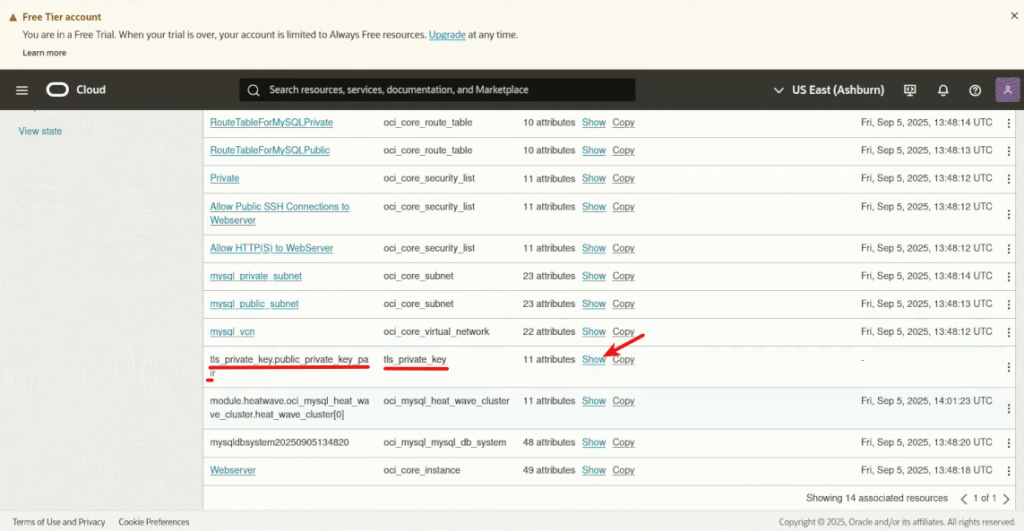
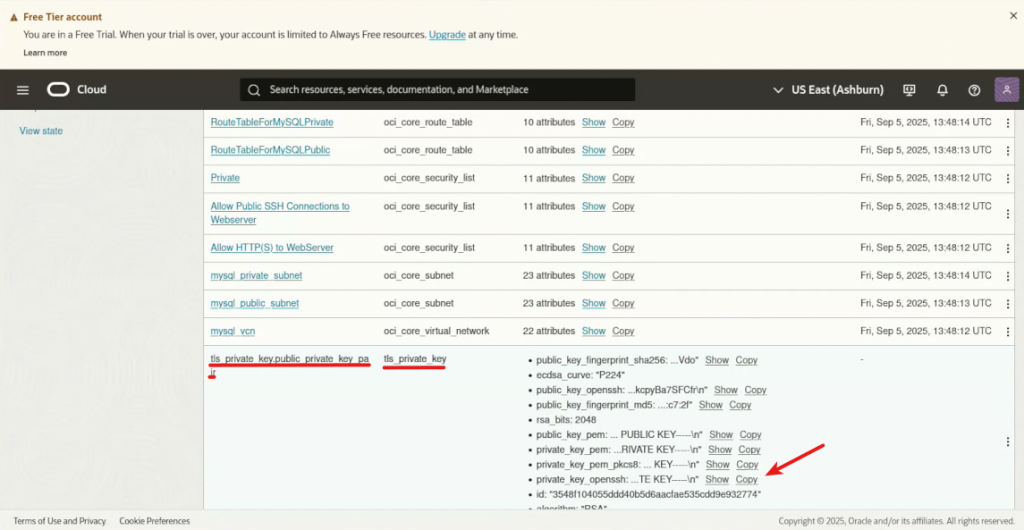
Copy the key and paste it into a file on your disk. You need to fix the key by removing the enclosing double quotes and replacing all the ‘\n’ with a real carriage return, using, for example, the command :1,$s/\\n/\r/g on Vi:
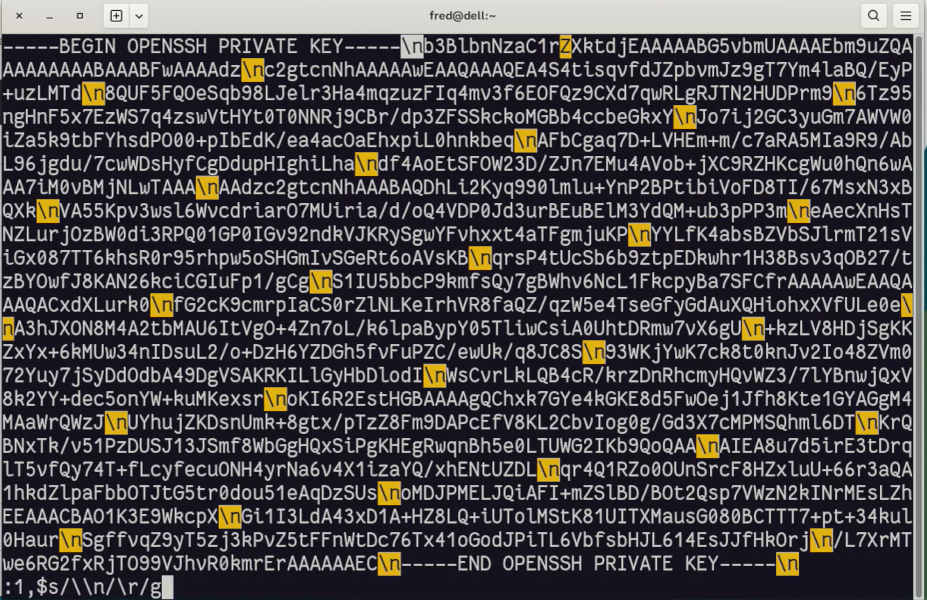
Then you can change the file permissions to 600.
With the recent OCI Dashboard, when deploying a stack, there is a new tab called Application information, that also provides the required information:
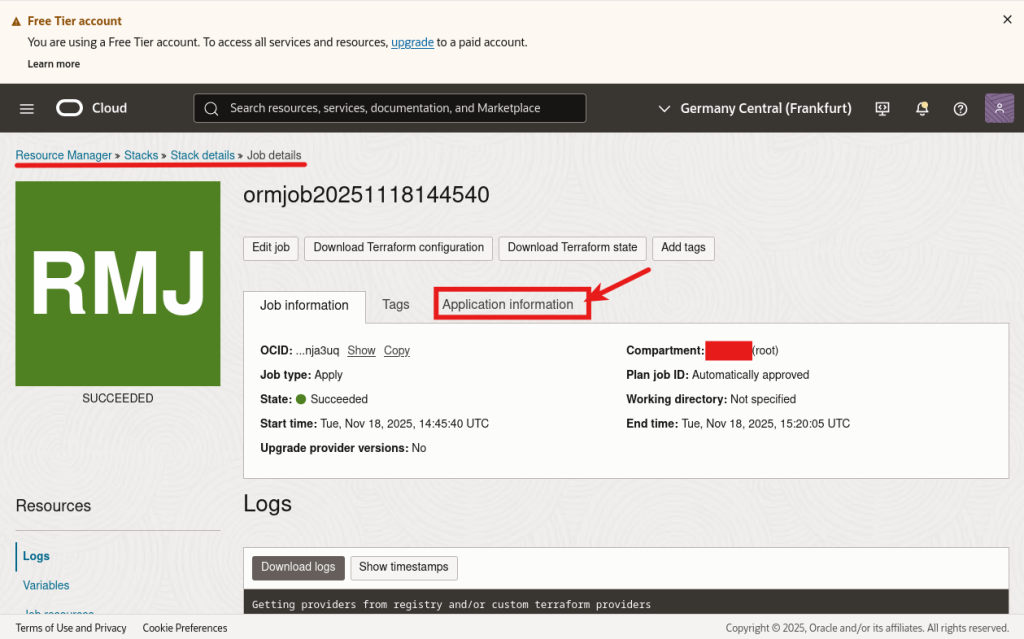
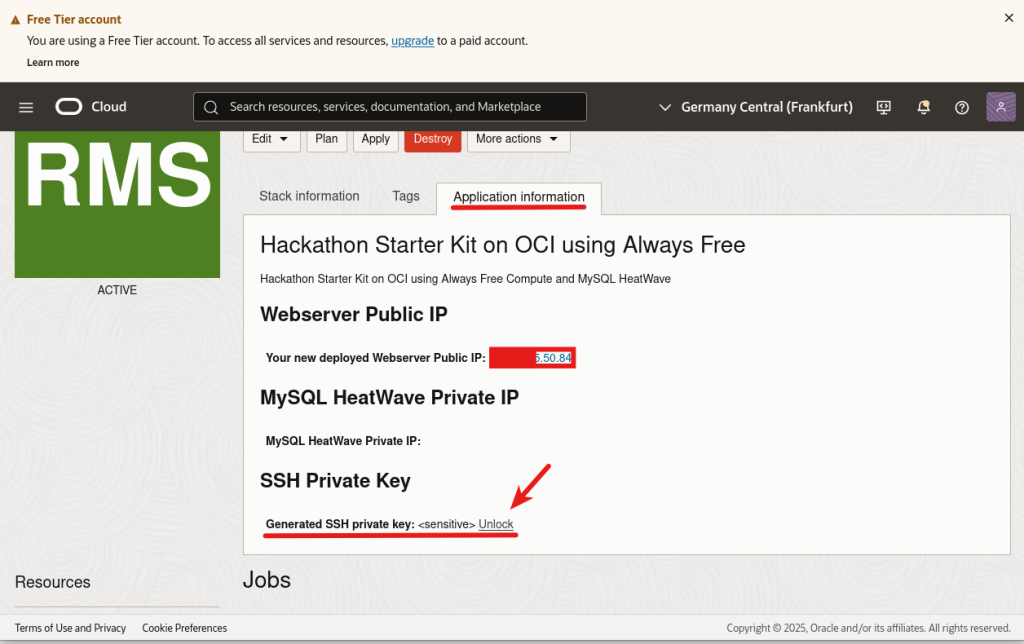
You can select the content of the key and paste it into a file as previously, and we need to replace the blank spaces like this:
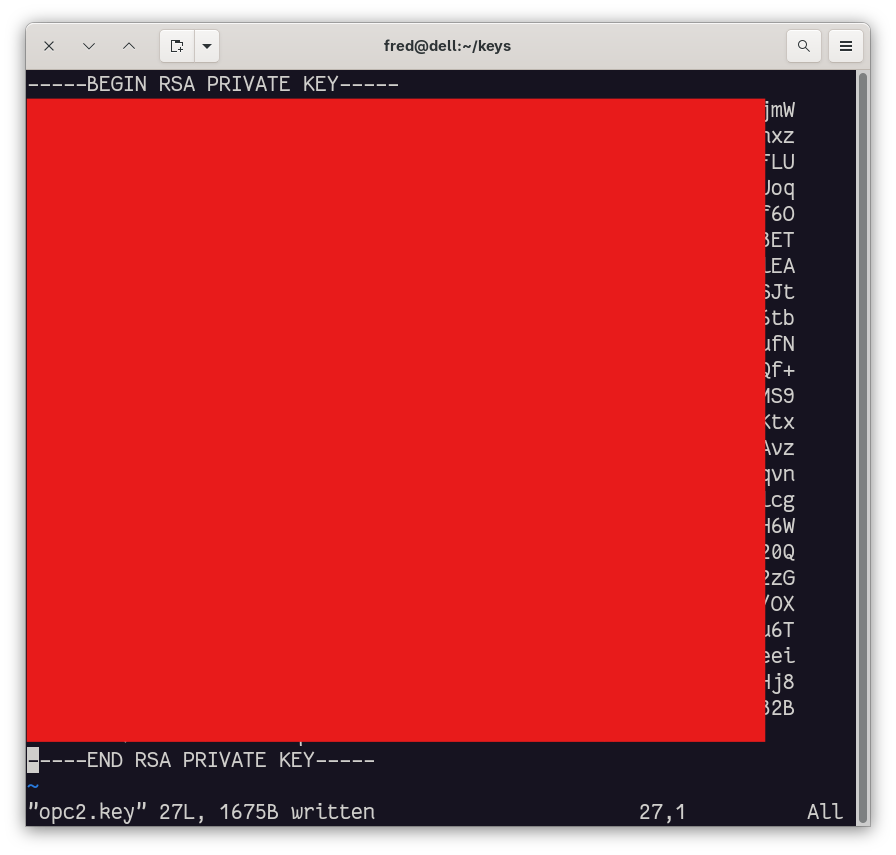
In Vi, I use the command:
:s/\v^(\S+ ){3}\zs.*\ze( \S+){3}$/\=substitute(submatch(0), ' ', "\r", 'g')/Connection
You can then connect to the compute instance using the key, the opc user, and the public IP:
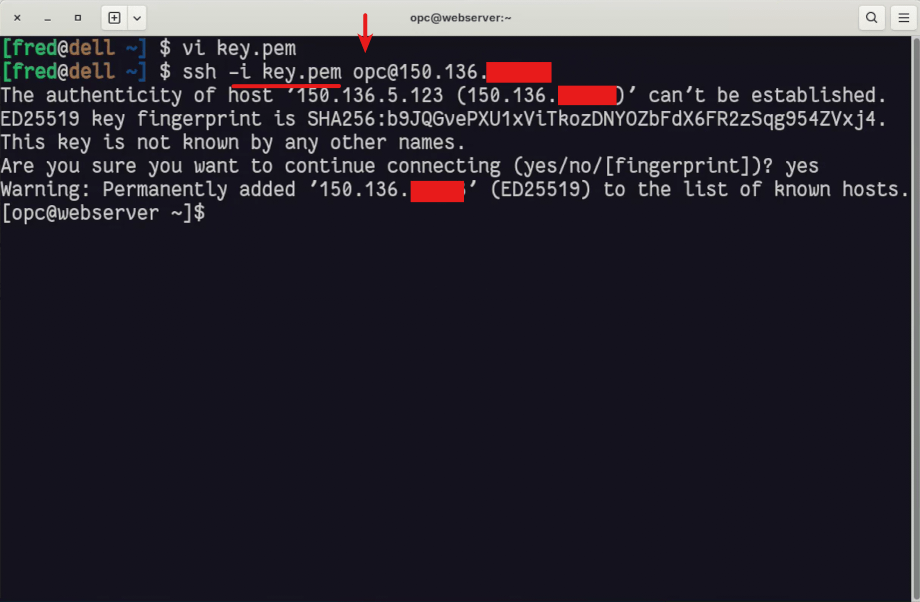
You are now connected to the compute instance.
You can also check this video:
Conclusion
We saw how to retrieve the private SSH key for connecting to our deployed compute instance. In the next post, we will discover what’s available on it.