
Configuring Default Value and Validation business rules on the Create Noncatalog Request page using Visual Builder Studio.
Introduction
This blog discusses how to configure two Visual Builder Studio (VB Studio) business rule types - Default Value rules and Validation rules – on a Redwood page in Oracle Fusion SCM Cloud. It covers how a form rule can default a field based on a condition, how a validation rule can raise an error message against a specific field, and how both rule types are tested in Preview before they are made available to end users.
Overview
VB Studio Business Rules let you tailor supported Redwood pages without modifying the underlying application. You can default field values, control whether a field is visible, required, or read-only, and display validation messages when an entered value does not meet business policy.
Redwood applications leverage Express mode in VB Studio to empower business users to configure processes and ensure data quality.
Express mode has two key components: Business Rules and Page Properties.
- Business Rules includes these subcomponents.
- Configure Fields and Regions – used to default, hide, or require field values.
- Configure Validations – used to ensure data quality by raising a message when an entered value does not meet policy.
- Page Properties – used to configure Redwood pages to best fit your business needs.
Note: Default Value rules and Validation rules aren’t mutually exclusive and can both be applied to the same field, to ensure data quality and consistency while improving the user experience.
On supported Redwood pages, business rules fall into different types. Form rules control field properties and values — visibility, required status, read-only status, and defaults. Collection rules determine which columns are displayed in a table. Both rules covered in this blog are form rules.
Use Case
The following policy applies to a non-catalog request:
- When the item source is “Non-catalog or Smartform”, default the Note to Supplier field with the approved purchasing guidance.
- The implementation scenario is the source’s Error condition and message: Price greater than or equal to 1,000.
| Rule Type | Rule Name | Behavior |
|---|---|---|
| Default Value (Form Rule) | fr_COE_Custom_nonCatalog | Condition: Item Source equals “Noncatalog or Smartform”.Action: Set Field Value on Note to Supplier. |
| Validation (Form Rule, If/Else) | PriceValidationByUoM | Condition: Item Source contains “Noncatalog or Smartform”, Price ≥ 1,000, UOM Code equals the Case value.Action: Error message on Price; save is blocked. |
This example uses the Create Noncatalog Request page in Self Service Procurement. It shows how to default a note for noncatalog requests, and how to guide requestors with a price validation message.
Step 1: Access the Create Noncatalog Request Page
- Open Procurement and navigate to Self Service Procurement.
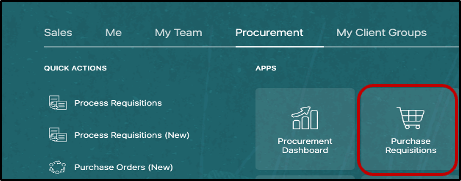
2. Select Create Noncatalog Request.
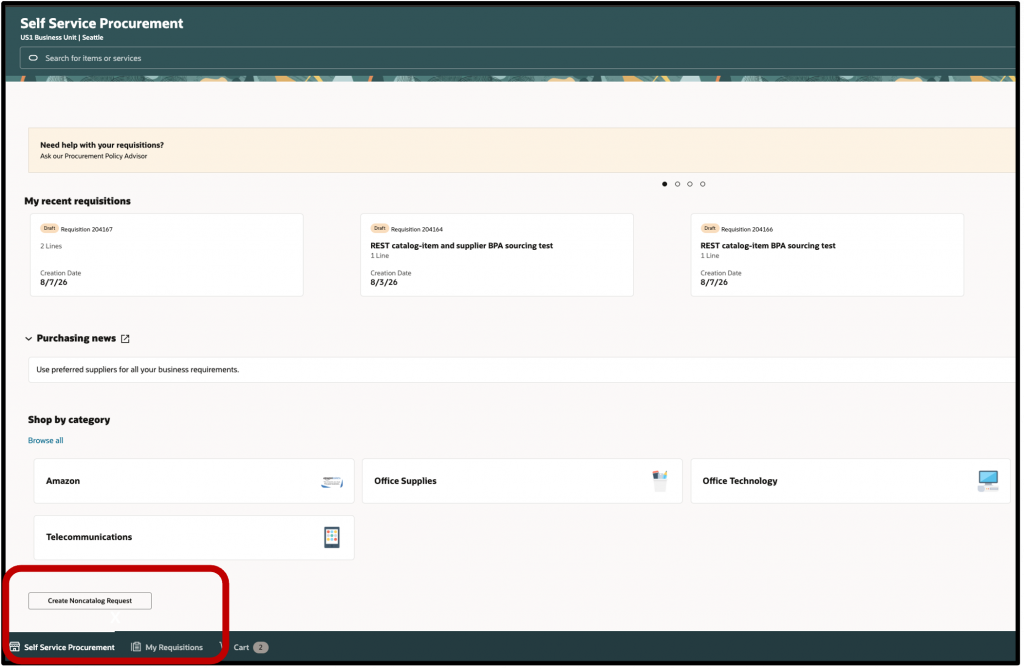
3. Open Settings and Actions, then select Edit Page in Visual Builder Studio to go to the VB Studio pages.
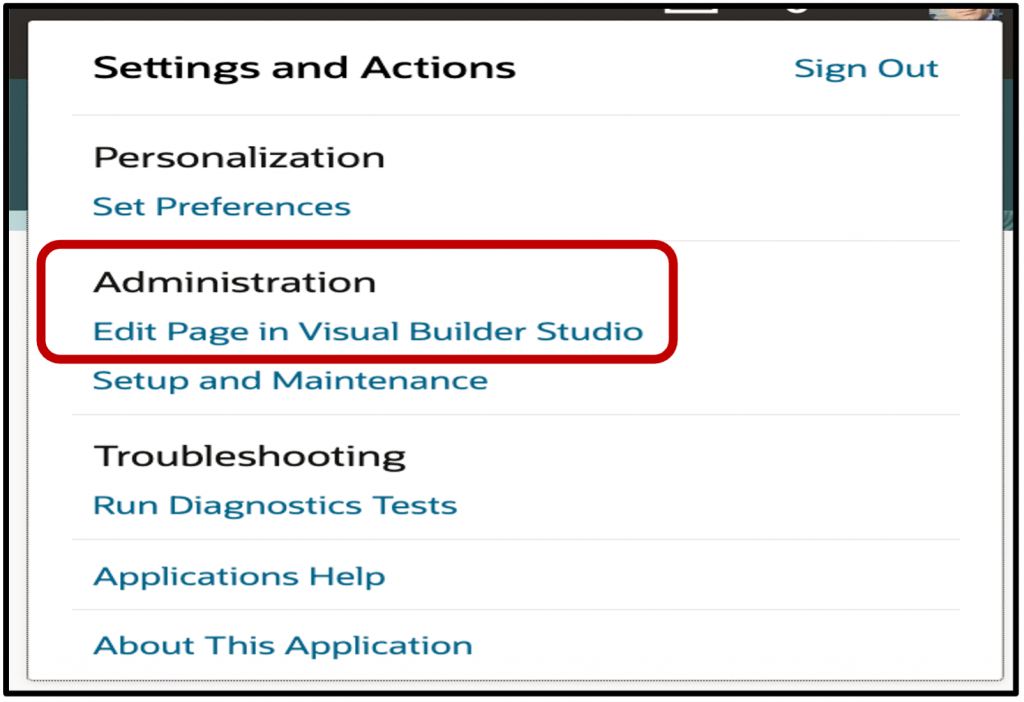
Step 2: Default a Field Value for Noncatalog Requests
After the page opens in Visual Builder Studio, select Configure Fields and Regions from the Business Rules panel.
4. Create a form rule named fr_COE_Custom_nonCatalog.
5. In Condition, define the rule so it applies if Item Source equals “Noncatalog or Smartform”
6. Locate Note to Supplier, select Set Field Value, and enter the required message.
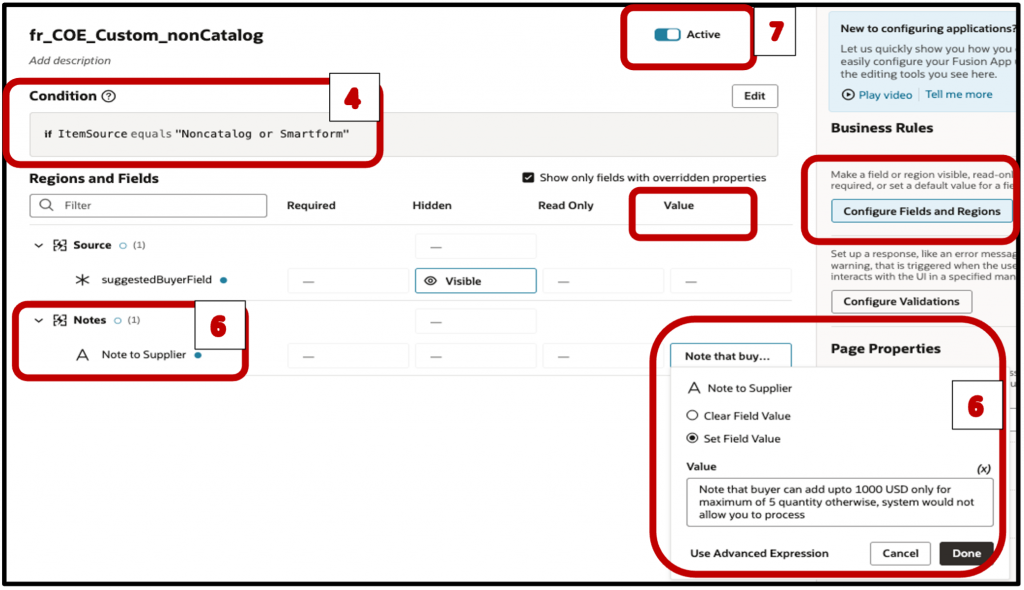
7. Ensure the rule is set to Active to test the details in Previ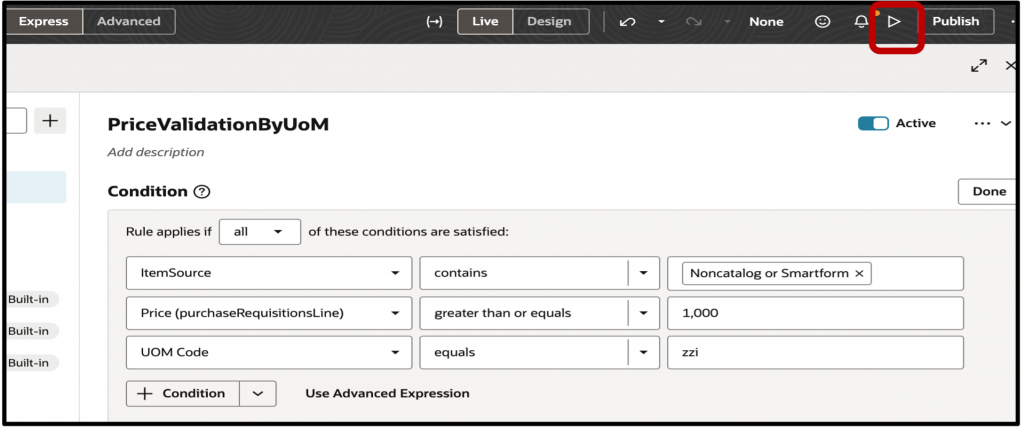
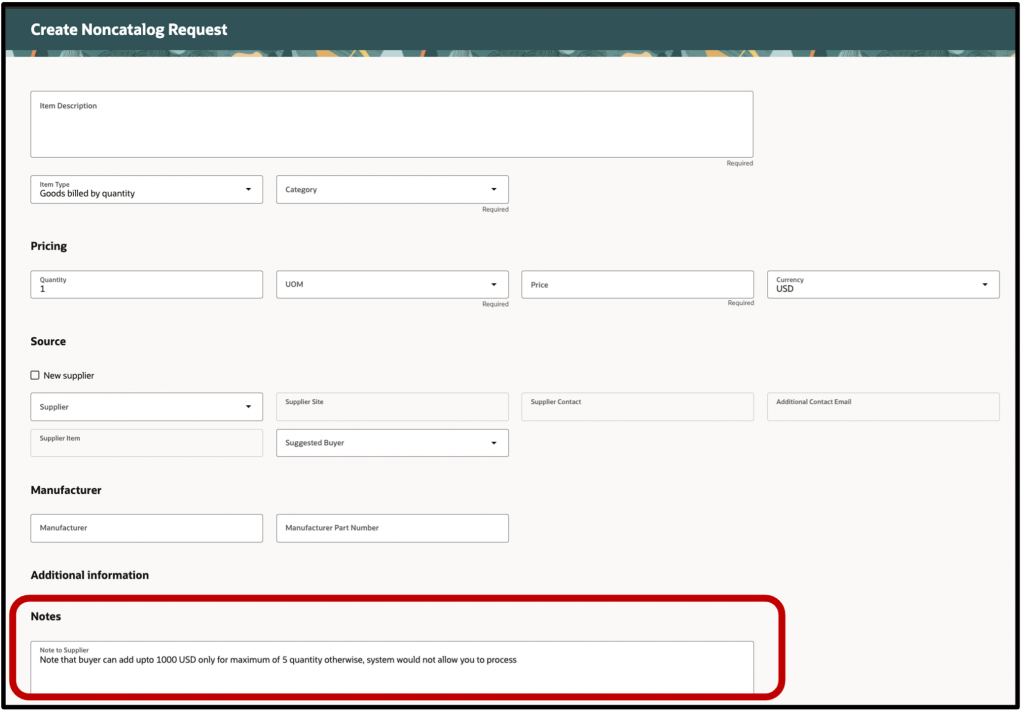
The defaulted message provides immediate guidance while the requestor is entering a noncatalog request. The value is populated under the Notes section, in the Note to Supplier field.
Step 3: Configure Price Validations
Select Configure Validations from the Business Rules panel. Create a validation rule named PriceValidationMessages, then add an If / Else rule structure. Target the Price field so the message is displayed next to the value that needs attention.
Scenario: the Price value is at or above 1,000 for a unit of measure of Case (set of pieces).
8. Add the rule so it applies when Item Source contains âNoncatalog or Smartform,â Price is greater than or equal to 1,000, and UOM Code equals the Case value.
9. Set the message Severity to Error. An error prevents the requestor from continuing until the condition is resolved.
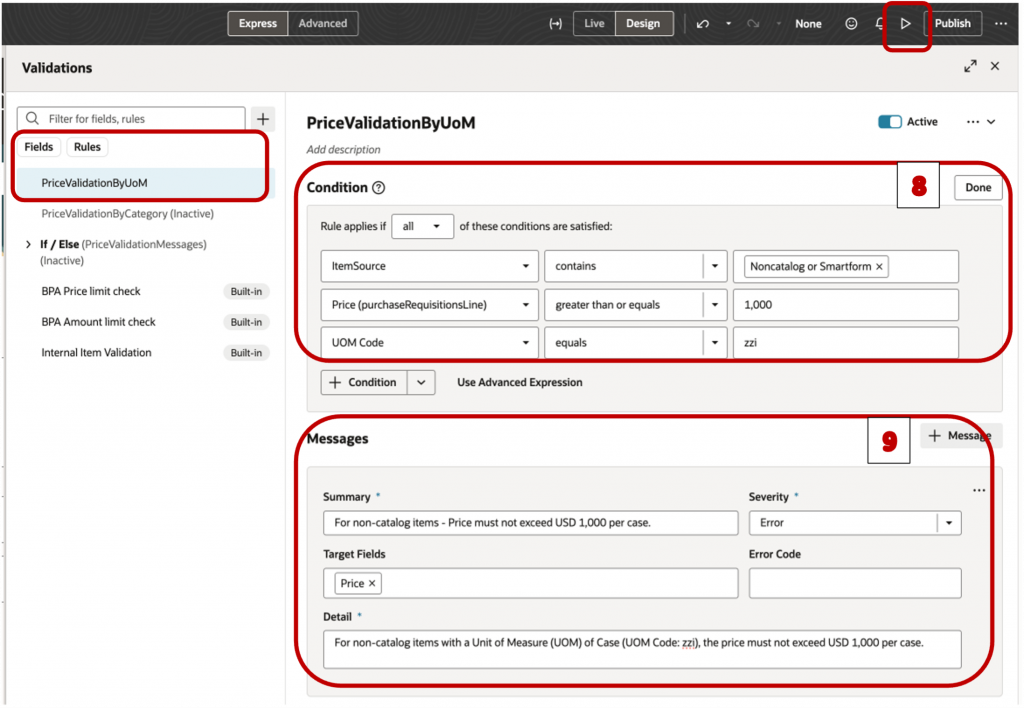
The Messages panel on a validation rule has five fields. Each one controls a different part of how the message is built and displayed:
| Field | Purpose | Value Configured in PriceValidationByUoM |
|---|---|---|
| Summary | Short message shown to the requestor next to the Target Field when the condition is met. | For non-catalog items â Price must not exceed USD 1,000 per case. |
| Severity | Determines whether the requestor can proceed. Error blocks save; a lower severity only warns. | Error |
| Target Fields | The field(s) the message is anchored to on the page. | Price |
| Error Code | Identifier for the message, useful for tracking or referencing the rule in support and testing. | Error code isn’t supported for HCM, SCM, and Procurement. |
| Detail | Full explanation of the message, available to the requestor for more context than the Summary. | For non-catalog items with a Unit of Measure (UOM) of Case (UOM Code: zzi), the price must not exceed USD 1,000 per case. |
Note: Error and Warning are the only two severity levels supported for business rules on SCM Redwood pages, and severity behavior is page specific.
Preview and Test Your Rules
Preview the page changes in Visual Builder Studio, then test the following scenarios:
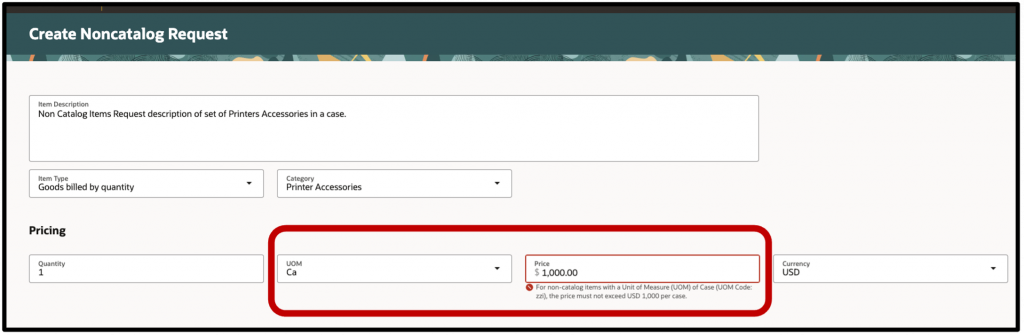
- A price of USD 1,000 with UOM of Case: the error message appears, and the requestor must correct the value.
- A price of USD 999 or less: no message appears.
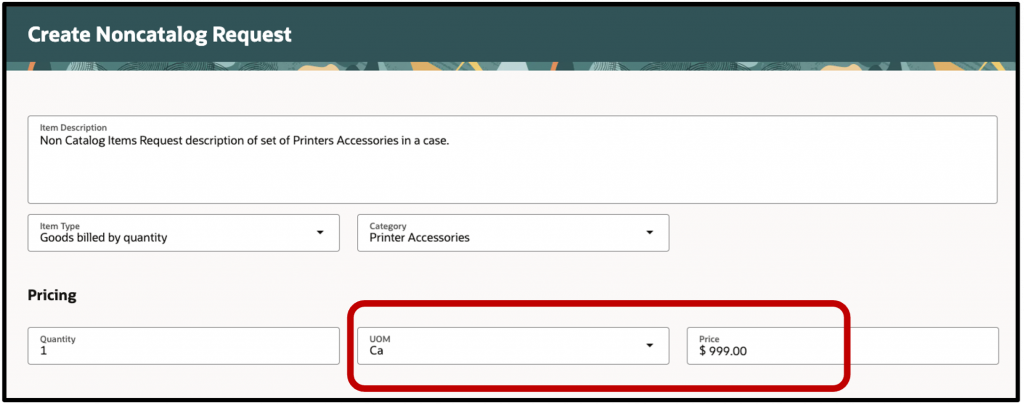
Values and messages should always be drawn from your organization’s approved procurement policy, and the active rule should be tested with representative business roles before it is made available to end users.
Conclusion
Default Value and Validation rules are core business rule types in Visual Builder Studio for configuring Redwood pages.
A Default Value rule automatically populates a field based on a condition or predefined value, reducing manual entry and ensuring consistency.
A Validation rule checks a field’s value against business policy before save, raising a message – Error blocks the transaction, a lower severity only warns.
Together, they let implementation teams guide users at the point of entry – supplying information automatically and catching bad entries early – without custom code.
Summary
For guidance on setting up Redwood and VB Studio, see the Learning Path for Visual Builder Express and Business Rules on the COE Blog.
Good luck with your Redwood adoption!