
Merge conflicts are a normal part of collaborative work when building personalizations. They occur when two branches change the same part of an item and Git cannot determine which of the two changes should be in the final resolved version. In Visual Builder Studio, this often appears when multiple developers update the same page or rule.
The goal to resolving a conflict is not just to make the conflict message disappear. The goal is to produce one correct version of the personalizations, validate it in the application context, and then complete the pull or merge request.
Example Scenario
Assume two branches were created from main: Branch1 and Branch2. Both of these branches end up modifying the Personal Details page, and both changes affect the rule that controls how the gender field is displayed. Because the edits touch the same area of the page, Visual Builder Studio reports a conflict when the branches are brought together.
Use the same decision process regardless of where the conflict appears:
- Confirm the intended personalization behavior before editing the file.
- Review both sides of the conflict and decide what the final version should contain.
- Edit the file so it contains only the resolved, valid content.
- Mark the conflict as resolved and complete the pull or merge request action.
- Test the affected page or flow before promoting the change.
Scenario 1: Resolving a Conflict During a Pull
In the first scenario, let’s say you are working in your workspace on a local development branch, such as tmh-working-b2, which was created from Branch2. You want to sync up with changes that have occurred in Branch1 and so pull changes from Branch1 to bring the workspace up to date. Because Branch1 changed the same rule though, Visual Builder Studio reports that the pull cannot finish until the conflict is resolved.
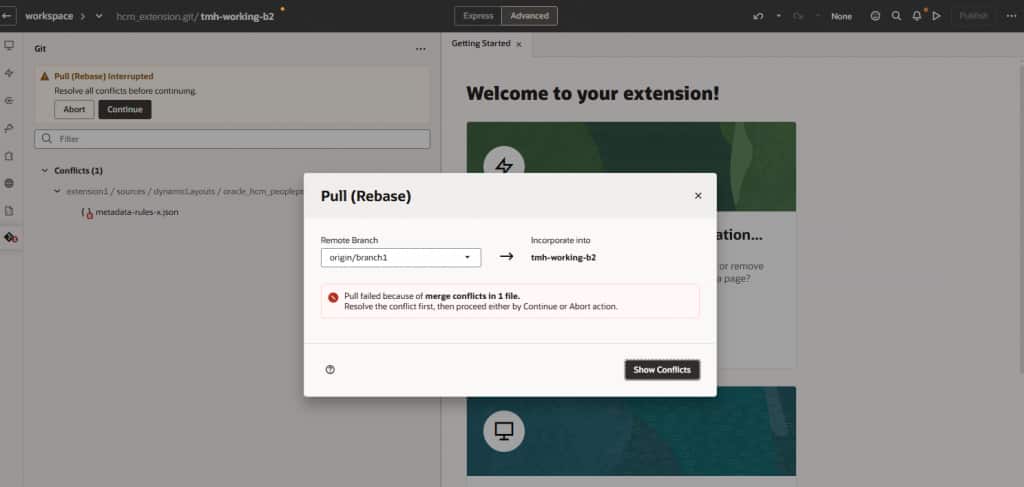
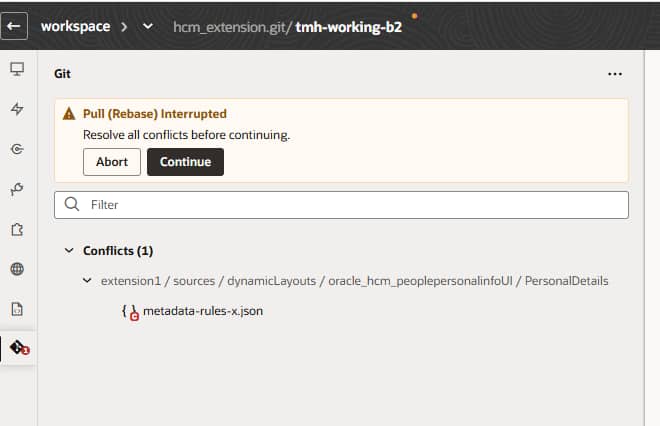
Open the file shown with the conflict indicator and launch the conflict editor.
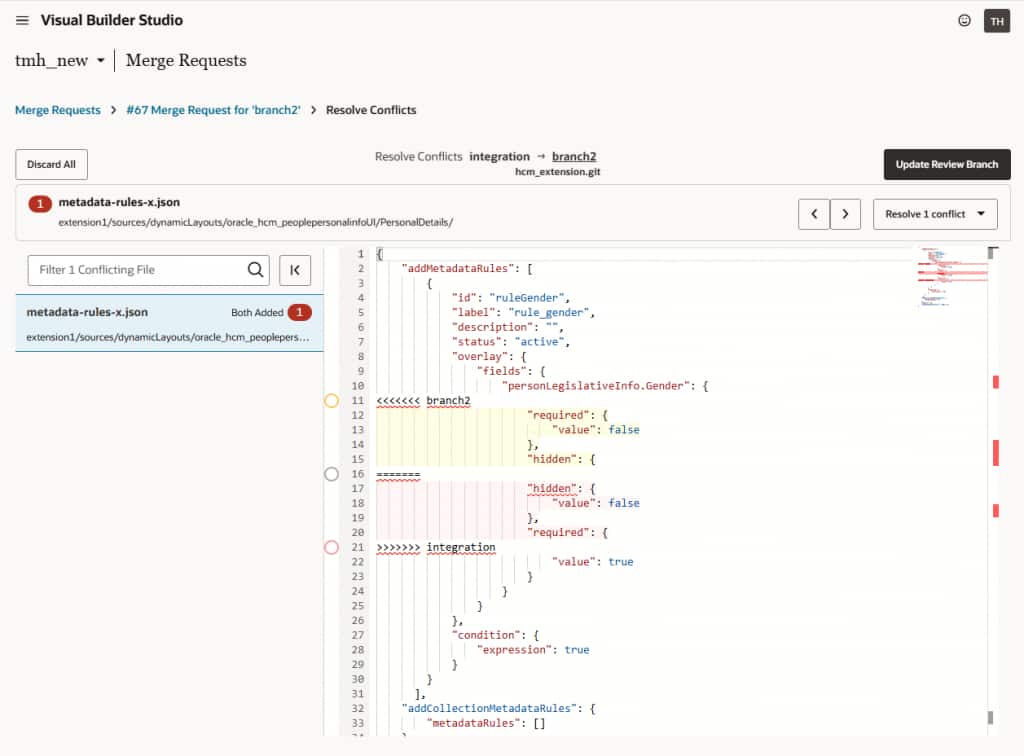
You are presented with a list of any files with conflicts. You can select that file to open in the conflict editor. Git marks the conflicting section with three markers. The content between <<<<<<< and ======= is the change from the source branch. The content between ======= and >>>>>>> is the change from the target branch. These markers are temporary and must not remain in the final file.
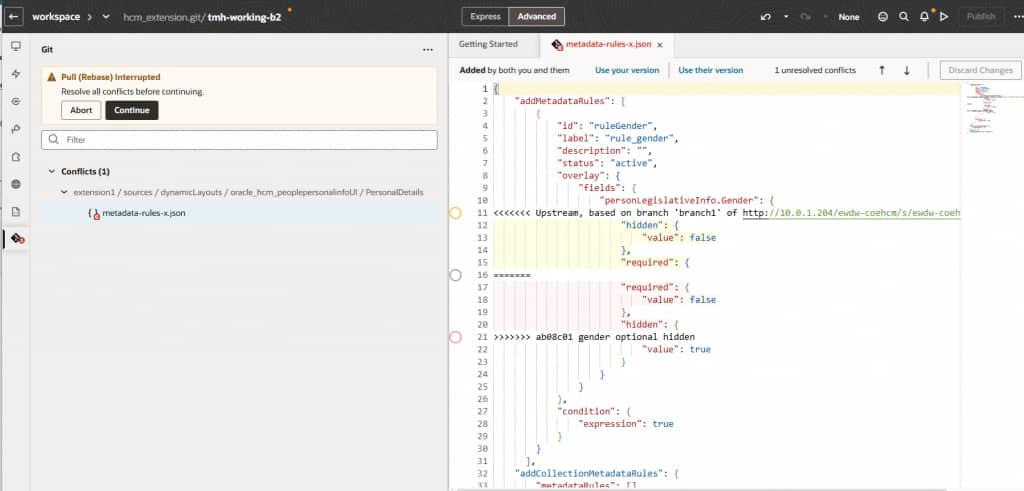
Edit the conflict into the final intended behavior.
For this example, you decide that you want both the hidden and required attributes to be set to false. Edit the file directly, remove all conflict markers, and leave only the valid rule definition. When the file is clean, select Resolve and Close.
If you are sure that one of the branches contains the correct version of the change, you can always choose the source (Use their version) or target (Use your version) version rather than editing directly.
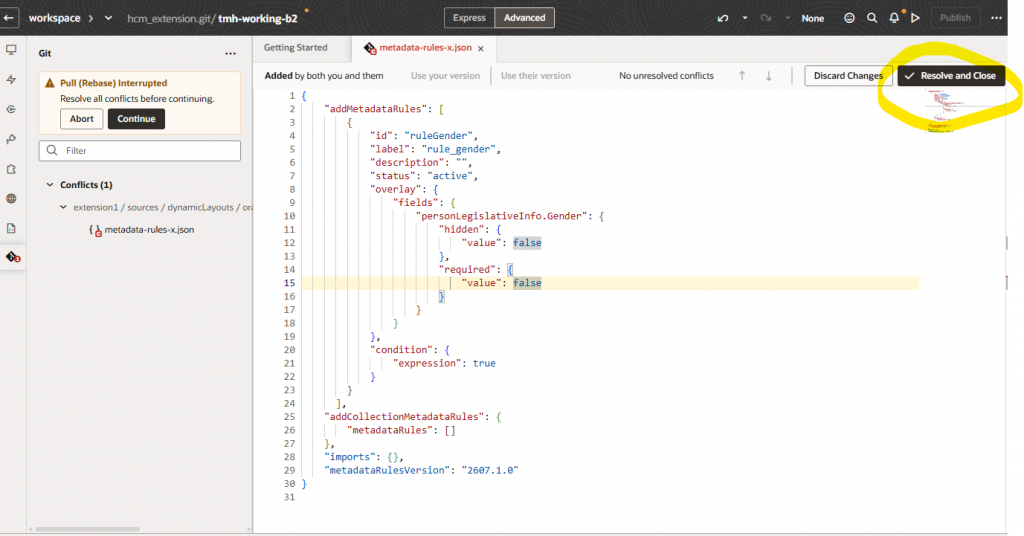
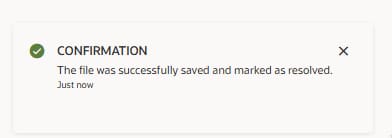
Complete the pull and test the extension.
Until this point if you decide that the changes haven’t been resolved correctly, you can always abandon the pull and re-do. After the conflict is marked as resolved, if all looks good continue the pull. Because the resolution was made in the workspace, you can and should test the affected page before pushing the branch back to the remote repository. Validate the page behavior, the rule condition, and any field-level behavior affected by the change.
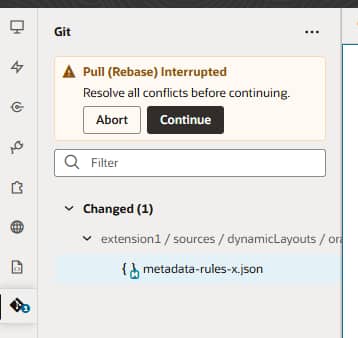
Scenario 2: Resolving a Conflict in a Merge Request
A second common scenario occurs when both branches already exist in the remote repository and need to be merged into an integration branch. The first merge request, Branch1 to integration, may complete successfully. The second merge request, Branch2 to integration, may then report a conflict because integration already contains the Branch1 change.
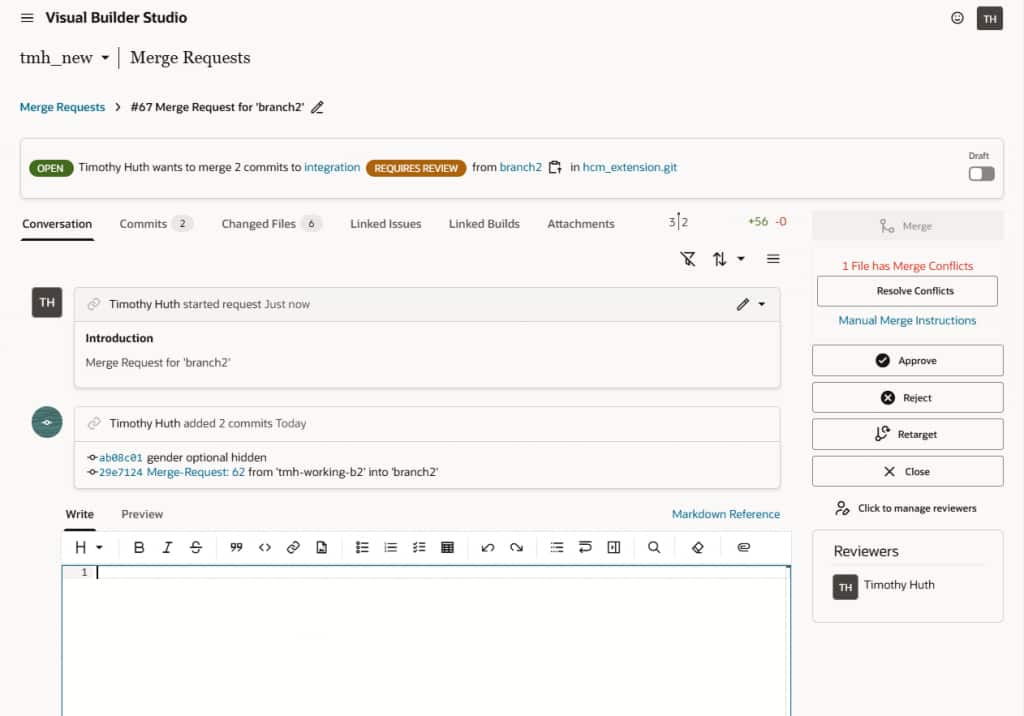
Visual Builder Studio resolves the conflict into the source branch first. In this example, that means integration changes are pulled first into Branch2 and then conflicts are resolved there before continuing the merge request from Branch2 into integration. The result is that changes from the target first get written to the source branch. This behavior is important to understand and can have implications for long-running branches that are covered in the blog https://blogs.oracle.com/fusioncoe/merging-changes-into-a-branch Please see especially the section marked Important.
Branch Protection Considerations
If the source branch is set up to require review when doing merge requests (protected), the conflict editor may not be available for direct resolution. In that case, create a temporary working branch from the protected branch, pull the integration branch into the workspace, resolve and test the conflict there, then push the temporary branch to the remote repository and merge it into the integration branch through the normal mergereq review process.
This keeps the protected branch policy intact while still giving the team a controlled place to make and test the resolution.
Consideration when resolving extension.json
When there is a conflict in the file extension.json, there is a need for some additional analysis. Please see the separate blog describing this scenario here: https://blogs.oracle.com/fusioncoe/resolving-vb-extension-json-merge-conflicts-in-fusion-applications-extensions
Best Practices
- Do not accept one side of a conflict without understanding the other change.
- Resolve to the business behavior of the desired personalizations, not just to the file version that looks newest.
- Check JSON, metadata, and rule files carefully; a syntactically valid file can still produce incorrect page behavior.
- Pull or merge frequently so branches do not drift for long periods.
- Test the affected page and rules before promoting the branch.
Conclusion
Merge conflicts in Visual Builder Studio are easiest to handle when the team treats them as a controlled review point. Identify the intended Fusion Applications behavior, edit the artifact into one clean version, remove all Git conflict markers, complete the pull or merge request, and validate the result in the application before promoting the change.