
Introduction
This blog discusses how branch merging works in Visual Builder Studio, including the roles of Review and Target branches, how merge conflicts are identified and resolved, and when a source branch should be retained or deleted. It also outlines the main ways merges can be initiated in VB Studio, particularly how merge requests and Publish behave when branch protection rules are enabled.
It also describes the recommended approach for keeping existing branches synchronized with changes that have been merged into the remote repository.
Overview
As part of the development lifecycle, you may need to merge the contents of one branch into another so that you can package and deploy changes across different environments. Common examples include merging a completed Feature branch into the main branch or combining several Feature branches into a single Integration branch for integration testing.
When code is merged from one branch to another, the source branch is referred to as the Review branch (the branch being merged from), and the destination branch is referred to as the Target branch (the branch being merged into).
Handling Conflicts
During a merge, the files in each branch are compared to identify any conflicts that must be resolved. Conflicts typically occur when the same file has been modified in both branches and no longer shares the same common “root” version. In these cases, a decision must be made about which changes should take precedence. If the file in the Target branch still derives from the same root version and only the Review branch contains changes, the merge process can usually apply those changes automatically.
When conflicts are resolved, the updated version of the file is stored in the Review branch, along with any files from the Target branch that do not already exist in the Review branch. Once all conflicts have been addressed, the Review branch is considered ready to merge into the Target branch without further issues.
Deleting the Review Branch
When performing a merge, there is also an option to delete the Review branch once the merge has been completed. This option is typically selected when the code in the Review branch is no longer needed after it has been promoted to a higher-level branch, such as merging a completed feature into the main branch.
Merging changes and retaining the Review Branch

When merging a Feature branch into an Integration branch, you would typically want to retain the Feature branch without incorporating any files from the Integration branch. To prevent the Feature branch from being contaminated with content from the Integration branch, it is recommended to first create a clone of the Feature branch and then merge the clone into the Integration branch, selecting the option to delete the clone as part of the merge process.
Options to initiate a merge
There are several ways to initiate a merge from one branch into another. However, when the recommended branch protection rules are enabled, all of these approaches ultimately result in a merge request being created. The different techniques are outlined below:
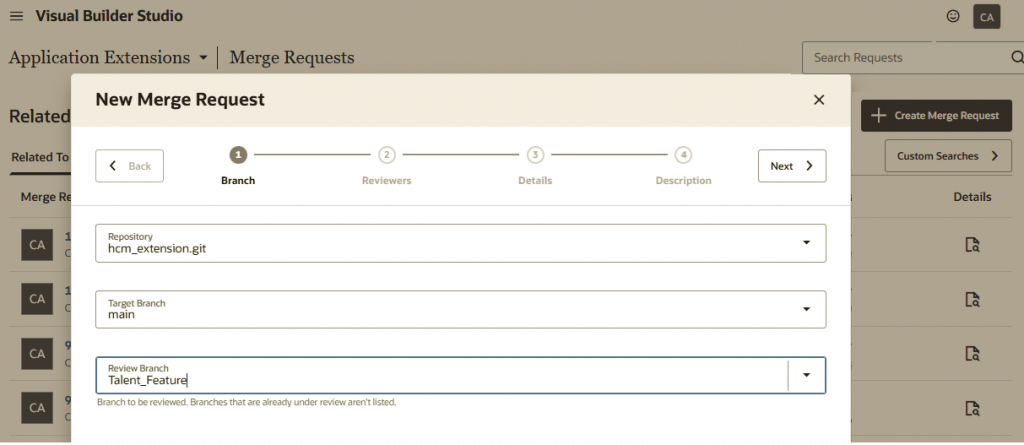
Merge Request in the VB Studio menu
A merge request is initiated directly from the VB Studio menu. The user is prompted to specify the repository, the review branch, and the target branch. They must also identify the approvers who will review and approve the request.
When the merge request is created, VB Studio automatically checks for merge conflicts. If any conflicts are detected, the user is prompted to resolve them before the process can continue.
Once all reviews are complete and the merge request has been approved, the merge can be performed. At that stage, the user also has the option to automatically delete the review branch after the merge is completed.
Publish
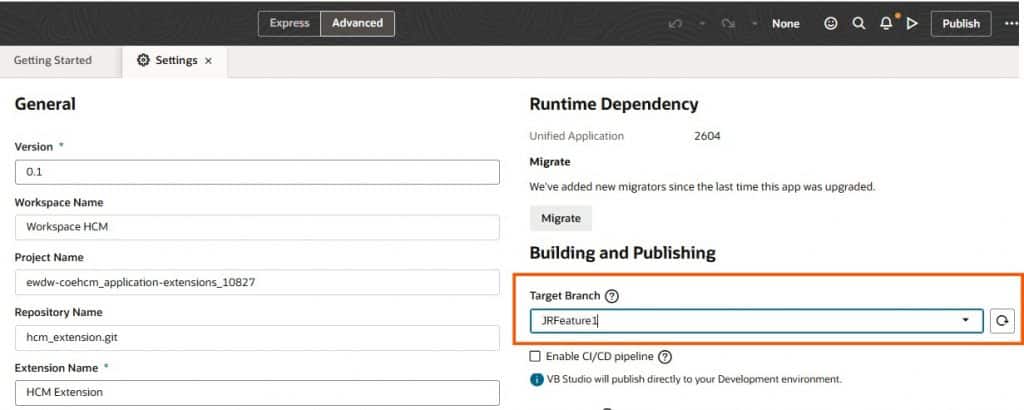
When editing a page in Visual Builder Studio, Advanced mode allows the user to specify the branch into which the Publish action will merge its changes.
This setting also identifies the remote branch used to ensure that the local branch remains synchronized with the remote repository. When a user opens the VB Studio editor, they are prompted to update the workspace if the local branch is no longer in sync with the designated remote branch.
In addition, when the user selects the Publish button, the process fetches the remote branch and performs a comparison to determine whether any merge conflicts exist that must be resolved before the changes can be merged successfully.
If branch protection is enabled, a merge request is automatically created, and the approval and merge steps must be completed through the VB Studio menu. If branch protection is not enabled, the changes are merged directly into the remote branch without requiring a merge request.
Via Git commands
It is also possible to merge branches in a local Visual Builder Studio workspace.
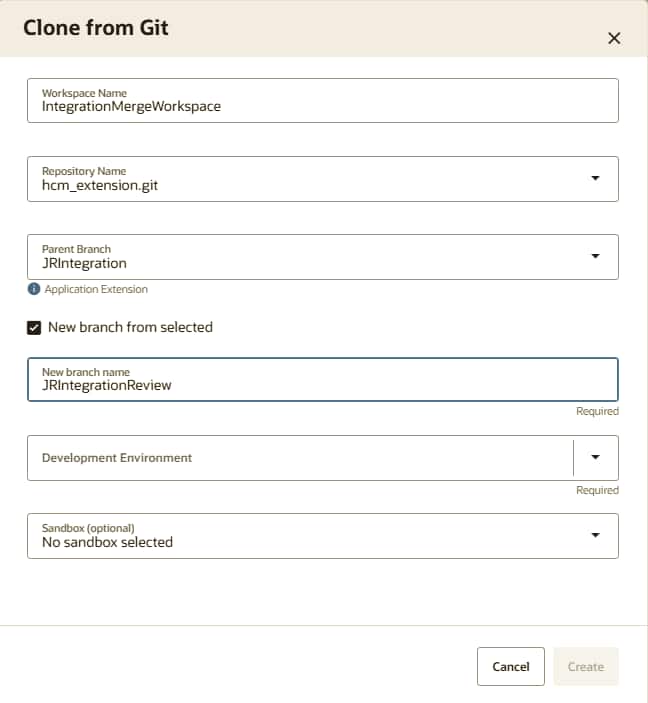
In this case you should create a new workspace including a new branch that is based on the target Integration branch.
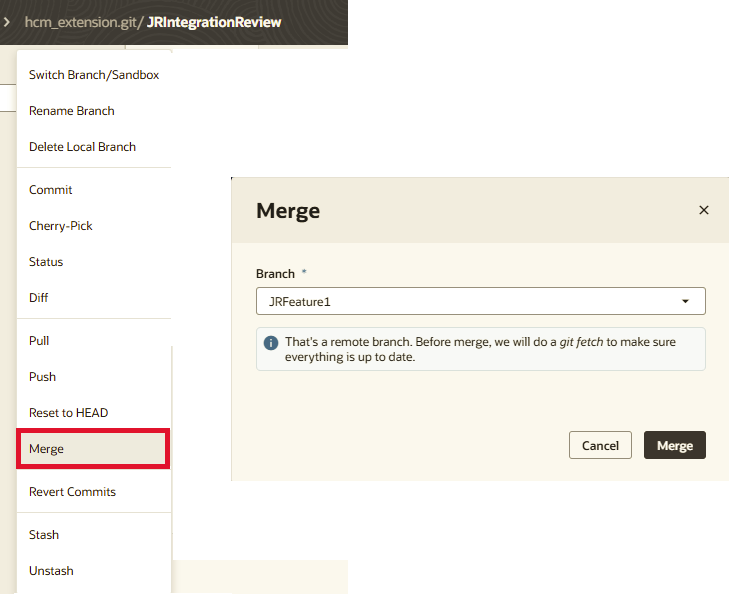
Navigate to the local workspace and merge the remote Feature branch into the local version of the Integration branch using the Advanced mode Git commands.
Resolve any conflicts in the local workspace.
Use the Advanced mode Git commands to Push the changes back to the remote repository.
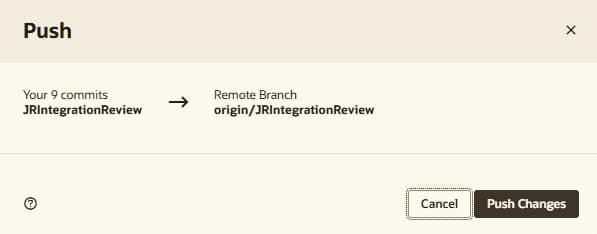
From the remote repository create a merge request.
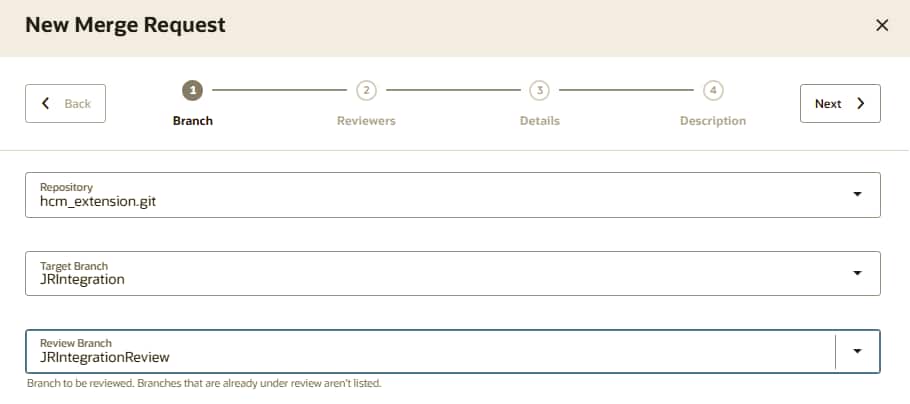
Because the source of the review branch is the Integration branch itself, there should not be any conflicts to resolve at this stage, so it should be possible to approve and merge the changes. You should choose to delete the review branch during the merge request, and optionally you can remove the workspace as it is no longer required.
Note that this technique leaves the Feature branch untouched in the remote repository.
Keeping Feature Branches in sync with main
Whenever changes are made to the main branch (for example, when a feature branch is merged into it) all other branches that were created from main should be updated with the latest changes from main.
Since main contains code that is production-ready, it is safe to merge these changes into active feature branches. Keeping feature branches synchronized with main ensures that integration issues and merge conflicts are identified and resolved early. As a result, when a Feature branch is eventually merged back into main, the merge process is typically much simpler and requires resolving fewer conflicts.
One way to do this is to follow the same steps as the Via Git Commands above.
- Create a workspace and local branch with the Feature branch as its parent
- In the workspace, merge main into the local branch
- Resolve any conflicts in the workspace
- Commit the changes
- Push the changes (to the remote equivalent of the local branch)
- Merge the remote branch into the Feature branch
Keeping local branches in sync with remote branches
When a developer is working in a workspace, they can use Advanced mode -> Settings to set the Target Branch for Building and Publishing.

Developers are then notified whenever the configured Target Branch contains changes that are not present in their local branch. They are then prompted to Refresh their Workspace with the latest changes from the Target Branch into their local branch, ensuring it remains synchronized with the remote branch.
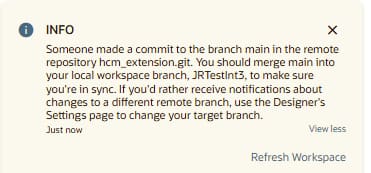
Note: The Target Branch is not always main. It may be another branch, such as a feature branch. In that case, developers are prompted to merge changes from the configured Target Branch rather than from main.
Summary
In this blog we have described 3 techniques for merging a review branch into an target branch so that it can be deployed and tested. Careful attention should be paid to the note about cloning a review branch to ensure that it does not get overwritten with changes from the target branch in the case where the review branch needs to remain intact after the merge.
In addition, the blog explains how to keep ongoing branches synchronized with changes that have been merged into the remote Git repository.
This blog is part of the VB Studio Lifecycle Management Learning Path