
By Ravi Patil, HCM Cloud Center of Excellence
Payroll teams spend a significant amount of time reviewing payroll results, researching employee payroll questions, and explaining changes in pay. The Payroll Run Analyst AI agent helps payroll administrators quickly retrieve employee payroll information, review payroll outcomes, and respond to payroll-related queries with more context.
This guide walks through the setup flow for enabling the seeded Payroll Run Analyst agent in Oracle Payroll.
Before You Begin
Complete these prerequisites before creating the agent instance:
- Complete the required AI Agent Studio security setup. Refer to HCM – Let’s Talk Tech: Getting Started with AI Agent Studio — Cloud Customer Connectfor step-by-step instructions.
- Grant AI Agent Studio access to the administrators who will create and publish agents.
- Create or identify the AI Agent Explorer role that will be assigned to payroll users.
- Grant the explorer role to the payroll users or pilot group that should access the published agent.
- Review your organization’s data-access and payroll-privacy policies before enabling user access.
Step 1: Navigate to AI Agent Studio
Sign in as an administrator with access to AI Agent Studio. From the Oracle Fusion application home page, open Tools, then select AI Agent Studio.
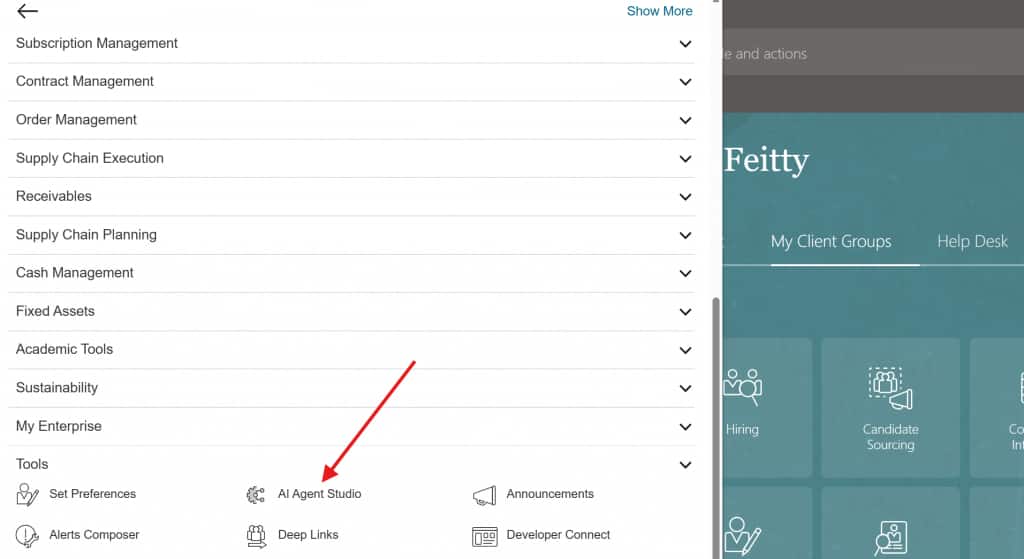
If you do not see AI Agent Studio under Tools, confirm that the required security setup has been completed and that the administrator has been granted the appropriate access.
Step 2: Locate the Payroll Run Analyst Template
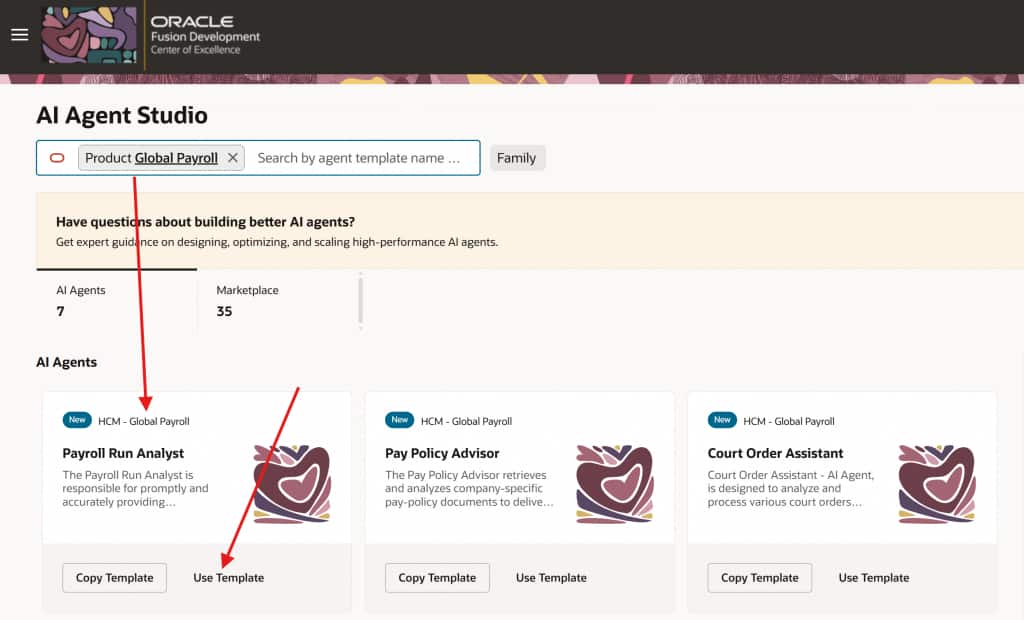
In AI Agent Studio, use the product filter to select Global Payroll. In the list of HCM – Global Payroll agent templates, locate Payroll Run Analyst.
Click Use Template to create an agent team from the seeded template.
Step 3: Name the Agent Team
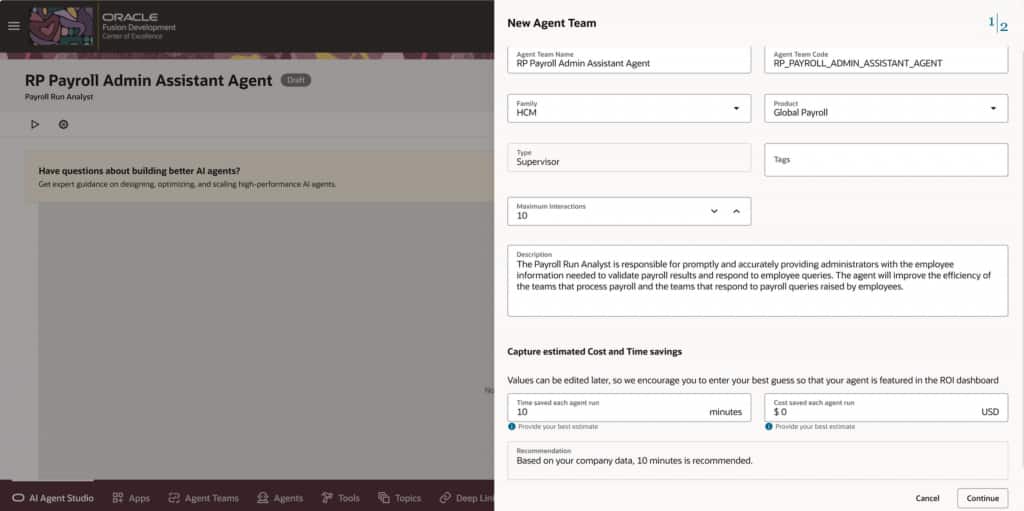
Provide a meaningful name for the agent team. In the example below, the agent team is named RP Payroll Admin Assistant Agent and the generated code is RP_PAYROLL_ADMIN_ASSISTANT_AGENT.
Review the default setup values:
- Family: HCM
- Product: Global Payroll
- Type: Supervisor
- Maximum Interactions: Review and adjust based on your implementation standards.
- Description: Confirm that the description aligns with your payroll use case.
- Estimated Cost and Time Savings: Enter best estimates so the agent can be represented in ROI reporting.
Click Continue after reviewing the details.
Step 4: Choose the LLM Configuration
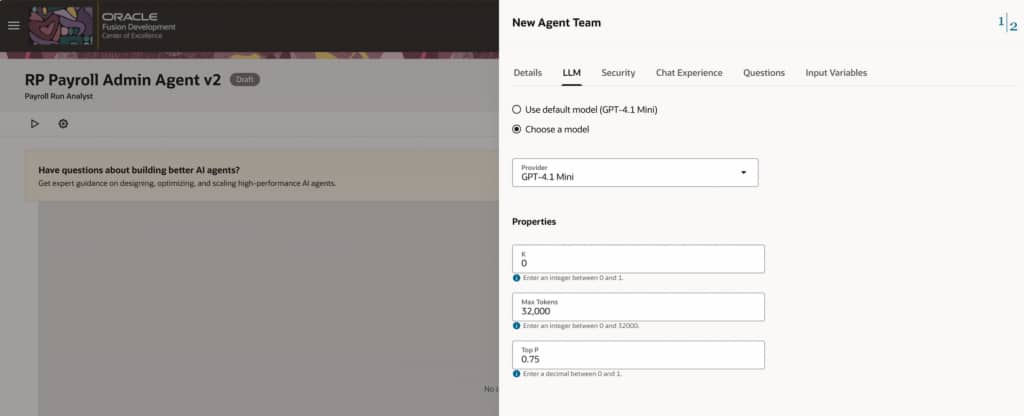
On the LLM tab, either keep the default model or choose the model that aligns with your implementation standards.
Step 5: Limit Access to the Payroll Team
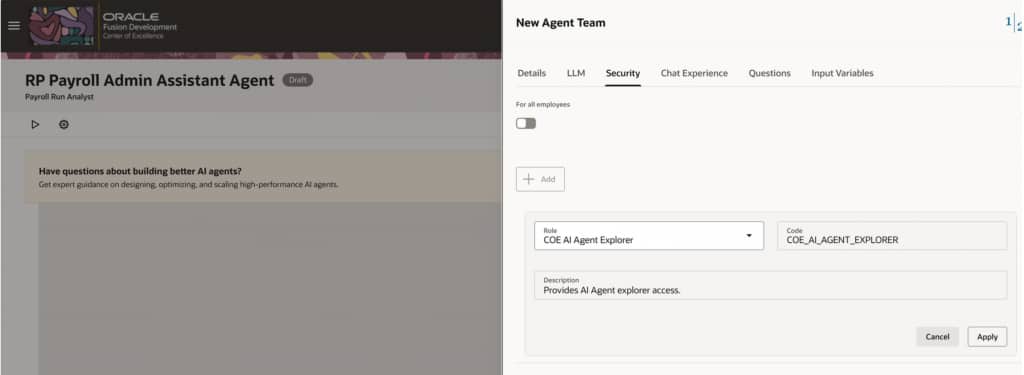
On the Security tab, restrict access to the intended payroll user group. Add the AI Agent Explorer role that should be allowed to explore and use the agent.
In the example, the role COE AI Agent Explorer is selected. Use the role name and code that match your environment.
Step 6: Add Starter Questions
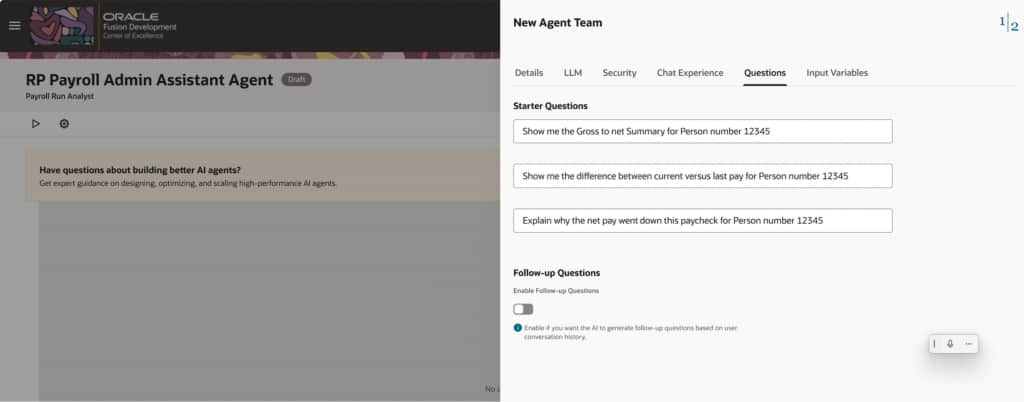
On the Questions tab, add starter questions that guide payroll users toward the most common payroll-analysis scenarios.
Example starter questions:
- Show me the Gross to net Summary for Person number 12345.
- Show me the difference between current versus last pay for Person number 12345.
- Explain why the net pay went down this paycheck for Person number 12345.
Starter questions are optional, but they are useful for pilot users because they show the type of payroll questions the agent is designed to support.
Step 7: Review Agent Details and Update
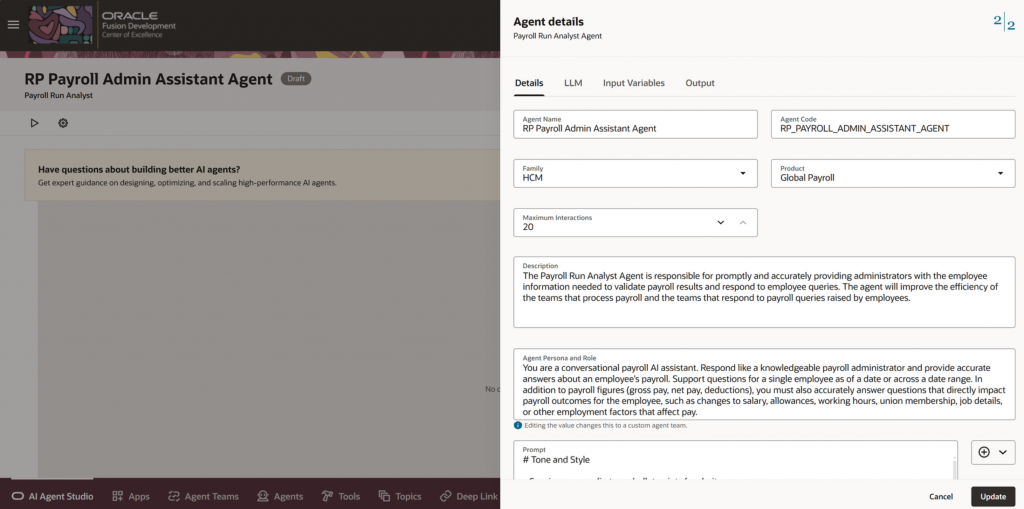
Review the generated agent details before publishing. Confirm the agent name, agent code, family, product, maximum interactions, description, persona, and prompt guidance.
If needed, update the LLM configuration or prompt before saving. When the setup is ready, click Update.
Step 8: Publish the Agent
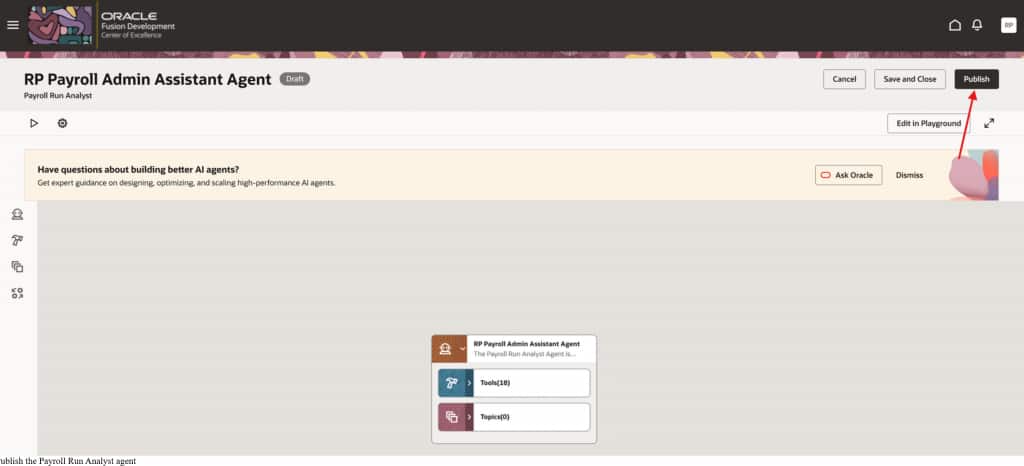
After the agent team is created and reviewed, select Publish.
Publishing makes the agent available for payroll users who have the required explorer access. Until the agent is published, end users will not be able to use it from AI Chat.
Step 9: Confirm Explorer Access for Payroll Users
Confirm that the custom AI Agent Explorer role has been assigned to the payroll users who should access the agent. Use your standard HCM security provisioning process to assign the role to the pilot users or payroll practitioner population.
After the role is assigned, ask users to sign out and sign back in. In some environments, users may need to clear the browser cache and wait briefly before the new access appears.
Recommended rollout approach:
- Start with a small payroll pilot group.
- Confirm that users can access only the payroll data they are authorized to view.
- Validate answers against known payroll results before using the agent in production support workflows.
- Expand access after payroll, security, and support teams agree that the agent is ready for broader use.
Step 10: Open AI Chat as a Payroll User
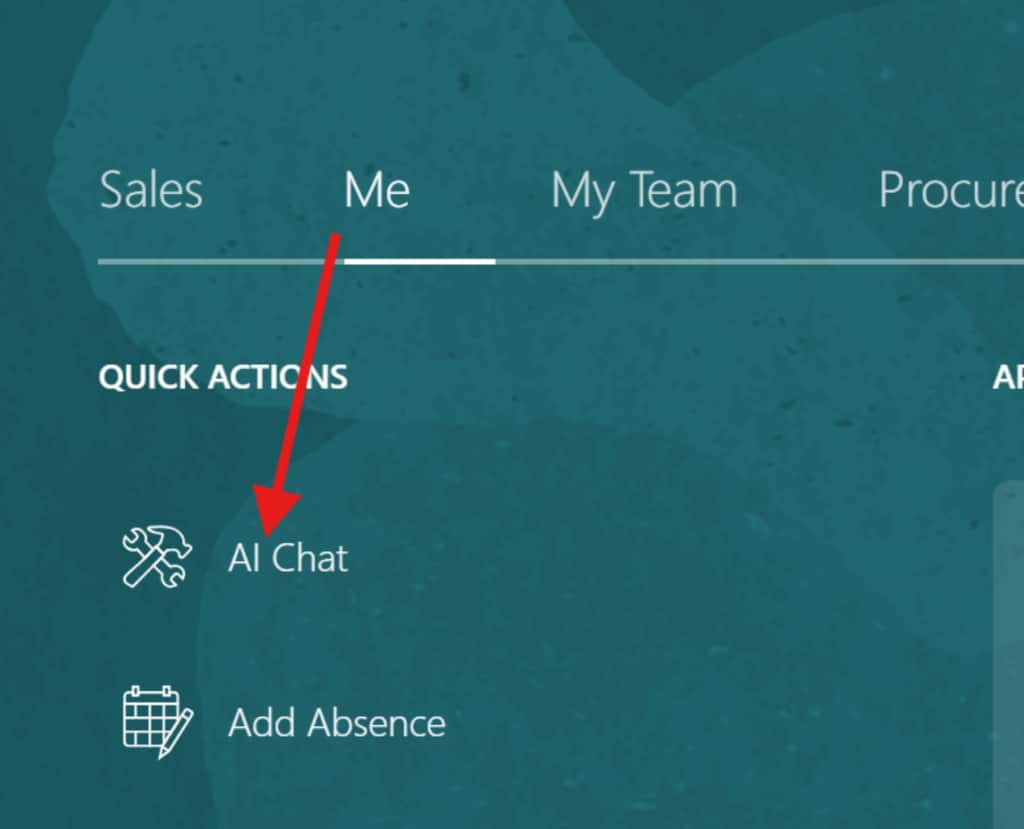
Sign in as a payroll user who has been assigned the AI Agent Explorer role. From the home page, go to Me, then select AI Chat from Quick Actions.
Step 11: Search for the Published Agent
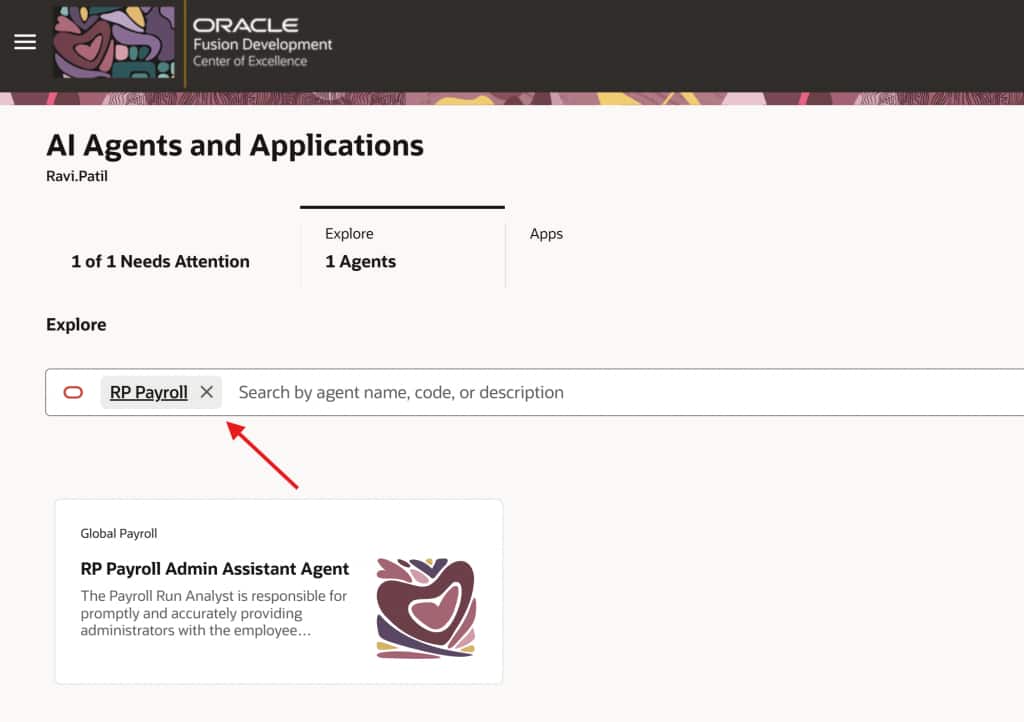
On the AI Agents and Applications page, use the Explore tab to search by agent name, code, or description. Search for the name you used when creating the agent team, such as RP Payroll Admin Assistant Agent, or search for payroll-related keywords.
Select the agent card to open the agent.
Step 12: Test Payroll Questions
Begin testing with controlled payroll scenarios and users who have the correct data access. Use employee and payroll-period examples that your payroll team can validate.
Sample test prompts:
- Summarize the payroll results for an employee for a specific payroll period.
- Compare an employee’s net pay across two payroll periods and explain the main differences.
- Show deductions or earnings that changed in the latest payroll run.
- Identify employment changes that may have affected an employee’s payroll outcome.
- Help respond to an employee query about a payroll result.
During validation, compare responses with payroll run results, element entries, deductions, employment changes, and other payroll source data. This helps confirm that the agent is returning useful, explainable, and policy-appropriate answers for the payroll team.
Troubleshooting Tips
If AI Agent Studio is not visible, review the AI Agent Studio security setup and confirm that the administrator has the required access.
If the Payroll Run Analyst template is not visible, confirm that the product filter is set to Global Payroll and that the seeded agent template is available in your environment.
If payroll users cannot see AI Chat or the published agent, confirm that the AI Agent Explorer role has been assigned, then have users sign out, clear browser cache if needed, wait briefly, and sign in again.
If the agent is visible but responses are incomplete, test with employees and pay periods where payroll results exist and confirm that the user has the correct payroll data access.
Closing
The Payroll Run Analyst AI agent gives payroll teams a faster starting point for payroll result analysis and employee payroll inquiries. By using the seeded template, configuring access through AI Agent Studio, publishing the agent, and granting explorer access to the right payroll users, customers can introduce AI-assisted payroll analysis while preserving their existing security and validation practices.