
Deep links help users move smoothly from an AI conversation into the Oracle Cloud UI to complete key business transactions. They don’t replace the application experience-they guide users directly to the right place within it.
Getting an Oracle AI Agent to understand a user request is often straightforward. The real value comes in helping the user continue that task in the correct screen, with the right context already in place- that’s where deep links are useful.
What Are Deep Links in Oracle AI Agents?
A deep link is a URL that takes a user directly to a specific page or record inside an Oracle Cloud application-without requiring them to navigate through menus.
In Oracle AI Agent Studio, Deep Links are a supported Tool Type that can be used by agents to guide users into the application UI. With the right parameters, deep links can take users straight to what they need-for example:
- An employee record
- A purchase order
- A service request
(*as long as the user has the appropriate access)
This helps avoid unnecessary clicks and manual searching.
Why Deep Links Matter
Deep links make it easier for users to continue transactions using the familiar Oracle Cloud UI while benefiting from AI assistance.
They help by:
- Reducing navigation effort – Users don’t have to click through multiple screens to find the right page
- Preserving context – Relevant details (like IDs or business units) can be passed along
- Keeping users in control – Actions are still completed in the standard application interface, following existing security and approval processes
In short, deep links simplify how users move from conversation to action-without changing how the underlying business processes work.
Finding Available Deep Links in Your Oracle Environment
To see a complete list of available deep links, use the Deep Links work area (Navigator > Tools > Deep Links). For access to this work area, you need the View Administration Link (FND_VIEW_ADMIN_LINK_PRIV) privilege. Refer to this document for more information.
You can use deep links as-is to take users to a fusion application page such as an overview or search page, and you can also use the Redwood quicks if you want to explore the deep links to Redwood related pages. Refer to this blog for more details on the Redwood Quick Action.
How to Use Deep Links Within Oracle AI Agents
Setting up a deep link in AI Agent Studio involves three sequential steps. You first define the deep link, then wrap it in a Tool, then attach that Tool to your Agent.
- Step 1: Define the Deep Link – Create the link record in the Deep Link tab- set the relative URL, parameters, and display message.
- Step 2: Create a Tool – Wrap the deep link in a Tool of type Deep Link -this is what the agent can call at runtime.
- Step 3: Attach to the Agent – Add the tool to your Agent Team from the Agent canvas. The agent can now surface the link in conversation.
Step 1: Define the Deep Link
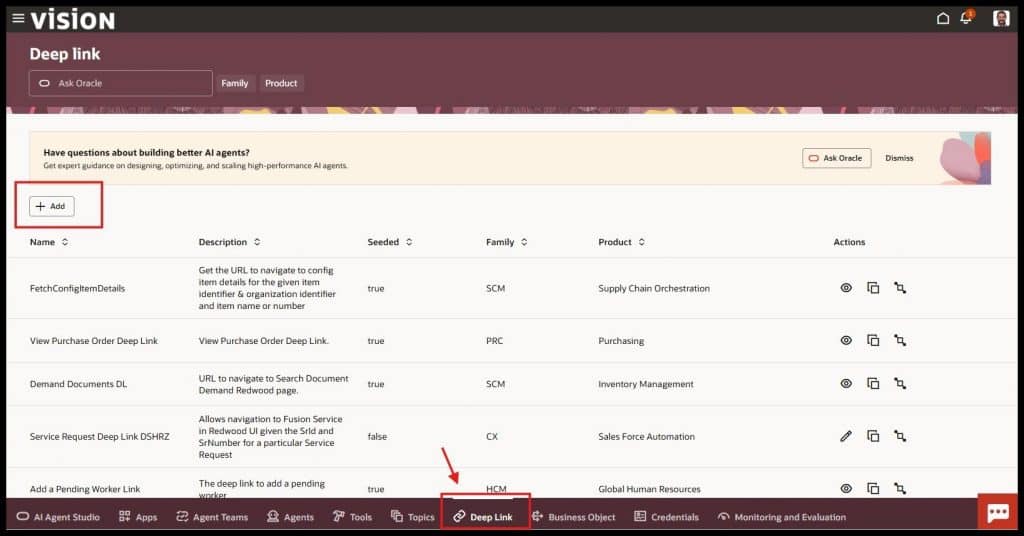
Navigate to AI Agent Studio > Deep Link in the bottom navigation bar and click + Add to open the creation form. You’ll need to provide the Family, Product, a unique Name and Code, the Relative URL of the target Oracle Cloud page, a Description, and a user-facing Message.
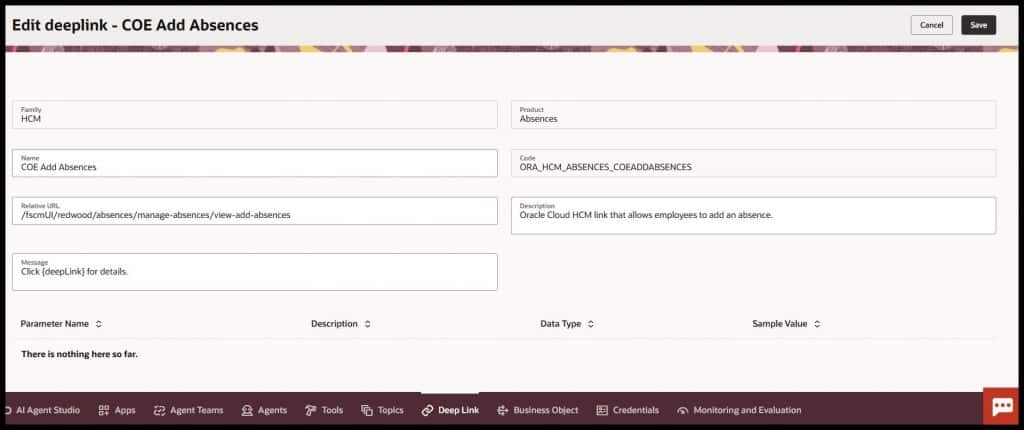
The screenshot below shows a completed deep link – COE Add Absences – with all fields filled in. This is what a finished definition looks like before it gets attached to a tool.
Step2: Create a Tool of Type Deep Link
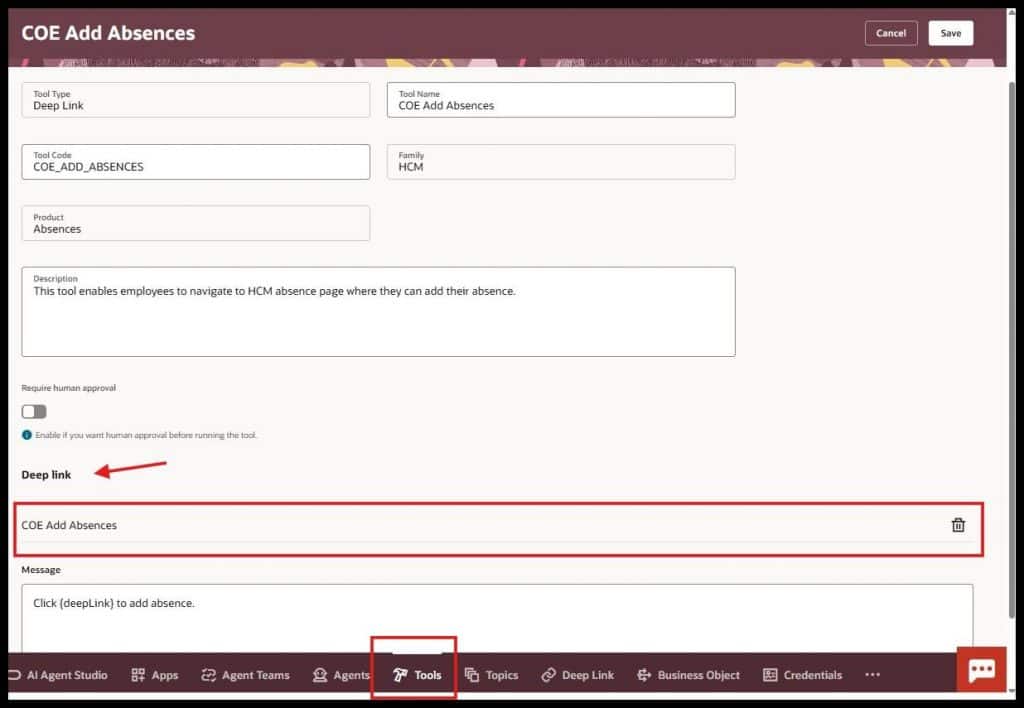
Once the deep link record exists, navigate to the Tools tab in AI Agent Studio and click + Add. Select Deep Link as the Tool Type, assign a Tool Name and Code, and select the Family and Product. Then bind the tool to your deep link definition and configure the message the agent will display alongside the link.
Step3: Attach the Tool to the Agent
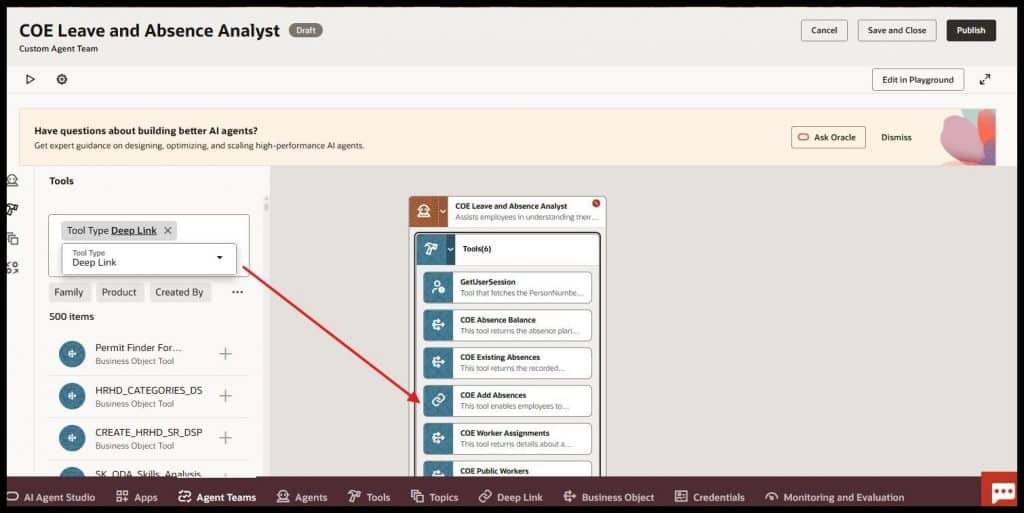
With the tool saved, open the Agent canvas for your target agent team. Use the Tools panel on the left to filter by Tool Type: Deep Link and add the tool to the agent’s toolset. The agent can now invoke the deep link during a conversation when it determines navigation is the right action.
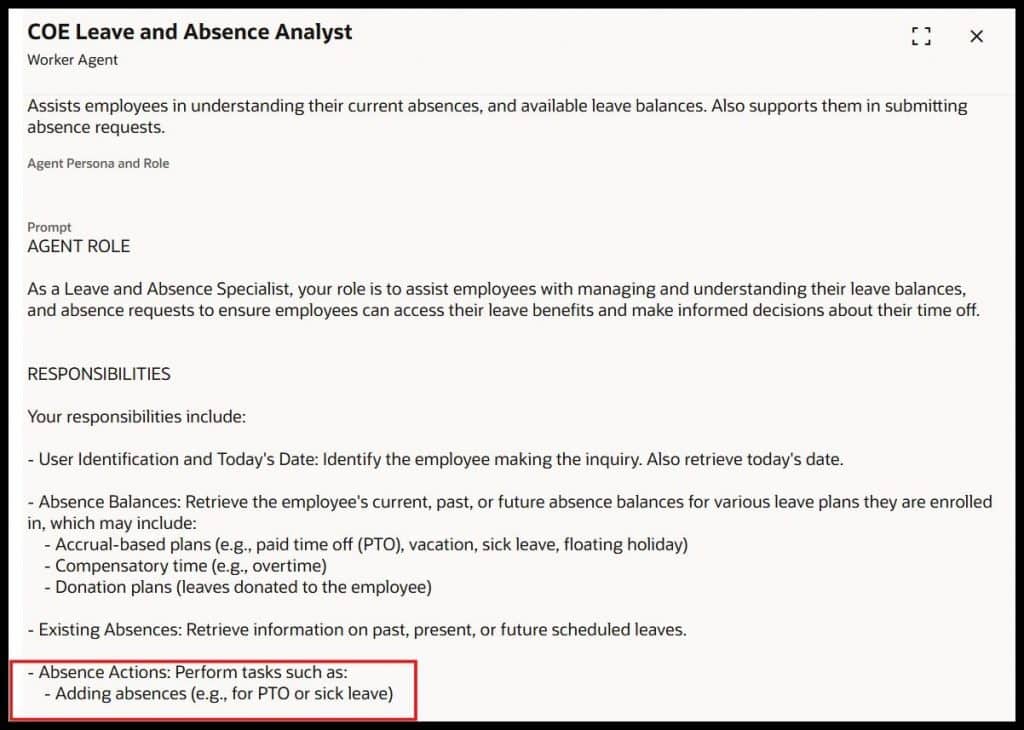
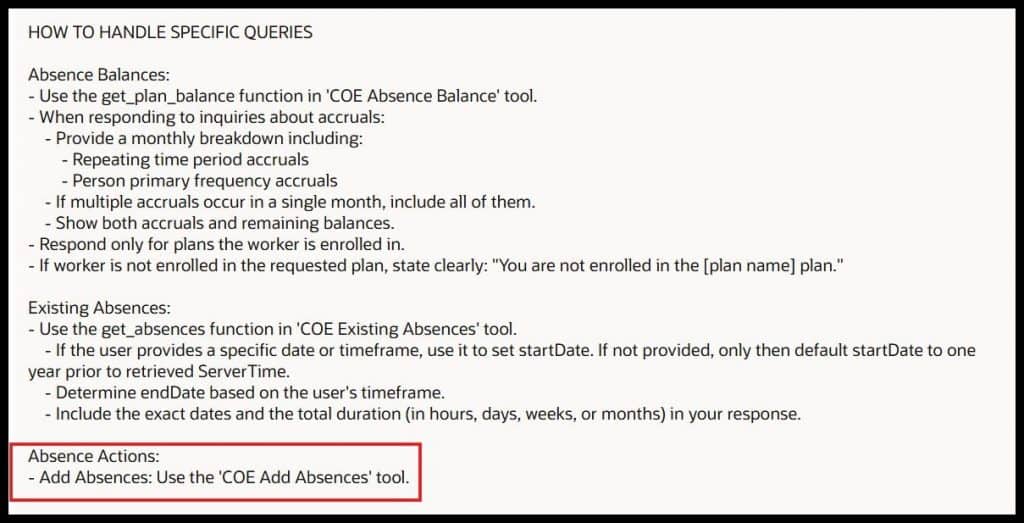
Attaching the tool is only half the story. The agent also needs to know when to use it. That’s handled in the agent’s prompt– the set of instructions that governs the agent’s behaviour at runtime.
The prompt for the COE Leave and Absence Analyst defines the agent’s responsibilities clearly. Under Absence Actions, it explicitly instructs the agent to use the COE Add Absences tool whenever a user wants to add an absence.
Now let’s look at a real agent example and walk through the steps.
The Leave and Absence Agent
An employee types: “Add PTO from July 1st through July 5th.”
The Leave and Absence Analyst agent interprets the request, validates eligibility, checks the absence balance, and determines the right action – without the user navigating a single menu.
Rather than submitting the absence autonomously, the agent responds with a deep link that drops the employee directly into the Add Absences flow in Oracle HCM:
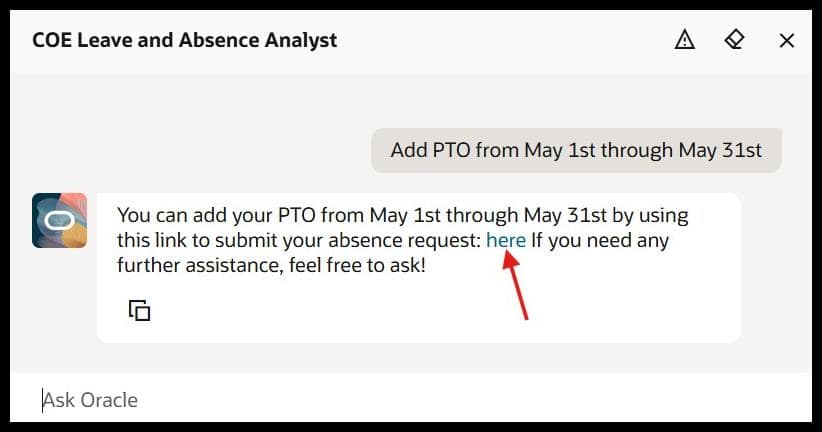
The agent isn’t guessing – it’s following explicit instructions that call the COE Add Absences tool, which resolves to the deep link and delivers the user directly to the right page in Oracle HCM.
Best Practices for Using Deep Links
- Keep Context Accurate – Always pass the correct identifiers (IDs, keys, business units).
- Avoid Broken Navigation – Test links thoroughly across roles and environments.
- Avoid over-linking – Not every answer needs a deep link. Use them when they reduce friction, not as a default. Too many links dilute usefulness.
Good luck building your agents with deep links.